Microsoft Login for Minecraft: A Step-by-Step Guide
Learn how to sign in to Minecraft with a Microsoft account, link Java and Bedrock editions, and troubleshoot common login issues with Craft Guide’s beginner-friendly instructions.


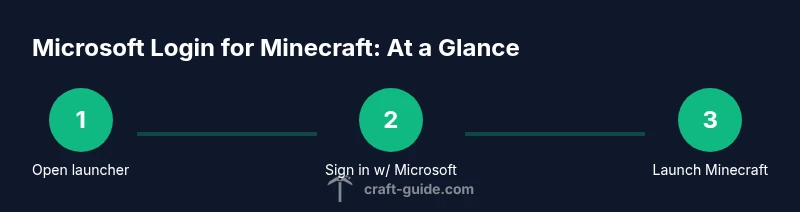
You can sign in to Minecraft using a Microsoft account to access both Java and Bedrock editions. This quick answer explains why the Microsoft login is required, how to create or use an existing Microsoft account, and the essential steps to sign in across devices. By following these steps, you’ll have a single, secure identity for Minecraft.
What the Microsoft login changes for Minecraft
Since 2020, Mojang accounts were migrated to Microsoft accounts, changing how players sign in to Minecraft. For Minecraft Java Edition, you sign in with a Microsoft account, and this single identity unlocks access across devices. According to Craft Guide, this change simplifies cross-play and keeps authentication centralized. The move also affects how you manage purchases, friend lists, and launcher profiles. In this guide, we’ll lay out the essentials: why the Microsoft login is now required, what to expect during sign-in, and how to prepare for a smooth migration. Whether you play on Windows, Mac, Linux, or consoles, the goal is a seamless, secure login that minimizes friction when you launch Minecraft. The Craft Guide team emphasizes that understanding this login flow early helps avoid confusion later, especially for newcomers who are joining from other games or returning players who remember the Mojang-era sign-in.
This section sets the stage for practical steps you’ll take next, including how the Microsoft account integrates with Minecraft’s launcher ecosystem, what changes you’ll notice after migration, and where to find official resources if you run into trouble. By the end of this block, you’ll understand the rationale behind the Microsoft login and feel prepared to proceed with signing in across platforms.
Java Edition vs Bedrock: Which edition uses Microsoft login?
The Microsoft sign-in impacts both major Minecraft editions, but the context differs slightly. Java Edition users sign in through a Microsoft account to access their profile, friends, and purchased content. Bedrock Edition, including Windows 10/11, consoles, and mobile versions, relies on the same Microsoft identity for cross-platform play and store access. Craft Guide emphasizes that while the sign-in mechanism is unified, the in-game experiences—launchers, menus, and friends lists—may look different depending on the platform. If you already played with a Mojang account, you’ll migrate that identity to Microsoft and continue your progress with minimal disruption. Understanding these nuances helps you pick the right sign-in flow and avoid duplicate accounts.
Before you start: Prepare your Microsoft account
To sign in to Minecraft with a Microsoft account, you’ll need an active Microsoft account. If you don’t have one, create a new account at the official Microsoft signup page and verify your email. After creating an account, enable two-factor authentication for added security and review privacy settings to control data sharing between Microsoft services and Minecraft. Craft Guide recommends keeping recovery options up to date, so you can regain access quickly if you forget your password. Before moving to sign-in, gather your credentials, ensure you have a stable internet connection, and decide which device you’ll use first. This preparation minimizes the number of sign-in prompts and reduces the chance of getting locked out during migration.
Linking your Minecraft to Microsoft: Step-by-step overview
Linking Minecraft to your Microsoft account is the core action that enables sign-in across Java and Bedrock. In most cases, you’ll open the Minecraft launcher or the Bedrock app, select Sign In, and authenticate with your Microsoft credentials. You may be prompted to confirm the link on a secondary device or view a security code. Craft Guide notes that this linking process establishes a single identity for all Minecraft games you own, making cross-platform play smoother. If you previously had a Mojang account, you’ll be guided through migration prompts to convert it to a Microsoft account and retain your profiles, skins, and worlds. During linking, pay attention to the option to set your display name and privacy choices for a personalized, secure experience.
Signing in on Windows, Mac, Android, iOS, and consoles
Across devices, signing in with Microsoft requires following platform-specific steps. On Windows and Mac, open the Minecraft Launcher, click Sign In, and enter your Microsoft credentials. For Android and iOS, launch the Minecraft app, tap Sign In, and complete the Microsoft authentication flow in a browser or in-app window. Consoles typically use the system’s sign-in flow or a console-specific Microsoft account integration. Craft Guide recommends signing out on shared devices after playing, enabling two-factor authentication, and using a trusted device to reduce credential exposure. If you switch devices, expect a quick re-authentication to validate ownership and ensure seamless saves.
Common issues and troubleshooting
Sign-in problems often involve password errors, account migration hiccups, or mislinked profiles. First, verify you’re using the correct Microsoft account and check for typos. If you forgot your password, use the Microsoft account recovery process. If migration prompts appear, follow on-screen steps to complete the link and ensure you’re signed in with the same Microsoft account across all devices. For persistent issues, check your internet connection, disable VPNs temporarily, and confirm that the Minecraft launcher is up to date. Craft Guide’s troubleshooting approach emphasizes a methodical, device-by-device check to isolate where the sign-in is failing and apply the appropriate fix.
Privacy, security, and account tips
Security should be a priority when signing in with Microsoft for Minecraft. Enable two-factor authentication, review which apps have access to your account, and avoid sharing your password. Regularly audit your connected devices and review privacy settings in your Microsoft account dashboard. Craft Guide recommends keeping the account recovery options current and using a dedicated password manager to generate unique passwords for Microsoft services. This approach minimizes risk and helps you reclaim access quickly if something goes wrong with sign-ins on a new device.
Migration and family accounts: what to know
If you manage a family group, you may encounter additional settings when migrating to Microsoft. Family safety controls can influence login prompts, app sharing, and content restrictions. Ensure that you have the appropriate permissions to link accounts for all family members and communicate migration timing to avoid service interruptions. Craft Guide highlights that planning ahead with family accounts helps prevent unexpected access issues when a member attempts to sign in on a different device.
Authority sources
To help verify steps and troubleshooting, consider these sources:
- https://support.microsoft.com
- https://learn.microsoft.com
- https://www.theverge.com
Tools & Materials
- A Microsoft account (email address)(You may need to create one at signup.live.com or account.microsoft.com)
- Minecraft launcher or Bedrock app(Java Edition uses the official launcher; Bedrock uses the app on consoles/mobile)
- Stable internet connection(Required for authentication and syncing data)
- Authenticator app (optional but recommended)(Adds extra security to your Microsoft account)
- Backup access to recovery options(Email/phone verification for account recovery)
Steps
Estimated time: 10-20 minutes
- 1
Open Minecraft launcher or Bedrock app
Launch the program on your device and navigate to the sign-in screen. Make sure you’re using the latest version of the launcher or app for best compatibility with the Microsoft authentication flow.
Tip: If you’re on a shared computer, consider signing out after you finish to protect your account. - 2
Choose Sign In with Microsoft
Click the Sign In with Microsoft option. This will redirect you to a Microsoft login page in your browser or an integrated window within the launcher.
Tip: If the redirect fails, copy the provided URL and sign in manually in a separate browser window. - 3
Enter Microsoft credentials
Enter the email and password for your Microsoft account. If you use two-factor authentication, complete the second-step verification.
Tip: Use a password manager to avoid re-typing credentials and reduce sign-in errors. - 4
Confirm account linking
Authorize the Minecraft app to access your Microsoft account data required for sign-in and cross-platform play.
Tip: Review permissions before granting access to ensure you’re comfortable with data sharing. - 5
Select or create a Minecraft profile
Choose a profile name and avatar or create a new one that will be tied to your Microsoft identity.
Tip: Keep your display name appropriate and consistent across devices for easy recognition by friends. - 6
Launch Minecraft
Return to the game launcher and start Minecraft. Your Microsoft account should be active, allowing you to access both Java and Bedrock editions if you own them.
Tip: If you have multiple Minecraft licenses, ensure you sign into the correct one associated with your ownership. - 7
Sign in on other platforms
Repeat the sign-in flow on other devices (PC, console, mobile) using the same Microsoft account to enable cross-platform play.
Tip: Keep your devices connected to the internet during the first sign-in on a new platform. - 8
Verify migration if upgrading from Mojang
If migrating, follow the on-screen prompts to convert your Mojang account to a Microsoft account and preserve worlds and skins.
Tip: Back up your worlds before migrating to avoid any unexpected data loss.
People Also Ask
Do I need a Microsoft account to play Minecraft Java Edition?
Yes. Minecraft Java Edition uses a Microsoft account for sign-in, and migrating from a Mojang account to Microsoft is part of the process. You can still purchase and access your content after linking.
Yes. Java Edition uses Microsoft for sign-in, and you’ll migrate your Mojang account to Microsoft during setup.
How do I migrate a Mojang account to Microsoft?
Open the migration page from the Minecraft launcher or official website, sign in with your Mojang credentials, and follow the prompts to link to a Microsoft account. Your worlds and purchases typically migrate with the account.
Go to the migration page, sign in with your Mojang account, and follow the prompts to link to a Microsoft account.
I forgot my Microsoft account password. How do I reset it?
Use the Microsoft account recovery flow at account.live.com/password/reset. Provide the required recovery options, verify your identity, and create a new password.
Use Microsoft's password reset page, verify your identity, and set a new password.
Can I sign in with the same Microsoft account on multiple devices?
Yes. You can sign in on different devices, but you’ll re-authenticate per device and ensure you’re using the same Microsoft account for consistency.
Yes, you can sign in on different devices with the same account; you may need to re-authenticate.
Are there privacy concerns with linking Minecraft to Microsoft?
Microsoft collects account-related data to provide services. You can adjust privacy settings in your Microsoft account dashboard and review data sharing options for Minecraft.
There may be data sharing as part of service features; adjust privacy settings in your Microsoft account.
What if my account is part of a family group?
Family safety controls can influence login prompts and content restrictions. Manage access via Microsoft Family settings and communicate migration plans to all members.
Family settings may affect sign-in; review them in the Microsoft Family dashboard.
Watch Video
The Essentials
- Microsoft login provides a single identity for Java and Bedrock.
- Prepare your Microsoft account before signing in.
- Follow official steps to link and sign in across devices.
- Enable security features like 2FA to protect your account.