What to do when Minecraft says unable to connect to world
A practical, urgent troubleshooting guide to fix the 'unable to connect to world' error in Minecraft. From quick checks to in-depth network and launcher fixes, learn how to reconnect fast.


When Minecraft shows 'unable to connect to world', the issue is usually network or launcher related, not the world data itself. Start with quick fixes: restart your router, ensure your Minecraft version matches the world, and retry the connection. If it persists, check firewall/VPN settings and try a different world or server to isolate the problem.
What 'unable to connect to world' means in Minecraft
When Minecraft shows 'unable to connect to world', the client cannot establish a session with the server hosting the world you want to join. This error is common across Java and Bedrock editions, and it can appear on PC, console, or mobile. The root cause is typically on the network path between your device and the server, or in the configuration of your launcher and game. The issue is rarely about the world data itself. In many cases, the problem stems from a temporary server outage, a version mismatch between client and server, or a misconfigured router/firewall blocking necessary traffic. According to Craft Guide, most connectivity issues are tied to local network constraints or launcher misconfigurations. The Craft Guide team has analyzed numerous reports and found that players who isolate the problem early—checking version compatibility, server status, and basic network health—tend to resolve the error quickly and with minimal data loss. By understanding the scope, you can apply targeted fixes instead of guesswork, saving time and preserving worlds.
Quick triage: 5-minute checks that solve most cases
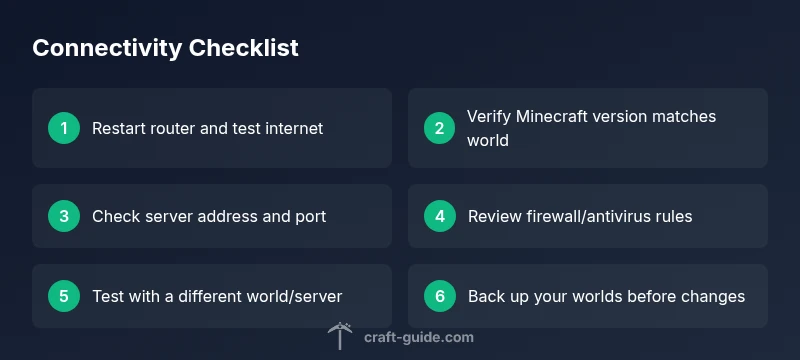
First, confirm you’re playing the correct edition (Java vs Bedrock) and that your client version matches the server/world version. If you’re on a snapshot or beta, switch to the stable release or the exact version the world expects. Next, perform a quick network reset: power cycle your router and modem, then reconnect. On your computer or console, flush DNS to clear stale routes that block handshakes. You can test basic connectivity by loading a web page or streaming video to confirm the internet is functional. Then verify the server address and port; use Direct Connect if available rather than relying on a saved server list. For local LAN worlds, ensure Open to LAN is enabled and other devices can see the world on the same network. Finally, inspect firewall/antivirus settings. Add Minecraft and the launcher to the allowed apps, or temporarily disable protections to test connectivity. If it works, re-enable protections and create a rule rather than leaving protections off.
Deep-dive: network basics and why servers appear unreachable
A lot of 'unable to connect' issues trace back to basic network health and server status. NAT behavior, router firmware, and DNS resolution all affect how traffic finds the Minecraft server. If the server is experiencing heavy load or is temporarily offline, you’ll see this error even when your setup is otherwise fine. Ensure you’re not behind restrictive networks (work VPNs, school networks, or public Wi‑Fi with strict captive portals) that require explicit firewall exceptions or web proxy settings. If you’re using a VPN, try disconnecting it temporarily; some VPNs route traffic in ways that Minecraft’s authentication handshake doesn’t like. For Java Edition, confirm you’re using the correct server port (default is 25565) and that the server supports your version. Bedrock Edition uses different ports and often requires the exact server address, especially for cross‑play between platforms. Craft Guide analyses indicate that small changes in DNS or a momentary outage could be the difference between a failed handshake and a clean connection.
Security software and router settings: blockers you must fix
Security software and routers can silently block Minecraft traffic. On Windows, open Windows Defender Firewall and allow the Minecraft launcher and Java executable through both private and public profiles. If you use third‑party firewalls, add explicit inbound/outbound rules for the launcher. On routers, enable UPnP if available, or set up port forwarding for the appropriate game port (Java: 25565; Bedrock commonly uses 19132, but confirm for your server). Also consider changing your DNS to a reliable resolver (for example, a public DNS service) to improve hostname resolution. If you’re on mobile data, switch to a stabilized network or toggle between Wi‑Fi and cellular data to identify the source of blocking traffic.
Modded clients, world data, and compatibility: edge cases that bite
If you’re using a modded client or a modded server, ensure all mods are compatible with the server’s Minecraft version. Mismatched mods can trigger authentication or handshake failures that manifest as an inability to connect. For single-player worlds, test the world by using a clean, unmodified launcher to rule out mod-related issues. World data corruption can also cause connectivity symptoms if the client cannot load necessary world metadata; always back up your save files before investigating or modifying world data. If you suspect corruption, attempt to load the world on a different device or in offline mode to confirm.
When to escalate and how to collect useful information
If the issue persists after the above steps, collect logs from the launcher and the game. Look for authentication errors, port blocks, or DNS failures in the log files. Share these details with the server administrator or Minecraft support. When escalating, note your operating system, launcher version, game version, server address, and whether you were attempting a direct connect or a saved server. Craft Guide recommends documenting the exact steps you took and the time of the incident to help others reproduce and diagnose the problem more quickly.
Prevention: keep connectivity reliable for future play
Regular maintenance reduces the likelihood of future failures. Keep Minecraft and the launcher up to date, monitor router firmware, and use a stable DNS service. Backup worlds frequently and test connectivity after major changes (like a router reboot or DNS switch). Avoid disabling security features long‑term; instead, add explicit exceptions for Minecraft. For servers you frequently join, maintain a small set of known good server addresses and port configurations to minimize misconfigurations during updates or platform changes.
Quick tips for a smoother reconnect experience (summary)
Steps
Estimated time: 30-60 minutes
- 1
Confirm error and target world
Note the exact error message and confirm whether you’re joining a LAN world, a public server, or a private server. Make sure the world you want to join is online and that you’re attempting the correct edition (Java or Bedrock).
Tip: Document the exact server address and port for future reference. - 2
Restart network gear
Power cycle your router and modem. After they come back online, reconnect and test another app to verify internet health. This resets routes that might block the handshake.
Tip: Wait at least 60 seconds after power cycling before testing. - 3
Update and verify edition/version
Open your launcher and ensure Minecraft and the launcher are on the latest stable version. If you’re joining a server, confirm the server version matches the world’s version.
Tip: If you’re uncertain, switch to the latest compatible version the server supports. - 4
Check server status and direct connect
Visit the server’s status page or social channels to confirm no outage. Use Direct Connect with the exact address and port; avoid saved servers if they might be outdated.
Tip: Copy-paste the address to avoid typos. - 5
Review firewall/antivirus and router settings
Add Minecraft launcher and Java executable to firewall exceptions. If using a router, enable UPnP or forward the correct port for your edition.
Tip: Only disable protections temporarily for testing; re-enable immediately afterward. - 6
Test with a clean setup
Try connecting with a fresh profile or a different device. If the problem persists on all devices, it’s likely server-side or network-wide.
Tip: Back up worlds before testing with new profiles. - 7
Collect logs and seek help if needed
If issues remain, collect launcher and game logs describing steps taken and error messages. Share with server admin or Craft Guide support for targeted help.
Tip: Include OS, launcher version, game version, and server details.
Diagnosis: Minecraft says unable to connect to world
Possible Causes
- highNetwork issue or NAT blocking
- highServer is down or unreachable
- mediumOutdated game or launcher version
- mediumFirewall/antivirus or router blocking traffic
- lowMod/world data incompatibility
Fixes
- easyRestart router and device; flush DNS to clear stale routes
- easyUpdate Minecraft launcher and game to latest version
- easyVerify server address/port and try Direct Connect or another world
- mediumAdjust firewall rules and test with/without VPN
- mediumCheck for server outages and mod compatibility; revert to vanilla if needed
People Also Ask
Why does Minecraft say unable to connect to world even when the server is online?
Many times the problem is a version mismatch, a network block, or a misconfigured port. Start by confirming the Minecraft edition and version, then verify the server URL and port, and test firewall rules. If the server is truly online and compatible, the issue is likely on your side.
Often it's a version or network issue rather than the world itself. Check edition, version, server address, and firewall rules.
Can this happen on both Java and Bedrock editions?
Yes. Both editions share similar root causes like version mismatches, server outages, or network blocks. The exact steps differ slightly (ports and authentication methods differ), but the high-level fixes—update, check server status, and review network settings—apply to both.
Java and Bedrock can both show this error; the fixes are similar but watch for edition-specific details.
Could VPNs or proxies cause this error?
Yes. VPNs and proxies can interfere with the authentication handshake or route traffic in ways Minecraft doesn’t handle well. Disable the VPN temporarily to test; if it resolves the issue, adjust the VPN settings or create a split-tunnel rule for Minecraft.
VPNs can disrupt connections. Try disconnecting to test and adjust VPN rules if it helps.
How long should I wait during a server outage?
Server outages are usually resolved by the server operator. Check official status pages or social channels for an estimated window, then try again after the stated time. If outages persist, join another server or world while you wait.
If the server is down, follow the operator's update and retry later.
Is world data corruption a cause for this error?
Corrupted world data can indirectly cause connection issues, especially when loading a world. Always back up, test loading on another device, and restore from a clean backup if needed. If corruption is confirmed, you may need to recover from an earlier save.
World data corruption can block loading; back up and try a clean restore if needed.
What should I do if nothing works?
Gather logs, verify versions, test with a different world, and consider reaching out to the server administrator or Craft Guide support with the details. Sometimes the issue is on the server side or requires a deeper network analysis.
If all else fails, collect logs and seek help with exact details to diagnose the server side.
Watch Video
The Essentials
- Verify version compatibility before joining
- Restart and reset network gear to clear blocks
- Check firewalls and router settings for Minecraft traffic
- Test with another world to isolate the issue
- Back up worlds before making changes