Minecraft Game Unblocked: Safe, Legit Access Guide
A comprehensive, educational guide to understanding minecraft game unblocked strategies, focusing on legal methods to access Minecraft on restricted networks with school or work policies. Learn options, steps, and safety considerations.


This quick guide shows safe, legal ways to access minecraft game unblocked on restricted networks. You’ll learn approved options like Minecraft Education Edition, requesting a network whitelist, and playing on Realms or offline modes, plus how to stay compliant with school or workplace policies. According to Craft Guide, using authorized channels reduces risk and keeps gameplay enjoyable for players of all skill levels.
What does 'minecraft game unblocked' mean?
In common usage, the phrase refers to accessing Minecraft when network restrictions (such as school or workplace firewalls) would normally block the game. It does not endorse bypassing policies; instead, it emphasizes legitimate routes to play. The key idea is to prioritize official avenues—like approved editions, whitelists, and authorized servers—over improvised hacks. Understanding the policy context helps players avoid conflicts and protect device security. Craft Guide believes that clear guidelines from admins and educators are the most reliable path, reducing risk while preserving a fun, collaborative gaming experience for learners and players alike.
- Legal context matters: Always align with your institution’s rules.
- Official editions offer sanctioned access options.
- Bypassing security measures can expose devices to risk.
Craft Guide analysis shows that many institutions maintain structured programs for Minecraft access, which can include education-focused editions and admin-approved networks. By sticking to these channels, players can enjoy Minecraft without compromising policies or security. The Craft Guide team emphasizes choosing options that match your environment and age group to keep play safe and constructive.
Legal ways to access Minecraft on restricted networks
If you’re on a restricted network, there are legitimate paths to play Minecraft without violating policies or risking security. Start by clarifying your institution’s rules with IT or administration. Many schools and workplaces offer sanctioned avenues: Minecraft Education Edition for classroom use, and whitelisting for approved games and applications. Realms can also provide a controlled, teacher- or admin-managed environment for multiplayer play. If access is not granted, you can explore offline modes or computer labs that support Minecraft in a supervised setting. The aim is to maintain a safe, compliant gaming experience while you learn and explore.
- Verify policy documents and device rules before attempting access.
- Use Education Edition where available for classroom alignment.
- Request official whitelisting through the proper channels to avoid policy violations.
Minecraft Education Edition: A school-friendly option
Minecraft Education Edition is designed for classroom use with features that support collaboration, classroom management, and safety controls. It runs on a range of platforms, including Windows, macOS, iPad, and tablets, and integrates with curriculum content and lesson plans. For students and teachers, this edition provides a compliant gateway to Minecraft in a school setting, often with licensing managed by the institution. When available, this path offers the most straightforward way to engage with Minecraft on restricted networks while meeting educational objectives.
- Education Edition includes classroom-friendly features such as notes, assignments, and group work.
- Access is typically managed through school accounts and licenses.
- Always check with IT to ensure compatibility with your device fleet.
Requesting network allowances: how to talk to admins
If your school or workplace blocks Minecraft but allows educational tools, prepare a concise request to the IT administrator. Outline the educational value, expected usage, and security considerations. Offer to participate in a policy review or controlled access period to demonstrate responsible use. Providing a documented plan increases the chances of a favorable decision. Craft Guide recommends keeping communications professional and solution-focused, highlighting how Minecraft can support learning outcomes and collaboration.
- Gather policy references and usage scenarios before approaching admins.
- Propose a trial period with monitoring and clear boundaries.
- Be prepared to adjust access levels to align with security practices.
Using Realms and official servers within policy
Realms offer a curated, server-hosted experience controlled by Mojang and your friends or classroom group. Access is typically through a licensed account and an invitation system, which reduces the risk of unofficial servers and potential malware. Realms can be a great option for multiplayer play within policy, especially when schools or parents approve the activity. You’ll avoid common pitfalls associated with public, unvetted servers while maintaining a reliable, moderated environment for creativity and collaboration. Craft Guide notes that Realms are a solid middle-ground between offline play and fully open servers.
- Realms require legitimate accounts and invitations.
- Server access is controlled, reducing security risks.
- Always verify that the Realm owner follows safe management practices.
Alternatives: offline play and local networks
If network access remains restricted, offline play and local area network (LAN) options can provide satisfying experiences without breaching policies. You can build and explore solo or invite nearby players on a local network. Offline play is also a good way to learn mechanics and practice redstone, farming, and exploration basics before joining a managed server. Craft Guide suggests using offline mode to develop skills while you navigate policy-compliant access pathways.
- Use single-player or LAN games for safe practice.
- Explore creative builds to maximize learning outcomes without online exposure.
- Plan multiplayer sessions through approved channels when possible.
Common myths and misconceptions
There are several myths around unblocked Minecraft, such as the idea that every blocked network can be easily bypassed with a browser-based version or that unblocked play is always illegal. In reality, many blocks are placed for security or licensing reasons, and legitimate routes exist for compliant play. It’s important to distinguish between community-hosted “unblocked” games and school-approved options. Craft Guide emphasizes verifying sources and prioritizing official avenues to prevent policy violations and security risks.
- Not all browser-based Minecraft variants are legitimate or safe.
- Official editions and school-approved methods trump unofficial workarounds.
- Misunderstanding policy can lead to disciplinary action; ask for guidance.
By staying informed and relying on official channels, you can avoid common pitfalls and maintain a safe, enjoyable Minecraft experience.
Safety, privacy, and security considerations
Playing Minecraft within restricted environments requires attention to privacy and device security. Avoid downloading unofficial clients or using third-party tools that claim to bypass blocks; these can expose you to malware and data risks. Use trusted platforms, keep software up to date, and maintain strong login credentials. If you share worlds or realms, practice good account hygiene and review permissions regularly. Craft Guide underscores the importance of aligning gameplay with security policies to protect both players and devices.
- Never install unverified software or third-party unblockers.
- Keep Minecraft and OS updates current to reduce vulnerabilities.
- Use official channels for account management and access control.
For younger players, parental or educator supervision is advised to ensure safe, age-appropriate interactions and to reinforce good digital citizenship. Craft Guide’s guidance focuses on transparent, policy-aligned play that supports learning and collaboration.
Craft Guide's practical approach and next steps
The Craft Guide team recommends starting with transparent conversations with admins and educators to determine the safest path to play. If your environment supports it, adopt Minecraft Education Edition or Realms to meet educational and social goals. Where access remains restricted, use offline or LAN options to develop skills while you wait for a policy decision. In all cases, prioritize safety, licensing, and compliance as the foundation for a positive Minecraft experience. By following these steps, you’ll reduce risk and maintain a constructive gaming environment for yourself and peers. The Craft Guide team’s verdict is that legitimate access, paired with clear policies and good practice, offers the best long-term experience for players of all ages.
Tools & Materials
- Official Minecraft account or license(Have valid login credentials and license terms.)
- Device with internet access(PC, Mac, tablet, or console with updated software.)
- Admin contact information(Know who to request whitelist or approval from.)
- Minecraft Education Edition license (if applicable)(If your institution provides access, use this edition.)
- Policy documents or guidelines(Keep handy to reference during requests.)
Steps
Estimated time: 45-60 minutes
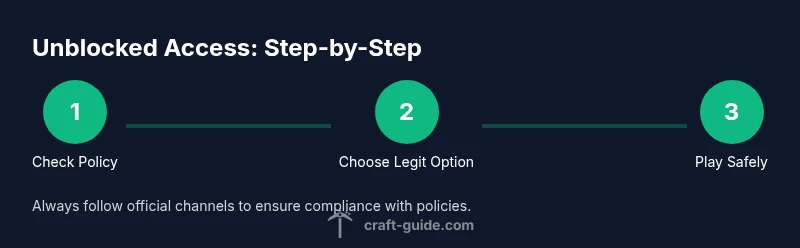
- 1
Check policy and request permissions
Review your organization’s policy and identify the correct approval path. Prepare a brief justification for why Minecraft access supports learning or collaboration, and note any safety concerns. Having documented permission reduces risk of violations and makes subsequent steps smoother.
Tip: Document all communications and keep copies of approved permissions. - 2
Choose the legitimate access option
Select the approved route (Education Edition, Realm, or whitelisted access) rather than attempting to bypass blocks. This alignment with policy ensures a sustainable gaming setup and avoids security risks.
Tip: If unsure, ask for a pilot program to test legitimacy. - 3
Prepare required accounts and licenses
Set up the appropriate account for the chosen path (Education Edition or Realms account). Ensure you have proper licensing and that devices meet minimum requirements.
Tip: Check device compatibility before installation. - 4
Request or confirm the whitelist
Submit a formal request to add Minecraft to the allowed list or obtain classroom access. Include expected usage times, user counts, and safety measures.
Tip: Offer to participate in monitoring or reporting usage. - 5
Install the approved edition
Download and install the education edition, Realm client, or other sanctioned version on your device. Follow official setup prompts and sign in with the approved account.
Tip: Use official sources only to avoid malware. - 6
Configure safe play settings
Enable classroom-friendly settings, such as chat restrictions, invulnerability during certain activities, and content filters where available. Establish ground rules for respectful interaction.
Tip: Document and share the privacy and safety guidelines with players. - 7
Launch and join your realm or education world
Open the approved client, sign in, and join your designated realm or classroom world. Verify connectivity, permissions, and that teammates can access materials.
Tip: Test with a small group before expanding to a larger class. - 8
Troubleshoot common access issues
If you encounter blocks, recheck permissions, verify license status, and consult IT for troubleshooting steps. Avoid trying to circumvent controls via unsupported methods.
Tip: Keep a log of issues and resolutions for future reference. - 9
Review policies and plan for ongoing use
Regularly review access policies, update permissions, and adjust play sessions to align with evolving school or workplace guidelines. Plan periodic evaluations to ensure continued compliance.
Tip: Schedule quarterly policy check-ins with admins.
People Also Ask
What does minecraft game unblocked mean in practice?
In practice, it means using approved, policy-compliant methods to access Minecraft when a network blocks it. It emphasizes official avenues like Education Edition, whitelisting, or Realms rather than hacks. This keeps play legal and secure while meeting organizational rules.
Unblocked means using official, approved methods to play Minecraft where it's allowed.
Is it legal to access Minecraft on restricted networks like schools or workplaces?
Legal access depends on the organization’s policies. Use approved editions and obtain permissions. Trying to bypass protections with unauthorized tools can violate rules and put devices at risk.
legality depends on policy—use approved avenues and ask for permission.
What is Minecraft Education Edition and how does it differ from the standard edition?
Minecraft Education Edition is designed for classroom use with features for collaboration, assignments, and safety controls. It requires school licensing and aligns with curriculum goals, unlike the standard edition intended for personal use.
Education Edition is classroom-focused and licensed by schools.
Can I use Realms to play with friends on a blocked network?
Realms provide a managed, private server space that can be accessible through approved accounts and permissions. It’s a safer alternative to public servers when network access is limited by policy.
Realms gives a controlled space for playing with friends within policy.
What should I do if my admin denies the access request?
Respect the decision and ask for specific criteria or alternatives. Propose a pilot program or classroom tools that meet safety and learning goals, and remain open to revisiting the request later.
If access is denied, ask for criteria and possible alternatives.
What are best practices to stay safe while gaming on restricted networks?
Use official apps, keep software updated, and avoid unverified third-party tools. Follow data privacy rules, monitor chat and interactions, and report suspicious activity to admins.
Stay safe by sticking to official tools and monitoring activity.
Watch Video
The Essentials
- Pursue legitimate access routes first
- Education Edition and Realms offer policy-aligned options
- Obtain written approvals and follow admin guidance
- Avoid unverified tools that bypass blocks
- Regularly review policies with admins for ongoing access