Minecraft Server Down? Fast Troubleshooting Guide
Minecraft server down? This urgent troubleshooting guide delivers fast checks, a diagnostic flow, and step-by-step fixes to restore online play quickly.


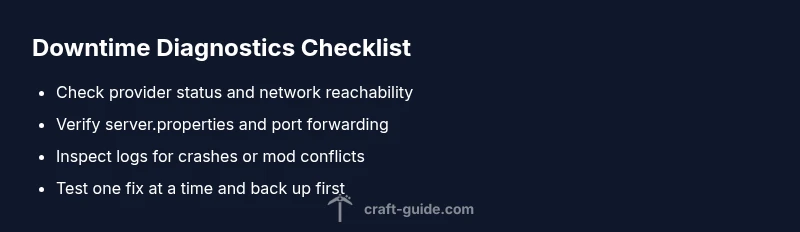
The most likely cause of a Minecraft server down situation is a startup crash or external network outage. Start with quick checks: confirm the host is online, verify port 25565 is open, and inspect logs for errors. If needed, revert recent config changes and try a clean restart. Also check your firewall rules and verify DNS resolution from a second network.
Why Minecraft Server Down Happens
Downtime can strike for many reasons, from simple misconfigurations to complex outages. According to Craft Guide, downtime events typically unfold from a small trigger that compounds into an outage. For most servers, a single misconfigured setting, a failed plugin update, or a temporary network problem is enough to push players off the server. In practice, the sequence often begins with an inability to connect, followed by timeouts, then error messages in logs. The most important factor for moderators is rapid diagnosis: the sooner you identify the root cause, the shorter the outage. In this guide we adopt an urgent, practical approach designed for real-world servers—both self-hosted and provider-hosted. We'll cover the most common causes, quick checks you can perform without specialized tools, and a structured troubleshooting flow that helps you move from symptom to solution. Keep in mind that many outages are temporary, caused by transient blips in connectivity or maintenance windows. However, repeated incidents should trigger a deeper review of your hosting environment, network configuration, and mod/plugin ecosystem. Craft Guide's method emphasizes repeatable steps, clear logs, and safe testing so you can regain control swiftly.
Common Causes of Downtime
- Network provider outages: A hiccup in your upstream connectivity can render the server unreachable even if the host machine is online. Check status pages and ping from multiple networks to confirm.
- Misconfigured server.properties: A wrong server-port, level-type, or online-mode setting can prevent players from joining and cause startup failures. Always compare against a known good backup before changing critical fields.
- Plugin or mod conflicts: Incompatible or updated plugins can crash the server or cause memory leaks. Disable recently added or updated mods to test stability.
- Insufficient resources: RAM or CPU saturation leads to crashes, lag, and sudden shutdowns. Monitor resource usage and allocate more headroom if possible.
- Firewall and port issues: If port 25565 is blocked by firewall rules or router settings, clients will fail to connect. Verify both host firewall rules and port-forwarding configuration.
- DNS or hostname issues: If players cannot resolve the server address, they’ll see a failed connection even when the server is healthy. Test from different networks and clear DNS caches.
- Maintenance windows: Sometimes servers are intentionally taken down for updates or maintenance. Check with hosting providers or server admins for planned downtime.
Quick Checks You Can Do Right Now
- Confirm the host status: Check your hosting provider’s status page and confirm there are no ongoing incidents affecting your instance.
- Test connectivity from multiple networks: Use a mobile hotspot or a friend’s network to see if the issue is isolated to one path.
- Validate port accessibility: Ensure TCP port 25565 is open and forwarded correctly on your router or cloud firewall.
- Review recent changes: If you updated plugins, mods, or server.properties, revert to a known-good backup and restart.
- Inspect logs: Look for crash dumps, stack traces, or repeated exceptions that point to the root cause. Create a focused search by date/time of the outage.
Diagnostic Flow: Symptom to Diagnosis
This section follows a structured path: identify symptom, hypothesize causes, test quickly, and apply fixes. Start with surface symptoms like “cannot connect” or “server offline,” then check for outages, port, DNS, and resource constraints. If the server starts but crashes, read crash logs to determine whether a plugin or memory issue is involved. The diagnostic flow emphasizes evidence-based decisions and safe testing to avoid introducing new problems.
Step-by-Step Fixes for the Most Common Cause
- Reboot with a clean slate: Stop the server, back up data, and restart using a clean configuration. This resolves many startup crashes caused by transient states.
- Revert recent changes: If you updated plugins or mods recently, rollback to the previous version and test startup again.
- Check server.properties: Confirm the correct port (25565 by default) and ensure online-mode and white-list settings align with your intentions.
- Test network paths: Ping the server from multiple networks, verify DNS resolution, and confirm firewall rules allow inbound traffic on 25565.
- Monitor memory and CPU: Increase allocated RAM if you see out-of-memory errors and reduce plugin load if CPU is pegged.
- Review logs and crash reports: Identify the exact plugin, mod, or configuration line triggering the crash, then disable or update that component.
- Validate with a backup: If nothing works, restore from a clean backup and perform a staged reintroduction of plugins to identify the offender.
Safety, Warnings, and Prevention Tips
- Do not perform aggressive changes during peak play hours. Schedule maintenance during off-peak times whenever possible to minimize disruption.
- Always keep a current backup before making structural changes to server.properties or the mod/plugin set.
- Use test environments or staging servers to validate updates before applying them to production.
- Keep plugins and mods updated from trusted sources to reduce compatibility issues.
- Document changes and monitoring results to speed up future troubleshooting.
What to Do If It Persists and How to Monitor
If the server remains down after the above steps, escalate to your hosting provider or a network specialist. Provide logs, timestamps, and your diagnostic steps to help accelerate resolution. Set up ongoing uptime monitoring and alerting so you are notified at the first signs of trouble. Consider implementing basic observability with metrics like startup time, crash frequency, and memory usage so you can detect patterns before players report issues.
Steps
Estimated time: 30-60 minutes
- 1
Confirm outage and gather data
Check host status, monitor uptime dashboards, and collect timestamps, error messages, and recent changes. This data guides faster root-cause analysis and prevents guesswork.
Tip: Document findings with screenshots or log snippets for quick reference. - 2
Test basic connectivity
From a test device, try to reach the server IP and port. If you cannot connect, the issue is likely network-related or firewall-based, not just the game server.
Tip: Use multiple networks to rule out local issues. - 3
Review server configuration
Open server.properties and confirm the port, online-mode, and whites-list settings. A single incorrect setting can block access or prevent startup.
Tip: Back up before editing configuration files. - 4
Check recent changes
If you added or updated plugins/mods, revert or disable them to test stability. Compatibility issues are common causes of downtimes.
Tip: Test one change at a time to isolate the culprit. - 5
Analyze logs and crash reports
Scan logs for exceptions or crash dumps. Identify the exact component causing the failure and take targeted action.
Tip: Filter by the outage time window for precision. - 6
Apply fixes and validate
Apply the chosen fix, restart the server, and test connectability again. Confirm stability with several login attempts.
Tip: Keep a rollback plan if the fix introduces new issues.
Diagnosis: Players cannot connect to the server or the server shows as offline.
Possible Causes
- highNetwork outage or upstream provider issue
- mediumIncorrect server.properties or misconfigured port
- lowDNS/hostname resolution problems
- mediumResource exhaustion (RAM/CPU) causing crash
- lowMod/plugin conflicts or outdated plugins
Fixes
- easyCheck hosting status pages and test external connectivity; reboot network gear if necessary
- easyVerify server.properties (port, online-mode) and restart with backup configuration
- easyOpen port 25565 on firewall/router and verify port-forwarding rules
- mediumReview crash logs, allocate more RAM, and disable recently added mods/plugins to test stability
- mediumUpdate or rollback mods/plugins to compatible versions; test one at a time
- hardIf using a dedicated host, contact provider for deeper diagnostics
People Also Ask
What should I check first when my Minecraft server is down?
Begin with outage status, network reachability, and port accessibility. Review recent changes and inspect the logs for errors that indicate why the server won't start or accept connections.
First, check the outage status and network reachability, then review the server logs for errors.
How can I tell if the problem is on my end or with the hosting provider?
If you can reach the host’s status page and others can’t reach your server, the issue may be provider-side. If the host shows healthy but your server is still down, focus on your configuration and network rules.
Check provider status pages and try connecting from multiple networks to differentiate end-user vs provider issues.
Why might a server crash after a mod update?
Incompatible or unstable plugins/mods can cause startup crashes or runtime errors. Revert or disable the recently updated components and test startup with a clean mod set.
Incompatibilities from a recent mod or plugin update often cause crashes; revert the update and test.
Is it safe to restart during a busy play period?
Restarting during peak hours can disrupt players. If possible, notify players in advance and schedule a brief maintenance window while performing safe resets.
Restart during peak times can disrupt players; plan a short maintenance window when possible.
What tools can help monitor Minecraft server uptime?
Use uptime monitors and basic server metrics like CPU, RAM, and disk space. Alerts help you catch issues before players report them and guide quicker triage.
Use uptime monitors and resource metrics to get ahead of outages.
When should I contact support for help?
If you’ve exhausted basic checks, logs point to provider-side issues, or you lack access to the hosting environment, reach out to your hosting provider or a network specialist with gathered data.
If you’re stuck after checking basics and logs point to provider issues, contact support with your data.
Can a DNS issue make a healthy server appear down?
Yes. DNS problems can prevent clients from resolving the server address even when the server is running. Test with direct IP access and flush DNS caches to verify.
DNS issues can hide a healthy server behind resolution failures; test with the direct IP.
What’s the quickest way to verify port 25565 is open?
Use a port checker from an external network or run a simple telnet/test to confirm the port is reachable. If closed, adjust firewall rules or router port-forwarding.
Check port 25565 with an external test, and fix firewall or port-forwarding if it's closed.
Watch Video
The Essentials
- Identify the symptom quickly and verify outages first.
- Check configuration, ports, and plugins in a structured flow.
- Back up before changes and test in a safe environment.
- If in doubt, escalate to hosting providers with logs in hand.