Is My Minecraft Server Up? A Practical Troubleshooting Guide
Is my minecraft server up? A fast, practical guide to verify uptime, diagnose outages, restart, and prevent future downtime with guided steps for 2026.


Most likely the server is temporarily down or unreachable due to a hosting outage or misconfigured networking. Quickly verify status on your hosting panel, test the IP/port, and try a restart. If it’s still not responding, check firewall rules and logs to pinpoint the issue. You can also ping the server from another device to identify routing problems; this helps determine if the problem is local or host-side.
is my minecraft server up — Quick verification and why it matters
Is my minecraft server up? This is a question every admin and player asks during a session pause or a sudden disconnect. Quick uptime verification matters because a healthy server underpins community events, builds, and multiplayer adventures. According to Craft Guide, uptime reliability is the backbone of a smooth Minecraft experience, and a down server can derail collaborations and progress. In this section we cover practical checks you can perform from different locations (PC, laptop, mobile) to confirm status in under five minutes. Expect to see a mix of public status signals, your hosting dashboard indicators, and direct connection tests. The goal is to answer is my minecraft server up with confidence, not guesswork. Remember: consistent uptime reduces frustration and increases player retention, which is crucial for servers with active communities or recurring events.
How uptime checks work — what you’re measuring and why it matters
Uptime checks aren’t just “is the server online?” They measure availability, latency, and the ability for clients to connect and exchange essential data. A server may be online but congested, causing lag and timeouts; it may be online for some IPs but blocked for others due to firewall rules. Craft Guide emphasizes two core checks: (1) network reachability (can a device reach the server) and (2) application-level readiness (does the Minecraft server process accept connections and respond to pings or status queries). Understanding both helps you distinguish between a true outage and a misconfiguration.
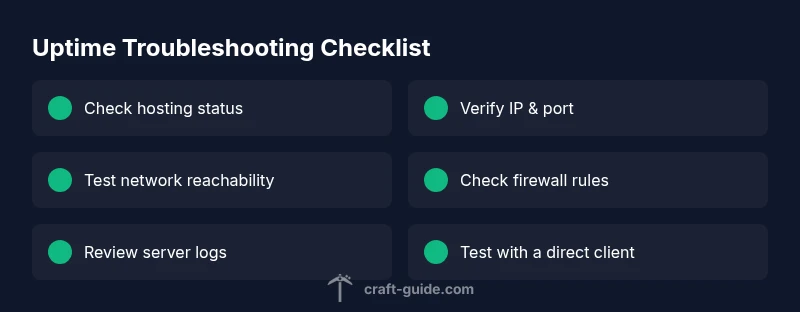
Quick at-a-glance checks you can perform
- Check hosting status: Look for any maintenance notices or outage alerts on your provider’s status page and your control panel. If there’s a public outage, you’ll likely see it there first.
- Verify IP and port: Confirm you are using the correct IP address and port (default 25565 for Java Edition) in your launcher or server list. A mismatch here often yields “cannot connect” errors rather than a full outage.
- Ping and traceroute: From a different network, ping the server or run a traceroute to identify where the path breaks. Consistent failures point to network or firewall issues, while sporadic results suggest connection routing problems.
- Look at server console: If you have access, check the startup logs for errors or crash reports; a crash can cause the server to appear down even if the host is up.
- Test with a simple client: Use a basic Minecraft client to attempt a direct connect; if the client reports a timeout or authentication failure, the issue may be port/firewall related.
Common causes of downtime and misconfigurations
Downtime can stem from a variety of sources, and most outages fall into a handful of reliable categories. The most frequent culprits include hosting provider outages, misconfigured IPs or DNS, and firewall or port-forwarding problems. Less common but critical issues include server crashes, plugin conflicts, or resource exhaustion (RAM/CPU). Craft Guide analysis shows that the majority of downtime in small to mid-sized servers arises from misconfigurations or outages at the hosting level, rather than infrequent but dramatic crashes. Proactively addressing these topics can dramatically reduce unscheduled downtime.
Diagnostic flow snapshot — mapping symptoms to likely causes
When you notice a problem, map the symptom to a likely cause and proceed with a targeted fix. If players cannot connect or the server doesn’t show online, start with the hosting status and IP/port checks, then move to firewall rules and port forwarding. If those are correct but you still see issues, inspect server logs for startup errors and performance bottlenecks. This systematic approach reduces guesswork and speeds resolution, which is essential for dramatic time-sensitive events like a raid or build competition.
Step-by-step verification workflow — practical, repeatable checks
This section provides a repeatable path you can use whenever you suspect uptime issues. Start with quick wins: verify hosting status and IP/port, then test connectivity from another network. If issues persist, restart the server and examine logs for errors. Finally, confirm firewall rules, port forwarding, and security groups, then run a connectivity test again. The goal is to reach a clear yes/no answer to is my minecraft server up and to isolate the root cause quickly.
Prevention and monitoring for future uptime
Ongoing uptime is built on proactive monitoring. Set up alerts when the server becomes unreachable, establish a simple on-call rotation, and implement a nightly health check that restarts automatically if the server doesn’t respond within a threshold. Regularly review resource usage (CPU, RAM) and plugin compatibility, and maintain a known-good backup plan. Craft Guide recommends a lightweight, repeatable uptime workflow and consistent documentation to prevent regressions. This proactive approach reduces reaction time and keeps your community engaged.
When to escalate to hosting support and what to gather
If you’ve exhausted the common fixes and the problem persists beyond a reasonable window, contact your hosting provider. Have your server IP, port, logs, recent changes, and timestamps ready. A concise incident report helps support diagnose outages faster. In many cases, providers can confirm outages, verify network routing, or reset service components. Remember, escalation is a normal part of maintenance, not a failure of your skills.
Steps
Estimated time: 45-60 minutes
- 1
Check hosting status and announcements
Open your hosting provider’s status page and dashboard to see if there are any ongoing outages or maintenance windows. Note the time and any incident IDs for reference. If there’s a reported outage, your server will likely remain down until the provider resolves it.
Tip: Set up a channel for outage alerts so you don’t have to chase status manually. - 2
Verify IP and port in the launcher
Double-check the IP address and port you use to connect. A single character mistake or a changed port (for example after an update) can prevent connections. Update your launcher or server list accordingly.
Tip: Copy-paste from the server.properties file if you’re unsure about the port. - 3
Test network reachability
From a separate network, ping the server address and run a traceroute to identify where the path fails. Consistent failures suggest network or firewall problems rather than a server crash.
Tip: If ping is blocked by the host, use a TCP connection test to port 25565. - 4
Restart server and inspect logs
Restart the Minecraft server and watch the console for startup messages or crashes. Look for stack traces, missing libraries, or plugin errors that prevent the server from coming online.
Tip: Back up world data before restarting in production environments. - 5
Check firewall and port forwarding
Ensure inbound rules permit port 25565 and that port forwarding is correctly configured if you’re behind a NAT. Misconfigured firewalls are a common cause of false outages.
Tip: Test by temporarily disabling firewall rules to confirm if they’re the culprit (re-enable immediately afterward). - 6
Review server health and backups
Inspect CPU, memory, and disk usage. If the server is resource-starved, it may fail to come online or crash. Check recent plugin changes and consider restoring from a backup if corruption is suspected.
Tip: Keep a recent backup schedule to minimize downtime in crashes. - 7
Escalate if needed
If you still can’t recover the server, contact hosting support with incident details, timestamps, and steps you’ve already taken. They can confirm outages, reset services, or restore from backups.
Tip: Document every step you take for faster support response.
Diagnosis: Minecraft server won't appear as up or players can't connect
Possible Causes
- highHosting provider outage or maintenance
- highIncorrect IP/port or DNS resolution
- mediumFirewall rules or port forwarding misconfiguration
- lowServer software crash or startup failure
Fixes
- easyCheck hosting status page or provider notifications
- easyVerify the server IP address and port in the launcher
- easyTest connectivity with a ping/telnet to port 25565
- easyReview firewall and cloud security group rules to allow inbound 25565
- easyRestart the server and check console logs for errors
- mediumReview server logs for crashes and resource errors; restore backup if needed
- hardContact hosting support if issue persists beyond 60 minutes
People Also Ask
How can I tell if my Minecraft server is online?
Check the hosting dashboard for status, verify the server IP/port in the launcher, and attempt a direct connection. If the server shows online but you can’t connect, inspect firewall rules and logs for errors.
Check the hosting status, then verify IP and port, and try a direct connect. If you still can’t reach it, review firewall settings and server logs.
What are the most common causes of server downtime?
Outages at the hosting provider, incorrect IP/port or DNS, and misconfigured firewall or port forwarding are the most common. Server crashes and plugin conflicts also contribute but are less frequent.
Common causes include provider outages, wrong IP or port, and firewall issues, with crashes and plugins as possible culprits.
How do I test if port forwarding is working?
Test by connecting from an external network and by using a port-check tool to confirm port 25565 is open. Also review router/NAT settings and cloud firewall rules.
Test port 25565 from outside your network to confirm it’s open. Check your router and firewall rules.
What should I do if DNS isn’t resolving to the right IP?
Clear local DNS cache, verify the DNS records at your domain provider, and ensure any DNS changes have propagated. Use an alternate DNS resolver to isolate the issue.
Clear cache, check DNS records, and allow propagation. Try another DNS resolver to confirm.
If the server is up but players can’t connect, what’s next?
Check whitelist, IP restrictions, and server properties like online-mode and max-players. Review plugin conflicts and look for errors in the server console that appear during login attempts.
If it’s online but players can’t connect, check players restrictions and console errors during login.
When should I contact my hosting provider?
If after all checks the issue remains unresolved for more than an hour, contact support with incident details, timestamps, and a summary of what you’ve tried.
If issues persist beyond an hour, reach out to hosting support with details and steps you’ve taken.
Watch Video
The Essentials
- Verify status with hosting and IP/port tests.
- Check logs for startup errors and resource issues.
- Ensure firewall and port forwarding are correct.
- Use uptime monitoring for proactive alerts.
- Craft Guide recommends a repeatable uptime workflow.