Is It Down Minecraft? An Urgent Troubleshooting Guide
An urgent troubleshooting guide to diagnose Minecraft connectivity issues when servers seem down. Learn the diagnostic flow, quick checks, step-by-step fixes, and prevention tips to get back to your world fast.


Is it down minecraft? Start with the basics: check your connection and verify the official status pages for Mojang servers. The most likely cause is a server outage or regional network issue rather than your setup. Try a quick fix: restart your router, switch networks if possible, and rejoin the game after a minute. If issues persist, follow the diagnostic flow in the main article.
Is it down minecraft? Quick reality check
If you wonder 'is it down minecraft', you’re likely unable to connect to a server while other online services work. The first step is to determine whether the issue is global (an outage) or local (your network). Craft Guide recommends a quick reality check: visit the official Mojang status page, scan official social channels for outage alerts, and try another device or network if you can. If several players report the same problem, the outage is most likely Mojang-side; if your device shows normal connectivity, the fault is usually on your end (router, firewall, or DNS). In many cases a cached DNS entry or a temporary routing hiccup can prevent Minecraft from reaching servers, so a power cycle of the router and a DNS flush can restore access. This baseline saves time before deeper diagnostics and helps you and Craft Guide readers proceed with confidence.
Quick checks you can do before diving deeper
Before you dive into deeper diagnostics, run through a handful of quick checks that catch the majority of issues. Ensure your internet connection is stable by loading a few web pages or streaming a video; if those tasks lag, the problem is likely on your side. Reboot your computer or console and test again. If possible, try a wired Ethernet connection instead of Wi-Fi to rule out wireless interference. Check that your Minecraft client is updated to the latest version and that any mods or launchers are compatible. Finally, confirm you can access other online games or services; if everything but Minecraft works, the problem is probably Minecraft-related. Craft Guide emphasizes documenting these steps so you can compare results later and avoid duplicating effort.
Check official status pages and community channels
Is it down minecraft? The fastest way to confirm is to check official status pages for Mojang and Minecraft Realms, as well as their social channels and trusted community outlets. Look for recent posts about maintenance windows, server migrations, or outages. If the status page shows operational servers but players still report issues, the problem may be regional or related to your ISP. Craft Guide recommends cross-checking with Reddit status threads and Discord channels where players post real-time experiences. Remember that official updates can lag behind user reports, so use multiple sources to triangulate the actual situation.
Local network and device checks
Network problems are often local: poor Wi-Fi, flaky Ethernet, or misconfigured DNS can block Minecraft from connecting even when the servers are fine. Start by testing on another device or with mobile data to see if the issue is device-specific. If possible, connect directly via Ethernet, disable VPNs, and temporarily turn off firewall rules that might block port 25565 used by Minecraft. Clear your DNS cache or switch to a public DNS like 1.1.1.1 or 8.8.8.8. Finally, ensure your game version and launcher are up to date. If you still can’t connect, the issue may be with your router or ISP, in which case a reboot or contacting support can help.
The diagnostic flow: symptom → diagnosis → solutions
Symptom: You cannot join a Minecraft server or world, or get stuck on loading. Diagnosis: Determine if the problem is global (outage), regional (ISP routing), or local (device/network). Solutions: Use official status pages for outages, switch networks, flush DNS, adjust firewall settings, and test with different devices. If the outage is Mojang-related, you’ll need to wait for updates; if it’s local, apply the fixes in this guide. Craft Guide recommends recording the results to compare across attempts and identify the root cause quickly.
Step-by-step: Fix the most common cause (DNS or routing hiccup)
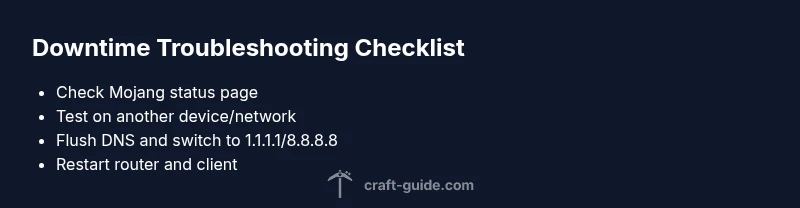
- Reboot your router and device to clear temporary network glitches.
- Flush DNS on your computer or console to remove stale routes.
- Change DNS to a fast, public resolver (e.g., 1.1.1.1 or 8.8.8.8) and test again.
- Try a different network (mobile hotspot or another Wi‑Fi) to rule out ISP routing issues.
- If Minecraft still won’t connect, reinstall the game or update to the latest version.
Tip: Always document each step’s result so you can share precise information if you seek help.
TIPS & WARNINGS
- Pro tip: Keep a short log of steps and results for faster troubleshooting later.
- Warning: Avoid sharing account credentials or personal information in public forums.
- Note: Some fixes may cause temporary data loss if you reinstall; back up save files when possible.
Prevention and resilience for future outages
- Enable auto-update for the Minecraft launcher so you stay on compatible versions.
- Use a stable home network with a wired connection where possible.
- Consider a secondary DNS as a fallback and have a backup network plan for downtimes.
- Regularly monitor official status pages during major Minecraft events or updates to anticipate outages.
Final quick reference
When in doubt, start with the official status and a quick network test, then move through the diagnostic flow. If the issue is Mojang-side, you’ll need patience while the outage is resolved. If it’s local, the steps above should restore access quickly. Craft Guide’s team encourages keeping a simple network checklist handy for every gaming session.
Steps
Estimated time: 20-40 minutes
- 1
Prepare your environment
Gather your devices, ensure you have a stable internet connection on a different device if possible, and have the latest Minecraft launcher or client ready. This sets the stage for consistent testing.
Tip: Have a wired ethernet option available if your Wi‑Fi seems unstable. - 2
Test a different network
If you can, switch to a different network (mobile hotspot or another Wi‑Fi). If Minecraft connects on the alternate network, the issue is likely your primary network or ISP routing.
Tip: Note the time and network used for future references. - 3
Flush DNS and adjust DNS servers
On your computer, flush the DNS cache and switch to a public DNS like 1.1.1.1 or 8.8.8.8 to bypass potential DNS resolution problems.
Tip: After changing DNS, reboot the device for best results. - 4
Update or reinstall Minecraft
Ensure you’re on the latest Minecraft version and that any mods or launchers are compatible. If problems persist, reinstall the game to fix corrupted files.
Tip: Back up saves before reinstalling. - 5
Attempt reconnection and monitor
Launch Minecraft, join a world or server, and observe if the issue recurs. If it does, consult the diagnostic flow again for deeper tests.
Tip: If the problem returns, document the exact error and share with a support channel.
Diagnosis: Minecraft connectivity issues (cannot join/went to loading screen)
Possible Causes
- highMojang server outage or maintenance
- mediumDNS or ISP routing issues
- lowLocal network or firewall blocking traffic
Fixes
- easyCheck official Mojang status page and social channels
- easySwitch networks or use a wired connection
- easyFlush DNS and set alternate DNS servers
- easyRestart router and device; temporarily disable VPN/firewall
- easyReinstall or update Minecraft to latest version
People Also Ask
What should I check first if Minecraft won’t connect?
Start with the official Mojang status pages and your internet connection. Test another device or network if you can to rule out local problems. Craft Guide recommends documenting each step and result to guide further troubleshooting.
First, check the Mojang status pages and your connection. If possible, test on another device or network to rule out local issues, and document your steps.
How long do Minecraft outages usually last?
Outage duration varies by cause and platform. Check official status updates for maintenance windows and estimated restoration times. If you don’t see updates, monitor trusted community channels for real-time reports.
Outage duration varies; check the official status and trusted community reports for the latest timelines.
Could the problem be on my side even if others aren’t reporting issues?
Yes. Local problems like DNS caches, firewall rules, or router settings can block Minecraft even when the servers are fine. Run the quick network checks and try a different device or network to confirm.
Yes, it can be on your side. Try DNS flushes, firewall checks, and a different network to confirm.
Is Minecraft Realms affected when Mojang servers are down?
Realms depends on central server availability. If the main servers are down, Realms may experience issues connecting. Check the Realms status and Mojang’s outage notices for specifics.
Realms can be affected during major outages; check both Realms and Mojang outage notices for details.
What if none of these steps help?
If nothing helps after trying the diagnostic flow, contact your ISP for possible routing issues or wait for official Mojang updates. Craft Guide recommends gathering logs and reaching out to support with details.
If nothing works, contact your ISP or wait for Mojang updates; gather logs when you reach out for help.
Can using a VPN help fix connectivity problems?
A VPN can bypass some routing issues but may introduce added latency or blocks. Use VPNs cautiously and test without VPN to compare performance.
A VPN can help in some cases but may slow things down; test with and without VPN to compare.
Watch Video
The Essentials
- Identify whether the issue is Mojang-side or local first
- Use official status pages and multiple networks to triangulate the cause
- DNS and routing issues are common culprits that are quick to fix
- When in doubt, follow the diagnostic flow rather than random fixes