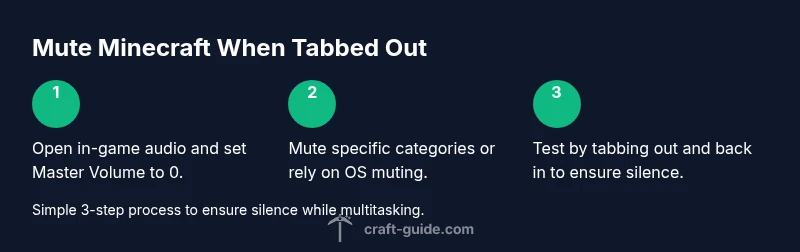
How to mute Minecraft when tabbed out
Learn reliable methods to silence Minecraft when you alt-tab, covering in-game audio controls, OS muting, and cross-platform tips. This step-by-step guide helps Java and Bedrock players mute cleanly without quitting, with troubleshooting and best practices.


Goal: mute Minecraft when tabbed out without quitting or losing your place. Start by lowering in-game volume in the options, then use your computer’s volume mixer or per-app mute to silence Minecraft completely. If needed, combine OS muting with in-game settings for reliable silence while preserving your gameplay state.
Why muting Minecraft when tabbed out matters
Muting Minecraft when tabbed out keeps your focus on the task at hand, avoids disruptive game sounds during streams, and prevents accidental in-game noises from interrupting conversations. How to mute minecraft when tabbed out? The answer lies in a layered approach: in-game audio controls, system-level muting, and, occasionally, external tooling. According to Craft Guide, players often run into audio leaks when switching windows, especially with loud mobs, explosions, or cinematic music. This guide explains reliable methods that are reversible and quick to re-enable. The goal is to maintain gameplay continuity while silencing the game without quitting or losing progress. Remember: the exact paths vary by edition (Java vs Bedrock) and by operating system, so you’ll want a strategy that you can apply in under a minute. In short, muting strategies should be actionable, context-aware, and easy to undo when you want sound back.
Platform differences you should know
Minecraft on Java Edition and Bedrock Edition expose similar but not identical audio controls. Java Edition typically follows a more traditional in-game menu layout, while Bedrock Edition often mirrors console/pc conventions. You’ll want to map out your preferred muting method for each edition so you can switch seamlessly when tabbing between Minecraft and other apps. For most players, a combination of in-game Master Volume adjustment plus OS-level muting provides the most reliable silence. If you’re streaming or recording, consider testing mute scenarios before going live to ensure there are no lingering sounds in the recording buffer.
In-game audio controls you should use
The most reliable first step is to adjust the in-game volume. In Minecraft, press Escape, go to Options > Music & Sounds, and set Master Volume to 0 or lower it to a level where most sounds are inaudible without affecting music you might want to hear in the background. You can also mute or lower individual sound categories such as Music, Weather, and Sound Effects. This lets you preserve environmental ambience if needed while silencing the loudest components. Remember to save your settings so they persist across sessions. If you use hotkeys, mapping a quick mute shortcut to the Master Volume can speed up muting when tabbing out.
System muting: Windows, macOS, and Linux
System muting can be the most dependable way to silence Minecraft when you switch tasks. On Windows, use the Volume Mixer to mute the Minecraft process or set its application volume to 0. On macOS, use the Sound pane to mute Minecraft or assign a per-app mute via third-party tools if you frequently tab away. Linux users can leverage per-device or per-application muting through PulseAudio or PipeWire, depending on the distro. The core idea is to decouple game sound from the rest of the system, so you can re-enable audio quickly without changing game or OS settings each time. If you often tab out, consider creating a profile or script that mutes Minecraft with a single command.
External tools and workflow options
If you want an even more robust solution, combine the in-game mute with a lightweight audio mixer or script that toggles Minecraft’s audio channel groups. Some players prefer a hotkey-driven workflow that instantly mutes all game audio regardless of the active window. This is especially useful when you’re multitasking across streaming software, a browser, and chat apps. When picking tools, ensure compatibility with your OS and Minecraft edition. Keep your muting state saved so that re-enabling sound is as fast as muting.
Troubleshooting common issues
Sometimes muting fails to silence all sounds due to background processes, browser tabs, or overlays. If you still hear audio after muting, verify you muted the correct application (Minecraft) and not a related process (such as the launcher or a streaming overlay). On Windows, check that the correct playback device is selected in the sound settings, and consider restarting the game if muting appears inconsistent. For macOS, ensure that any headset or output device isn’t overriding system mute. Finally, test muting with several sound scenarios (music, ambient environment, and effects) to ensure you’ve silenced the right channels.
Best practices for reliable mute across setups
Create a consistent muting workflow that you can repeat in under a minute. Start with in-game Master Volume, then apply OS-level mute or per-app mute, and conclude with a quick test by tabbing to a browser or recording software. If you use multiple Minecraft editions on one device, document the exact steps for each edition so you don’t get stuck delving into menus every time. Consider adding a keyboard shortcut that mutes Minecraft with one press, and keep a backup method (OS mute) in case the shortcut fails.
Tools & Materials
- Minecraft game client (Java or Bedrock edition)(Essential to access in-game audio controls.)
- In-game audio settings(Accessible via Esc > Options > Music & Sounds.)
- Operating system volume mixer(Windows: Volume Mixer; macOS: Sound preferences; Linux: PulseAudio/PipeWire tools.)
- Optional per-app mute tool(Useful for quick, targeted muting across apps.)
- Headphones or speakers(Required for testing audio output in different environments.)
Steps
Estimated time: 15-20 minutes
- 1
Open in-game audio menu and set Master Volume to 0
Pause the game if needed, then navigate to Options > Music & Sounds and drag Master Volume to the far left. This stops most sounds from playing in-game. Pro tip: map a short-cut key to mute Master Volume for one-tap muting when tabbing out.
Tip: Muting Master Volume is the quickest way to silence all Minecraft sounds. - 2
Fine-tune sound categories (optional)
If you still hear background audio, adjust individual categories like Music, Weather, and Ambient. Lower them to 0 or a comfortable level to preserve ambience without noise. Tip: keep environmental ambience if you need a mood cue while tabbed out.
Tip: Fine-tuning categories avoids over-muting your entire environment. - 3
Open OS volume mixer and mute Minecraft
Open your OS volume mixer and mute the Minecraft process (or set its application volume to 0). This ensures silence even if the game stalls or the in-game menu is inaccessible.
Tip: On Windows, right-click the speaker icon and select Volume Mixer to find Minecraft. - 4
Confirm mute with a quick tab-out check
Alt-tab to a browser or another app and listen for any remaining audio. If you hear something, re-check the correct application and sound category settings. Time estimate: 30–60 seconds.
Tip: If sounds persist, re-open the in-game menu and re-apply Master Volume after ensuring OS mute is active. - 5
Consider a per-app mute workflow
If you frequently switch between apps, enable a per-app mute workflow: Minecraft is muted while other apps stay audible. This can be achieved with OS features or third-party tools and saves time during multitasking.
Tip: Per-app mute is especially effective for streamers or competitive players. - 6
Test across scenarios and save your setup
Test muting in multiple scenarios (Music on, loud effects, wind, etc.). Save the configuration as a profile if your OS supports it so you can switch back later without re-tuning.
Tip: Document steps for future you and keep a backup method ready.
People Also Ask
What should I mute first: game audio or system audio?
Start with the in-game Master Volume, then apply system mute if needed. This ensures you silence Minecraft without impacting other apps unnecessarily.
Begin with in-game audio controls, then use system mute if needed.
Does muting in Minecraft affect music only?
Muting Master Volume silences all in-game sounds, including music, effects, and ambience. You can selectively mute categories if you want to preserve some audio cues.
Master Volume silences all game sounds; you can mute categories selectively.
Will muting affect multiplayer voice chat?
Muting Minecraft audio does not mute your voice chat software unless you mute that app too. Keep your VOIP app volume separate if you need to hear chat.
Your voice chat app is unaffected unless you mute it too.
Is there a way to mute only tab-switch sounds?
Yes, mute tab-switch notifications in your OS if available, or disable system notification sounds temporarily while gaming.
Disable or adjust notifications to silence tab-switch alerts.
My audio still plays when tabbed out—what should I do?
Double-check you muted the correct Minecraft process and not the launcher. If needed, restart Minecraft or your OS audio service to apply changes.
Verify the right app is muted and restart if necessary.
Does muting require admin rights?
Most muting methods do not require admin rights. Some third-party tools may need elevated permissions, but you can usually manage with built-in OS settings.
Usually no admin rights are needed.
Which edition paths should I follow for muting?
Java Edition and Bedrock Edition share the general approach but differ in menu navigation. Check the exact path in your edition’s settings and keep notes for quick muting.
Know the exact in-game path for your edition.
Watch Video
The Essentials
- Mute in-game first, then verify with a test.
- Use OS muting for reliability when tabbing out.
- Know the path differences between Java and Bedrock editions.
- Create a quick mute shortcut for speed.
- Test across devices to ensure consistency.