How to Close Minecraft When It Freezes: Safe Quick Guide
Learn practical, step-by-step methods to safely close Minecraft when it freezes, with preventive tips, backups, and troubleshooting to get you back to your world quickly.


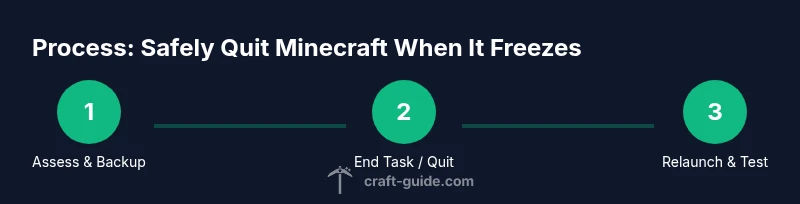
To close Minecraft when it freezes, you can safely terminate the game process and restart. Start by waiting a few seconds for it to respond, then use your operating system’s task manager (Windows) or force-quit menu (macOS) to end the process. If issues persist, save your world frequently and update your game and drivers before re-launching.
Why Minecraft Freezes and How to Respond
Minecraft freezes for a variety of reasons, and understanding the root cause helps you react calmly instead of panicking. In many cases, freezes are caused by memory spikes, heavy mods or resource packs, or temporary GPU throttling. Sometimes a server-side lag spike or a corrupted chunk can stall the client for a moment. Craft Guide observations in 2026 show that players who approach freezes with a methodical plan recover faster and avoid data loss. The key is to distinguish a true crash from a momentary freeze and to act quickly to protect your world. This article will walk you through safe quitting, quick fixes, and preventive steps so you can get back to building and exploring in no time. According to Craft Guide, most freezes are resolved by saving, exiting cleanly, and updating software, which minimizes the risk of data loss and file corruption.
Quick Checks Before Forcing a Quit
Before you resort to ending the Minecraft process, try a few quick checks that might restore responsiveness without risking world data. First, observe whether the screen is truly non-responsive or if the game is briefly autosaving. If you can move the mouse or hear sounds, give it up to 30–60 seconds for a possible warm-up. If nothing responds, prepare to close the program safely. Check that you have a recent backup and that you can access the launcher to re-launch after quitting. If the game still won’t respond, proceed to the OS-specific quitting methods described later. These initial checks reduce the chance of world corruption and help you recover faster. Craft Guide’s guidance in 2026 emphasizes quick, careful actions over abrupt shutdowns.
Windows: End Minecraft with Task Manager (Safe Quit)
On Windows, the safest way to terminate a frozen Minecraft session is through the Task Manager. Press Ctrl+Shift+Esc to open it, locate the Minecraft process (javaw.exe or Minecraft launcher, depending on how you launched the game), and choose End Task. Do not shut down the computer abruptly, as this can cause world corruption. After ending the task, wait a moment, then relaunch Minecraft from the launcher. If the game still freezes after restart, repeat the process and consider checking for updates. Craft Guide analysis, 2026, indicates that ending the specific Minecraft process minimizes risk to your saves compared with a hard reboot.
macOS: Forcing Quit and Relaunch
On macOS, you can force quit Minecraft using Command-Option-Esc to open the Force Quit Applications window. Select Minecraft and click Force Quit. Wait a few seconds, then relaunch through the Minecraft launcher. If you encounter repeat freezes, ensure your macOS and graphics drivers are up to date and consider lowering in-game settings to reduce GPU load. The Craft Guide Team notes in 2026 that clean quits are generally safer for world integrity than OS-wide shutdowns.
After Force Quit: Common Fixes That Help
If force quitting resolves the immediate freeze but the issue recurs, run through a short list of checks: verify you’re on the latest Minecraft version with the launcher, update your GPU drivers from the vendor’s site, and make sure Java (if using Java Edition) is updated. A restart after updates is often enough to restore stability. If the problem persists across re-launches, it may be tied to mods, resource packs, or the world itself. Craft Guide’s 2026 findings show that modular troubleshooting (launcher updates, then mods) yields the best long-term results.
Mod and Resource Pack Conflicts: Identify and Resolve
Mods and resource packs can conflict with new Minecraft builds, causing occasional freezes or stuttering. Disable all mods temporarily to see if stability improves, then re-enable one by one to identify the culprit. Check for compatibility notes for each mod and ensure you’re using versions that match your Minecraft edition (Java vs. Bedrock). If you use a curated mod pack, verify it’s been updated for the current game version. Craft Guide’s 2026 guidance highlights that compatibility testing is essential when upgrading to a new version.
RAM, Performance, and Launcher Settings
Performance issues often surface when the launcher allocates insufficient RAM or when graphics settings push the GPU beyond comfortable limits. In the launcher, adjust the memory allocation conservatively, and avoid over-extending RAM beyond what your system can spare. Lowering render distance, particles, and fancy graphics can yield smoother gameplay. If you’re on a laptop, ensure it’s plugged in to avoid aggressive power-saving throttling. Craft Guide’s 2026 recommendations emphasize balancing performance with stability, rather than chasing maximum frame rates.
Backups, Saving, and World Integrity
Backups are your first line of defense against data loss during freezes or crashes. Regular backups let you restore to a known-good state if a save becomes corrupted. Use the in-game pause menu to create a manual backup when possible, or copy the world folder from your Minecraft saves directory to a secure location. Keeping a routine schedule—daily for busy servers or creative worlds, weekly for normal play—can significantly reduce risk. Craft Guide’s team stresses that reliable backups are as important as any fix, especially for large builds.
Reinstalling or Resetting: When and How
As a last resort, if freezes persist after trying every standard fix, reinstall Minecraft or reset the game to default settings. This should be paired with a fresh backup of your worlds. Reinstalling helps clear corrupted game files, while a reset can resolve stubborn configuration issues. Ensure you back up your saves first, and verify your launcher settings after reinstall. The Craft Guide team recommends this approach only after you’ve exhausted safer troubleshooting avenues in order to preserve your progress.
Quick Recovery Checklist and Next Steps
Before you play again, run a concise recovery checklist: (1) confirm all software and drivers are current, (2) test a clean launch with a new world, (3) re-import your existing world from a verified backup, and (4) monitor for recurrence. If freezes persist, note the conditions (mod load, world type, hardware usage) and consult the community or support channels with those details. Craft Guide’s 2026 guidance encourages documenting symptoms to speed up future troubleshooting.
Tools & Materials
- Windows OS Task Manager(Use Ctrl+Shift+Esc, select Minecraft, End Task to quit cleanly)
- macOS Force Quit(Cmd+Option+Esc, select Minecraft, Force Quit)
- Minecraft launcher access(To restart after forcing quit)
- World backup location(Create backups before major changes or troubleshooting)
- Graphics driver update utility(From Nvidia/AMD/Intel, helps reduce freezes)
- Administrative access(Needed for some driver updates or launcher changes)
Steps
Estimated time: 15-25 minutes
- 1
Pause and assess
If the screen is responsive, gently move the mouse or press a key to see if the game resumes. If it’s unresponsive, prepare to terminate the process safely to protect your world. This initial assessment helps you decide between a soft exit and a force quit.
Tip: Avoid hasty exits; a short wait can confirm whether the issue is a temporary hiccup. - 2
Back up your world
If possible, open the in-game pause menu and create a backup, or copy the world folder to a safe location. Backups guard against data loss if the subsequent quit or re-launch encounters issues.
Tip: Backups should mirror your active world state—include the latest save files and region data. - 3
Open Task Manager (Windows) / Force Quit (macOS)
On Windows, press Ctrl+Shift+Esc to open Task Manager and End Task on Minecraft. On macOS, press Cmd+Option+Esc, select Minecraft, and Force Quit. These steps stop the frozen process without a full system reboot.
Tip: Ending the wrong process can disrupt other apps; double-check the selected entry. - 4
Relaunch Minecraft
Restart the game from the launcher. If the freeze recurs, stop and perform the following checks before attempting again. Verification helps identify a repeating cause rather than a one-off glitch.
Tip: If you can, run a small test with a new world to isolate the issue. - 5
Check for updates
Update Minecraft to the latest version and verify launcher updates. Also update your GPU drivers or graphics stack if available to improve stability and compatibility with current game builds.
Tip: Updates often resolve known freezing issues tied to specific builds. - 6
Adjust settings and RAM allocation
If freezes persist, lower in-game graphics settings and consider adjusting launcher memory allocation to balance performance with stability. Avoid over-allocating RAM to leave room for the system and other background tasks.
Tip: Start with modest reductions and test stability after each change. - 7
Test mods and resource packs
Disable all mods and resource packs temporarily to see if stability improves. Re-enable one at a time to identify any problematic additions, ensuring compatibility with your game version.
Tip: Incompatible mods are a common source of repeated freezes. - 8
Check world integrity and backups
If you suspect world corruption, restore from a recent backup and test the world in a fresh environment. This helps determine whether the issue is world-specific or systemic.
Tip: Keep multiple backups across different dates for safer recovery. - 9
Plan for reinstall or support
If the problem still persists after all steps, consider reinstalling Minecraft or seeking help with detailed notes about your hardware, game version, mods, and steps taken. Documentation speeds up troubleshooting.
Tip: Document error messages and conditions to share with support or community forums.
People Also Ask
Why does Minecraft freeze during gameplay?
Freezes can result from memory pressure, mod conflicts, outdated drivers, or server lag. Distinguishing a momentary pause from a true crash helps determine the right action and reduces the risk of world corruption.
Freezes usually come from memory, mods, or drivers; identify if it’s a pause or a crash to respond safely.
Is it safe to force quit Minecraft?
Yes, force quitting is generally safe for immediate resolution, but you should try to save a backup first and relaunch to verify stability. Recurrent force quits may indicate underlying issues.
It's usually safe to force quit to stop a freeze, but back up first and check for underlying causes.
What should I do if the freeze happens after an update?
Ensure you have the latest patch, consider rolling back to a known-good version if the new update is unstable, and update your drivers. Check mod compatibility if you use Java Edition.
After an update, check for patches and driver updates, and verify mod compatibility.
How can I prevent freezes in the future?
Keep your game and drivers updated, manage RAM usage, lower demanding settings, and test mods for compatibility before heavy play sessions. Regular backups also help minimize disruption.
Prevent freezes by updating software, balancing settings, and testing mods before heavy play.
What if the freeze happens only on servers?
Server-side issues can cause client freezes. Check server status, latency, and your own network stability. Consider connecting to a different server or testing with a single-player world to isolate the problem.
If it’s server-related, test with another server or a single-player world to isolate the problem.
Does force quitting affect saved progress?
Forcing quit can risk the most recent autosave, but regular backups mitigate data loss. Always back up before major changes and when you anticipate instability.
If you back up regularly, forcing quit won't typically ruin your progress.
Watch Video
The Essentials
- End the Minecraft process safely to protect world data.
- Back up your world before troubleshooting.
- Update game and drivers to reduce freezes.
- Identify mod/pack conflicts and adjust settings.
- Use a structured recovery checklist for quick restoration