How to Clear Minecraft Marketplace Cache: A Practical Guide
Learn how to clear the Minecraft Marketplace cache across PC, consoles, and mobile with a safe, step-by-step approach. Fix missing items, corrupted textures, and stuck downloads without losing your worlds.


By the end of this quick guide, you will know exactly how to clear the Minecraft Marketplace cache on PC, consoles, and mobile, what files to remove, and how to re-launch the game to verify content loads correctly. Clearing the cache can resolve missing purchases, corrupted textures, or stalled Marketplace downloads without affecting your worlds.
What is Minecraft Marketplace cache and why clearing helps
The Minecraft Marketplace cache stores asset bundles, textures, and metadata that the game uses when you browse and download content. Over time, cached files can become outdated, corrupted, or stuck during downloads, causing missing items, wrong textures, or failed purchases. Clearing the cache forces the game to fetch fresh data from the Marketplace servers, which often resolves these symptoms without touching your saved worlds. According to Craft Guide, cache-related issues are among the most common causes of Marketplace problems, and a clean cache can fix many cases quickly. This section explains what you’re clearing, why it helps, and how to approach it safely for PC, console, and mobile versions. Remember: you’re not deleting your worlds or purchases—just the local cache so the game can re-download clean copies.
Where the cache lives on PC, consoles, and mobile
Cache locations vary by platform, but the goal is the same: store temporary files that speed up loading of Marketplace content. On Windows, you’ll typically find Windows store (UWP) and Java editions maintain separate cache folders; macOS users generally locate cache under the Library or Application Support folders; consoles keep cache within internal storage partitions. In Java Edition, a common path is the .minecraft/cache directory in your user profile. For Windows 10/11 Minecraft (Bedrock), the cache is often housed under a LocalState/cache path within the Packages folder. On Android devices, look for Minecraft cache under Android/data/com.mojang.minecraftpe/cache. Remember that exact paths can vary by version and vendor, so use platform-specific search terms like “Minecraft cache” to locate the files. Once found, you’ll prepare to clear safely without touching your worlds.
Before you start: backups and safety considerations
Before deleting anything, back up the cache folders or even the entire Minecraft folder if you’re unsure. This protects against accidental removal of content you still want, and it makes it possible to restore if something goes wrong. Create a second copy on an external drive or your cloud backup if available. Also, ensure you’re using the official game launcher and an active internet connection so you can re-download assets cleanly after clearing. Craft Guide emphasizes that taking a safety-first approach reduces risk and makes the process smoother for players at all levels. Finally, note that clearing cache does not affect your saved worlds or purchases—only local copies of content downloaded from the Marketplace.
Step-by-step overview
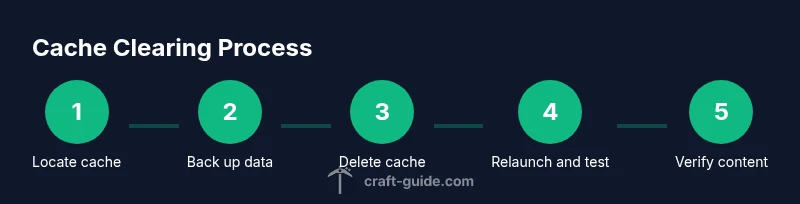
This guide is organized to cover the major platforms: Windows/Mac (PC), consoles (Xbox, PlayStation, Nintendo Switch), and mobile. The core idea is the same: locate cache files, back them up, delete cache content, relaunch Minecraft, then verify that Marketplace content loads correctly. Some steps can be done in parallel (like locating and backing up), but others require sequential execution (deleting cache and then rebuilding it). The goal is a clean re-download of Marketplace assets without reinstalling the game or losing data. Craft Guide’s approach prioritizes safety and clarity to minimize downtime while keeping your worlds intact.
Clearing cache on Windows and Mac: file system steps
On Windows, navigate to the appropriate cache folders based on your Minecraft version. For Bedrock/Windows 10: locate the LocalState/cache inside the WindowsApps or Packages directory. For Java Edition, delete contents inside the .minecraft/cache folder, leaving the directory itself intact. On macOS, open Finder and go to ~/Library/Application Support/minecraft/cache (or the equivalent path for your launcher) and delete the cache contents. If you’re unsure, use your system search for “Minecraft cache” and confirm the path before deleting. After clearing, restart Minecraft, log back in, and let the game fetch fresh assets. This often resolves texture issues, missing items, and slow loading related to Marketplace data.
Clearing cache on Xbox, PlayStation, and Nintendo Switch
Console caching differs from desktop systems. Start by exiting Minecraft and closing the game fully. Then head to the console’s storage management settings and locate the Minecraft cache or saved data for the app, selecting the cache-specific option to clear it. After clearing, launch Minecraft again and sign in. If your console supports it, you can also clear related cache for the Xbox app or PlayStation Network to ensure a fresh session. Reboot the console if you see unusual behavior, and perform a test by loading a few Marketplace items to confirm the cache rebuild.
Verifying the cache is cleared and testing purchases
Launch Minecraft and navigate to the Marketplace to test a recent purchase or item you expected to load. If an item fails to show, try re-opening the game a second time or reloading the content library. Check texture packs, skins, and other assets to ensure they render correctly. If content still doesn’t appear, repeat the process for a second pass or move to the next platform-specific steps. Craft Guide notes that verification is the key step: a successful reload confirms the cache rebuild worked and you’re no longer dealing with stale files.
Common problems after clearing and how to address them
Sometimes clearing cache helps, but other issues persist. You might encounter a brief delay while the system rebuilds the cache, or you may see some content take longer to re-download. If you notice repeated failures, verify your internet connection and ensure your game version is up to date. Some players discover that removing and re-adding their Microsoft account or signing out and back in can reset authentication tokens tied to content licenses. In rare cases, a full reinstall of the Minecraft launcher or app is warranted. Always start with the least invasive option, and proceed to deeper troubleshooting only if necessary.
How to prevent issues: best practices and habits
Adopting a few simple habits can minimize cache problems. Regularly back up important saves, avoid abrupt power-offs during downloads, and keep your launcher and game up to date. When you notice issues, clear cache before attempting more drastic steps like reinstalling the game. Maintain stable internet connectivity during pulls from the Marketplace, and consider using a wired connection for larger downloads. Craft Guide recommends keeping a routine: clear cache after major updates or if you experience consistent Marketplace hiccups.
Alternatives and additional troubleshooting options
If clearing the cache doesn’t solve the problem, explore alternatives such as refreshing the Marketplace content from within the game, signing out and back in, or clearing related launcher caches. Some players benefit from checking for corrupted profile data, clearing cloud saves on supported platforms, or temporarily disabling security software that might block asset downloads. For persistent problems, consult platform-specific support guides or contact official Minecraft support. Always document the steps you took so you can reproduce the results or present a clear report to support staff.
Advanced users: logs and diagnostics for Minecraft launcher
For power users, enable verbose logging to inspect what happens during a cache rebuild. Look for lines related to download failures, authentication, or Asset/Texture loading. Logs can indicate whether the issue is network-related, a permission problem, or something tied to a particular asset. If you’re comfortable, you can share relevant log excerpts with support teams to speed up diagnosis. Craft Guide emphasizes using logs sparingly and only when you understand the entries, as misinterpreting logs can lead to unnecessary changes.
Final checklist and quick recap
- Back up before deleting any cache data.
- Locate and clear platform-specific cache folders.
- Re-launch Minecraft and re-authenticate.
- Verify Marketplace content loads correctly.
- If issues persist, try deeper troubleshooting or a clean reinstall of the launcher.
This approach is typically sufficient to fix most marketplace-related cache problems without touching your saved worlds or purchases, keeping your gameplay experience smooth and reliable.
Tools & Materials
- Device with Minecraft installed (PC, console, or mobile)(Platform-specific access to game files and storage.)
- Administrative access on the device(Needed to delete cache folders safely.)
- Stable internet connection(To re-download assets after clearing.)
- Backup storage (external drive or cloud storage)(Optional but recommended for safety.)
- File explorer or Finder(To navigate to cache directories.)
- Text editor (optional)(Useful for inspecting logs if needed.)
Steps
Estimated time: 30-60 minutes
- 1
Locate cache locations
Identify the cache folders for your platform by searching for 'Minecraft cache' or by following platform-specific guidance. Do not delete the main game folders—only the cache contents. This step reduces risk by isolating only temporary data.
Tip: If uncertain, note the path before deleting and confirm with a backup copy. - 2
Back up cache folders
Copy the cache folders to a safe location or create a compressed archive. Backups allow you restore if anything goes wrong and give you a rollback point.
Tip: Keep the backup on external storage in case you need to recover quickly. - 3
Delete cache contents
Delete the files inside the cache folders, not the folders themselves if possible. Some platforms permit bulk deletion; others require selective removal of outdated or corrupted files.
Tip: If deletion fails, try removing only recently modified items first. - 4
Restart Minecraft and re-login
Launch Minecraft again, sign in with your account, and allow the launcher to reinitialize the cache.
Tip: A fresh login ensures licenses and permissions are properly re-validated. - 5
Re-download marketplace content
Open the Marketplace and trigger downloads for the items you use most. This step rebuilds the cache with verified assets from the server.
Tip: Prefer a steady internet connection during this process. - 6
Test and verify
Load a few Marketplace items or textures to confirm they render correctly and purchases appear as expected.
Tip: If something still looks wrong, repeat steps or consult support. - 7
If issues persist, extend troubleshooting
Consider deeper checks such as launcher cache, reinstallation, or platform-specific support channels.
Tip: Document steps and results to speed up further assistance.
People Also Ask
What is Minecraft Marketplace cache and why clearing it helps?
The Marketplace cache stores downloaded assets and metadata for quick loading. Clearing it removes stale data so the game can re-download fresh copies, often resolving missing items or corrupted textures.
The Marketplace cache holds temporary assets; clearing it forces a fresh download to fix missing items or glitches.
Will clearing the marketplace cache delete my purchases?
No. Clearing the local cache removes temporary files only. Your purchases and worlds remain intact. You may need to re-download some content after the cache is rebuilt.
No, your purchases stay safe. The local cache is cleared and content can re-download after the cache rebuild.
How do I clear cache on Windows vs Mac?
On Windows, locate the cache under the Minecraft folders in LocalState or .minecraft/cache and delete the contents. On macOS, find ~/Library/Application Support/minecraft/cache and clear those files. Then relaunch Minecraft and sign in.
Windows uses the LocalState cache folder; Mac uses the Application Support cache folder. Clear contents and relaunch.
Can clearing cache fix Realms content issues?
Clearing the cache can resolve some Realms-related loading problems by refreshing downloaded assets, but Realms itself is hosted online. If issues persist, check Realm status and network connectivity.
It can help with Realms items loading, but you may need to check Realm status if problems continue.
What if clearing cache doesn’t solve the problem?
Try additional steps such as signing out and back in, updating the launcher, or reinstalling the game. If problems persist, contact official Minecraft support with your logs.
If it still fails, re-try with a fresh login or reinstall and contact support if needed.
Watch Video
The Essentials
- Identify and back up cache data before deletion.
- Clear platform-specific cache folders only, not entire game folders.
- Relaunch and sign in to rebuild the cache safely.
- Test Marketplace content to confirm fixes.
- If issues persist, escalate with deeper troubleshooting.