How to Clear Minecraft Cache on Xbox
Learn how to clear Minecraft cache on Xbox to fix loading and performance issues. This step-by-step guide covers safe power-cycles, clearing local data, and reinstalling without unnecessary data loss.


To clear Minecraft cache on Xbox, begin with a safe power cycle, then refresh game data and assets. If issues persist, clear local saved data for Minecraft or reinstall the game. This approach minimizes data loss while resolving common caching glitches and helps restore smooth gameplay.
Understanding Minecraft Cache on Xbox
Minecraft cache on Xbox stores temporary files such as textures, resource packs, and audio assets to speed up loading times and reduce data usage. On Bedrock Edition, caches live in both the local console storage and the application's data folders. When the cache becomes stale or corrupted, you may experience long loading screens, texture glitches, or texture packs not applying properly. Clearing the cache forces the game to re-download or re-derive assets, which often fixes these issues without affecting your worlds when cloud saves are active. According to Craft Guide, most caching problems are solved by refreshing the game’s data rather than smashing individual file swaps. This section explains why caches exist, what roles they play, and how to approach clearing them safely on Xbox.
Why clearing cache can help
Clearing cache can help when Minecraft on Xbox misloads assets, textures, or parts of the world because temporary data can become corrupted after patches or asset updates. It is not a universal fix, but it is a safe first step that resolves many common loading and texture issues. Caches can accumulate stale data over time, which leads to longer loading times and occasional texture flickering. By clearing the cache you prompt the console to fetch fresh assets and reset internal pointers, which often resolves desyncs and missing texture problems. Do note that clearing cache is not the same as deleting worlds or saved games; those data sets live in separate locations. If you use cloud saves, your worlds are kept on the cloud and will re-sync after you reload the game. Craft Guide notes that most caching issues resolve after a single cache refresh, but stubborn problems may require additional steps such as a reinstall or network reset.
Safety first: backup and data awareness
Before touching the cache, back up your worlds and settings whenever possible. On Xbox, saved worlds are generally linked to your Microsoft account, but some local data and preferences live on the console itself. Deleting local saved data can reset game options and temporarily cached assets, so assess the risk before proceeding. If cloud saves are enabled, you typically retain access to worlds even after local data is cleared, but configuration changes may be lost. Craft Guide emphasizes planning ahead: take a moment to note your key settings and backup any important worlds if you can. This minimizes downtime and reduces the chance of losing custom skins, texture packs, or world seeds.
Common scenarios and outcomes
Most cache-related issues arise when assets fail to load correctly or textures appear incorrectly after updates. Clearing cache often resolves these problems by forcing a fresh download of textures, sounds, and resource packs. If your issue is tied to a world or save file, clearing only the cache may not help; you might need to manage saved data or reinstall the game. Always check that your Xbox is on the latest system software and that Minecraft is updated to the latest Bedrock edition. In some cases, you may also find it helpful to refresh your network connection to ensure assets come from the server with minimal latency. Craft Guide has observed that users who perform a single cache refresh followed by an update usually see the most reliable gains in performance and stability.
Practical methods to clear the cache (without data loss)
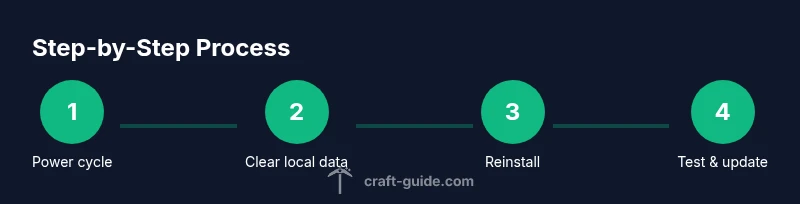
When approaching cache clearing, start with the least destructive option and progress to more thorough methods only if necessary. The simplest step is a power cycle to reset the system cache. If that does not fix the problem, you can clear Minecraft’s local saved data, which removes temporary caches and settings tied to the game. If issues persist, uninstalling and reinstalling Minecraft is a stronger measure that removes the installation cache and reinstalls assets from scratch. Each method has different implications for data and time, so plan accordingly and be prepared for the game to re-download assets.
Quick alternatives if you can't access menu options
If you cannot locate the in-game cache options or prefer not to touch saved data, a full console restart and a re-sign-in can sometimes refresh cached assets. You may also consider freeing up storage space to prevent asset re-download slowdowns and ensuring your network has stable connectivity during re-downloads. Use the Xbox Guide to review storage usage and confirm there is enough room for the reinstallation process. Craft Guide suggests that many players resolve caching hiccups by ensuring the console has uninterrupted power and a steady internet connection throughout the process.
How to preserve worlds and progress during cache clearing
Preserving progress is a top concern. If you have cloud saves enabled, your worlds are more likely to be preserved during the process. Before starting that cache refresh, consider backing up critical worlds to cloud storage by verifying cloud save status in your Microsoft account settings. Document any custom settings, seeds, or world names. After completing the cache clearance and reinstallation, sign back into the same Microsoft account to trigger cloud-world re-sync and minimize the chance of data loss. Craft Guide emphasizes that planning ahead reduces downtime and helps maintain a smooth transition back into the game.
Tools & Materials
- Xbox console(Ensure it's updated to the latest system software.)
- Controller(Used to navigate menus and confirm actions.)
- TV or monitor(To view Minecraft on-screen during the process.)
- Internet connection (optional)(Needed for re-downloading assets or cloud saves.)
- Sufficient storage(Space to reinstall Minecraft if needed.)
Steps
Estimated time: 20-40 minutes
- 1
Power cycle the Xbox
Shut down the console completely, unplug the power cord for 60 seconds, then plug it back in and power on. This clears a portion of the system cache and forces a fresh start for all background tasks.
Tip: Make sure you quit Minecraft before powering off to avoid leaving the game in a suspended state. - 2
Open Minecraft and navigate to saved data
From the Minecraft home screen, access the options to reach the storage or saved data area. Select 'Delete local saved data' for Minecraft if you want to clear cached assets and temporary settings; this action affects only temporary data and may reset certain preferences.
Tip: If you’re unsure, review cloud save status before deleting local data to avoid unintended loss. - 3
Uninstall Minecraft
From My games & apps, highlight Minecraft, press Menu, and choose Uninstall. This clears the installation cache and resets the game environment, which can help resolve stubborn cache issues.
Tip: Note that uninstalling may require re-downloading assets; ensure you have a reliable internet connection. - 4
Reinstall Minecraft
Go to the Microsoft Store or My games & apps to reinstall Minecraft. After installation, launch the game to check if the cache-related issues are resolved and assets re-download fresh copies.
Tip: Use a stable Wi-Fi connection to speed up re-download and avoid partial asset installs. - 5
Check for updates
Update both Minecraft and your Xbox system if updates are available. Patches often include fixes for cache and asset loading that complement the cache clear.
Tip: Turn on automatic updates to ensure future fixes install without manual checks. - 6
Test and verify
Launch Minecraft, load a world or realm, and verify that textures and assets load correctly with no glitches. If issues persist, revisit steps or consider network optimizations.
Tip: Test across multiple worlds to confirm the fix is consistent and not world-specific.
People Also Ask
Will clearing the Minecraft cache delete my worlds?
Clearing cache typically targets temporary data and should not delete worlds if cloud saves are enabled. However, local data deletion can reset settings and preferences. Always back up important worlds or confirm cloud save status before proceeding.
Clearing cache usually doesn't delete worlds when cloud saves are enabled, but local data deletion can reset settings. Back up your worlds first.
Is there a button labeled 'Clear cache' in Minecraft on Xbox?
There is no dedicated per-game 'clear cache' button on Xbox Minecraft. Cache is typically cleared through a combination of power cycling, managing saved data, and reinstalling if necessary.
There isn't a direct cache button. Use power cycle, clear local data, or reinstall to refresh cache.
How long does the process take?
The duration varies. A power cycle and data management can take a few minutes, while reinstalling may take longer depending on download speed and storage. Plan for about 20 to 40 minutes in total.
Expect around 20 to 40 minutes, depending on your download speed and whether you reinstall.
Will cloud saves restore progress after clearing cache?
Cloud saves help preserve worlds and progress when you clear local data or reinstall. Sign in with the same Microsoft account to trigger re-sync and minimize data loss.
Yes, cloud saves help, just sign back in with your Microsoft account to re-sync.
What should I back up before starting?
Back up important worlds and note your key settings before clearing data. If possible, verify cloud save status to ensure you can recover progress after the process.
Back up worlds and check cloud saves so you can recover progress after the process.
Watch Video
The Essentials
- Power cycle first to reset system cache
- Clear local saved data cautiously to avoid data loss
- Reinstall if needed to refresh installation cache
- Update game and console to ensure compatibility
- Back up worlds before major cache changes