How to TP Someone to You in Minecraft
Learn how to teleport another player to your location in Minecraft using the /tp command. This educational guide covers Java and Bedrock editions, permissions, safety tips, and practical examples for multiplayer sessions.


To tp someone to you in Minecraft, you must have cheats enabled or be an server operator. Use the /tp command to teleport: /tp <target> <destinationPlayer> or /tp <target> <x> <y> <z> to teleport to coordinates. Bedrock Edition uses similar syntax with minor variations. Confirm success by checking the chat for a teleport confirmation message.
Understanding Teleportation in Minecraft
Teleportation in Minecraft is the act of instantly moving an entity from one set of coordinates to another, or from one player to another. The /tp command is the primary tool for this operation and is available in both Java Edition and Bedrock Edition, though there are small syntax differences and permission requirements depending on your world settings or server rules. Teleporting is a powerful capability: it helps you quickly join teammates for cooperative builds, rescue allies who are stuck in a dangerous location, or quickly move around a sprawling map without long treks. Craft Guide's latest analysis emphasizes that understanding teleport basics dramatically improves group play and reduces time wasted moving characters across large worlds. In practice, you should always verify that you have the right permissions before attempting a teleport, because on many servers an unauthorized tp can be considered griefing or a violation of etiquette.
Teleporting also respects dimensions (Overworld, Nether, End). Some teleports require you to be in the same dimension or have chunks loaded. If you try to bring someone to you through a blocked location, you may end up suffocating or appearing inside a block, so careful planning is essential. According to Craft Guide, clear communication about when and where teleportation will occur helps keep multiplayer sessions smooth and friendly.
Command formats you can use
Minecraft supports several variations of the tp command. The most common usages are:
- Teleport a target player to another player: /tp <target> <destination>
- Teleport a target to coordinates: /tp <target> <x> <y> <z>
- Teleport all players to a destination: /tp @a <destination> or /tp @a <x> <y> <z>
- Teleport relative to current position (Bedrock and Java differences): /tp <target> ~ ~ ~ or /tp <target> <x> <y> <z> with tildes for relative movement
On Bedrock and Java, the core syntax remains very similar, though specific server plugins or versions may adjust how selectors like @a/@p behave. Craft Guide analysis shows that knowing these variants reduces confusion during group play and helps you coordinate with teammates more efficiently. Always verify you have permission to use commands on a server or Realms setup before attempting a teleport.
Step-by-step example: Bringing a teammate to you
Scenario: You are hosting a cooperative build session and want to bring a teammate named Nova to your current location on a multiplayer server. Nova is online, but you’re in a different corner of the map.
-
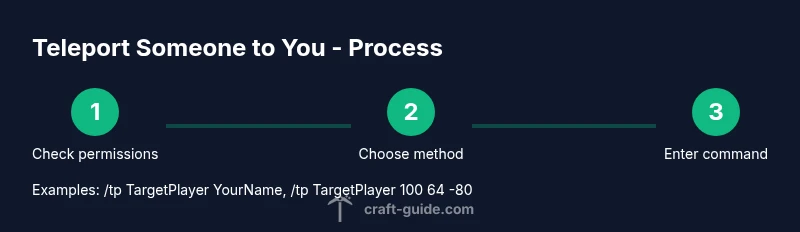
Check permissions: Ensure cheats are enabled in your world or that you have operator status on the server. Without permissions, the tp command will be rejected by the game or server rules. This protects players from unauthorized teleportation.
-
Confirm Nova’s exact username: Use in-game chat or a quick /list to confirm the correct name. A mismatched name will cause the command to fail, and you might teleport the wrong player or nothing at all.
-
Choose the teleport method: To move Nova to you, use /tp Nova YourName. If you want to move yourself to Nova instead, use /tp YourName Nova. You can also bring Nova to specific coordinates, for example /tp Nova 100 64 -80 if you know your location’s coordinates.
-
Execute the command: Type the chosen command and press Enter. You should see a chat message confirming the teleport, such as “Nova was teleported to YourName.” If the server denies the action, double-check permissions or whitelist settings.
-
Verify success and safety: Look around to ensure Nova spawned in a safe space (not inside a block or lava) and that you’re in an appropriate area. If needed, adjust the destination and try again with precise coordinates.
-
Troubleshoot common issues: If you receive an error (e.g., “Unknown player,” or “You do not have permission”), recheck the target name, ensure both players are online, and confirm you’re using the correct edition command syntax for Java vs Bedrock.
Common pitfalls and safety considerations
Teleporting is a powerful tool, but it carries real-world implications in multiplayer contexts. Always obtain consent from other players before moving them, especially in busy servers or competitive events. Never teleport someone into dangerous locations (lava, sharp drops, hostile mobs) or into a blocked area where they could suffocate or take damage immediately. If you’re playing on a server with strict rules, a moderator or admin may disable tp commands or restrict them to certain roles; in such cases, you should rely on approved channels for movement. Finally, be mindful of latency and chunk loading: teleports can fail if the destination chunks aren’t loaded, which may result in a teleport that appears to “fizzle” or place the player in an unsafe area. If you run into issues, pause, verify coordinates, and check your server rules before retrying.
Authority sources and further reading
For learners seeking more authoritative guidance on command usage and safe multiplayer practices, consider consulting reputable sources from education and science publications. These sources provide general guidance on online collaboration and technical commands that underpin in-game tools like /tp. While not Minecraft-specific, they help you understand broader concepts of server administration, latency, and user etiquette, which are important when coordinating teleports with others. Examples include major publications and educational resources that discuss software command structures, safety, and responsible gaming behavior. Citations:
- https://www.ed.gov/
- https://www.nature.com/
- https://www.science.org/
By integrating these perspectives with Minecraft knowledge, you’ll be better prepared to manage teleport workflows in a respectful and effective way.
Bedrock vs Java: small but meaningful differences
Both Java and Bedrock editions support the /tp command, but you may encounter minor syntax or behavior variations depending on your version and any server-side plugins. For example, Bedrock players might rely more on relative coordinates with tilde notation (~) and may experience slight differences in how command feedback is displayed in chat. In practice, the core logic remains the same: identify the target, decide the destination, and execute /tp with the correct targets and coordinates. Always test commands in a safe environment first to avoid accidental teleportation into hazards or walls. Craft Guide’s ecosystem emphasizes practicing these commands in controlled settings to prevent accidental disruption during live builds.
Etiquette and best practices
Teleporting others should be done with explicit consent, especially in public servers. Communicate clearly about why the teleport is needed and where the destination will be. When coordinating large groups, consider using a consistent convention for destinations (e.g., a designated “meet-up” area) and avoid repeatedly teleporting players during active builds unless necessary. If you’re managing a server, document tp permissions and provide players with a short guide so they understand how and when to use the command. Practicing responsible teleportation keeps multiplayer play smooth and enjoyable for everyone.
Tools & Materials
- Minecraft game with cheats enabled(Enable cheats in single-player or be operator on a server)
- Access to chat/command input(Commands must be typed into the chat or server console)
- Exact player usernames (target and destination)(Know the correct in-game names or use /list to verify)
- Coordinate reference (X, Y, Z)(Optional for precise teleports to a location)
Steps
Estimated time: 5-15 minutes
- 1
Enable cheats or operator permissions
Make sure cheats are allowed in your world or that you have operator status on the server. Without permissions, the /tp command will be rejected. This ensures you can perform the teleport without errors.
Tip: If you’re on a server, confirm with an admin before attempting tp to avoid rule violations. - 2
Identify the target player's exact username
Get the correct username by asking the player or issuing the /list command to see who is online. Typing the wrong name will cause the command to fail or move the wrong person.
Tip: Double-check capitalization; Minecraft usernames are case-sensitive in commands. - 3
Decide destination: to you or to coordinates
Choose whether you want to teleport the target to your current location (your in-game name) or to specific coordinates. Both approaches use the tp command but require different arguments.
Tip: If your aim is to gather everyone at a meetup point, coordinates can be more precise than teleporting to a moving player. - 4
Enter the tp command to bring the target to you
For example, to teleport Nova to you, type: /tp Nova YourName. If you prefer to move yourself instead, type: /tp YourName Nova. Bedrock players may use the same basic structure with minor edition-specific tweaks.
Tip: Always test first with a single target to prevent group disruption. - 5
Verify success and safety
Check the chat for a confirmation message and look around to ensure Nova appeared in a safe, non-hazardous location. If land is blocked or unsafe, adjust coordinates and retry.
Tip: If you land inside a block, teleport to nearby safe coordinates instead and move them away from the risk area. - 6
Troubleshoot common issues
If you see errors like unknown player or permission denied, recheck the names, world permissions, and edition syntax. Ensure the destination chunks are loaded if teleporting to a coordinate in a far region.
Tip: Consult server logs or admin tools to identify which permission or plugin is blocking the command.
People Also Ask
What does the /tp command do in Minecraft?
The /tp command moves a player or entity instantly to another location or to another player. It’s a core tool for coordinating in multiplayer sessions.
The tp command teleports players or entities instantly.
Do I need operator permissions or cheats enabled to use /tp?
Yes. You need operator permissions on a server or cheats enabled in a single-player world to execute /tp.
You need permission to use tp commands.
Can you tp to coordinates and to another player?
Both. Use /tp <target> <x> <y> <z> for coordinates or /tp <target> <destination> to move to another player.
You can teleport to either a location or a player.
What happens if the destination is blocked or unsafe?
If the landing space is blocked, you may appear inside a block or take damage. Always choose safe coordinates or clear the area first.
Landings can be unsafe if the space is blocked.
Can I tp multiple players at once?
Yes, you can use selectors like @a to teleport all players to a destination, or target a specific group.
You can teleport groups with selectors.
What are the differences between Bedrock and Java tp commands?
The core concept is the same, but there can be minor syntax differences and feature changes depending on edition and version.
Bedrock and Java share the same idea with small syntax differences.
Watch Video
The Essentials
- Master the /tp command formats for players and coordinates
- Always verify permissions before teleporting someone
- Teleport safely: avoid landing in hazards or solid blocks
- Use group teleports sparingly to prevent chaos