Using Minecraft Commands: A Practical Beginner's Guide
A clear, step-by-step guide from Craft Guide that teaches how to use minecraft commands across Java and Bedrock editions, including syntax, essential commands, command blocks, and best practices for safe, creative builds.


With minecraft commands, you’ll control your world, spawn entities, modify terrain, and automate tasks. This guide shows essential syntax, practical examples, and safety tips for both Java and Bedrock editions. By the end, you’ll confidently use /gamemode, /give, /summon, and related commands to speed up builds and create custom adventures.
What are Minecraft commands?
Minecraft commands are strings you type into the chat input or place inside a command block that tell the game to perform actions instantly. They can change the time of day, summon mobs, give items, alter weather, teleport players, create new blocks, and automate complex sequences. Commands are a powerful tool for builders, redstone enthusiasts, and world editors because they provide precise control that is often impractical with manual actions. According to Craft Guide, learning how to use minecraft commands unlocks precise control over your world and opens up creative possibilities. This guide emphasizes practical, beginner-friendly explanations, safe testing practices, and real-world examples you can apply immediately in your own worlds. By the end, you’ll understand the core syntax, the most useful commands, and how to experiment responsibly to expand what you can build. We’ll also show how to verify your results, avoid common mistakes, and reuse commands in repeatable workflows. Whether you’re crafting a quest, setting up a quest, or just exploring how the game handles logic, mastering commands will make your Minecraft experience faster, more reproducible, and more fun.
Getting started: prerequisites and setup
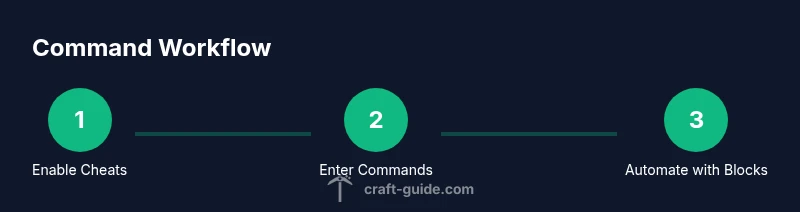
Before you begin using commands, ensure your world is set up to allow them. In Java Edition, this means enabling cheats when you create or edit your world. In Bedrock Edition, turn on Activate Cheats in your world options. You’ll need a Minecraft account and a device capable of running either Java or Bedrock edition. A stable keyboard and mouse make entering commands easier, and a reliable testing environment (a copy of your world) helps prevent accidental changes. Craft Guide recommends starting in a safe test world so you can practice without risking your main build. Once cheats are enabled, press the chat key (typically T) to begin typing commands, and use the tab key to auto-complete names for speed and accuracy. This initial setup builds confidence as you transition to more complex commands.
Command syntax you need to know
Most Minecraft commands follow a simple structure: a leading slash, a command name, and a series of arguments. Example: /give @p minecraft:diamond_sword 1. Arguments define targets, quantities, coordinates, and options. You’ll frequently use target selectors like @p (nearest player), @a (all players), or @e (all entities). Coordinate arguments can be absolute or relative, using ~ to indicate a position relative to the executor. Caret notation (^) lets you specify coordinates relative to the look direction. Some commands support JSON formatting for data values, NBT tags, and additional options. Mastery comes from practicing core commands, understanding their syntax, and using tab-completion to reduce errors. Craft Guide emphasizes building a mental checklist: confirm your world permits commands, choose the right target, specify the correct syntax, and test in a safe environment before applying to your main world.
Essential commands by category
- Movement and world control: /gamemode, /tp, /weather, /time.
- Items and blocks: /give, /setblock, /fill.
- Entities and effects: /summon, /kill, /effect, /difficulty.
- World editing and automation: /execute, /function, /scoreboard, /replaceitem.
- Utility: /say, /title, /clone. Each command has common arguments like targets, numbers, coordinates, and data values. Practice simple examples to become fluent: give items to yourself, teleport to a location, or toggle daylight. Remember to test incrementally and document your commands so you can reuse them later.
Using command blocks for automation
Command blocks are specialized blocks that run commands automatically in response to redstone signals. To use them, place a command block, enter a command (for example, /say Hello World), and attach a redstone source. You can chain commands with impulse, chain, or repeat types for continuous automation. The key is to test in a safe world and ensure the command block has the correct permissions, as command blocks bypass normal chat restrictions. Craft Guide notes that command blocks unlock powerful automation and map-based storytelling when paired with redstone mechanisms and event triggers.
Examples: common tasks and their commands
- Set gamemode to creative: /gamemode creative @p
- Give yourself a diamond sword: /give @p minecraft:diamond_sword 1 0 {display:{Name:"Sharp Sword"}}
- Teleport to a location: /tp @p 100 ~ 64 ~ -50
- Spawn a zombie: /summon minecraft:zombie ~ ~ ~ {IsBaby:0b}
- Change weather: /weather clear
- Create a block of stone: /setblock ~1 ~ ~1 minecraft:stone
- Replace a selection of air with water: /fill ~-5 ~-1 ~-5 ~5 ~3 ~5 minecraft:water These examples illustrate how small commands can shape the world quickly. Each task teaches the syntax, target selection, and coordinate handling you’ll rely on frequently.
Troubleshooting common errors
Unknown or incomplete command messages usually mean a typo or a command not available in your edition. Ensure cheats are enabled and you’re using the correct game version (Java vs Bedrock). If a command requires specific data, verify the syntax and data types (numbers, strings, NBT). Lack of permission or restrictions in multiplayer servers can block commands; check your operator status or permission levels. Use tab-completion to minimize typos and always test in a copy of your world to avoid irreversible changes.
Tips for robustness and best practices
- Always make a backup of your world before testing new commands or command blocks.
- Practice commands in a dedicated testing world to build confidence.
- Keep a personal command library with examples and variations for future projects.
- Use functions and data packs to organize complex command sequences for repeatable results.
- Document each command’s purpose, inputs, and expected outcomes to aid future edits.
Authority sources
- https://education.minecraft.net/
- https://www.minecraft.net/
- https://www.theguardian.com/games/2020/jul/14/minecraft-commands-how-to-use-the-command-block These sources provide official guidance, practical explanations, and broader coverage of Minecraft commands and automation techniques.
Next steps and practice ideas
Experiment with small projects: create a timed light system that turns on at sunset, spawn protective mobs around a base, or build a tiny quest with fetch-and-deliver tasks. Use the command log in your world to review what happened when you ran a command. As you expand, incorporate command blocks and functions to automate complex scenarios. The next step is to explore data packs and built-in data-driven behaviors to take your skills to the next level.
Tools & Materials
- Minecraft account with access to Java or Bedrock edition(Ensure the edition you’ll practice on supports the commands you plan to use.)
- Test world where changes won’t affect your main build(Back up before experimenting.)
- Computer or device with Minecraft installed(Use a stable version that supports the commands you want to learn.)
- Keyboard and mouse(For efficient command entry and tab-completion.)
- Reference cheat sheet or command guide(Helpful for beginners to remember syntax and targets.)
- Screen capture or notes app(Record commands as you test so you can recreate them later.)
Steps
Estimated time: 30-45 minutes
- 1
Prepare your world for commands
Open your test world and ensure cheats are enabled. In Java, select a world with Allow Cheats set to ON; in Bedrock, turn on Activate Cheats. This initial step ensures you can use chat commands and command blocks without server restrictions.
Tip: Document the world’s settings so you can replicate the environment for future projects. - 2
Open the command input
Press the chat key (usually T) to open the command input. Commands start with a slash. Practice typing small commands and use the Tab key to auto-complete names to avoid typos.
Tip: Enable on-screen hints or a lightweight command cheat sheet for quick reference. - 3
Try a simple command
Enter /gamemode creative @p to switch yourself to creative mode. This confirms you have permission and that your syntax is correct. Observe the effect immediately and note any errors.
Tip: If nothing happens, verify your permissions and that cheats are allowed in your world. - 4
Experiment with coordinates
Teleport yourself to a nearby position using /tp @p ~10 ~ ~0. This uses relative coordinates so you don’t need exact absolute values. Practice different relative offsets to understand how the ~ syntax works.
Tip: Always test in a safe distance to avoid spawning inside terrain. - 5
Use selectors for precision
Target specific players or entities with @p, @a, or @e. For example, /summon minecraft:skeleton ~ ~ ~ to spawn a skeleton at your location. Practice selecting a few entities to see how commands interact in crowded areas.
Tip: Combine selectors with scores or conditions for more control. - 6
Give yourself items
Use /give to obtain items, such as /give @p minecraft:diamond_sword 1. You can add data tags to customize items, like enchantments or names.
Tip: Start with simple items, then add data tags as you grow comfortable. - 7
Modify the world with blocks
Replace blocks with /setblock or fill areas with /fill. For example, /setblock ~1 ~ ~1 minecraft:stone places a stone block next to you. /fill ~-5 ~-1 ~-5 ~5 ~3 ~5 minecraft:glass fills a 11x5x11 area with glass.
Tip: Always preview the target area in your mind to avoid accidental overwrites. - 8
Spawn mobs and apply effects
Experiment with /summon and /effect powers. Try /summon minecraft:zombie ~ ~ ~ to spawn a zombie, or /effect give @p minecraft:speed 30 1 to grant a temporary speed boost.
Tip: Check mood and behavior of spawned entities in your world to avoid chaos. - 9
Automate with command blocks
Place a command block and input a command, then activate with redstone. You can chain impulses and repeats for continuous automation, creating timed sequences or event-driven actions.
Tip: Test each block individually before linking multiple blocks for reliability. - 10
Document and backup
Record your tested commands and keep backups of your world. This practice reduces risk when expanding your command library and helps you recover quickly from mistakes.
Tip: Create a dedicated folder of commands for different projects.
People Also Ask
Do commands work in both Java and Bedrock editions?
Yes, most commands exist in both Java and Bedrock editions, but some syntax and available options differ. Always verify the command for your edition and version.
Yes, commands work in both editions, though there are small differences in syntax and availability.
How do I enable cheats in a new world?
In Java, enable cheats when creating the world or toggle Allow Cheats in world settings. In Bedrock, turn on Activate Cheats in the world options. This is necessary to use / commands and command blocks.
Enable cheats in the world settings before you start testing commands.
What is a command block and when should I use one?
A command block is a special block that runs commands automatically, typically triggered by redstone. Use it for automation, quest logic, and repeatable actions. Remember, command blocks require appropriate permissions in servers.
Command blocks let you automate commands, great for quests and complex builds.
Can I run commands in multiplayer without operator status?
On servers, only players with operator privileges or specific permissions can run commands. Some commands may be restricted by server plugins or whitelists.
Commands usually require operator rights on servers.
What are safe best practices when experimenting with commands?
Always test in a backup or separate world, document each command, and avoid mass edits until you’ve confirmed the syntax. Regularly back up your data.
Test in a safe world and keep a log of commands you use.
The Essentials
- Master core commands to speed up builds
- Use selectors and coordinates for precision
- Practice in a safe test world before applying to main worlds
- Command blocks enable powerful automation when used responsibly
- Keep a personal command library and document outcomes