How to Use a Command Block in Minecraft
Learn how to use a command block in Minecraft with practical, step-by-step instructions. From obtaining a block to wiring it with redstone and testing effects, Craft Guide provides clear, beginner-friendly automation tips.


By the end of this guide you will know how to use a command block in minecraft to execute commands automatically. You’ll learn how to obtain, place, and power a command block, how to input commands, and how to test results with simple redstone setups. This quick overview sets the stage for a deeper step-by-step tutorial.
What is a Command Block?
Command blocks are redstone devices that execute commands automatically when triggered. According to Craft Guide, command blocks are powerful because they decouple input from outcomes, enabling automation in maps and adventure experiences. Unlike normal blocks, command blocks do not store items or have a direct use in survival; they exist specifically to run commands when powered by redstone. In Minecraft, commands are typed into the block's interface and run when power arrives. This makes command blocks ideal for automation. The best way to understand how to use a command block in minecraft is to think of it as a programmable action trigger: you configure what you want to happen and then use redstone to start it. You can verify results with simple commands like /say, /tp, or /give to see immediate feedback. As you gain confidence, you can chain blocks; apply conditions, and even respond to player interactions. This section will introduce the core concepts: the block itself, why it matters, and how to recognize scenarios where a command block is the right tool.
Getting a Command Block
To begin, you need access to a command block. In Java Edition, command blocks are not found in your inventory by default and you’ll need to enable cheats or use Creative mode to obtain one with the /give command (for example, /give @p command_block). In Bedrock Edition, the path is similar, though the interface may differ slightly. Once you have a command block, place it in the world on a solid block. You’ll see a black block with a small square where you can type the command. This section covers how to obtain and place the block correctly so you can start testing basic commands.
Basic Command Block Modes
There are three primary modes you should know: Impulse (single-use commands), Repeat (executed every game tick while powered), and Chain (a sequence of command blocks that runs in order after a preceding block). Each mode changes how often the command runs and how it interacts with redstone signals. For simple tasks, start with an Impulse block to confirm your command works. For ongoing effects, switch to Repeat and supply a continuous power signal. Chain blocks are best used to string multiple commands together into a single automated routine.
Placing, Powering, and Wiring a Command Block
Placing a command block is straightforward: place it on a solid surface where you want the automation to run. This establishes the command's physical location in the world. Open the block’s interface to input a command such as /say Hello, /give @p minecraft:diamond, or /tp @p ~ ~1 ~. To make the block run, provide redstone power via a lever, pressure plate, or a redstone clock. Use a Redstone Repeater to set delays or create a simple clock to drive continuous execution. Proper wiring ensures the command block receives a stable signal and avoids accidental repeated triggers.
Writing Commands: Examples You Can Use
Here are practical commands to try in your first projects. Begin with a simple impulse test to confirm basics, then expand:
- /say Hello, world
- /give @p minecraft:diamond_sword
- /tp @p ~ ~1 ~
- /summon zombie ~ ~ ~
- /setblock ~ ~1 ~ minecraft:stone
- /title @a title {"text":"Welcome","color":"green"}
As you grow confident, combine these with redstone clocks and chaining to produce more complex automation. Always check your server or world version for command syntax differences and adapt accordingly.
Build a Simple Automation: A Starter Project
This section walks through a compact starter project: a door-lock system that opens when a player steps on a pressure plate, then closes after a few seconds. You’ll use an Impulse block to set the door state, a Repeat block to maintain checks, and a short Chain to reset the system. The goal is a reliable, repeatable loop that demonstrates timing, state changes, and accessible wiring. You’ll learn how to stage commands so they run in the correct order and avoid conflicts with existing circuitry.
Troubleshooting Common Issues
Common problems include miswired redstone that never powers the block, incorrect command syntax for your MC version, or attempting to run a command block without the required permissions. Ensure you are in Creative mode or have cheats enabled, verify the command syntax is correct for your game version, and confirm the block is receiving a power signal. If outputs fail to appear, double-check that you’re not accidentally obscuring the chat or world messages with /say or /tellraw.
Advanced Tips and Variations
As you get comfortable with basic command blocks, you can explore advanced ideas: using /execute to combine commands at specific coordinates, chaining multiple blocks for complex logic, or integrating command blocks with scoreboard objectives for player-dependent outcomes. Consider adding visual feedback with particle effects or simple UI prompts. Remember to test in a controlled environment before deploying into a public world.
Tools & Materials
- Command Block(Obtain via /give @p command_block in Creative or with cheats enabled)
- Redstone Power Source(Lever, pressure plate, or redstone torch to activate)
- Redstone Dust(Connects power to the command block)
- Redstone Repeater(To set timing or create a clock)
- Solid Block to Mount Wiring(Keeps wiring tidy and out of the way)
- Testing Materials(Glowstone, quartz, or other blocks to visualize outputs)
Steps
Estimated time: 15-25 minutes
- 1
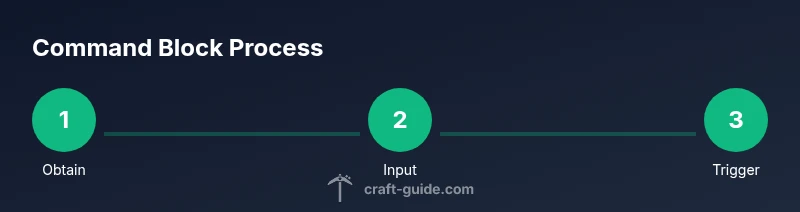
Obtain the Command Block
In Creative mode or with cheats, use /give @p command_block to acquire a command block. This step ensures you have the tool needed for building your automation.
Tip: Keep a few extra blocks handy for practice runs. - 2
Place the Block
Place the command block on a solid surface where you want the automation to run. This establishes the command's physical location in the world.
Tip: Choose a visible spot so you can easily test inputs. - 3
Enter a Basic Command
Open the command block’s interface and type a simple command like /say Hello. This confirms you can input and execute commands.
Tip: Start with a simple command to verify basics before complex ones. - 4
Power the Block
Connect a redstone source (lever or clock) to the block to trigger execution. A clock allows repeated execution over time.
Tip: If testing, use a short pulse to avoid flooding chat. - 5
Test and Observe Output
Activate the power source and observe the result in chat or world changes. If nothing happens, recheck wiring and command syntax.
Tip: Check variant commands for your game version. - 6
Expand with Chain Blocks
Add Chain blocks to run several commands in sequence. This demonstrates how to build a tiny automation routine.
Tip: Ensure chain blocks are properly linked in the correct order.
People Also Ask
Do command blocks work in Survival mode?
Command blocks are not typically obtainable in Survival without cheats; enable cheats or switch to Creative to use them. This keeps you focused on learning commands rather than farming blocks.
In Survival, command blocks are usually unavailable unless cheats are enabled or you're in a creative test world.
Are command blocks available in both Java and Bedrock Editions?
Yes, both Java and Bedrock versions include command blocks, though the UI and some syntax may differ slightly between editions.
Command blocks exist in both versions, with minor interface and syntax differences.
What is the difference between Impulse, Repeat, and Chain modes?
Impulse runs once per trigger, Repeat executes every tick while powered, and Chain runs in sequence after a preceding block. Use them to shape timing and order.
Impulse runs once; Repeat runs continuously; Chain executes after the previous block.
How do I test a command block safely?
Test in a separate world or with cheats off for realism, and start with simple commands. Confirm the command syntax matches your version before expanding.
Test in a safe world, begin with simple commands, and verify version-specific syntax.
How can I hide or control the command block’s output?
Disable command block output with the gamerule commandBlockOutput set to false, and use in-world feedback like particle effects for signaling.
Turn off chat spam by disabling command block output, and use visuals for feedback.
What are common mistakes beginners make?
Wrong edition commands, miswired redstone, and forgetting to power the block are frequent issues. Ensure you check syntax, wiring, and power sources.
New players often mis-wire redstone or forget to power the block. Check syntax and wiring carefully.
The Essentials
- Master the basics of command blocks and their modes
- Practice with simple commands before scaling up
- Plan your wiring to avoid feedback loops
- Test in a safe world and document changes