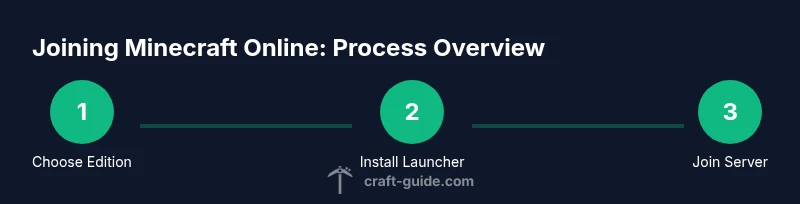
How to Minecraft Online: A Complete Beginner's Guide 2026
Learn how to play Minecraft online with friends: choose editions, install the launcher, join servers, and stay safe. This practical, step-by-step guide helps beginners and intermediate players start multiplayer quickly.


You're about to learn how to minecraft online: choose the right edition and server type, install the official launcher, and connect with friends in multiplayer worlds. This quick guide outlines essential steps for setting up Java or Bedrock editions, joining servers, configuring your privacy, and practicing safe, cooperative online play with good etiquette. We also cover matchmaking basics, common terms, and how to avoid scams.
Why online Minecraft feels different from solo play
Playing online introduces latency, server rules, and community dynamics that change how you build, explore, and cooperate. According to Craft Guide, the best online experiences come from understanding server types, choosing the right edition, and following clear etiquette. This section explains the core differences and why preparation matters for performance, fairness, and fun. You’ll learn how latency affects movement and combat, how server settings shape your world, and what tools help you stay connected with friends across time zones. By embracing online play, you’ll also discover new collaboration styles, like shared builds, coordinated exploration, and multiplayer mini-games that aren’t possible in solo mode.
Editions and server types explained
Minecraft online hinges on edition choices and server ecosystems. The Java Edition supports wide modding and custom servers on PC, while Bedrock emphasizes smooth cross-play across consoles and mobile devices. Realms are official servers hosted by Mojang that offer simple setup for friends, but third-party servers provide larger game modes, economies, and communities. This section compares server types, whitelists, permissions, and how to pick the right environment based on your goals, hardware, and preferred play style. You’ll also learn how cross-play works and what limitations to expect when mixing platforms. Craft Guide’s insights highlight how choosing wisely can dramatically reduce frustration and improve teamwork.
Preparing your setup for online play
A stable device and network are the foundation of a good online experience. Ensure your device can run Minecraft smoothly, keep your system and launcher up to date, and use a reliable internet connection. For best results, use a wired Ethernet connection when possible to reduce latency, and close background apps that consume bandwidth. This block also covers basic safety habits, like enabling two-factor authentication where available, keeping your password strong, and avoiding sharing login details. With proper prep, you’ll minimize disconnects and enjoy more consistent sessions with friends.
Account creation and launcher setup
Create or sign in to your Minecraft account and install the official launcher. Sign in with the appropriate credentials for Java or Bedrock edition, and verify your email if prompted. Enable two-factor authentication whenever possible to protect your account, and review privacy settings to control who can contact you and what information is visible. This step-by-step helps you download the launcher, log in, and configure your profile so multiplayer play is ready without interruption. A clean setup also makes server access and server messages easier to manage.
How to join and browse servers
Start by choosing a server type and obtaining the correct address if joining a non-official server. Use server directories, community lists, or trusted friends to find active options with clear rules and recent activity. For Bedrock, input the server address in the Multiplayer screen; for Java, add a server to the list and enter the address and port if required. Realms provide an in-house option with simple one-click joins for friends. This section walks you through evaluating server reputations, ping indicators, and how to switch between servers without losing your progress. Craft Guide notes that reading rules before joining saves time and prevents miscommunications.
Joining servers safely: rules, permissions, and etiquette
Respect server rules, avoid griefing, and use proper chat etiquette. Depending on the server, you may need to request access or be whitelisted. Always respect admins and moderators, and use in-game voice chat responsibly if enabled. Protect your personal information and avoid sharing account details with strangers. If you encounter toxic behavior, use in-game reporting features and consider leaving the server to protect your experience. Establishing a positive vibe early improves your chances of making new friends and learning faster.
Common problems and troubleshooting
If you encounter login errors, verify your credentials and ensure you are on the correct edition. Lag can stem from distance to servers, local network congestion, or background apps. Try restarting the game, choosing a server closer to your region, or adjusting in-game settings like render distance and graphics quality. If you frequently disconnect, test your network, disable VPNs if you use one, and update your router firmware. For persistent issues, consult server admins or the game’s official support channels for guidance.
Building community and multiplayer etiquette
Online Minecraft shines when players collaborate. Use shared builds, coordinate via voice chat, and contribute to community goals. Join public events or host your own with friend groups. Be inclusive, document your rules in a server wiki, and moderate conversations to keep the community welcoming. A positive, communicative approach helps beginners learn faster and keeps long-term players engaged. Craft Guide emphasizes that consistent cooperation and respectful leadership create memorable experiences for everyone involved.
Practice, learning, and moving toward advanced online play
Beginner players should focus on basic survival, exploration, and small projects with friends. As you gain experience, experiment with community farms, market systems, or themed builds on appropriate servers. Use maps, seeds, and community tutorials to learn new techniques. Regular practice, curiosity, and respectful collaboration will accelerate your progress and enjoyment of online Minecraft. This path leads to more complex challenges, like redstone automation and resource management, while maintaining a fun, cooperative spirit.
Tools & Materials
- Computer or mobile device capable of running Minecraft(Windows/Mac/Linux or iOS/Android; ensure your device runs current Minecraft releases smoothly)
- Stable internet connection(Wired Ethernet preferred when possible; minimize background traffic during sessions)
- Minecraft account and launcher(Sign in with the correct edition (Java or Bedrock) and download the official launcher)
- Minecraft Java Edition license or Bedrock Edition license(Choose your edition before joining servers; note cross-platform differences)
- Headset and microphone(Helpful for voice coordination on team servers)
- Voice chat app (e.g., Discord)(Optional for coordinating with friends or communities)
Steps
Estimated time: 45-90 minutes
- 1
Choose edition and install launcher
Decide between Java and Bedrock based on your platform and goals. Download the official Minecraft launcher, install it, and sign in with your account. Ensure you select the correct edition for the servers you want to join.
Tip: Always download from the official source to avoid scams or malware. - 2
Set up your account and privacy
Create or sign in to your Minecraft account and configure privacy controls. Enable two-factor authentication if available. Review who can message you and how your profile appears to others.
Tip: Use a strong password and avoid sharing login details with others. - 3
Find a server or Realm to join
Browse trusted server lists or invite links from friends. Check rules, player activity, and community reputation before joining. For Bedrock, copy the server address; for Java, add a server entry with the address and optional port.
Tip: Start with well-reviewed servers to learn norms and etiquette quickly. - 4
Join and configure your profile
Enter the server, configure your chat and input preferences, and align with the server's language and rules. Introduce yourself politely in chat and follow the established norms.
Tip: Mute global chat if it becomes overwhelming while you learn. - 5
Coordinate with teammates
Use voice chat or text channels to plan builds, share resources, and track progress. Establish roles and goals to avoid duplication and confusion.
Tip: Create a simple build plan or wiki page to keep everyone aligned. - 6
Play responsibly and follow rules
Respect administrators, avoid griefing, and report problems through the proper channels. Keep personal information private and stay within the server’s safety guidelines.
Tip: If the server feels unsafe, disengage and seek a friendlier community. - 7
Troubleshoot common issues
If you encounter login or lag problems, verify edition compatibility, restart the launcher, and test a different server. Update your game client and router firmware if connectivity is unstable.
Tip: Document error messages to speed up support conversations.
People Also Ask
What editions support online play?
Both Java and Bedrock editions support online play, but they use different launcher ecosystems and server types. Java is PC-focused with a large modding scene, while Bedrock emphasizes cross-platform play across consoles, mobile, and Windows 10/11. Realms are available on both editions, though features vary slightly.
Both Java and Bedrock editions support online play. Choose based on your platform and whether you want cross‑play or mod support.
Are Realms cheaper for online play?
Realms provide an official, simple online experience with predictable costs, but third-party servers can be cheaper or free depending on the feature set. Realms are designed for ease of use and minimal setup, while public servers offer more variety at the potential cost of in-game purchases.
Realms are easy to use with a fixed price, while public servers vary in cost and options.
Can I play Minecraft online with friends on console?
Yes. Bedrock Edition supports cross-play across many platforms, including consoles, Windows, and mobile devices. Java Edition remains PC-only, so friends on other platforms would need Bedrock or a compatible setup. Always check server compatibility before inviting friends on different devices.
Bedrock supports cross‑play across many devices; Java is PC-only.
What are common causes of lag when playing online?
Lag usually stems from distance to the server, network congestion, or competing applications on your device. Reducing background tasks, choosing nearby servers, and updating network hardware can improve stability. If latency remains high, consider testing on a wired connection or switching to a server with a better ping.
Lag often comes from distance and network congestion; try closer servers and fewer background apps.
Do I need a premium account to join servers?
Most public servers do not require a premium account beyond owning the game. Bedrock Realms and some servers may have optional perks or subscription models. Always verify server requirements before attempting to join.
You generally need only a game license; some servers offer optional perks.
Is it safe to join new servers?
New servers can be safe if you verify the community, read rules, and avoid sharing personal information. Start with well-known communities and report any harassment or suspicious activity to moderators. If something feels off, leave and report.
Join trustworthy servers, read the rules, and avoid sharing personal data.
Watch Video
The Essentials
- Choose the right edition for your platform.
- Join servers with clear rules and reputable communities.
- Secure your account and keep software updated.
- Coordinate with teammates using communication tools.
- Troubleshoot calmly to maintain enjoyment.