How to Make a Minecraft Server: A Complete Guide
Learn how to set up a Minecraft server from start to finish, including hosting options, hardware, configuration, and maintenance tips for reliable play.


Starting a Minecraft server is within reach for most players. You can run a local or hosted server by choosing your hosting method, installing Java, and configuring network settings. This guide walks you through the essential steps, materials, and security tips to get you online quickly and keep your world stable and safe. If you’re unsure, follow the step-by-step blocks below.
Why You Might Run Your Own Minecraft Server
If you're curious about how can i make a server in minecraft, running your own server gives you control over who plays, what gets built, and how the world evolves. A personal server can host a small friend group, a school project, or a public community with rules and moderation. The Craft Guide team has seen players move from single-player explorations to collaborative campaigns in days, not weeks, when they host together. A server lets you choose the game mode, enforce house rules, and install tools that fit your play style. It also helps you learn basic networking concepts, from port forwarding to dealing with latency, which are valuable skills beyond Minecraft. In short, a server is a playground with governance: you provide the hardware, the settings, and the social guidelines; the players bring ideas, builds, and stories. If you’re new, start with a small group and scale as you gain confidence. Keep expectations realistic: a server that feels lively requires careful planning, a little patience, and regular maintenance to stay secure and enjoyable for everyone involved.
According to Craft Guide, starting small with a clear plan and safety-minded rules sets you up for long-term success. This first section aligns your goals with practical steps you’ll see later in the guide, so you’ll know what you’re aiming for before you buy hardware or choose a hosting plan.
Server Types and Hosting Options
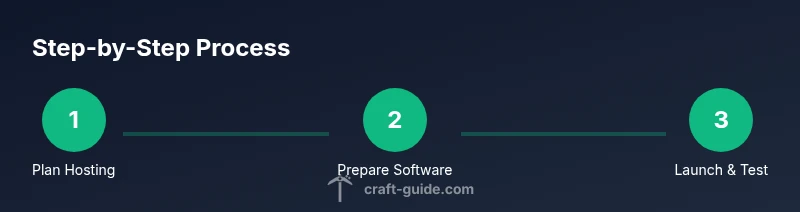
Choosing how you will host your Minecraft server is one of the most important decisions. A local LAN or home PC is the cheapest starting point but may require you to manage your own connectivity and uptime. Remote hosting—via a VPS, cloud server, or dedicated game server provider—offers higher reliability, better uptime, and easier scalability, but costs more and introduces ongoing management tasks. For newcomers, a blended approach works well: start with a small, affordable hosting plan to learn the basics, then migrate to a more robust setup as you grow. Craft Guide analysis shows that most players who want a stable, 24/7 experience benefit from commercial hosting once their player base grows beyond a handful of friends. When evaluating options, consider latency to your 주요 players, ease of plugin or mod support, and the availability of backups and security features.
Core Configurations You Need
Once you decide where to host, you’ll configure the server software and environment. The base choice is Vanilla Minecraft for a pure experience or Spigot/Paper for plugins and performance tweaks. Ensure you’re running a compatible Java version for your server type, and allocate enough memory to handle your expected load without starving the host OS. Create a server.properties file to set max-players, game mode, white-list status, online-mode, and world seed. Firewall rules should allow TCP/UDP on port 25565, and you may want to set up a dynamic DNS service if your IP changes. Regular backups should be scheduled, ideally to a separate storage location. Following these steps helps maintain a stable, enjoyable world for your players. Craft Guide recommendations emphasize keeping the software up to date and testing any changes on a staging server before production.
Maintenance, Security, and Social Aspects
A Minecraft server thrives when players feel safe and engaged. Set up a whitelist or player permissions system, especially for public servers, and consider roles or plugins to manage access. Regularly update server software and plugins to patch vulnerabilities, and maintain backups to recover from griefing or corruption. For social aspects, establish a clear code of conduct and a moderation plan, including how to handle disputes, builds, and player behavior. Monitoring tools, logs, and automated alerts help you catch issues early. Security best practices include minimal exposure (avoid shared credentials), strong admin passwords, and keeping sensitive files behind access controls. Craft Guide notes that communities with transparent rules and steady administration tend to enjoy longer lifespans with fewer disruptions.
Troubleshooting Common Issues
Even with careful setup, you may encounter lag, connectivity problems, or failed mod/plugin compatibility. Start by confirming your network configuration and that the server is actually reachable from the intended clients. Check the server console for errors, verify RAM allocation is adequate, and ensure plugins or mods are compatible with your Minecraft version. Regular maintenance, such as updating Java, backing up data, and validating backups, minimizes downtime. If you’re unsure about a configuration change, revert to a known-good state and test incrementally. Craft Guide resources suggest keeping a changelog and a rollback plan so you can recover quickly from misconfigurations.
Quick-Start Checklist
- Decide hosting method (local vs. hosted) and threshold for players
- Choose server software (Vanilla vs. Spigot/Paper) and Java version
- Install Java, download server jar, and create a dedicated folder
- Configure server.properties and firewall rules
- Set up port forwarding or IP/DNS as needed
- Run the server, connect locally, and verify latency
- Implement backups and security measures, then invite players
Tools & Materials
- Minecraft Java Edition server software (Vanilla or modded)(Choose Vanilla for base play or Spigot/Paper for plugins and performance tweaks)
- Java Runtime Environment (JRE) 17+(Ensure it matches the server software requirements and your OS)
- Computer or VPS with sufficient RAM(For small groups, start with a modest amount of RAM; scale up as needed)
- Stable internet connection (upload speed important)(Higher upload speeds reduce latency and improve player experience)
- Static IP or Dynamic DNS(Static IP is ideal; dynamic DNS helps if you don’t have one)
- Router with port forwarding (default 25565)(Forward TCP/UDP as recommended by your router documentation)
- Server.properties file and a text editor(Edit max-players, online-mode, white-list, and world settings)
- Backup storage(Keep off-server backups if possible; automate where feasible)
- Admin tools (FTP/SSH or control panel)(Optional but helpful for maintenance and backups)
Steps
Estimated time: 60-180 minutes
- 1
Choose hosting method
Evaluate your player base, latency, and budget. Decide between a local machine, a VPS, or a dedicated host. This choice determines uptime, maintenance workload, and expansion options.
Tip: Start small with a low-cost plan to learn the basics and scale later. - 2
Download and prepare server software
Download the Minecraft server jar for your chosen version. Create a dedicated folder and place the jar inside. Prepare a run script or startup command to launch the server with enough memory.
Tip: If you plan plugins, choose a compatible server platform such as Spigot or Paper. - 3
Install Java and configure environment
Install the correct JRE/JDK for your OS. Verify Java is available from the command line and set environment variables if needed. Ensure the system has headroom for the game and background tasks.
Tip: Use a separate user account for the server to limit access and improve security. - 4
Configure server settings
Edit server.properties to set world rules, max players, white-list, and online mode. Save changes, then stop and restart the server to apply settings. Keep backups before major changes.
Tip: Document each change in a config changelog for future reference. - 5
Set up networking
If hosting at home, configure port forwarding on your router for port 25565. If you’re behind a CGNAT or strict firewall, consider a VPN or hosting service. Use a dynamic DNS service if your IP changes.
Tip: Only forward what you need; enable firewall rules to protect the server. - 6
Launch and test locally
Start the server and join from a local Minecraft client to confirm connectivity and basic gameplay. Check the console for errors and adjust RAM or plugins as needed.
Tip: Run a quick performance check with a small group before opening to the public. - 7
Secure, back up, and maintain
Enable backups, rotate logs, and schedule periodic updates for Java, server software, and plugins. Establish moderation rules and backup recovery plans.
Tip: Create a regular backup schedule and test restores periodically.
People Also Ask
What are the minimum hardware and network requirements to run a Minecraft server?
A basic home setup can host a small server with a modest amount of RAM and a steady broadband connection. For larger groups, upgrade RAM and CPU and consider a hosted solution for reliability.
A basic home setup can host a small Minecraft server, but for more players you should upgrade RAM and CPU or move to a hosted service for reliability.
Should I host locally or use a dedicated hosting service?
Local hosting is cheap and private but demands more maintenance and reliable hardware. A hosting service offers better uptime, support, and scalability, at a cost.
Local hosting saves money but requires more maintenance; hosting services give uptime and support, which is worth it as your community grows.
How do I port forward safely for a Minecraft server?
Forward only the required port (25565 by default) and configure firewall rules to limit exposure. Use a dynamic DNS if your IP changes and keep router firmware up to date.
Forward only the necessary port, enable firewall rules, and keep your router updated for safety.
Can I run mods or plugins on my server?
Yes. Pick server software that supports plugins (like Spigot or Paper) and ensure compatibility with your Minecraft version. Mods may require a separate mod loader and matching client versions.
Yes, with the right server software and matching client versions, you can run mods or plugins.
How do I back up my server effectively?
Set up automatic backups to a separate storage location, verify backups by restoring periodically, and keep multiple restore points.
Automate backups to safe storage, and regularly test a restore to be sure you can recover.
How do I manage players and permissions safely?
Use a whitelist or permissions plugin to control who can join and what they can do. Establish clear moderation rules and assign trusted admins.
Control access with whitelist or plugins, and assign trusted admins to help manage the community.
Watch Video
The Essentials
- Plan hosting based on player count and latency.
- Choose Vanilla for pure play or Paper/Spigot for plugins.
- Configure networking securely and back up regularly.
- Test changes in a staging environment before going live.
- Maintain community guidelines and active moderation for a healthy server.