Can You Add Minecraft Servers on Xbox? A Practical Guide
Discover whether you can add or host Minecraft servers on Xbox, how Bedrock servers work, and practical PC-based options for cross‑platform play.


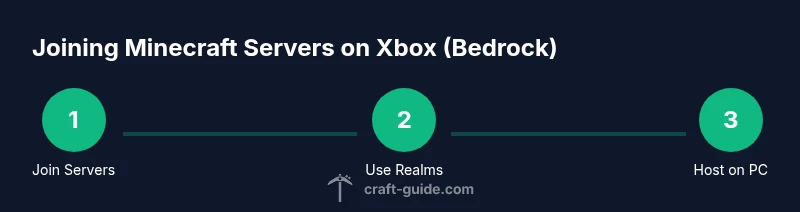
You cannot add or host Minecraft servers directly on Xbox consoles. Bedrock edition on Xbox can join external servers from the Servers tab, and you can use Realms, but you cannot create a self-hosted server on the Xbox itself. To run your own server, host it on a PC or dedicated device and connect from Xbox via cross‑platform Bedrock.
Can you add Minecraft servers on Xbox? What you can and can't do
Many players ask can you add minecraft servers on xbox, and the simple answer is no — you cannot add or host servers directly on Xbox consoles. The Bedrock edition used on Xbox supports joining external servers through the Servers tab or getting into Mojang's Realms, but the console itself does not provide a built‑in option to host a server. For players who want full control over a world, the practical path is to run a server on a PC or dedicated device and connect from Xbox using Bedrock cross‑play. This approach keeps the Xbox as a client, while the host machine handles the world, rules, and mods. Craft Guide's guidance emphasizes that while consoles are convenient for playing, server administration is best handled on a separate host.
What this means in practice is that you can participate in communities on public or private servers, but you won’t be setting up a server on the console. If you’re brand new to the concept, start with a Realms trial or a small external server on a PC to learn the basics before moving to more complex setups. The important takeaway is to match your hosting needs with the right platform—Xbox for playing, PC or a dedicated device for hosting.
Bedrock on Xbox: how servers are managed
Bedrock Edition across Windows, mobile, and console devices uses a shared protocol that allows cross‑play. On Xbox, server access is primarily through Mojang’s official Realms or the publicly curated Servers list accessible via the Play menu. You don’t control server software from the console; instead, you join servers hosted elsewhere or subscribe to Realms to host a world managed by Mojang. This arrangement ensures compatibility and safety across devices. If you’re curious about the limitations, Craft Guide notes that console server management is intentionally restricted to keep gameplay balanced and secure, while still enabling cross‑play with friends.
To maximize your experience, ensure your Microsoft/Xbox account is properly linked, and keep your game updated to the latest Bedrock version. This alignment minimizes compatibility issues when joining servers on Xbox and ensures your friends can connect without version conflicts.
Realms and official options you can use
Realms for Bedrock is the official, hosted option from Mojang that lets you run a private world for friends without dealing with hosting hardware or router configurations. Realms are accessible on Xbox through the in‑game menus, and you can invite players via their Microsoft accounts. If you’re mainly interested in a stable, simple experience with a known audience, Realms is a strong choice. However, Realms comes with a subscription cost and some limits on world size and modification frequency compared to a self‑hosted server.
For players who want a broader ecosystem, the Servers tab provides access to third‑party servers that support Bedrock cross‑play. These servers run on external hardware and software, so you’ll simply connect to them from your Xbox rather than hosting. If you’re exploring options, try a couple of reputable servers to gauge performance and community rules. Craft Guide recommends starting with Realms or a local PC host before expanding to public servers, to keep control over your play experience.
Connecting to external servers on Xbox: steps to join
To join an external server on Xbox, open Minecraft and navigate to the Play menu, then select Servers. Browse the curated list or search for a server name if the feature allows; you can join by selecting the server and clicking Join. Unlike PC or mobile, you cannot enter a raw IP address directly on Xbox to connect to a custom server. This is by design to preserve security and ease of use across Bedrock platforms. If a server supports cross‑play, you’ll be able to visit with your friends regardless of their device, provided you’re using the same Bedrock version.
If you plan to host your own world for cross‑play, you’ll need a PC or another device to run the server software, then invite Xbox players by sharing the world’s access method (usually via Realms or direct invite lists on the host platform). Craft Guide’s analysis highlights that cross‑platform play hinges on proper server configuration on a separate host rather than on the Xbox itself.
How to run your own server on a PC or Raspberry Pi for cross‑platform play
Running your own server is a multi‑step process that starts with choose a hosting device. A Windows PC or a dedicated Raspberry Pi can host a Bedrock server, while the Xbox remains the client. Install the Bedrock Server software, configure server properties (game mode, whitelist, max players), and select a stable world seed or import a world. Then set up port forwarding on your router so other players can connect from outside your local network. Finally, ensure you are using a Bedrock‑compatible version on all devices and test locally before inviting friends. This setup lets Xbox players join your world across platforms, while you keep full control of the server’s rules and environment.
Remember, always back up your world files before making major changes, and monitor for updates to both the server software and Bedrock edition on all clients.
Safety, moderation, and common pitfalls
When hosting or joining servers, understand the safety implications. Public servers can expose players to griefing or toxicity, so enable appropriate moderation tools, whitelist options, and parental controls where available. Keep client software up to date to avoid compatibility issues, and verify that all players have legitimate copies of Bedrock Edition to prevent access restrictions. A common pitfall is port forwarding misconfigurations or firewall blocks, which can prevent others from connecting. If you encounter issues, recheck router settings and ensure the hosting device remains online and reachable. Craft Guide emphasizes careful setup and ongoing maintenance to keep a positive, secure multiplayer environment.
Tools & Materials
- PC or Windows computer (hosting device)(Must be capable of running Bedrock server software)
- Minecraft Bedrock Edition (host and clients)(Licensed copy for host and players)
- Stable internet connection(Wired Ethernet recommended for hosting)
- Router with port-forwarding capability(Open UDP port 19132 (Bedrock default))
- Raspberry Pi or spare computer (optional)(Low-cost hosting option with Raspberry Pi OS)
- Microsoft account / Xbox Live linked(Needed to connect to servers on Xbox)
Steps
Estimated time: 1-2 hours
- 1
Choose hosting hardware
Decide whether to host on a PC or a compact device like a Raspberry Pi. The host handles all server data, mods, and world settings, while Xbox remains the client. Select reliable hardware to minimize latency for players.
Tip: If you anticipate many players, choose a PC with ample RAM (8GB+) for smoother performance. - 2
Install Bedrock server software
Download and install the official Bedrock Server software on the host device. Follow the official setup guides to create the server folder, set a world, and configure basic server properties such as difficulty and max players.
Tip: Do not run the server from a user directory; place it in a dedicated folder to avoid permission issues. - 3
Configure world and rules
Edit server.properties to set world seed, game mode, player whitelisting, and other rules. Decide whether you want a public server or invite‑only access and prepare a whitelist if needed.
Tip: Keep a local backup of your world before significant changes. - 4
Set up port forwarding
Log in to your router and forward UDP 19132 to the hosting device. This enables players outside your LAN to connect. Verify that the port is open using an external port checker.
Tip: If you’re behind a double NAT, use UPnP or set up a static internal IP for the host. - 5
Test the server locally
From another device on your network, connect to the server using the host's local IP. Confirm players can join and that the world loads correctly. This helps catch configuration issues before inviting friends.
Tip: Test with both QA and new users to catch device-specific issues. - 6
Invite Xbox players and test cross‑play
Provide your server address or invite friends via the host platform. Have players on Xbox join and verify cross‑play functionality. Adjust settings to optimize performance for console users.
Tip: Communicate expected rules and server etiquette to avoid disputes. - 7
Maintain and secure the server
Regularly back up worlds, apply updates, and review access lists. Monitor for cheaters or griefers and update moderation tools as needed. Schedule periodic restarts to keep the server healthy.
Tip: Set maintenance windows and auto-restarts to minimize downtime.
People Also Ask
Can I host a Minecraft server directly on Xbox?
No. Xbox consoles cannot host or run their own Minecraft server. You can join external servers or use Realms hosted by Mojang, but server hosting must occur on a PC or dedicated device.
No, you can’t host a server on Xbox. Use Realms or a PC-hosted Bedrock server and connect from Xbox.
What is Realms and should I use it?
Realms is Mojang's official hosted world service. It provides a simple, managed way to play with friends without handling server software or port forwarding.
Realms is Mojang’s hosted world service—great for easy, managed multiplayer with friends.
How do I join external servers on Xbox?
On Xbox, open Minecraft, go to the Play menu, and use the Servers tab to join listed public servers. You cannot input a custom IP address on Xbox as you can on PC or mobile.
From the Play menu, pick Servers to join public Bedrock servers. You can’t manually enter an IP on Xbox.
Can I invite friends to my PC-hosted server from Xbox?
Yes, if your PC-hosted server supports cross‑play and is accessible to the players on your friends list. Xbox players can join via the host's server address or Realms invitation.
Yes, cross‑play invites work when the server is accessible to all players on the same Bedrock edition.
What ports need to be open for hosting Bedrock servers?
Bedrock servers typically use UDP port 19132. You should forward this port on your router to the hosting device.
Forward UDP port 19132 to your hosting device for Bedrock servers.
Is it safe to host servers with strangers?
Use moderation tools, whitelist options, and parental controls. Keep software updated and monitor players for safety and behavior.
Yes—stay safe by using moderation features and keeping things up to date.
Watch Video
The Essentials
- Understand Xbox cannot host servers directly.
- Use Realms or PC-hosted Bedrock server for hosting.
- Cross‑platform play works with Bedrock on Xbox and PC hosting.
- Follow security best practices for hosting and moderation.
- Regularly back up and update server software.