Scratch for Minecraft: A Beginner’s Coding Guide
Learn how to use Scratch to control Minecraft with block-based coding. This step-by-step guide covers setup, basics, project ideas, and safety tips for learners.


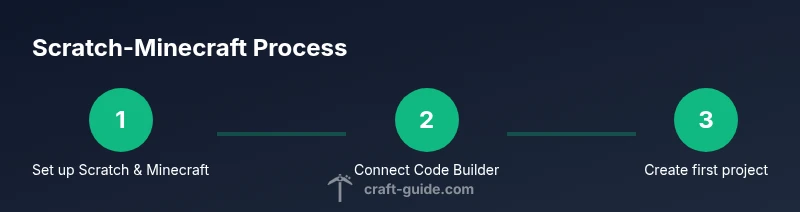
Scratch for Minecraft enables block-based coding to control a Minecraft world, and, according to Craft Guide, this approach lowers the barrier for beginners. This quick answer walks you through the core steps: install Scratch, set up Minecraft Education Edition, enable the Code Builder extension, connect Scratch to Minecraft, and run your first project. Then code a simple in-game action and expand with loops and events.
What Scratch for Minecraft Is
Scratch for Minecraft is a bridge between visual programming and one of the most popular sandbox games. In practice, you write block-based code in Scratch and send commands to a Minecraft world, which makes things happen in real time. According to Craft Guide, this approach lowers the barrier to entry for beginners while still offering room to grow into more advanced concepts. The core idea is to translate simple logical actions—like moving, placing blocks, or triggering events—into Minecraft world changes. This fusion supports both education-friendly goals and playful experimentation, letting builders and coders test ideas without heavy syntax or long setup times. For players who enjoy creative builds, Scratch makes procedural tasks feel like a game mechanic you can script rather than a chore. scratch for minecraft is a phrase you’ll hear often, because the concept sits at the intersection of block-based programming and Minecraft’s flexible world. The goal here is to give you a practical, repeatable workflow you can apply to dozens of in-game projects. Craft Guide analysis shows that approachable, project-driven learning shines when students start with small tasks and build from there.
How Scratch Connects to Minecraft
The connection relies on a bridge that translates Scratch blocks into in-game actions. Scratch runs on a local computer and sends commands to a running Minecraft session via a Code Builder extension or a compatible bridge. In essence, you’re teaching Minecraft to respond to a set of visual commands rather than a text-based language. You’ll encounter commands for moving, spawning, placing blocks, and altering the world state, each exposed through Scratch blocks that resemble ordinary coding actions. The integration emphasizes feedback: when you press a block bin in Scratch, you should see instant changes in the Minecraft world. This real-time feedback is what makes Scratch for Minecraft both educational and highly engaging for beginners. Over time, you’ll learn to sequence actions, handle timing with waits, and respond to events like player movement or inventory changes. Craft Guide’s team notes that the learning curve remains gentle when you start with small, repeatable tasks and gradually add complexity.
Getting Started: Tools and Setup
To begin, you need a few essential tools and a calm workspace. Start by installing Scratch 3 on your computer or using the browser version if you prefer. Then set up Minecraft Education Edition (or a compatible Minecraft edition) and enable the Code Builder extension, which acts as the bridge between Scratch blocks and in-game actions. Create a private Minecraft world for testing to avoid unintended changes in your main builds. Ensure your internet connection is stable during setup and updates, and have a testing world ready for experiments. This phase is about establishing a reliable environment; with Scratch and Minecraft ready, you can focus on learning the language of events, loops, and actions that drive your in-game adventures.
Basic Projects to Try
With the basics in place, small projects are the fastest path to confidence. Start by a simple action like placing a block when a Scratch event fires or moving your character a few steps. Next, try a timed sequence that places a row of blocks, then wait and repeat. As you gain control, introduce variables to track scores or counts, and add an event-driven twist, such as placing blocks when a player enters a region. These starter projects reinforce core concepts: event handling, sequencing, timing, and the feedback loop between Scratch blocks and Minecraft responses. Remember to keep projects incremental and test often to see how each block changes the world in real time.
Common Pitfalls and Troubleshooting
New learners often hit a few common snags. Connection problems are the most frequent: ensure Scratch’s Code Builder extension is properly enabled and that Minecraft is running in a supported mode. If commands don’t appear, double-check that the correct world is active and that the bridge is authorized. Forgetting to save changes can make it seem like code isn’t running, so save frequently. If you see lag, simplify your script to a single action and re-test. Finally, document your logic with comments so you or a teammate can troubleshoot later. Craft Guide guidance emphasizes starting small and validating each step before expanding to more complex interactions.
Expanding Your Skills with Mods and Extensions
As you master basics, you can broaden what Scratch can do with Minecraft by exploring extensions and community projects. Some extensions unlock more commands or support additional Minecraft editions, while others offer new event types and sensor inputs. When integrating mods or extensions, test in a controlled environment first and keep a clean backup of your testing world. This stage is about building robust, reusable blocks of logic that you can port to new projects. By progressively layering complexity, you’ll grow from simple placements to dynamic in-game mechanisms that respond to player actions and world state. Craft Guide’s experience shows that systematic experimentation yields the best long-term gains in both coding and building efficiency.
Practical Examples and Sample Projects
A practical project could be a “block-ladder” that places a line of blocks upward while the player climbs, or a simple door automation that opens when the player approaches. You can also craft a mini-game where completing a block-placement sequence earns a reward. For each example, start by outlining the goal, sketch the Scratch blocks you’ll need, and then implement the steps in Minecraft. After you see the result, refine your code to handle edge cases, such as what happens if the world state changes during the sequence. The aim is to translate ideas into reliable, repeatable scripts that you can scale with new levels or dimensions.
Tools & Materials
- Scratch 3 (desktop app or browser)(Install from scratch.mit.edu; ensure latest version is running)
- Minecraft Education Edition (or compatible Minecraft)(Enable Code Builder extension in-game)
- Code Builder extension for Scratch(Add from Scratch Extensions menu; connect to Minecraft session)
- Stable internet connection(Needed for extensions and updates during setup)
- Dedicated testing world in Minecraft(Avoid impacting your main Minecraft world during experiments)
Steps
Estimated time: 30-60 minutes
- 1
Prepare your tools
Install Scratch 3 and verify your browser or app runs smoothly. Create a fresh Scratch project to keep examples clean. Make sure Minecraft is closed before connecting to avoid conflicts.
Tip: Check that both Scratch and Minecraft are updated to the latest versions. - 2
Open Minecraft and create a test world
Launch Minecraft Education Edition (or compatible version) and create a new test world with a simple seed. Save frequently to avoid lost work.
Tip: Use a dedicated testing world to prevent unintended changes to your main build. - 3
Connect Scratch to Minecraft via Code Builder
In Scratch, add the Code Builder extension. Follow the on-screen prompts to connect to your Minecraft session. Authorize the bridge so blocks can send commands to the game.
Tip: If you don't see the extension, refresh Scratch and ensure Internet access. - 4
Run a basic in-game command
Create a simple script that places a block or moves your character a few steps. Test in-game and watch the world respond to the blocks.
Tip: Start with a single, safe action like placing a block. - 5
Iterate with loops and events
Add repeats, waits, and event-based blocks to create more complex behavior. Keep changes small and test often.
Tip: Use comments in Scratch to document what each loop does. - 6
Save, share, and expand
Save your Scratch project and export the XML or share the project link. Use it as a learning base for more advanced tasks.
Tip: Backup projects regularly.
People Also Ask
Is Scratch for Minecraft available on Mac and Windows?
Yes. Scratch runs on major desktop platforms, and you can connect to Minecraft Education Edition or compatible editions with Code Builder.
Scratch works on Mac and PC, and you can connect it to Minecraft Education Edition using Code Builder.
Do I need Minecraft Education Edition to use Scratch?
Education Edition provides built-in Code Builder support, but you can use compatible Minecraft versions with extensions if you follow guidance.
Education Edition helps, but you can use Scratch with other Minecraft editions via extensions.
Can I use Scratch with Java Edition or Bedrock?
It’s possible with community extensions or third-party bridges; official support varies, so check current docs.
There are ways to bridge Scratch to Java or Bedrock, but it depends on extensions and current docs.
What kinds of projects are best for beginners?
Start with simple block placement or movement to reinforce event handling and basic loops.
Begin with simple tasks like placing a block, then add loops and events.
Is this safe for kids?
Yes when used with local, private worlds and supervised sessions; avoid public servers for beginners.
It's safe for kids when used in private Minecraft worlds under supervision.
Where can I find more example projects?
Seek Scratch community projects and Minecraft education resources; start with guided tutorials.
Look for Scratch community projects and Minecraft education tutorials.
Watch Video
The Essentials
- Practice stepwise coding with Scratch blocks
- Set up a dedicated Minecraft world for experiments
- Use the Code Builder extension to bridge Scratch and Minecraft
- Test often and document your logic
- Share and reuse successful Scratch projects