How to Get Modpacks in Minecraft: A Practical Guide
Learn how to get modpacks in Minecraft with launcher-based and manual methods. Find trusted sources, loaders, installation steps, and safety tips to enhance your gameplay.


What modpacks are and why players use them
Modpacks are curated collections of mods bundled into a single download, designed to streamline the Minecraft experience. They combine gameplay tweaks, performance improvements, and new content into one install. Many players choose modpacks to jump into themed experiences—tech-focused automation, magic adventures, or exploration-rich packs—without hunting for dozens of separate mods. According to Craft Guide, modpacks simplify the setup process and improve compatibility by presenting a vetted, cohesive package. The Craft Guide team found that the most popular modpacks balance challenge and reliability, prioritizing active maintenance and clear versioning so players aren’t stuck fighting crashes or missing dependencies. When you decide to get modpacks on Minecraft, you’re not just installing new features—you’re embracing a guided path through the game’s breadth and depth. A well-chosen pack can offer a smooth progression: resource gathering, automation, late-game bosses, and new biomes, all in one install. But reliability matters: poorly maintained packs can crash, corrupt saves, or conflict with your existing worlds. Understanding the basics protects your world while expanding your options.
Where to find modpacks and choosing sources
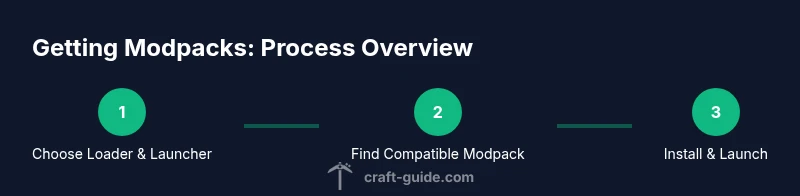
Finding trustworthy modpacks starts with reputable sources. CurseForge, Technic, FTB, and ATLauncher host many curated packs, but not every link is equal. Look for packs with clear version information that matches your Minecraft edition and loader. Before downloading, check user reviews, update dates, and community feedback. Craft Guide analysis shows that packs with recent updates and explicit compatibility notes reduce installation errors and save time. Always prefer official pages or launcher libraries over random forums. Once you’ve picked a source, verify the modpack’s Minecraft version, loader compatibility, and the number of mods included. Keeping a short list of preferred modpack providers helps you stay consistent and reduces the chance of conflicts between packs.
Loader choices: Forge vs Fabric and multi-loader ecosystems
Most modpacks target either Forge or Fabric as the base mod loader. Forge has the longest legacy and broadest mod support, while Fabric is lightweight and often faster to start, with a modular ecosystem. Some packs ship with a specific loader requirement; others offer both options via separate downloads. When choosing, check the modpack’s documentation for the recommended loader version and any compatibility notes. It’s common to see Forge-based packs paired with a wider suite of mods, whereas Fabric-based packs prioritize performance and recent game features. If you’re undecided, start with Forge for maximum compatibility and try Fabric with newer packs later. Advanced players sometimes use both loaders to compare performance or to access different sets of mods, but switching within a single profile is not always straightforward and can cause conflicts.
Installing via launchers: CurseForge, Technic, ATLauncher, FTB App
Launchers simplify the modpack experience by handling downloads, dependencies, and version management in one place. CurseForge’s app is the most popular for Minecraft modpacks, providing integrated modpack browsing and one-click installs. Technic and ATLauncher offer alternative ecosystems with unique mod packs and vistas, while the Feed The Beast (FTB) App focuses on curated, technically oriented packs. To install, log in, select the modpack, choose a compatible Minecraft version and loader, and click install. Launchers resolve dependencies automatically and create isolated profiles to prevent global game changes. Craft Guide recommends using launchers as your primary method for ease, safety, and reproducibility. If you need more granular control, you can perform a manual install, but launchers reduce error rates and simplify updates.
Manual installation steps for modpacks
Manual installation is an option for players who want full control or want to run packs not listed in a launcher. Start by identifying the exact Minecraft version and loader (Forge or Fabric) the modpack requires. Download the modpack archive and extract it into a dedicated folder inside the Minecraft installation directory. Place the mod files in the correct subfolder (e.g., mods for Forge/Fabric), and ensure the correct launcher profile points to this folder. This method demands careful attention to mod version matching and dependencies, or the game may fail to launch. Always keep a clean backup before manual changes and only use reputable downloads. Manual installs can be powerful for custom setups, but they demand patience and meticulous version tracking.
Managing compatibility, backups, and performance
Compatibility is the critical factor in a smooth modpack experience. Always verify the mod versions align with your Minecraft version and loader. Keep a separate backup of your worlds before loading a modded profile, so you can revert if something goes wrong. Allocate appropriate RAM to the launcher—most packs run well with 4–6 GB, while heavier packs may need more. Turn on performance tweaks such as reduced render distance or lower particle settings to improve frame rates. Periodic updates to both Minecraft and the modpack may require rechecking compatibility and reapplying any required settings. Craft Guide notes that consistent maintenance and clean backups are the best defense against crashes and data loss.
Troubleshooting common issues and safety practices
Modded Minecraft can produce crashes, world corruption, or performance hiccups. If a pack won’t load, check the launcher logs for error messages and verify that every mod and its dependencies are present and compatible. Run the game with a clean profile to determine whether the issue stems from the pack or your environment. It’s critical to back up your worlds regularly and maintain separate profiles for vanilla, modded, and test configurations to avoid cross-contamination. Always download from trusted sources, scan files for malware, and keep your system protected. Finally, remember that modded Minecraft can strain hardware; monitor temperatures and allocate resources conservatively to avoid overheating or instability.