How to Use Cartography Table Minecraft
Learn to use the cartography table in Minecraft to clone, expand, and manage maps. This step-by-step guide covers materials, workflow, and common mistakes, with practical tips for builders and explorers. Crafted for beginners to advanced players by Craft Guide.


Using a cartography table lets you clone existing maps, adjust scale, and organize your explored world without creating new maps from scratch. In this guide, you’ll learn the exact steps, the materials you need, and practical tips to streamline map management in Minecraft. This process works across Java and Bedrock editions.
What is a cartography table and why it matters in Minecraft
According to Craft Guide, learning how to use cartography table minecraft is a smart way to manage maps effectively. The cartography table is a dedicated workstation that helps you clone existing maps, adjust their zoom levels, and organize your explored world. This is especially useful for large bases, expansive terrain, or server builds where multiple players rely on consistent navigation. The cartography table sits beside your other workstations and becomes a central hub for map-related tasks. While it is one of several tools for exploration, mastering it saves time and reduces inventory clutter. In survival mode, knowing how to use cartography table minecraft can mean the difference between getting lost and keeping your team aligned on a plan. In this block we’ll cover the core capabilities: duplicating maps, expanding their scale, and how to keep your map collection neatly organized as you explore new biomes. We’ll also touch on practical tips for integrating maps into base design, planning routes, and marking landmarks. By the end, you’ll have a clear workflow you can apply in both Java Edition and Bedrock Edition.
Core mechanics: cloning and expanding maps
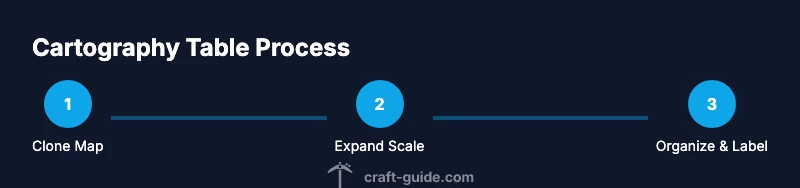
The cartography table enables two primary actions: cloning (duplicating) maps and expanding (scaling) maps to cover more terrain. In both cases, you interact with the table’s left and right slots to combine maps with paper or empty maps. Cloning preserves your original map while giving you a precise duplicate; expanding increases the map’s coverage, but at the cost of reduced detail. This section explains the interactions, the items involved, and how each action affects your inventory and the world view. Crafting consistency across multiple maps makes exploration and base planning far more efficient and reduces the risk of miscommunication among players. Craft Guide emphasizes practicing these techniques to develop a reliable workflow that you can reuse in future expeditions and builds.
Duplicating a map: exact steps and outcomes
Duplicating a map is one of the most common cartography table tasks. Start by placing an existing map in the left slot and Paper in the right slot. The cartography table will produce a copy of the left-hand map in your right-hand slot, leaving the original map unchanged. This is ideal for sharing a map with teammates or creating backups before making changes. You’ll notice the copy retains the same zoom level and features as the original, so use this technique when you want identical navigation data for multiple players. Remember to pick up the new map from the right slot before moving on to the next task.
Expanding a map (changing scale): steps and outcomes
Expanding a map increases the area covered by the map but reduces its level of detail. To do this, place the map you want to expand in the left slot and place an empty map in the right slot. The result is a new map with a larger coverage area, allowing you to chart distant regions without crafting a completely new map. This technique is especially useful when you’re planning long expeditions or laying out a base spanning multiple biomes. Repeat the expansion if you need even larger coverage, but be aware that each expansion reduces detail and can make terrain features harder to read at a glance.
Managing multiple maps: organization, labeling, and saving progress
As you accumulate maps, organization becomes essential. Create a logical system for storing maps—group by region, biomes, or expedition phase. Labeling helps teammates identify maps quickly. While the cartography table itself doesn’t rename, you can use an anvil or item frames for labeling and quick reference. Keeping an organized map library reduces time spent searching and prevents duplication errors. A practical approach is to maintain a master set of maps for major routes and smaller copies for each base or settlement. Documentation in your base notes or a simple chest index can save mental overhead during busy play sessions.
Practical setup ideas: base camps, farms, and exploration planning
Incorporate cartography tables into your base design for efficient planning. Place a dedicated map wall or cartography station near your hosted storage so you can quickly clone or expand maps as you explore. Use the maps to plan routes between outposts, locate resource-rich biomes, and track landmarks. For large survival builds, keep a consistent map scale across all regions to avoid confusion. Integrating maps with other navigation tools—like beacons or signposts—creates a compact and intuitive navigation system for you and your teammates.
Troubleshooting common issues
If your maps don’t clone or expand as expected, verify you’re using appropriate items in the correct slots and that you’re in a compatible game mode. In some versions, certain maps may not update immediately after duplication or scaling; give it a moment before rechecking. If the table UI doesn’t respond, try re-opening the inventory or restarting the game client. Ensure you’re using the correct edition (Java vs. Bedrock) as minor UI differences can affect how items are placed and retrieved.
Tools & Materials
- Cartography Table(Place on a flat surface; interact to open map options)
- Paper(Used to duplicate maps in the right slot)
- Compass(Helpful for initial map navigation in some setups)
- Maps (existing or empty)(Need an existing map to duplicate or an empty map to expand)
Steps
Estimated time: 10-15 minutes
- 1
Open the cartography table
Interact with the cartography table to access its map options and slots. This is the first step to any map modification, whether cloning or expanding. Make sure you have the required items in your inventory nearby.
Tip: Keep your hands free and clear the area around the table to avoid misplacing items. - 2
Place a map in the left slot
Drag or click to place the map you intend to modify into the left slot. This establishes the base for cloning or expanding. The original map remains unharmed after the operation.
Tip: Choose a map you’ve explored recently to minimize confusion later. - 3
Add Paper to duplicate the map
Place Paper in the right slot to create a duplicate of the left-side map. The resulting map will have the same scale and area as the original.
Tip: Prepare a few extra sheets of paper so you can clone multiple maps in one session. - 4
Pick up the duplicated map
Take the new map from the right slot once the operation completes. Move it to your inventory to save the copy for distribution or backup.
Tip: Place a separate map copy on a chest to keep a clean archive. - 5
Expand the map scale with an empty map
To broaden the map’s coverage, place the original map in the left slot and an empty map in the right slot. The new map will show a larger area with less detail.
Tip: Limit expansions to avoid losing important terrain details; plan expansions in small increments. - 6
Organize and rename (optional)
If you want to rename or organize maps, use an anvil to assign clear names or tags. This helps you quickly locate maps for routes or bases.
Tip: A consistent naming convention (e.g., region-biome-name) speeds up play-time across sessions.
People Also Ask
Cartography table use?
The cartography table is used to clone maps, duplicate them, and adjust their scale. It helps you organize your explored world efficiently.
The cartography table helps you clone maps, duplicate them, and adjust their scale to keep your exploration organized.
Can it duplicate maps?
Yes. Place an existing map in the left slot and Paper in the right slot to create a copy in the right slot.
Yes, you can duplicate maps by placing the map on the left and paper on the right.
Needed items?
Essential items are a Cartography Table, Paper, and either an existing map or an empty map depending on your goal.
You need a cartography table, paper, and either a map to copy or an empty map to expand.
Expanding changes zoom?
Yes. Expanding increases map coverage but reduces detail, so use it in moderation.
Expanding maps covers more area, but you lose detail; plan expansions carefully.
Avail across editions?
The cartography table is generally available across Java and Bedrock editions, with minor UI variations.
Across both Java and Bedrock, with small interface differences.
Rename maps?
Maps can be renamed with an anvil after duplication or organization; this helps in quick identification.
You can rename maps using an anvil to keep them organized.
Common mistakes?
Mismatching slots or expanding too aggressively can lead to confusion; verify each step and keep backups.
Watch your slot placement and test expansions in a safe world to avoid mistakes.
Watch Video
The Essentials
- Clone maps to preserve originals
- Expand maps to cover more area
- Label maps for quick retrieval
- Use paper and existing maps for copies
- Practice in Creative before survival exploration