How to Make Big Maps in Minecraft: Step-by-Step Guide
Learn how to create large-scale Minecraft maps with planning, cartography, and display techniques. This guide covers tools, steps, tips, and performance considerations for builders aiming to map wide areas.


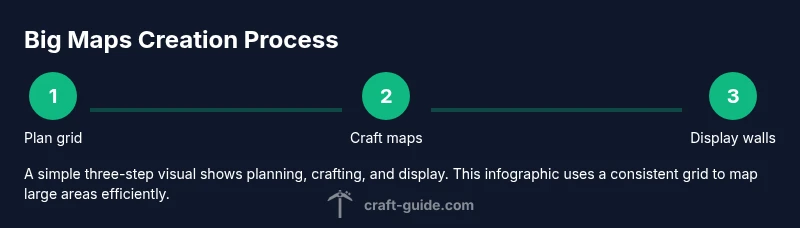
You can create large maps in Minecraft by building a grid of maps, expanding their scale using the cartography table, and arranging them on walls. This guide covers planning, tools, steps, and tips for efficient large-map projects across Java and Bedrock editions.
The appeal of big maps in Minecraft
Large maps unlock new creative capabilities by allowing players to view expansive bases, intricate cities, and vast biomes in a single glance. They help with planning, resource management, and navigation in complex builds. According to Craft Guide, successful big-map projects begin with clear goals, a modular design, and consistent labeling so you can reuse components later. When you think in chunks rather than a single, sprawling canvas, progress becomes measurable and fun. The result is a living blueprint that can guide your builds, server projects, and collaboration with friends. In this section, you’ll learn how planning, grid layout, and map scale work together to produce a coherent, impressive collection that stays manageable as your world grows.
Tools & Materials
- Crafting table(Needed to assemble maps and organize the grid.)
- Paper(8 papers per empty map; gather multiple stacks for faster crafting.)
- Compass(Combined with paper to craft an empty map.)
- Empty map(Craft from compass + paper; your starting map base.)
- Filled map(Used to record explored terrain; clone to scale.)
- Cartography table(Expand and clone maps to larger scales.)
- Item frames(Optional for displaying maps on walls.)
- Leather(Optional for crafting item frames.)
Steps
Estimated time: 3-6 hours
- 1
Gather materials and plan the grid
Collect paper, compasses, and leather. Sketch a rough grid on paper or a piece of your own planning board to map how many maps you’ll need and where each one will go. This planning reduces backtracking and keeps your project organized as you expand.
Tip: Prepare a single source of truth for grid coordinates to avoid misplacing maps. - 2
Craft empty maps and map cards
Use a compass and eight papers to craft empty maps. Rename or label maps if you’re naming sections of your grid; this helps with later assembly and documentation.
Tip: Label maps with coordinates or region names to speed up wall placement. - 3
Create the first filled map and explore
Right-click to use the empty map and begin exploring the center area. The map fills as you explore, creating the base reference for your grid. Ensure you cover areas that match your planned grid to maximize efficiency.
Tip: Start from a central hub to minimize backtracking and ensure balanced coverage. - 4
Clone and expand maps using the cartography table
Place a filled map and a blank map on a cartography table to clone, or place the filled map with a single paper to zoom out. Use this to create larger-scale maps that cover more territory without starting from scratch each time.
Tip: Test a small scale expansion first to confirm you understand the mechanics. - 5
Organize maps into a mosaic grid
Lay out maps in a grid on a wall or board, ensuring consistent orientation. Number or label rows and columns so you can easily reference a location when you’re building or adjusting features.
Tip: Use removable mounts for easy rearrangement during development. - 6
Display maps with item frames
Attach each filled map to an item frame for an aesthetic mosaic. Adjust frames as needed to align the images and maintain a clean, professional look across the display.
Tip: If frames lag on large walls, space frames slightly to reduce rendering load. - 7
Annotate and add metadata
Add signs or plaques with short notes about notable landmarks, terrain features, or construction zones. Metadata helps teammates interpret sections quickly and keeps future edits straightforward.
Tip: Keep notes concise; use a legend for quick reference. - 8
Test performance and adjust
Load the wall in your world and verify map loading times across different game modes. If needed, split the wall into zones or reduce the number of frames per screen to optimize performance.
Tip: Consider server or device memory; large grids can impact performance. - 9
Document and back up your project
Store versions of the grid layout, map indices, and display configurations in a shared document or notes file. Regular backups prevent loss from world corruption or accidental changes.
Tip: Create a versioned backup before making major layout changes.
People Also Ask
What is the best way to cover a large area with maps in Minecraft?
Use a grid of maps at the same scale, expand with the cartography table, and display them as a mosaic. Plan the layout first and label sections to keep the grid organized.
Create a grid of maps at one scale, expand with the cartography table, and display as a labeled mosaic.
Do large maps cause lag on servers or devices?
Yes, large map walls can increase rendering load. To mitigate lag, split displays into zones, limit frame count, and ensure hardware or server resources meet requirements.
Large map walls can cause lag; try zoning and balancing performance.
Can I zoom maps to cover more area without creating new maps?
Yes. Use the cartography table to zoom out a map, then clone or combine with others to create a larger view. This is safer and faster than crafting many base maps.
You can zoom maps with a cartography table to cover more area.
Is there a difference between Java and Bedrock map mechanics?
Some mechanics differ between editions, especially around map expansion and cartography features. Check your version’s notes or community guides for specifics.
Maps work similarly but there can be version differences; verify with guides.
How long does it typically take to create a big map wall?
Time varies with grid size, your exploration speed, and display complexity. A moderate 3x3 to 4x4 setup can take several hours from planning to completion.
It can take several hours depending on size and complexity.
What if I’m building with friends on a server?
Coordinate roles, assign grid sections, and use shared planning documents. Regular backups and versioning prevent conflicts during updates.
Coordinate roles and keep backups when building with others.
Watch Video
The Essentials
- Plan the grid before creating maps
- Expand scale with cartography tables rather than starting from scratch
- Display maps on walls with frames for a clean mosaic
- Label, annotate, and document for easier collaboration
- Monitor performance to avoid lag during loading