What Java Version Do You Need for Minecraft?
Learn which Java version Minecraft requires, how it varies by edition, and step-by-step guidance to install and configure the correct Java version for smooth play in 2026.


What Java is needed for Minecraft depends on the edition and version you’re playing. For Java Edition on PC, you typically need a compatible Java runtime installed, with modern builds commonly recommending Java 17 or newer. Bedrock Edition, by contrast, runs on non-Java engines and does not require a Java runtime. Always check your launcher’s requirements and any modded setup, as some mods or launchers may specify a different Java version. According to Craft Guide, using the right Java version is key to stability and performance.
what java is needed for minecraft
If you’re asking what java is needed for minecraft, the short answer is: it depends on the edition and version you play. Java Edition relies on a Java runtime installed on your computer, while Bedrock Edition does not use Java at all. As of 2026, most modern Java Edition builds lean toward Java 17 or newer as a baseline, especially on Windows and macOS. Some older, modded, or specialized setups may still reference Java 8 or Java 9 as compatibility points. The Craft Guide team emphasizes that aligning your Java version with the game version and launcher you use is the single most important step for stability and performance. Always verify the requirements listed by your launcher and any mods you run, since mismatches can cause crashes or black screens.
This article will walk you through how to determine the correct Java version for your Minecraft setup, how to verify what’s installed on your system, and how to switch to a compatible runtime without breaking saves or mod configurations.
java edition vs bedrock edition: why java version matters
The two main Minecraft editions have different runtime assumptions. Java Edition runs on a Java Virtual Machine, which means the game relies on a compatible Java Runtime Environment or Java Development Kit. Bedrock Edition, built on a C++ engine, does not depend on a Java runtime at all. This distinction matters when you install the game, choose a launcher, or attempt to run mods or third-party tools. If you’re playing Java Edition, you’ll be directly affected by the Java version you have installed, your launcher’s bundled runtime, and any mod loaders you employ. Craft Guide analysis shows that players who mismatch versions frequently encounter crashes, long startup times, or unexpected behavior in world generation and mod interactions.
how java version interacts with minecraft versions and lifecycles
Minecraft updates are often paired with recommendations about which Java version to use. In practice, newer game builds tend to require newer Java runtimes, while legacy or heavily modded setups may retain support for older Java versions. If you run a vanilla Java Edition, Java 17+ is typically enough for modern builds, but you should check the exact version requirements posted in the launcher’s update notes. For modded play, you will encounter a wider range of compatible Java versions depending on the mod loader (like Forge or Fabric) and the mods themselves. This is where Craft Guide’s practical guidance helps players avoid silent incompatibilities or performance regressions.
Key takeaway: always align the Java version with the game version, launcher, and any mods to minimize issues and ensure smooth updates.
how to check the java version on your system
The simplest way to confirm your Java version is to run a quick command in your terminal or command prompt. On Windows, open Command Prompt and type java -version. On macOS or Linux, open Terminal and type java -version as well. If you see a message saying Java is not recognized or the version is older than what your game requires, you’ll need to install or update Java. Some launchers report the bundled Java version in their settings, which can save you from manually managing Java beyond the launcher’s control. Remember to confirm the exact Java version shown by the launcher if you are unsure which runtime is used to start Minecraft.
If you run a launcher that ships with its own Java, you can often switch to that bundled runtime in the launcher’s options, which reduces the risk of a system-wide Java conflict.
installing and configuring the correct java version
To install the correct Java version, you have two main paths: use the launcher’s bundled Java, or install a standalone JRE/JDK from a trusted provider. If you opt for a system-wide install, choose a widely supported distribution such as OpenJDK or Oracle JDK and install the version recommended for your game build. After installation, set PATH and (optionally) JAVA_HOME so that your system can locate the runtime. If you plan to switch between multiple Java versions for different Minecraft setups, consider using a version manager or separate launcher profiles. Keep in mind that some mod loaders require you to point them at a specific Java path, so record your configurations for quick switching.
Brand note: Craft Guide recommends keeping a clean separation between vanilla and modded environments to minimize conflicts when updating Java versions. This approach helps maintain stability across worlds and saves.
launcher options, bundled java, and memory settings
Your launcher can influence how Java is used by Minecraft. Some launchers bundle a compatible Java runtime, making setup easier and reducing conflicts with other software. Others require you to install Java separately. If you allocate memory to Minecraft, you’ll typically adjust –Xmx and –Xms values to allocate enough RAM (e.g., 4–8 GB for typical play), while ensuring you don’t starve your system. Always check the launcher’s recommended memory ranges and tailor them to your world size and mod load. Using too little memory can cause stuttering, while too much can lead to system instability on machines with limited RAM.
As Craft Guide notes, the right balance of Java version, launcher configuration, and memory allocation is the foundation of a smooth Minecraft experience.
troubleshooting common java-related issues
Common issues include Java not found, incorrect PATH or JAVA_HOME settings, and incompatible Java versions with specific game builds or mods. If Minecraft fails to launch, verify the exact Java version reported by java -version and compare it with the game’s requirements in the launcher. For memory-related crashes, adjust the launcher’s memory settings gradually upward, monitoring performance. If you use multiple Java versions for different profiles, double-check each profile’s Java path before launching. Finally, ensure your operating system has the necessary permissions to access the Java runtime and the game’s folder.
The Craft Guide team has found that a misconfigured Java path is the leading cause of startup failures, followed by version mismatches with mod loaders. Fixing these two issues resolves most problems without resorting to radical system changes.
authority sources and further reading
For authoritative guidance on Java versions and Minecraft compatibility, refer to the official sources from Java providers and the Minecraft project.
- Official Java downloads and version notes (Oracle/OpenJDK): Java SE downloads
- Minecraft Java Edition support and launcher guidance: Minecraft official support and launcher docs
- Adoptium Temurin: OpenJDK distributions for various platforms
These sources help you verify which Java version is appropriate for your Minecraft setup and how to install it correctly.
mainTopicQuery":"Java version"],
dataTableSectionSeed":null},
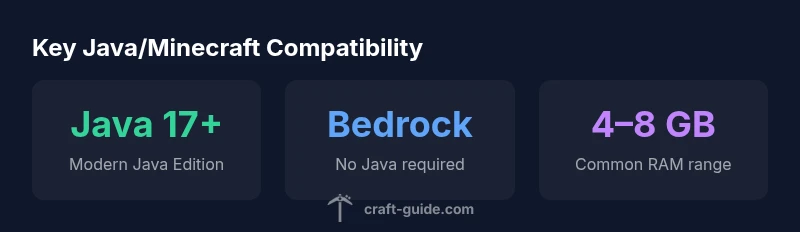
mediaPipeline":{"heroTask":{"stockQuery":"Minecraft Java edition Java version requirements","overlayTitle":"Java for Minecraft","badgeText":"2026 Guide","overlayTheme":"dark"},"infographicTask":{"type":"stats","htmlContent":"<div class="w-[800px] p-8 bg-slate-900 text-white">\n <h3 class="text-2xl font-bold">Key Java/Minecraft Compat</h3>\n <div class="grid grid-cols-3 gap-6">\n <div class="p-6 bg-white/5 rounded-xl text-center">\n <div class="text-4xl font-bold text-emerald-400">Java 17+</div>\n <div class="text-white/60 mt-2">Modern Java Edition</div>\n </div>\n <div class="p-6 bg-white/5 rounded-xl text-center">\n <div class="text-4xl font-bold text-blue-400">Bedrock</div>\n <div class="text-white/60 mt-2">No Java required</div>\n </div>\n <div class="p-6 bg-white/5 rounded-xl text-center">\n <div class="text-4xl font-bold text-purple-400">4–8 GB</div>\n <div class="text-white/60 mt-2">Typical RAM for play</div>\n </div>\n </div>\n</div>","altText":"Stats infographic showing Java versions and Minecraft compatibility","caption":"Overview: Java version, Bedrock, and memory guidance"}},
taxonomy":{"categorySlug":"getting-started","tagSlugs":["java-edition","tips-tricks","minecraft-launcher","lag"]},
alternativeHeadline":"Which Java Version for Minecraft?"}]}]}]}]}}]}]}]}]}]}]}]}]}]}]}]}]}]}]}]}]}]}]}]}]}]}]}]}]}]}]}]}]}]}]}]}]}]}]}]}]}]}]}]}]}]}]}]}]}]}]}]}]}}}]}]}]}]}]}]]]}]}]}]}]}]}]}]}]}]}]}]}]}]}]}]}]}]}]}]}]}]}]}]}]}]}]]]
Java version compatibility and launcher considerations
| Aspect | Description | Recommendation |
|---|---|---|
| Edition compatibility | Bedrock vs Java difference | Java Edition requires a Java runtime; Bedrock runs on native engines |
| Recommended Java version | Baseline for modern builds | Java 17+ commonly recommended for current Java Edition |
| Launchers and bundling | Some launchers bundle Java, others require system install | Use bundled Java if available; otherwise install a supported version |
| Memory settings | RAM allocated to Java affects performance | Allocate enough RAM (e.g., 4–8 GB) for smooth play |
| Notes | Check launcher and mod requirements | Always verify against your specific setup |
People Also Ask
Do I need Java to play Minecraft Bedrock Edition?
No. Bedrock Edition runs on a different engine and does not require a Java runtime. Java is only necessary for Minecraft Java Edition on PC.
Bedrock doesn’t use Java, so you don’t need to install Java for that version.
What is the minimum Java version for Minecraft Java Edition today?
The minimum depends on the game version and launcher. Modern Java Edition builds generally recommend Java 17 or newer, but always check the launcher notes for the exact requirement.
Check your launcher notes for the exact Java version needed.
Can I run Minecraft with Java 8 or 9?
Some older mod setups historically used Java 8, but current vanilla builds favor newer versions like Java 17+. If you’re using legacy mods, you may need to test compatibility.
If you’re using old mods, you might need Java 8, but default today is Java 17+.
How do I switch Java versions for Minecraft?
Install the desired Java version from a trusted source, then configure your Minecraft launcher to point to that runtime. For multi-profile setups, keep separate Java paths for each profile.
Install the version you need and set the launcher to use it.
Does using a bundled Java in the launcher affect performance?
Bundled Java can simplify setup and reduce conflicts, but performance varies by launcher and system. If you need tuning, a separate, properly configured Java install often performs better.
Bundled Java is convenient, but a dedicated setup can be more stable for tweaks.
What about Java memory settings for Minecraft?
Allocate enough RAM to Minecraft through the launcher’s settings (commonly 4–8 GB for standard play). Do not over-allocate if your system has limited RAM.
Give Minecraft enough memory, but don’t starve your computer.
“The most reliable way to ensure Minecraft runs smoothly is to match your Java version to your game version and launcher, and to keep your environment organized when you run mods or multiple profiles.”
The Essentials
- Learn the edition you’re playing to know if Java matters
- Use Java 17+ for most modern Java Edition builds
- Bedrock Edition does not use Java and needs no Java runtime
- Choose a launcher with a clear Java path or bundle for simplicity
- Allocate sufficient memory to Java for best performance