Minecraft Sign In: A Complete How-To Guide
Learn how to sign in to Minecraft across PC, console, and mobile. This educational guide covers Microsoft/Mojang accounts, migrates, platform-specific portals, and practical troubleshooting to ensure a smooth login experience in 2026.


Goal: Sign in to Minecraft across PC, consoles, or mobile using the official launcher or app. You’ll need a Microsoft account (or an active Mojang account, if applicable) and a stable internet connection. This quick guide identifies the correct sign-in portals, how to migrate accounts if needed, and practical fixes for common login issues.
Understanding Minecraft Sign-In Basics
Minecraft sign-in is the gateway to accessing your games, saves, and cross‑play across devices. Since the migration of legacy Mojang accounts to Microsoft accounts, nearly all sign-in flows revolve around a Microsoft identity, even on mobile or consoles. The sign-in process authenticates your ownership, links your worlds, and enables cloud saves and cross‑play when available. For new players, a Microsoft account is required to proceed; existing players with migrated accounts will sign in using that same Microsoft identity. This shift improves security, account recovery, and cross-platform compatibility. According to Craft Guide, understanding your account type before attempting login reduces friction during first launches and subsequent sessions. Craft Guide analysis shows that most login issues stem from mismatched accounts or outdated launcher software, not from the game itself.
Prerequisites and Account Types
Before you attempt a Minecraft sign-in, confirm which account type you hold and what platform you’re on. Most players will sign in with a Microsoft account, because Mojang accounts were migrated for access across all Bedrock and Java editions. If you previously played under a Mojang account, you should migrate to Microsoft for a seamless experience; this migration preserves your purchases and worlds. If you are new to Minecraft, create a Microsoft account and link it to your Minecraft profile during setup. Always use official portals for sign-in to avoid phishing and data theft.
Accessing the Sign-In Page Across Platforms
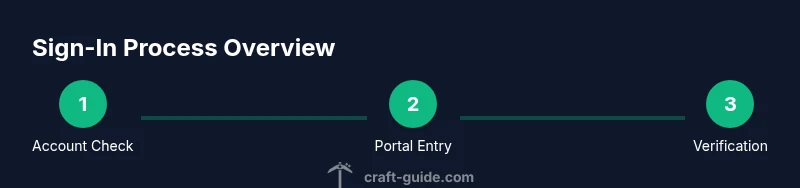
PC users typically sign in through the Minecraft launcher or the Minecraft Windows 10/11 app, selecting Sign In and following the prompts. Console players (PlayStation, Xbox, Nintendo) sign in via the built-in Microsoft sign-in flow on the respective console interface. Mobile players sign in through the Minecraft mobile app, usually by tapping Sign In on the main menu and entering your Microsoft credentials. If you are migrating from an old Mojang login, you’ll be guided through a migration flow that links your existing worlds to your new Microsoft account.
Signing In on Windows, macOS, and Linux (PC)
On PC, open the Minecraft launcher, click Sign In, and choose Microsoft account sign-in. A browser window may launch to complete the login with your Microsoft credentials. After successful authentication, return to the launcher, and you’ll see your profile loaded with your current worlds and skins. If you encounter a password prompt, verify you’re entering the correct email and password associated with your Microsoft account. Keep your launcher updated to avoid compatibility issues with sign-in gateways.
Signing In on Consoles (Bedrock) and Mobile
Sign-in on consoles uses the console’s built-in Microsoft authentication screen. You’ll sign in once; the system will remember you for subsequent sessions. On mobile devices, sign-in through the Minecraft app similarly routes you to Microsoft’s login flow. If you have two-factor authentication enabled, be prepared to approve the sign-in on your authenticator app or via SMS. Always perform sign-ins on trusted networks to minimize interception risks.
Handling Two-Factor Authentication and Security
Two‑factor authentication (2FA) adds a layer of security at sign-in. If you enable 2FA, you’ll be asked for a second factor during login—typically a code from an authenticator app or an SMS. Keep backup codes in a secure place in case your primary device is unavailable. If you lose access to your 2FA method, use the account recovery options provided by Microsoft/Minecraft Help Center. Security best practices begin with a unique, strong password and avoiding password reuse across services.
Troubleshooting Common Sign-In Problems
If sign-in fails, check that you’re using the correct account type and portal for your platform. Common causes include password typos, expired sessions, or a mislinked account after migration. Network issues, firewalls, or VPNs can also block authentication traffic. Ensure your device time is set correctly, your internet connection is stable, and your launcher/app is up to date. If problems persist, reset your password via the official Microsoft account recovery process and re‑link your Minecraft profile.
Best Practices for Safe Sign-Ins
Always sign in through official channels—Minecraft launcher, official apps, or the legitimate platform store. Avoid phishing sites and never paste your password into third‑party prompts. Use strong, unique passwords and enable 2FA where available. Consider keeping a signed-in session only on trusted devices and logging out on shared machines. Regularly review connected devices in your Microsoft account to revoke access to unfamiliar sessions.
What Happens After You Sign In
Signing in unlocks your Minecraft profile on the current device, loads your worlds, and enables cross‑play where supported. You’ll be able to access your purchases, skins, and cloud saves (where the platform supports it). If your account is linked across platforms, you may see consistent progression, but always verify that the correct profile is selected in your launcher. Regular sign-ins keep your game state synchronized across devices.
Authority Sources
- Help Center, Minecraft: https://help.minecraft.net/hc/en-us/articles/360047262831-Sign-in-to-Microsoft-Account
- Microsoft Learn: https://learn.microsoft.com/en-us/minecraft/get-started/sign-in-to-microsoft-account
- Minecraft Official Help: https://www.minecraft.net/en-us/help
Tools & Materials
- Device with internet access(PC, console, or mobile device capable of running Minecraft)
- Minecraft launcher or Minecraft app(Official client for your platform)
- Microsoft account (or migrated Mojang account)(Account used to sign in and access your games)
- Updated operating system(Ensure latest security updates are installed)
- Stable network connection(Wired Ethernet or strong Wi‑Fi recommended)
- Two-factor authentication device (optional)(Authenticator app or backup codes for extra security)
Steps
Estimated time: 15-25 minutes
- 1
Identify account type
Determine whether your Minecraft access uses a Microsoft account (recommended) or an older Mojang account. This guides which sign-in portal you should use and whether migration is needed to access cross‑platform features.
Tip: If unsure, start at the Microsoft sign-in portal and follow prompts to migrate if offered. - 2
Open the official sign-in portal
On PC, launch the Minecraft launcher and click Sign In. On mobile or console, open the Minecraft app and select Sign In. Use only official, trusted links to avoid phishing.
Tip: Bookmark the official Minecraft help pages for quick access. - 3
Enter your sign-in credentials
Provide the email address or Microsoft account name tied to your Minecraft profile, then insert your password. If prompted, complete the account verification step.
Tip: Double-check you’re using the correct account, especially if you own multiple accounts. - 4
Complete two-factor authentication (if enabled)
If your account has 2FA enabled, approve the sign-in with your authenticator app or SMS code. This step confirms you’re the account owner.
Tip: Keep backup codes in a secure place in case your device is unavailable. - 5
Resolve migration prompts (if shown)
If you see a migration flow from Mojang to Microsoft, follow the on-screen steps to link older worlds and purchases to your Microsoft account.
Tip: Migration preserves progress; do not skip steps if you want to maintain access. - 6
Verify sign-in success
Return to the launcher or app and confirm your profile loads with your worlds, skins, and saves. If the sign-in didn’t complete, restart the launcher and retry with a stable connection.
Tip: Restarting the app can resolve transient sign-in glitches. - 7
Sign in on additional devices (optional)
If you plan to play on another device, sign in there using the same Microsoft account to sync progress and purchases.
Tip: Ensure the same account is used on all devices to avoid profile conflicts. - 8
Sign out security check
On shared devices, sign out after finishing your session to prevent others from accessing your worlds.
Tip: If you suspect unauthorized access, review connected devices in your Microsoft account settings.
People Also Ask
What accounts do I need to sign in to Minecraft?
Most players sign in with a Microsoft account due to migration from Mojang accounts. Some older players may still link to Mojang during migration, but Microsoft accounts are required for cross‑platform play and access to newer features.
You’ll sign in with a Microsoft account, especially if you’ve migrated from Mojang. If you’re new, create a Microsoft account and link it to Minecraft.
Do I need a Microsoft account to play Minecraft?
For Bedrock and newer setups, a Microsoft account is required to sign in. Java Edition accounts migrated to Microsoft facilitate cross‑play and account security.
Yes, sign in with Microsoft for most modern Minecraft experiences.
How do I migrate from Mojang to Microsoft?
If you have a Mojang account, use the migration flow provided by Minecraft Help Center to link your worlds and purchases to your new Microsoft account. Follow on-screen prompts and verify your identity.
Follow the official migration steps to connect your old worlds to your Microsoft account.
I can’t sign in on my console, what should I do?
Check that your console’s system time is correct, ensure your account is active, and verify you’re signed into the correct Microsoft profile. Reboot the console and try again with a stable network.
Make sure your console is linked to the correct Microsoft account and retry with a steady network.
I forgot my password. How do I recover it?
Use the Microsoft account recovery flow to reset your password. If you can’t access the associated email or phone, use backup recovery options provided by Microsoft.
Go through the official password reset flow on the Microsoft sign-in page.
Is it safe to stay signed in on my devices?
Staying signed in is convenient on personal devices, but on shared machines, sign out after playing. Regularly review connected devices in your account settings for security.
Normally safe on a private device; sign out on shared devices and review your connected devices.
Watch Video
The Essentials
- Know your account type before signing in.
- Use official launchers/apps for login.
- Enable and manage 2FA for security.
- Migrate Mojang to Microsoft if prompted.
- Sign out on shared devices to protect accounts.