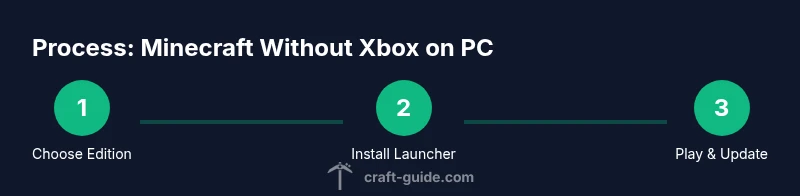
Minecraft Without Xbox: A PC Play Guide
Learn how to play Minecraft without Xbox: choose Java or Bedrock on PC, install the launcher, manage accounts, enable cross-platform play, and troubleshoot common issues.


With no Xbox required, you can enjoy Minecraft on a PC by choosing Java Edition or Bedrock on Windows, installing the official launcher, and signing in with a Microsoft account. This quick answer summarizes the editions, setup steps, and cross‑play options so you can start building, exploring, and playing with friends right away.
Getting started on PC without Xbox
If you want to enjoy minecraft without xbox, you can start immediately on a PC. The first decision is which edition to run: Java Edition or Bedrock on Windows. Your choice affects mod support, server access, and cross‑play opportunities. According to Craft Guide, Java Edition remains the go‑to for players who enjoy modding and custom servers, while Bedrock on PC offers smoother performance and easier cross‑play with other platforms. In this section you’ll learn the fundamental steps to get up and running, including choosing an edition, creating or updating a Microsoft account, and installing the official launcher. You’ll also discover the basic architecture of the Windows PC Minecraft ecosystem and what you’ll gain by playing without an Xbox.
To begin, ensure your PC meets basic hardware requirements: a modern CPU, at least 4GB RAM (8GB recommended for modded play), and a stable internet connection. Download the Minecraft Launcher from the official site, sign in with your Microsoft account, and select the edition you want to install. After that, you’ll configure your settings for performance and controls and be ready to launch into either a vanilla world or a modded adventure, all without an Xbox in sight.
Editions explained: Java Edition vs Bedrock on PC
Minecraft on PC centers around two main editions: Java Edition and Bedrock Edition. Java Edition is the original, with the broadest modding support, flexible server options, and a dedicated community ecosystem. Bedrock Edition is engineered for cross‑platform play and optimized performance, making it a strong choice if you want to play with friends on Windows, consoles, or mobile devices. While both editions run on Windows, they require separate purchases and launcher paths within the Minecraft ecosystem. Craft Guide analysis shows that most players who value extensive modding or custom servers gravitate toward Java, whereas players seeking smooth cross‑play across devices often choose Bedrock. Your decision should mirror your goals: modding and servers (Java) or cross‑platform play and performance (Bedrock). If you’re unsure, start with Java to explore mods and servers, then consider Bedrock if cross‑play becomes a priority for your circle of friends.
Installing the launcher and accounts
The core setup begins with the official Minecraft Launcher, downloaded from the Minecraft site. Create or sign in with a Microsoft account, which authenticates your access across editions and devices. Choose the edition you intend to play, then install it through the launcher. For Java Edition, you’ll often configure additional launch options and profile settings; for Bedrock, you’ll select the Windows 10/11 app option or the launcher as a separate path. This section explains how to link your accounts, ensure you have access to all required features, and verify your ownership of the game through official channels. Consistency between account credentials across platforms is key to a seamless experience.
Playing with friends: cross‑platform play
Playing minecraft without xbox doesn't mean you’re limited to solo play. Bedrock Edition enables cross‑platform play with Windows, iOS, Android, and console users, while Java Edition remains strictly PC‑to‑PC (and server‑based). If cross‑play matters, Bedrock is the preferred choice on PC, but you’ll miss some Java‑specific mods and servers. Be mindful of server rules and client versions when connecting, as mismatched builds can prevent login. Craft Guide recommends coordinating edition choice with friends to avoid compatibility headaches and to maximize multiplayer options.
Performance, settings, and mods
PC performance hinges on edition choice, hardware, and settings. Java Edition tends to demand more RAM and CPU, especially with mods, texture packs, and shaders. Bedrock is generally smoother on lower-end hardware due to its streamlined engine. Adjust in‑game settings such as render distance, chunk loading, and graphics quality to balance visuals with performance. For modders, Java Edition offers rich mod ecosystems, including official and community‑driven mods, while Bedrock supports addons and texture packs. Remember to download mods and packs only from trusted sources to avoid malware and compatibility issues.
Safety, privacy, and account tips
Protecting your account is essential when playing Minecraft on a PC. Use a strong, unique password for your Microsoft account and enable two‑factor authentication where available. Regularly review launcher permissions and avoid downloading software from untrusted sources. If you plan to join servers, consider creating a distinct game profile for modded or vanilla play to reduce the risk of data loss. The Craft Guide team emphasizes secure access and careful moderation when engaging with online communities.
Troubleshooting common issues
If you encounter login or launcher problems, start with the basics: check your internet connection, ensure the launcher is up to date, and verify that you signed in with the correct Microsoft account. For performance issues, adjust graphics settings, allocate more RAM to the launcher if possible, and update graphics drivers. If mods cause crashes, disable them temporarily to identify conflicts, then reintroduce one by one. Community forums and official support pages provide troubleshooting steps with platform‑specific guidance.
Budgeting and purchasing considerations
Prices for Java Edition and Bedrock Edition are separate, so be mindful when budgeting for a Minecraft PC setup. If you already own a copy on another platform, cross‑buy policies may apply in rare cases; always verify ownership through the official launcher. Plan for optional add‑ons like shader packs, texture packs, and server hosting, which can enhance the experience but aren’t required to start playing. Craft Guide recommends starting with the core game and essential settings before investing in third‑party additions.
Practical build ideas and learning paths without Xbox
Starting from scratch on PC offers a broad range of learning opportunities, from simple redstone builds to complex aesthetic creations. Use Java Edition for extensive modding support and server creativity, or Bedrock Edition for elegant cross‑platform collaboration. Regardless of edition, a thoughtful progression—from basic survival to creative builds and then to community servers—will help you grow your Minecraft skills without an Xbox. The Craft Guide team’s verdict is to pick the edition that aligns with your goals, then iterate with small projects that teach you core mechanics, design principles, and teamwork.
Tools & Materials
- PC with Windows 10/11 or Linux(At least 4GB RAM; 8GB recommended for Modded play)
- Official Minecraft Launcher(Download from minecraft.net)
- Microsoft account(Needed to sign in via the launcher)
- Stable internet connection(For downloading game files and updates)
- Mouse and keyboard(Primary input devices for PC play)
- Optional: secondary monitor(Useful for monitoring mods and guides)
Steps
Estimated time: 30-60 minutes
- 1
Choose edition: Java or Bedrock
Decide which edition aligns with your goals: Java for mods and servers, Bedrock for cross‑platform play. This choice will influence your launcher setup and multiplayer options.
Tip: If you want rich modding, start with Java Edition and a trusted mod manager. - 2
Create/sign in to Microsoft account
Set up or sign in to a Microsoft account within the official launcher to authenticate ownership and access both editions.
Tip: Enable two‑factor authentication for added security. - 3
Download and install the Minecraft Launcher
Visit the official site to download the launcher, then install the edition you selected. The launcher manages game files and updates.
Tip: Keep the launcher up to date to avoid login or patch issues. - 4
Configure launch options and profile
Set RAM allocation, render distance, and resource packs according to your hardware. Create a separate profile for modded vs vanilla play if needed.
Tip: For Java with mods, allocate at least 2GB–4GB RAM depending on mods used. - 5
Launch and adjust in-game settings
Start a new world or load an existing one. Fine‑tune graphics, controls, and audio for comfort and performance.
Tip: Lower render distance to boost performance on older PCs. - 6
Add friends and join a world or server
If using Bedrock, browse cross‑platform servers or invite friends; for Java, connect to server addresses and ensure versions match.
Tip: Always verify server rules and versions before joining to avoid crashes.
People Also Ask
Can I play Minecraft on PC without Xbox?
Yes. You can play on PC by selecting Java Edition or Bedrock Edition and using the official Minecraft Launcher with a Microsoft account. Each edition has its own features and community.
Yes, you can play on PC without Xbox by choosing Java or Bedrock and using the official launcher with a Microsoft account.
Is there a price difference between Java and Bedrock on PC?
Both editions are purchased separately; you’ll buy the edition you want. Check the official site for current pricing and bundles. Prices may vary by platform region.
Prices vary by edition and region; check the official site for current costs.
Which edition is best for modding?
Java Edition has the broadest modding community and server options, making it the preferred choice for modders. Bedrock offers stability and cross‑play but supports fewer mods.
Java Edition is typically best for modding, while Bedrock emphasizes cross‑play and stability.
Can I play with friends on different platforms without Xbox?
Bedrock Edition enables cross‑platform play across Windows, mobile, and consoles, so you can play with friends on non‑Xbox devices. Java Edition does not support cross‑platform play with Bedrock.
Bedrock supports cross‑platform play; Java does not cross with Bedrock.
Do I need an internet connection to play Minecraft on PC?
You need internet access to download, sign in, and join multiplayer worlds. You can play single‑player offline, but some features and updates require connectivity.
You’ll need internet for downloads and multiplayer; offline play is limited.
What are the basic system requirements for PC Minecraft?
A modern PC with a capable CPU, at least 4GB RAM (8GB recommended for mods), and a stable GPU driver is advised. Java Edition may demand more RAM for heavy mod setups.
A reasonably modern PC with adequate RAM is recommended, with more RAM for modding.
Watch Video
The Essentials
- Choose edition based on mods vs cross‑play needs.
- Use the official launcher and a Microsoft account for access.
- Bedrock supports cross‑platform play; Java offers richer modding.
- Back up worlds and verify versions when joining servers.
- Craft Guide recommends aligning edition choice with your play goals.