Minecraft Without Downloading: How to Play in Your Browser
Learn how to play minecraft without downloading using browser-based Minecraft Classic and safe cloud streaming options. This educational guide covers setup, step-by-step access, tips, and safety for seamless browser play.


You can play Minecraft without downloading by using the browser-based Minecraft Classic (classic.minecraft.net) and, for a fuller experience, cloud streaming that runs the full game in your browser or on a compatible device. No local install is required for these options, just a modern browser and a stable internet connection.
minecraft without downloading: practical options for browser play
You can explore minecraft without downloading by taking advantage of browser-based versions and lightweight streaming alternatives. This approach lowers the barrier to entry, letting you test ideas, learn mechanics, or share a quick experience with friends on any device with a modern browser. According to Craft Guide, browser-based routes are particularly useful for beginners who want to explore the core gameplay before committing to a full install. Craft Guide analysis shows that these options reduce setup friction and help players decide which edition (Java vs Bedrock) to install later. In this guide, we focus on practical, safe ways to start right away, plus tips to optimize performance and protect your account. The goal is to empower you to learn by doing, not by waiting for downloads or complex installations.
How Minecraft Classic in the browser works
Minecraft Classic is a browser-based version that lets you play a simplified Minecraft experience without downloading anything. It runs directly in your web browser, using an older rendering engine and a limited feature set compared to the full Java or Bedrock editions. You can access it from classic.minecraft.net without creating a local install, making it ideal for quick explorations, classroom demos, or code experiments. While it lacks some modern mechanics (like advanced redstone systems and extensive customization), it offers a fast, low-commitment way to understand the core building and exploration loop. Be mindful that this option is best for casual play and learning the basics, not for long-term survival worlds.
Cloud streaming: a no-download path to the full game
Cloud streaming lets you run the full Minecraft experience on remote hardware and display it in your browser or on a device you already own. This means you can access the Java or Bedrock editions without installing the game locally. Always verify service compatibility with Minecraft before using a cloud option, since latency and input delay can affect performance. This route is particularly useful for players who want the authentic experience, plus access to mods, texture packs, or cross-device play, all without a local install. As with any streaming service, a solid internet connection and a capable device will determine the quality of your session.
Prerequisites for browser play
To get started, you only need a few essentials: a device with a modern browser (Chrome, Firefox, Edge, etc.), a stable internet connection, and JavaScript enabled. If you plan to use cloud streaming, you may need to sign in to the chosen service and ensure your plan supports Minecraft streaming. Clear browser cache if you encounter slow loads, and disable any extensions that could block scripts. This setup minimizes common hiccups and gives you a smoother browser-based Minecraft experience.
Optimizing browser performance for Minecraft classic
Performance in a browser-based Minecraft session depends on rendering settings and network latency. Reduce background tab usage, enable hardware acceleration in your browser settings, and select a lower render distance to improve stability. Close other heavy web apps to reclaim bandwidth and processing power. For best results, keep OS graphics drivers updated and run the browser in full-screen mode if your device supports it, which can reduce input lag and visual stutter.
Safety and privacy when playing in-browser
Only use official sites like classic.minecraft.net to avoid phishing or malware. Never enter account credentials on untrusted pages, and keep your Minecraft account details secure. If you’re using cloud streaming, review the provider’s privacy policy and data handling practices. As always, avoid sharing personal information in in-game chats and use strong, unique passwords for any accounts involved. Craft Guide emphasizes maintaining good cybersecurity hygiene when experimenting with browser-based Minecraft.
Creative use cases and limitations in browser play
Browser-based Minecraft shines for quick demonstrations, classroom demos, or practice builds that don’t require persistence across sessions. Use it to sketch ideas, plan large-scale builds, or teach basic mechanics. Keep expectations realistic: browser versions are typically leaner, with fewer features and fewer customization options than the installed editions. They’re excellent for learning and planning, while the full game (when downloaded or streamed) unlocks the comprehensive feature set.
Craft Guide's practical guidance
The Craft Guide team recommends starting with browser-based access to understand core gameplay before diving into downloads. Use these browser options to prototype ideas, compare Java vs Bedrock playstyles, and decide which edition to install later. This approach aligns with Craft Guide’s focus on practical, beginner-friendly tutorials and build ideas that scale from casual exploration to advanced projects.
Tools & Materials
- Device with internet access(Any modern laptop, desktop, tablet, or phone with a browser)
- Web browser(Chrome/Firefox/Edge or equivalent; ensure JavaScript is enabled)
- Stable internet connection(Broadband or reliable mobile data with low latency)
- Optional input devices(Mouse/keyboard or gamepad for precise control)
- Cloud streaming account (optional)(If using cloud streaming, create or sign in to a supported account)
Steps
Estimated time: 15-25 minutes
- 1
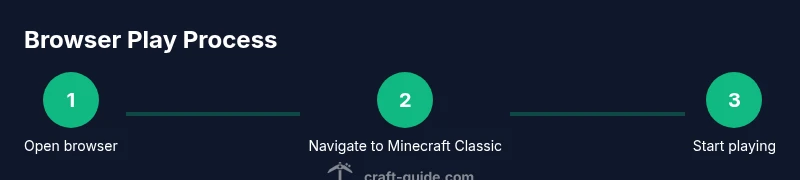
Open a browser and navigate to Minecraft Classic
Launch your preferred browser and go to classic.minecraft.net. Wait for the loading screen and load times. A browser-based world will appear that you can interact with using the on-screen controls or your keyboard and mouse.
Tip: Bookmark the official link for quick access. - 2
Create or join a simple world
Use the on-screen UI to create a new world or join a shared one. Explore basic controls, the inventory, and building concepts at your own pace.
Tip: Start in creative mode if available to freely explore blocks. - 3
Practice movement and building
Use WASD to move, the mouse to look, and left-click to place blocks. Experiment with basic structures to get comfortable with the mechanics.
Tip: Take screenshots to remember layouts for later reference. - 4
Adjust settings for comfort
Tweak graphics quality, render distance, and control sensitivity to match your device capabilities. Lower settings help on older hardware.
Tip: Turn off unnecessary extensions or plugins that slow down the browser. - 5
Try cloud streaming (optional)
If you want the full game without installing, explore a cloud streaming option and verify compatibility with Minecraft. Ensure your network supports low-latency play.
Tip: Test a short session first to evaluate latency. - 6
Decide next steps
If you enjoyed browser play, consider installing the full game or subscribing to a cloud service for continued access and mods.
Tip: Keep a plan for when to upgrade to the full edition.
People Also Ask
Can I play Minecraft without downloading on mobile devices?
Yes, some browser-based options can be accessed on mobile browsers without downloading the full game, though the experience may be simplified. For best results, use a stable browser and a reliable connection.
Yes - you can try browser-based Minecraft on mobile if your browser supports it; however, performance may vary.
Is multiplayer available in browser-based Minecraft Classic?
Minecraft Classic in the browser supports simple multiplayer experiences, typically through direct world sharing or hosted sessions. For robust multiplayer with mods, use the full game installed or streamed.
Multiplayer is possible in browser Classic in a limited form; for richer multiplayer, consider the full game.
Will browser play replace the need to download the game later?
Browser play is a convenient way to learn and test ideas, but the full experience, mods, and persistence typically require installing or streaming the full edition.
Browser play is great for learning and testing, but you’ll still want the full game later for depth and mods.
Is there a cost to browser-based Minecraft options?
Minecraft Classic in the browser is freely accessible on official platforms. Some cloud streaming services may require a subscription or payment.
Classic is free to try; cloud streaming options may incur a cost.
What safety considerations should I keep in mind?
Stick to official sites, avoid sharing credentials, and use strong passwords. Be cautious with third-party sites promising quick access.
Be careful with third-party sites and protect your accounts.
Watch Video
The Essentials
- Play Minecraft without downloading via browser-based options
- Browser Classic is quick to access and learn from
- Cloud streaming can give full game access without local install
- Use safe links and enable performance optimizations for best experience
- Decide later between browser use and installing the full game