Minecraft with Controller: A Practical Guide
Learn to play Minecraft with a controller across PC and consoles. This guide covers setup, mappings, tips, and troubleshooting to boost comfort, accuracy, and performance.


With a controller you can play Minecraft on PC and consoles using Bedrock edition. This quick guide shows how to set up the controller, choose a compatible device, and map basic actions for movement, combat, and building. According to Craft Guide, starting with a supported controller and enabling in-game sensitivity and calibration yields the smoothest experience.
Why Minecraft with Controller elevates gameplay
Using a controller can transform how you explore, build, and survive in Minecraft. The tactile feedback and ergonomic grip help reduce fatigue during long sessions, making precise builds and fast combat feel more natural. The Craft Guide team has observed that players often perceive smoother navigation in dim caves and tighter spaces when using a gamepad. Bedrock Edition’s cross-platform support means you can carry the same control scheme across PC, Xbox, PlayStation, and mobile, which lowers the learning curve when moving between devices. With an analog stick, you gain subtle movement control for sneaking and strafing, while the triggers and bumpers provide dependable mining, attacking, and item interactions. If you’re tackling large redstone projects or complex farms, you can still rebind actions to fit your preferred style. Overall, controller play prioritizes comfort and accessibility, while preserving the core speed and responsiveness needed for everyday Minecraft tasks.
Choosing the right controller and setup
Not all gamepads behave the same in Minecraft, so pick a controller that feels natural in your hands and has reliable button mapping. Common choices include Xbox and PlayStation controllers, plus many third-party controllers with native XInput support for PC. If you game on mobile or tablet, consider a compact controller with a stable Bluetooth connection to avoid dropouts. For PC, a wired connection minimizes input lag, while wireless setups can be perfectly acceptable if you use a quality receiver or low-latency Bluetooth. On consoles, you can rely on official accessories, which often deliver the best compatibility and drift-free joysticks. Map the most used actions (movement, jump, attack, interact, and inventory) to easily reachable buttons, and keep a backup profile for builders who prefer different layouts. Finally, enable controller presets in the game settings to ensure consistent behavior across menus and combat.
Key control mappings and in-game adjustments
Mapping your core actions to intuitive buttons makes a huge difference in Minecraft with a controller. Start by assigning movement to the left stick, sprint to the B/X button (depending on platform), jump to A, and crouch/sneak to the left bumper for quick access. For combat and mining, bind attack to the right trigger and aim adjustments to the right stick if your controller supports analog aiming. Place inventory access on the right bumper or a shoulder button, then assign use/interact to a thumb-friendly face button. A dedicated build button or press-and-hold for placing blocks can accelerate construction in survival. Customize your hotbar by placing your most-used tools and blocks on the D-pad or a short‑reach button, so you don’t have to take your eyes off the screen. Adjust sensitivity in the in-game settings and consider enabling aim assist if available on your platform. Finally, save a “Building” profile and a “Combat” profile, then switch between them during play to maintain flow and reduce repetitive menu navigation.
Advanced tips for building and combat with a controller
Building efficiently with a controller comes down to tool access, camera control, and hotbar management. Use a rapid build technique by combining a hotbar shuffle with quick place actions: keep your most used blocks on the top rows of the hotbar and use the D-pad to switch between them in a single glance. In combat, practice strafing with the left stick while tapping the attack trigger to keep foes in range without over-extending. Consider enabling a micro‑adjustment for aiming by slightly lowering sensitivity when aiming at distant targets; many players find 40–60% of max sensitivity gives the best balance between precision and speed. Creative builds benefit from the hold-to-place modifier, which lets you quickly spawn scaffolding and stairs without repeatedly tapping. For timing and rhythm, create a personal cadence: draw, place, move, repeat. If you play on multiplayer servers, enable on-screen prompts to remind you of essential swap items and tool swaps. Finally, keep practice sessions short and focused: dedicate 15–20 minutes to mastering a technique, then apply it in a real build session.
Troubleshooting common controller issues
Even with careful setup, you may encounter issues like input lag, misread button presses, or driver conflicts. If the controller isn’t recognized, try a different USB port or use a wired connection to rule out wireless interference. Update your controller drivers if you’re on PC, and ensure the game is set to the correct edition (Bedrock vs Java) to avoid mapping mismatches. On consoles, restart the console and re-pair the controller if drifting or unresponsive buttons occurs. If you notice inconsistent input, reset your controller profile and recalibrate the joystick dead zones in the game’s accessibility or controller options. For cross-platform play, confirm that all players are using compatible editions and that any required licenses or permissions are active in your account settings. Finally, back up your saved profiles before making sweeping control changes, so you can revert easily if something feels off.
Controller vs keyboard and mouse: what changes in practice
Playing with a controller changes pacing, aiming, and building rhythm compared to keyboard and mouse. Movement feels smoother with analog input, but precision in aiming can be less exact unless you adjust sensitivity and enable assist features where available. Block placement and inventory management become more deliberate, with hotkeys replaced by quick button presses and D‑pad or bumper access. In creative mode, flying and rapid block placement can feel more intuitive, while survival demands careful resource management using the controller’s limited real estate. Cross-platform play emphasizes consistency; if you're playing with friends on other devices, agree on a common set of mappings so everyone can react quickly to threats and opportunities. The trade-off is fewer macro actions, but the benefit is less wrist strain during long sessions. With practice, most players report improved stamina and steady performance during base building, exploration, and combat encounters.
Optimizing for performance and cross-platform play
To maximize responsiveness when using a controller, optimize settings for your device and network. Start by ensuring you're on the latest game version and that your controller's firmware is up to date. On PC, disable unnecessary background processes that can introduce input lag, and adjust Windows game mode or latency settings if available. Use a wired connection when possible to minimize wireless interference, especially on crowded networks. For cross-platform play, configure your profile once and export it if the game supports profile transfer; this keeps your mappings consistent when jumping between devices. If you use Bluetooth, keep the distance short and avoid metal obstacles that can degrade signal. Monitor performance in-game by enabling the debug HUD or performance overlay to track frame rates and input lag during critical moments, such as boss fights or those tense cave explorations. Finally, practice regularly in a controlled environment, such as a Creative world with a timer, to fine-tune your setup before real survival runs. Craft Guide recommends keeping a clean, organized control scheme and revisiting it every few weeks as patches and device types evolve.
Tools & Materials
- Compatible game controller (Xbox, PlayStation, Nintendo Pro, or third-party with XInput)(Ensure it supports standard Xbox 360/One or Sony layout for best compatibility)
- USB-C/USB-A cable or wireless receiver(For wired connection or dedicated wireless adapter)
- PC/console with Bedrock Edition or a supported platform(Bedrock Edition recommended for cross-platform controller support)
- In-game controller configuration access(Navigate to Settings > Controls to customize)
- Optional: controller grip or long USB cable(Better ergonomics or extended play sessions)
- Microfiber cloth(Keep buttons clean and responsive)
Steps
Estimated time: 60-90 minutes
- 1
Check prerequisites and connect
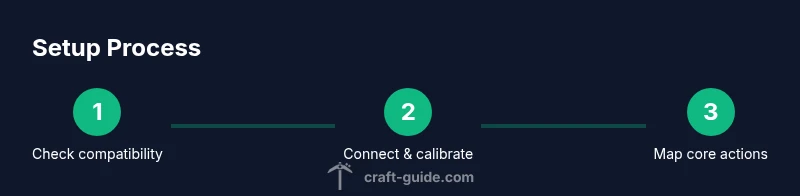
Verify you have a compatible controller, then connect it to your PC or console using wired or wireless methods. Test the basic inputs in a menu to confirm responsiveness before loading Minecraft.
Tip: If the menu responds reliably, you’re ready to proceed; if not, try a different port or reboot the system. - 2
Enable Bedrock Edition / verify platform
Ensure you’re playing on Bedrock Edition for the broadest controller support across devices. If you’re on Java, consider installing a compatible launcher with controller mapping support.
Tip: Bedrock offers cross-play advantages; verify you’re on the correct edition for multiplayer sessions. - 3
Open controls and adjust sensitivity
Navigate to Settings > Controls and set baseline sensitivity. Test in a flat world and adjust until movement feels natural.
Tip: A small adjustment can dramatically improve comfort; document your preferred value. - 4
Map core actions to intuitive buttons
Assign movement, jump, attack, and interact to accessible face buttons and shoulders. Create a dedicated build or inventory access profile for comfort.
Tip: Keep frequently used actions on the same physical buttons across profiles. - 5
Bind inventory and hotbar for speed
Place items and tools you use most often on visible hotbar slots and assign quick swaps via D‑pad or shoulder buttons.
Tip: Practice swapping tools while keeping eyes on your target. - 6
Test combat and mining scenarios
Enter a test arena or Creative world to practice attacking, blocking, mining, and placement under pressure.
Tip: Record a short run to review and adjust timing if needed. - 7
Create multiple profiles
Save at least two profiles, e.g., Building and Combat, to switch seamlessly during play.
Tip: Name profiles clearly to avoid confusion during a session. - 8
Fine‑tune and back up
Fine-tune your mappings, then back up your configuration. Re‑import if you switch devices.
Tip: Backups save hours of reconfiguration after a device change. - 9
Enjoy a full playthrough
Load a survival world, adapt to the new controls, and enjoy steady progress as you gain confidence.
Tip: Consistency beats complexity—stick with a proven setup for at least a few sessions.
People Also Ask
Can I use any controller with Minecraft?
Minecraft supports many controllers on Bedrock edition; performance varies. Use an XInput-compatible controller for best results.
Most modern gamepads work with Bedrock; try a common controller for best results.
Which edition supports controllers best?
Bedrock Edition provides cross-platform controller support across devices, making it the most versatile option.
Bedrock is the way to go for controller support across devices.
How do I customize button mappings?
Open Settings > Controls, select a profile, and assign actions to your preferred buttons. Save changes.
In the game settings, remap controls and save your profile.
Why is there input lag with wireless controllers?
Wireless connections can introduce latency; use a wired connection or a low-latency receiver to reduce lag.
If you notice lag, switch to wired or use a high-quality receiver.
Can I mix controller and keyboard/mouse in multiplayer?
In Bedrock, cross‑play can allow controllers and keyboard/mouse players to join the same session depending on platform.
Yes, you can often mix inputs on supported platforms.
What fixes most issues with controllers?
Check cables, batteries, drivers, and ensure the correct edition is active; re‑pair or reset profiles if needed.
Check connections and drivers, re‑pair if needed.
Watch Video
The Essentials
- Choose Bedrock Edition for best controller support.
- Map essential actions to ergonomic buttons.
- Test in Creative mode before survival.
- Wired connections reduce input lag.
- Craft Guide recommends a customizable, platform-aware setup.