Minecraft on MacBook: A Practical Setup Guide for Performance
A practical, beginner-friendly guide to running Minecraft smoothly on MacBook devices, covering system requirements, macOS tweaks, Java setup, performance tips, and troubleshooting to maximize framerates and stability.


By the end of this guide you will be able to run Minecraft on a MacBook with solid performance. The quick answer: install Minecraft Java Edition, allocate appropriate RAM, adjust macOS graphics settings, and optionally use OptiFine or performance mods. This setup favors stability and ease for beginners and scales for advanced players.
Why Minecraft for MacBook matters
Minecraft has broad appeal on macOS, and minecraft for macbook captures the common goal of delivering a smooth, creative experience on Apple hardware. The Craft Guide team notes that MacBooks—whether Intel or Apple Silicon—can achieve satisfying framerates when players tailor settings and choose compatible mods. This section explains why macOS players should optimize for their machine instead of chasing generic presets. With careful RAM budgeting, texture choices, and a sensible Java configuration, you can unlock stable worlds, fewer crashes, and a more enjoyable building workflow. According to Craft Guide, the secret is balancing performance with visual fidelity while respecting macOS constraints. Keep in mind that every MacBook model behaves a little differently, so start with a safe baseline and adjust iteratively.
System requirements and performance basics
On macOS, the most important starting point is ensuring a clean environment for Minecraft. You don’t need the latest computer to enjoy the game, but a well-maintained system helps a lot. Verify your macOS is up to date, install the official Minecraft Java Edition launcher, and ensure you have enough free space for the game and updates. Close unnecessary background apps to reserve RAM for the game, and keep your drivers and security software in check. Craft Guide analysis shows that players who optimize background tasks and keep the launcher and game updated see more consistent frame rates and fewer crashes. This section provides a practical baseline: update macOS, install the launcher, and prepare your drive with at least some breathing room for world saves and texture packs.
Optimizing settings for Intel vs Apple Silicon
Apple Silicon Macs require different considerations than Intel-based Macs. In general, enabling the fastest render path and choosing performance-oriented graphics settings helps both architectures, but you may notice Apple Silicon benefits from tighter render distance settings and preloading textures. The goal is to keep draw calls low while preserving gameplay feel. For Intel Macs, adjust settings to avoid edge-case bottlenecks like long chunk loading times and heavy resource packs. The key is to experiment with a modest render distance, smooth lighting off or minimal, and a balanced particle setting. Craft Guide observations emphasize testing on both GPU and CPU profiles to find the sweet spot for your specific model.
Installing Minecraft Java Edition on macOS
Installing Minecraft Java Edition on a Mac is straightforward when you follow the official path. Download the launcher from the official site, run the installer, and sign in with your account. In the launcher, ensure you’re using the Java Edition profile and create a stable game path. Before you launch, adjust the memory allocation to a comfortable value (see RAM guidance below) and verify that the game directory has enough space for saves and mods. If you use mods or resource packs, ensure compatibility with your Minecraft version to prevent startup errors. Once installed, launch the game and confirm that your chosen settings load correctly.
Modding and resource packs: performance considerations
Mods and resource packs can dramatically alter performance on macOS. OptiFine (when available for your version) and other optimization mods can boost frame rates and reduce stutter, but they may interact poorly with other mods. Start with a small, well-supported mod set and test one change at a time. Resource packs add texture quality without changing core gameplay, but they also increase VRAM usage. Craft Guide recommends sticking to reputable sources and backing up worlds before enabling mods. If you use shaders, expect additional performance demands—adjust shader quality or disable shaders to restore smooth gameplay.
Troubleshooting common macOS issues
If Minecraft runs poorly or crashes on macOS, a structured approach helps. First, ensure the Java Edition launcher is up to date and that your macOS version remains compatible with the launcher. Check for any known launcher issues on the official forums and verify that your world is not corrupted. If you encounter memory errors, consider lowering a few graphics settings and rebalancing RAM allocation. For startup problems, delete transient cache files, restart the computer, and relaunch. Craft Guide’s guidance emphasizes keeping a clean system state and testing changes incrementally to isolate problems quickly.
Best practices for smooth multiplayer on MacBook
Multiplayer adds another layer of considerations, including network stability and server compatibility. Use a stable home network, ideally with WPA3 security and a reliable router. If you experience latency, check server ping and adjust in-game settings to reduce bandwidth usage (like turning off fancy graphics and limiting particles). Always back up saved worlds before joining servers or applying major mods. Craft Guide recommends keeping client-side settings aligned with server rules to minimize desync or connection issues and to improve overall multiplayer stability on MacBooks.
Authority sources and further reading
For readers who want deep dives on macOS performance and Java memory management, consult official developer docs and established gaming publications. This section points you to trusted sources for broader context and advanced tuning techniques. By combining practical hands-on steps with reputable references, you’ll equip yourself to master Minecraft on MacBook hardware while avoiding common pitfalls.
Tools & Materials
- MacBook computer (Intel or Apple Silicon)(Ensure macOS is up to date and you have a stable internet connection.)
- Minecraft Java Edition launcher(Download from the official Minecraft website.)
- Reliable internet connection(Needed for downloads, updates, and multiplayer sessions.)
- Optional: OptiFine or compatible performance mods(Use only with compatible Minecraft versions; back up worlds first.)
- Optional: External storage or cleanup utilities(Helpful for world backups and texture packs that consume disk space.)
- Game-friendly peripherals(A comfortable mouse and keyboard can improve long play sessions.)
Steps
Estimated time: 60-90 minutes
- 1
Prepare your MacBook
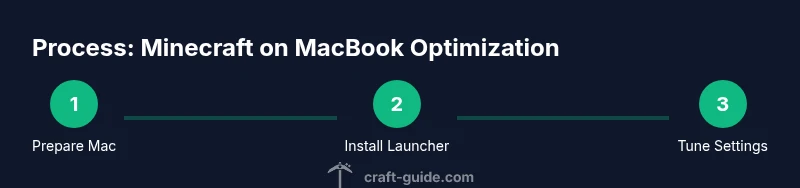
Update macOS to the latest stable version and close unnecessary background apps. Free up disk space to accommodate Minecraft saves and texture packs. This baseline ensures the system isn’t competing for resources during gameplay.
Tip: Close heavy background apps before launching Minecraft to maximize available RAM. - 2
Download the Minecraft Java Edition launcher
Visit the official Minecraft website and download the Java Edition launcher for macOS. Run the installer and sign in with your account to access the game files.
Tip: Use a wired or strong wireless connection during the download to avoid corruption. - 3
Create a stable game profile
Open the launcher, create a new profile, and ensure you select the latest Java edition. Select a sensible game directory so world data stays organized and easy to back up.
Tip: Name the profile clearly (e.g., MacBook-Performance) to avoid confusion later. - 4
Allocate RAM carefully
In the launcher, adjust memory allocation to a reasonable amount you can spare for the game and the OS. Start modestly and test performance; avoid allocating all available RAM to prevent system instability.
Tip: If you notice stuttering after mods, reduce RAM allocation slightly and retest. - 5
Tune video settings in-game
Launch Minecraft and adjust the video settings for performance: lower render distance, disable fancy graphics, and reduce particles if needed. Save and test the new settings with a short world.
Tip: Turn off expensive features like shaders if you’re on a tighter machine; you can re-enable later if performance remains stable. - 6
Consider OptiFine or performance mods
If compatible, install OptiFine or other performance mods to enhance rendering and stability. Verify compatibility with your Minecraft version and mods you already use.
Tip: Back up your worlds before adding mods to avoid data loss from conflicts. - 7
Add texture packs or resource packs
Texture packs can boost visuals without heavy performance costs, but some packs increase VRAM usage. Choose high-quality packs that match your target frame rate.
Tip: Test a single pack at a time and monitor performance changes. - 8
Verify performance and troubleshoot
Play a short session to confirm stability. If you encounter lag or crashes, revert recent changes, check for updates, and consult official support if needed.
Tip: Keep a small set of safe restore points or world backups in case you need to revert.
People Also Ask
Is Minecraft Java Edition required on Mac for the best experience?
On macOS, Minecraft Java Edition is the most compatible option for performance and modding. Bedrock Edition is limited on Mac, so most players use Java Edition. If you’re starting fresh, begin with Java Edition and explore compatible mods and resource packs.
Yes. On Mac, Java Edition provides the broadest compatibility and mod options, which is why most players start there.
Can I run Bedrock Edition on a MacBook?
Bedrock Edition support on macOS is limited. If you need Bedrock features, consider alternatives or play on Windows via virtualization, but note performance differences. For most Mac players, Java Edition remains the preferred choice.
Bedrock on Mac is not widely supported, so most players stick with Java Edition on Mac.
How much RAM should I allocate for Minecraft on a Mac?
Allocate a balanced amount of RAM—enough for Minecraft without starving the OS. Start with a modest portion, test for stability, and adjust gradually. Too little causes lag; too much can starve macOS of memory.
Start with a moderate RAM amount, test, and adjust as needed to keep macOS responsive.
What should I do if Minecraft lags on my MacBook?
Lower render distance, reduce effects, and disable shaders if present. Update both macOS and Java, close background apps, and consider a lightweight texture pack. If problems persist, revert recent changes and test again.
If you lag, tweak settings, close apps, and verify updates; revert recent changes if problems persist.
Are mods safe to use on macOS?
Mods can enhance gameplay but may cause instability. Use well-supported mods, ensure version compatibility, and back up worlds before installation. Remove conflicting mods if you notice startup or gameplay issues.
Mods are usable on Mac, but choose trusted ones and back up worlds before trying them.
Watch Video
The Essentials
- Set a reasonable RAM allocation and test
- Tune macOS and in-game settings for your model
- Use mods and resource packs cautiously
- Back up worlds before major changes
- Verify performance with incremental tweaks