How to Tell If Minecraft Is Java or Bedrock
Identify whether your Minecraft is Java Edition or Bedrock Edition with simple checks—from launcher labels to in-game menus and store sources. A clear, beginner-friendly guide from Craft Guide.


Goal: determine whether your Minecraft is Java Edition or Bedrock Edition. To identify it, inspect the launcher title, check the in-game version string in the main menu, compare playable features (mods vs cross-play), and note the platform the game was installed on. If you see Java in the version or you run the game from the Java executable, you have Java Edition.
What edition you’re playing: Java vs Bedrock
Understanding whether Minecraft is Java Edition or Bedrock Edition matters for compatibility, modding potential, and cross-play opportunities. According to Craft Guide, the two editions differ not only in how you install the game but also in multiplayer options, supported mods, and how content is distributed. This guide walks you through reliable cues you can verify quickly, without relying on guesswork, so you can play with the right tools and servers. The distinction affects everything from world creation to how you back up save data. In short, knowing the edition helps you avoid compatibility pitfalls and makes choosing a server or modpack much easier. The goal is to give you practical, actionable checks you can perform in five to ten minutes, using electronics you already own and the platforms you already use.
Quick distinctions at a glance
- Edition label in the launcher: Java Edition typically appears with a Java-based launcher, while Bedrock shows a Microsoft Store or Windows app label.
- Cross-play capability: Bedrock Edition supports cross-platform play across Windows, consoles, and mobile devices; Java Edition is generally PC-only and does not cross-play with Bedrock.
- Modding ecosystem: Java Edition has broad support for mods via Forge/Fabric; Bedrock relies on Add-Ons and marketplace content rather than traditional mods.
- Server and Realms access: Java servers often use separate modded server software; Bedrock Realms and dedicated servers operate within the Bedrock ecosystem.
- Content marketplace vs. downloads: Bedrock uses a built-in Marketplace for content; Java relies on community mod packs hosted outside the official store.
These differences matter because they determine which launchers you use, which worlds you can join, and which mods or add-ons will work for you. Craft Guide emphasizes checking the edition before you dive into a new world, as compatibility can impact performance and access to features you expect.
How edition affects platform-specific features
The edition you’re on determines what kinds of features you can access, such as cross-platform multiplayer, mod support, and supported graphic options. Java Edition’s modding community unlocks a broader range of customization through Forge or Fabric, but this often requires Java-specific runtime environments. Bedrock Edition, on the other hand, emphasizes cross-platform functionality and a streamlined marketplace experience, which can simplify multiplayer with friends on different devices. Recognizing the edition early helps you tailor your expectations for performance, controls, and the kinds of servers you can join. Craft Guide’s research highlights that most players find the distinction practical for deciding which edition to invest in, especially if multiplayer is a priority.
Authority sources
- The Verge: Minecraft Bedrock Edition vs Java Edition differences and cross-play implications. https://www.theverge.com/2020/12/9/22167261/minecraft-bedrock-edition-vs-java-edition-differences
- PC Gamer: Minecraft Bedrock vs Java Edition differences and modding considerations. https://www.pcgamer.com/minecraft-bedrock-edition-vs-java-edition-differences/
- Minecraft Help: Official guidance on edition identification and differences. Although the exact pages vary by time, help articles on help.minecraft.net provide definitive checks and terminology.
Tools & Materials
- Minecraft game client or launcher(Open the launcher to read the edition label (Java vs Bedrock) in the header.)
- Internet connection(Needed to verify edition details and cross-check with official docs.)
- Device with access to the game platform(PC, console, or mobile device where you can view the edition and store listing.)
- Notes app or clipboard(Useful to record edition findings and store links to official sources.)
Steps
Estimated time: 5-15 minutes
- 1
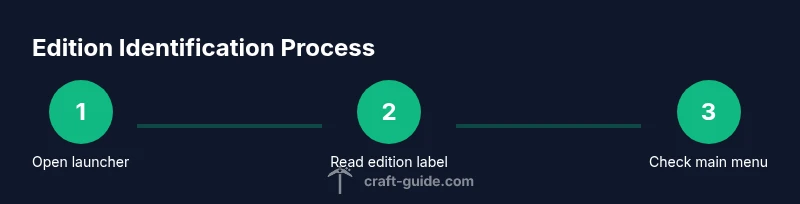
Open the Minecraft launcher
Launch the game launcher you typically use to start Minecraft. This step establishes the first visible indicator of edition by showing the launcher’s branding and edition label. If you’re on Windows, macOS, or Linux, ensure you’re using the official launcher from the platform store or the official website.
Tip: If you don’t see an edition label, try the next steps and cross-check in-game menus. - 2
Look for the edition label in the launcher header
The launcher header or the first screen after login usually shows whether you’re running Java Edition or Bedrock Edition. Java Edition commonly uses a Java-based launcher, while Bedrock Edition appears linked to the Windows Store or Microsoft account integration.
Tip: Make note of the exact wording shown; phrasing like 'Java Edition' or 'Bedrock Edition' is the clearest indicator. - 3
Launch the game and check the main menu
If you’ve started a world, open the main menu and look for a version badge or menu item that explicitly states 'Java Edition' or 'Bedrock Edition'. This is a reliable confirmation if the launcher label is ambiguous.
Tip: On Bedrock, you may see cross-platform options or a marketplace indicator in the main menu. - 4
Check how you installed the game
Bedrock is typically installed through platform stores (Microsoft Store, Google Play, Apple App Store) or as a system app, whereas Java Edition is downloaded from the official Minecraft website or stores hosting Java bundles. The installation source is a strong clue.
Tip: If your install path is tied to your system apps or a store, you’re likely on Bedrock. - 5
Inspect game data locations
Java Edition stores its data in a folder named .minecraft within your user directory. Bedrock stores data in platform-specific locations tied to the device’s OS and app sandboxing. This distinction helps you verify edition if the labels are unclear.
Tip: Search your file system for a .minecraft folder to identify Java Edition data. - 6
Check feature compatibility (mods vs cross-play)
If you can install Forge or Fabric mods, you’re likely on Java Edition. If you can seamlessly cross-play across Windows, console, and mobile devices, you’re on Bedrock. Modding support and cross-platform reach are the most telling indicators.
Tip: Mods and mods managers are a strong signal for Java Edition; marketplace content points to Bedrock. - 7
Consult official help docs for final confirmation
If you’re still unsure after the above steps, consult the official help docs or support articles from Minecraft. They provide authoritative checks and terminology to avoid confusion.
Tip: Use the exact edition names when searching the help articles to ensure accurate results.
People Also Ask
Can Java and Bedrock players play together?
Bedrock Edition supports cross-platform play across Windows, consoles, and mobile devices, while Java Edition does not cross-play with Bedrock. Choose the edition based on your multiplayer goals.
Bedrock supports cross-platform play across many devices, but Java Edition does not cross-play with Bedrock. Pick Bedrock if cross-play matters to you.
How can I tell if I’m on Java or Bedrock on PC?
Check the launcher label or the main menu’s edition indicator. If the launcher uses a Java-based interface or the main menu mentions Java Edition, you’re on Java. If it references the Windows Store or Bedrock, you’re on Bedrock.
Look for the edition text in the launcher or main menu. Java shows Java Edition, Bedrock shows Bedrock Edition or a Microsoft Store reference.
Is there a way to convert Java to Bedrock or vice versa?
There isn’t a direct conversion between Java and Bedrock editions. You would need to purchase the edition you want and migrate any world data where possible using export/import or by recreating worlds.
There isn’t a direct conversion between editions. You’d need to acquire the target edition and adapt your world separately.
Where should I look for the edition label?
Check the launcher header, the main menu, and the install source. The label is the most reliable single checkpoint before joining servers or trying mods.
Check the launcher header, then the main menu to confirm the edition before playing.
What about servers and Realms?
Bedrock Realms and many cross-platform servers are Bedrock-specific. Java servers rely on Java-compatible software and do not support Bedrock cross-play. Always verify the server’s edition compatibility before joining.
Bedrock supports cross-platform Realms and servers; Java servers work with Java Edition only.
Watch Video
The Essentials
- Identify the edition first to avoid compatibility issues.
- Java Edition supports wide modding; Bedrock emphasizes cross-play and marketplace content.
- Cross-play is limited to Bedrock across platforms; Java cannot join Bedrock servers.
- Use launcher labels, installation source, and official help docs for reliable verification.
- Record your findings for future reference and club/realm access decisions.