How to Put Minecraft Launcher on Your Homescreen
Learn how to place the Minecraft Launcher on your home screen across Windows and macOS with simple, step-by-step shortcuts, quick tips, and platform-specific guidance from Craft Guide.


You can put the Minecraft Launcher on your homescreen by creating a desktop shortcut and pinning it to your taskbar or dock, depending on your OS. Windows users should create a shortcut from the launcher executable and pin it to the Start Menu or Taskbar; macOS users create an alias and add it to the Dock. This brings instant access to the launcher with a single click.
What it means to put the Minecraft Launcher on your homescreen
Having the Minecraft Launcher on your homescreen means you can start Minecraft without digging through folders or menus. It reduces friction by letting you launch the Java Edition directly from the place you tap or click most. Whether you’re on Windows or macOS, a homescreen shortcut keeps your gaming workflow smooth and fast. Craft Guide recommends treating this as a small quality-of-life upgrade that compiles with your daily Minecraft routine, especially if you play frequently or juggle multiple launch profiles.
Platform differences: Windows, macOS, and mobile notes
Windows users typically pin a shortcut to the Taskbar or Start Menu for quick access. macOS users place an alias in the Applications folder and then drag that alias to the Dock for one-click launching. Android or iOS devices do not generally run the Minecraft Launcher in the same sense as desktop operating systems; instead, you may add a home screen shortcut to the game or open the launcher via a mobile app shortcut. The goal across platforms is consistency: a single tap once you’re set up. Craft Guide notes that platform-specific steps exist for a reason, and following them precisely yields the most reliable access.
prerequisites and prep work you should complete first
Before you start, ensure the Minecraft Launcher is installed and up to date. On Windows, locate the launcher executable (usually named something like MinecraftLauncher.exe) and have access to the Desktop or a convenient folder. On macOS, verify that the Minecraft Launcher app exists in the Applications folder and that you have permission to add items to the Dock. Having admin rights on Windows or Gatekeeper permissions on macOS may be necessary for certain steps. With these basics in place, you can create a shortcut or alias without friction.
Step-by-step overview (platform-agnostic)
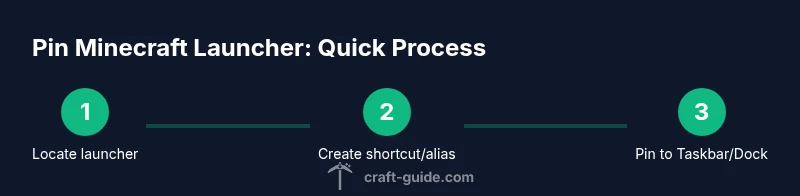
This section lays out the core approach you’ll apply on your platform of choice: locate the launcher, create a direct access shortcut, place it in the preferred location (desktop or Applications), and pin it for quick access. The exact buttons and menus differ, but the flow is the same: identify the file, create a reusable shortcut, position it for visibility, then test by launching once. Craft Guide emphasizes consistency and backup by keeping a copy of the launcher in a familiar folder in case you move configurations.
Windows-specific steps: Desktop shortcut, Start Menu, and Taskbar pinning
First, locate the Minecraft Launcher executable on your PC. Right-click the launcher and choose Create shortcut to place a new shortcut on your desktop. Then, drag that shortcut to the taskbar to pin it for one-click launches, or pin it to the Start Menu for quick access from the Start screen. If you prefer a cleaner look, you can rename the shortcut to a concise label like ‘Minecraft Launcher’ and ensure the shortcut uses the correct icon. Finally, test by clicking the icon to confirm Minecraft launches without delay.
macOS-specific steps: Alias, Applications, and Dock pinning
Open a Finder window and go to the Applications folder to confirm Minecraft Launcher exists there. Right-click the launcher, choose Make Alias, and drag the alias to the Desktop or to the Dock for easy access. For a tidier setup, place the actual launcher in the Applications folder and place the alias on the Desktop or in the Dock. Test by clicking the alias or the launcher in the Dock to ensure it opens Minecraft correctly. If Gatekeeper prompts, approve the app to run.
Android/iOS notes: Mobile considerations and alternatives
On mobile devices, the concept of a “launcher” differs. Most Minecraft players run the Minecraft app rather than a separate launcher. If your goal is quick access, you can add a home-screen shortcut to the Minecraft app or navigate via the Play Store/Apple App Store, and pin it similarly to other apps. This helps replicate the convenience of a homescreen launcher on devices where traditional desktop launchers aren’t used.
Troubleshooting common issues and final checks
If the launcher fails to open from the shortcut, verify the path of the target file, re-create the shortcut, and ensure you’re pointing to the correct launcher executable. On macOS, ensure the alias points to the launcher in Applications, not a moved copy. If icons don’t display as expected, rebuild the shortcut or alias and refresh the desktop or Dock. Regularly updating the launcher can prevent icon and launcher mismatch problems.
Keeping icons up-to-date and maintaining shortcuts
Icon updates happen when you update the launcher or switch between launcher profiles. If your shortcut shows a generic icon, delete and re-create the shortcut to refresh the artwork. Saving the launcher in a consistent folder (Desktop on Windows, Applications on macOS) helps you manage changes more easily. Craft Guide recommends reviewing shortcuts quarterly to ensure they still point to the correct launcher version.
Tools & Materials
- Minecraft Launcher (Windows)(Ensure it’s up to date; launcher executable is accessible.)
- Windows desktop or Start Menu access(Needed to create and pin shortcuts.)
- Mac computer with Minecraft Launcher installed(Applications folder contains the launcher; allow aliasing.)
- macOS Dock access(Used to pin the launcher for quick access.)
- Android device (optional)(For mobile workflows, use a home screen shortcut to the Minecraft app if desired.)
Steps
Estimated time: 15-25 minutes
- 1
Locate the launcher
Find the Minecraft Launcher executable on Windows (typically MinecraftLauncher.exe) or confirm the app exists in Applications on macOS. Knowing the exact path ensures you create the correct shortcut or alias.
Tip: If you’re unsure, use the system search (Windows: Start > type 'MinecraftLauncher'; macOS: Spotlight). - 2
Create a shortcut or alias
On Windows, right-click the launcher and select Create shortcut to place one on the desktop. On macOS, right-click the launcher in Applications and choose Make Alias to create a desktop shortcut.
Tip: Keep the shortcut name simple (e.g., 'Minecraft Launcher') to avoid confusion. - 3
Move the shortcut/alias to a preferred location
Move the desktop shortcut to a convenient spot on Windows, or place the macOS alias where you want it, such as the Desktop or Documents. This keeps access consistent across sessions.
Tip: If you hide desktop icons, keep the shortcut in a visible folder you open regularly. - 4
Pin to Taskbar or Dock
Windows users should drag the shortcut to the Taskbar or right-click and pin to Start Menu for easier access. macOS users can drag the launcher or alias to the Dock for fast launches.
Tip: Pinning provides a one-click experience; avoid duplicating icons in multiple places to reduce clutter. - 5
Test the launcher
Click the pinned shortcut to verify Minecraft Launcher opens correctly. If it doesn’t, recheck the target path and ensure the launcher is installed in the expected location.
Tip: If you see a security prompt on macOS, approve the app to run from the dock or desktop. - 6
Maintain and update shortcuts
Periodically check that the shortcut still points to the correct launcher version after updates. Recreate the shortcut if icons or paths change.
Tip: Keep a backup note of where the launcher is stored so updates don’t break access.
People Also Ask
Can I put the Minecraft Launcher on my Windows desktop and also pin it to the taskbar?
Yes. Create a desktop shortcut and then drag it to the taskbar, or use the pin option if available. This gives you one-click access from the taskbar while keeping the shortcut handy on the desktop.
Yes, you can pin it to the taskbar for quick access, with an extra desktop shortcut if you prefer.
Is it possible to do this on macOS, and will it affect security settings?
Yes. Create an alias or place the launcher in Applications and add it to the Dock. You may need to approve the app in Security & Privacy settings if macOS prompts for permission.
Yes, macOS supports this via aliases and the Dock, with a quick security check if required.
What about Android or iOS devices?
Mobile platforms don’t use a separate Minecraft Launcher like desktop. You can add a home-screen shortcut to the Minecraft app or rely on app-based launch methods available in the store.
On phones, you typically launch via the Minecraft app, with a home-screen shortcut for quick access.
What should I do if the shortcut doesn’t launch Minecraft?
Check that the shortcut points to the correct launcher executable, re-create the shortcut if needed, and confirm the launcher is up to date. Sometimes a reboot helps resolve path issues.
If a shortcut stops working, recheck the path and update the launcher when needed.
Do I need administrator rights to create shortcuts on Windows?
Generally not for simple shortcuts, but you may need admin privileges if your launcher is installed in a system folder or you’re modifying restricted locations.
Usually you don’t need admin rights for shortcuts, but it depends on where the launcher is installed.
How often should I refresh the shortcut after launcher updates?
After major launcher updates, verify the shortcut still points to the current launcher version and recreate if icons or paths change.
After big updates, double-check the shortcut path and icon.
Watch Video
The Essentials
- Create a direct launcher shortcut for faster access
- Pin the shortcut to the Taskbar or Dock for one-click loading
- Verify paths and icons after each launcher update
- Mac users use aliases when moving the launcher
- Mobile devices use app shortcuts since desktop launchers differ