How to Put Minecraft in Survival Mode
Learn how to switch Minecraft into Survival mode across Java and Bedrock editions with a clear, educational step-by-step approach. Includes edition differences, server considerations, safety tips, and tested commands to start surviving right away.


You’ll switch Minecraft into Survival mode by using in-game commands or world settings, depending on your edition and permissions. On Java or Bedrock, you can change mode with /gamemode survival for players with cheats or OP privileges. For servers or Realms, ensure you have the right permissions before running commands. This guide covers both editions and common scenarios.
Why switch to Survival mode
Switching to Survival mode changes the core experience of Minecraft, turning exploration into a test of resource management, planning, and risk. In Survival mode, health regenerates only with food, hunger mechanics affect sprinting and mining, and you must gather materials to craft tools and shelter. This dynamic makes every decision meaningful, from where you dig your first mine to how you defend your base against mobs. According to Craft Guide, players who start in Creative often transition to Survival to experience authentic progression and tangible rewards; the shift is a rite of passage that reveals the true pacing of the game. Beyond personal challenge, Survival mode also mirrors teamwork on servers: when other players rely on you for resources or protection, your choices matter more. If you’re brand new to Minecraft, expect a learning curve, but remember that tempo and patience pay off with sustainable progress. In this article, you’ll learn why Survival matters, how to enable it in Java and Bedrock editions, and practical steps to begin your own thriving world. By the end, you’ll feel confident switching modes on your current world or when starting a fresh map. The design of Survival is intentionally modular: you collect wood, then you craft a simple wooden pickaxe, enough to reach stone, then you upgrade gradually. Each success unlocks new possibilities, from farming to armor crafting, and from shelter building to exploration across biomes. The thrill comes from preparing for the night, encountering mobs, and solving resource bottlenecks as you expand your base. This section sets expectations and primes you for practical, step-by-step switching.
Survival vs Creative: What changes when you flip the switch
In Creative mode, players have unlimited resources, the ability to fly, and no threats from enemies. Survival flips all of that on its head: you must mine, craft, and build with limited resources; hunger reduces your stamina, health requires healing, and hostile mobs add constant risk. XP and enchantments become real drivers of progression, encouraging you to farm materials, explore caves, and create efficient farming systems. Craft Guide analysis shows that most players who switch to Survival notice a shift in pacing: decisions carry weight, exploration feels earned, and the player’s approach becomes more deliberate. You’ll learn to balance risk and reward, optimize your base’s defenses, and design practical farms for steady resource income. This section also clarifies that Survival rewards patience and planning, while Creative rewards experimentation and rapid iteration. Understanding these differences before you switch helps you set realistic goals and enjoy the new challenges without frustration. If you’re aiming to become proficient, plan your first base, your food systems, and your early mining route before entering Survival for the first time.
Edition differences: Java vs Bedrock
Minecraft’s two main editions share core mechanics, but there are important differences in how you switch modes and how the game handles world settings. In Java Edition, most mode changes occur via commands or by enabling cheats in the world settings; you can also open a world to LAN and allow cheats temporarily for testing. Bedrock Edition uses the same underlying command but sometimes presents slightly different menus in the pocket and console variants, and Realms have their own permissions model. The essential command /gamemode survival works on both editions, and you can often use the shorthand /gamemode s as well. For World Settings and default gamemodes, Bedrock tends to tie more closely to the platform’s built-in UI, while Java often relies on in-game chat commands. Craft Guide’s experience indicates that knowing these nuances helps you avoid common roadblocks when switching modes on shared worlds.
How to enable Survival mode on Java Edition
- Load your Java Edition world and verify you have access to commands. If you’re playing solo, you can enable cheats via the world options or by opening to LAN and turning on “Allow Cheats.” 2) Open the chat window and type the command: /gamemode survival or /gamemode s. If prompted, confirm the action to apply the mode change. 3) Observe the game response confirming your mode has changed to Survival; verify your hunger meter and health mechanics are now active. 4) Play for a few minutes to validate the new gameplay loop—collecting basic resources, crafting tools, and building a safe shelter before nightfall. 5) If you want to test further, switch back to Creative with /gamemode creative to compare pacing, then revert to Survival when ready. Craft Guide notes that it’s wise to back up your world before changing game modes, especially on larger builds or intricate farms, to avoid accidental loss if you need to revert.
How to enable Survival mode on Bedrock Edition
Bedrock players typically switch modes using the same /gamemode command, but you may also encounter UI-based options depending on the platform. Start by loading your Bedrock world and ensuring you have permissions to run commands or that cheats are enabled in the world settings. Open the chat and type /gamemode survival or /gamemode s, then press Enter. If you’re playing on Realms or a server, confirm you have operator privileges or server admin rights to execute the command for yourself or other players. After the change, explore your world: gather food, craft, and fight mobs to confirm that the survival systems are functioning as expected. If you’re starting a new Bedrock world, you can select Survival in the world creation screen to avoid post-creation toggling.
Handling server worlds and Realms
When you’re dealing with servers or Realms, permissions become the deciding factor. If you’re not the server owner or an operator, you won’t be able to run the /gamemode command for yourself or others. Ensure you have operator status, or request temporary elevated permissions for the switch. Realms often restrict mode shifts to the owner; if that’s the case, you may need to coordinate with the Realm owner to enable Survival mode or set a dedicated Survival world. Always back up server worlds before making mode changes, and communicate with other players to avoid disruptions to ongoing builds and farms. Craft Guide notes that collaboration and clear permissions help teams manage transitions smoothly, keeping gameplay fair and predictable for everyone involved.
Common mistakes to avoid
One frequent error is trying to switch modes without cheats enabled or without proper permissions on a server or Realm. Another is mistyping the command, which can yield errors or no effect; always use /gamemode survival or /gamemode s. Forgetting to test the change in a safe environment can lead to confusion when you log back in—so use a quick test run. Some players forget to back up their worlds, risking irreversible changes if something goes wrong. Finally, mixing modes on a shared world without consensus can create balance issues, especially when other players rely on resources you might alter.
Next steps to keep improving survival gameplay
After you’ve switched to Survival, plan a sustainable progression path. Start with a dependable base location, set up a basic farming system, and establish an ore-processing route to unlock better tools. Create a night-safety plan: light up surrounding caves and build a defensible perimeter. Consider sharing your world with friends to coordinate resource collection and base-building. As you grow, you’ll start incorporating more complex farms, enchantments, and gathering strategies, turning your Survival world into a living, thriving ecosystem. Craft Guide recommends documenting your early decisions and what you learned for future worlds, so you can replicate success and avoid past mistakes.
Tools & Materials
- Minecraft game (Java Edition or Bedrock Edition)(Use the edition you want to practice Survival in; ensure it’s up to date.)
- Appropriate permissions (OP/admin) or world cheats enabled(Needed to run /gamemode commands on servers or in non-cheat worlds.)
- Backup method (manual or tool)(Always back up before changing modes on important worlds.)
- Access to in-game chat(Required to enter and execute /gamemode commands.)
- A testing plan (short playtest session)(Optional but recommended to verify the change.)
- Reliable internet connection (for multiplayer or Realms)(Helpful for server/Realm access and updates.)
Steps
Estimated time: 10-20 minutes
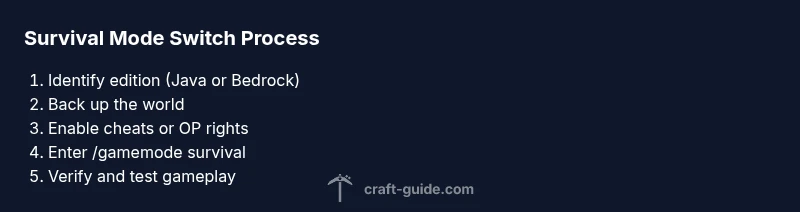
- 1
Verify edition and permissions
Open your world and confirm you know whether you’re on Java or Bedrock, and check you have the necessary permissions to run commands or switch modes on a server or Realm.
Tip: If you lack permissions, contact an admin to enable temporary rights for testing. - 2
Back up the world
Create a safe backup of your current world so you can revert changes if needed without losing progress.
Tip: Store the backup in a separate folder or cloud storage for easy restoration. - 3
Enable cheats or OP privileges
Turn on cheats for your world or ensure you have operator status on a server/Realm to allow commands.
Tip: On single-player Java worlds, use Open to LAN > Allow Cheats to test quickly. - 4
Enter the survival command
Open chat and type the command /gamemode survival or /gamemode s, then press Enter to apply the change.
Tip: If the game returns an error, double-check spelling and edition-specific syntax. - 5
Verify the change
Check the in-game status (hunger bar active, health mechanics engaged) to confirm Survival mode is in effect.
Tip: If you don’t see the hunger bar, ensure the world actually supports Survival mode toggling. - 6
Test in a safe window
Play for a short session to gather initial resources and create a basic shelter to test early survival mechanics.
Tip: Focus on a simple wood-to-stone progression to validate early resource chains. - 7
Coordinate for servers/Realms
If you’re on a server or Realm, confirm all participants understand the change and that you have rights to enforce it for your session.
Tip: Communicate any balance changes to avoid disrupting others’ play patterns. - 8
Document and consider backups
Record what settings you used and keep a backup copy in case you want to revert or create a new Survival run later.
Tip: Documenting helps you replicate strategies in future worlds.
People Also Ask
Can I switch to survival mode without cheats?
Single-player worlds usually require cheats enabled or OP privileges to run /gamemode. If cheats aren’t allowed, you won’t be able to switch modes via commands until permissions are granted or a server setting is changed.
You generally need permission to run commands. Enable cheats or get operator rights to switch modes.
Is survival mode the same on Java and Bedrock?
Core survival gameplay is the same across editions, but there are command syntax and UI differences. The /gamemode survival command works on both, with edition-specific quirks in spawning, UI, and server management.
The concept is the same, but the controls and commands can differ slightly between Java and Bedrock.
Can I switch modes for an existing Realms world?
Yes, but you need owner or operator rights. Realms may restrict changes to mode switches, so coordinate with the Realm owner or server admin before attempting.
You’ll need proper permissions on Realms to flip the mode for the world.
How do I revert back to Creative quickly?
Use the command /gamemode creative (or /gamemode c) to switch back. If commands are disabled, you’ll need to re-enable cheats or have admin rights.
Use the creative command to switch back, if you have permission to do so.
What about Hardcore mode?
Hardcore is a separate game mode with permanent death and cannot be toggled off while the world is loaded. If you want Hardcore, enable it at world creation and treat it as a permanent setting.
Hardcore is a fixed mode for a world; you can’t toggle out of it after death.
I’m playing on a server with multiple players—what should I watch for?
Coordinate with admins and other players to ensure mode changes don’t disrupt shared resources. If you’re sharing bases, communicate resource needs and timing of any switches.
Coordinate with others to avoid disrupting shared worlds.
Watch Video
The Essentials
- Switch to Survival with /gamemode survival
- Check permissions when on servers
- Expect hunger and health mechanics in play
- Back up your world before changing modes
- Test the mode change with a short play session