How to Put Minecraft in Creative Mode
Learn exactly how to enable Creative Mode in Minecraft across Java and Bedrock editions, with step-by-step commands, tips for builders, and troubleshooting to keep worlds safe.


If you want to jump straight into unlimited building, this guide shows you how to put Minecraft in Creative Mode. You’ll learn the Java and Bedrock methods, the exact commands or menu options, and safety tips to avoid losing progress. By the end, you’ll switch modes confidently and begin rapid, experimentation-ready builds.
Overview of Creative Mode and its Uses
Creative Mode in Minecraft is a sandbox setting that grants players unlimited resources, the ability to fly, and instant access to the entire item inventory. This makes it ideal for testing builds, prototyping redstone systems, or planning ambitious aesthetics without the danger of dying or resource gathering. In this guide on how to put Minecraft in Creative Mode, you’ll learn how to switch modes on Java and Bedrock editions, plus practical tips for keeping your world intact while you experiment. Craft Guide emphasizes that Creative Mode is a powerful design tool for builders and map-makers alike, but should be used with awareness of server rules or world settings. Before you begin, confirm that cheats are allowed in the world you’re playing; without that, command-based switches may be blocked. With the basics in mind, you’ll move from curiosity to confident, efficient creative building in minutes.
Platform differences: Java Edition (PC/Mac)
Java Edition supports quick mode changes via commands and allows you to toggle cheats in your world settings. The simplest path is to enable cheats when you create or edit a world, then enter a command in the chat to switch to Creative Mode. This approach is ideal for players who want precise control over mode changes without altering other gameplay mechanics. Remember: enabling cheats gives you access to a wider toolset, including fly speed adjustments and inventory access, which can speed up design iterations.
Platform differences: Bedrock Edition (Windows 10, console, mobile)
Bedrock Edition handles Creative Mode slightly differently but remains accessible through the same core concept: you can switch to Creative either via a command (if allowed) or through the in-game settings that enable cheats. Bedrock’s user interface for enabling cheats may appear in the world settings or pause menu depending on the platform. Practice makes perfect: start in a test world to familiarize yourself with how flight feels and how fast inventory navigation happens on your device. The essential takeaway is that Creative Mode is platform-agnostic at its core: it unlocks unlimited resources, flight, and access to all blocks.
Commands and console access: GAMEMODE explained
The GAMEMODE command is the most reliable path to Creative Mode on both editions. In Java, you can run /gamemode creative or /gamemode 1 to switch modes. In Bedrock, the exact syntax is similar, but permissions and cheats settings may vary by platform and server. If cheats are not enabled, commands will be ignored. A quick validation step is to check your inventory; Creative Mode instantly reveals the full inventory and flight control. Using the command also ensures you’re not relying on accidental UI toggles that might differ between editions.
Practical tips for builders in Creative Mode
In Creative Mode, your inventory is unlimited, which lets you try multiple blocks and layouts without collecting resources. A good workflow is to design a layout in a testing world, then copy the successful concept into your main project. Use the search bar in the inventory to quickly locate blocks you plan to test, and take advantage of flight to navigate large builds efficiently. If you’re creating large structures, organize your build into stages, using layers and naming conventions so you can revert to an earlier stage if needed.
Safety and best practices for keeping worlds intact
Before flipping to Creative Mode, back up your world to preserve progress in survival runs or on servers. If you’re testing in a shared world, clarify with other players how the mode switch could affect gameplay. In single-player creative sessions, consider enabling a separate world for exploration and a dedicated project world for building. When you’re done testing, switch back to Survival to reintroduce the challenge or simply leave the world in Creative if you’re continuing a build-only project. Craft Guide recommends mindful use of Creative Mode to protect your creations and server integrity.
Troubleshooting and common caveats
If the mode switch doesn’t seem to take effect, verify that cheats are allowed in world settings, restart the game, and re-enter the world. In Bedrock, ensure you’re using the correct command syntax for your platform and that you’re not in a locked server environment. If you’re playing on a server, ensure you have operator permissions or the appropriate role to use /gamemode. Also, remember that Creative Mode affects only you at the player level; if you’re using a hosted world, others may still be on Survival or Adventure modes depending on server settings.
Tools & Materials
- Minecraft game (Java or Bedrock)(Ensure you’re running an up-to-date version)
- Cheats or command access(Needed to switch modes via commands)
- A test world or backup plan(Always back up before switching modes)
- World with permission to modify(Useful for server-based testing)
- Note-taking device or notepad(Capture build ideas and layouts)
Steps
Estimated time: 10-20 minutes
- 1
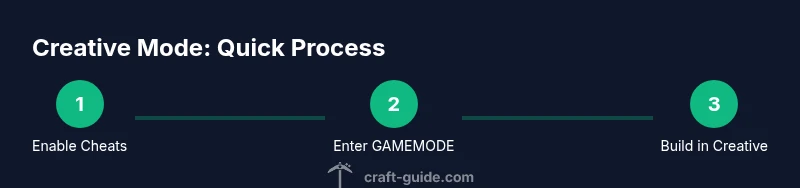
Prepare your world and enable cheats
Open the world where you want Creative Mode and ensure cheats are allowed. This is essential so that commands will work. If you’re playing on a server, obtain the appropriate operator permissions before proceeding.
Tip: Create a backup before changing modes to avoid accidental loss. - 2
Open the chat to enter commands (Java Edition)
Press T to open the chat, then type the GAMEMODE command: /gamemode creative or /gamemode 1. Press Enter to execute. If you see an access denied error, double-check that cheats are enabled for the world.
Tip: Copy-paste the command to avoid typos, then verify you’re in Creative by checking the inventory and flight status. - 3
Switch to Creative Mode (Bedrock Edition)
On Bedrock, you may need to enable cheats via the world settings or switch to a mode that allows commands. Use the same syntax: /gamemode creative or /gamemode 1, depending on permissions.
Tip: On some platforms you must restart the game after enabling cheats for changes to take effect. - 4
Verify Creative Mode is active
After executing the command, your hotbar will display a complete inventory and flight. You can now fly by holding Space and navigate with WASD. If not, re-check permissions and retry the command.
Tip: If flight is not available, ensure you’re not in spectator mode and that you have flight enabled. - 5
Begin building and testing
Use unlimited resources to prototype your build. Fly to reach tall structures quickly, use the inventory search to grab blocks, and copy layouts between areas to speed up development.
Tip: Keep a log of what works well to speed up future projects. - 6
Switch back when done or adjust settings
If you want to resume Survival mode, enter /gamemode survival (or /gamemode 0). For ongoing builds, consider leaving the world in Creative but adjusting server permissions to protect the project.
Tip: Document mode changes in world notes to avoid confusion later.
People Also Ask
How do I switch to Creative mode in Java Edition?
In Java Edition, enable cheats for the world and type /gamemode creative (or /gamemode 1) in chat to switch to Creative Mode. This gives you unlimited blocks and flight.
Use the /gamemode creative command to switch to Creative mode in Java Edition.
Can I enable Creative Mode in a Survival world?
Yes, by enabling cheats in the world settings, you can switch to Creative Mode. The change affects your gameplay, not the entire server unless you operate the server.
You can switch to Creative mode in a world that started as Survival if cheats are allowed.
Does Creative Mode prevent achievements?
In most cases, Creative Mode disables most achievements for the current world. Some editions or server configurations may behave differently, so check your version notes.
Creative mode can disable achievements in some cases.
How do I switch to Creative Mode on Bedrock?
Bedrock uses the same GAMEMODE command in most platforms, but you may need to enable cheats in the world or server settings first.
Use /gamemode creative in Bedrock when cheats are allowed.
What if commands are blocked by server policies?
If commands are blocked by server policies, you’ll need to change server permissions or run your own server to test Creative Mode.
You may need specific permissions to use commands.
Can I still access my items in Creative if I switch modes?
Yes. Creative Mode grants full inventory access, including blocks and items you don’t yet own in Survival.
Creative Mode gives you full access to items indefinitely.
Watch Video
The Essentials
- Enable Creative Mode to unlock unlimited resources and flight.
- Java and Bedrock share the GAMEMODE command but may differ in permissions.
- Always back up before changing modes.
- Use a dedicated testing world for builds.