How to Put Minecraft in Creative Mode on iPad
Learn how to switch Minecraft to Creative mode on iPad with a clear, beginner-friendly guide. Find exact menu paths, tips, and troubleshooting for Bedrock on iOS.


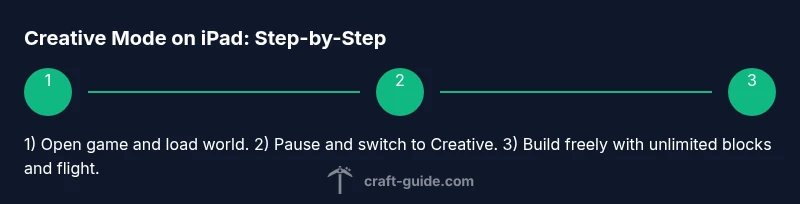
Goal: switch to Creative mode in Minecraft on iPad. Open Minecraft Bedrock, load your world, then pause and choose Game Mode. Tap Creative and confirm. You can also create a new world and select Creative during setup. Optional: enable unlimited blocks in the Creative inventory and enable flight if needed.
Understanding Creative Mode on iPad
Creative mode on Minecraft for iPad gives you unlimited resources, flight, and the freedom to build without survival hazards. It’s ideal for ambitious builds, redstone testing, and sandbox experimentation. If you’re wondering how to put minecraft in creative mode on ipad, this section sets the foundation for a smooth switch. According to Craft Guide, the most reliable path is to switch Game Mode from the pause menu while you’re in a Bedrock world on iPad. You can apply Creative mode to an existing world or create a new world with Creative selected from the setup screen. The iPad interface relies on touch controls, so you’ll navigate the inventory, hotbar, and block placement differently than on a PC. The goal is to remove resource constraints and combat mechanics so you can test ideas quickly. In this article we’ll outline exact menu paths, potential issues, and best practices to speed up your workflow. The Craft Guide team found that a well-organized Creative workspace reduces frustration and accelerates progress, especially for first-time builders on iPad.
Accessing Creative Mode in Bedrock on iPad
To switch to Creative mode on iPad, open Minecraft Bedrock and load your world. From the in‑game pause screen, tap the Game Mode option and select Creative, then confirm. If you’re starting fresh, choose Creative during world creation so you land directly into a free-building environment. Remember that touch controls differ from keyboard/mouse, so take a moment to familiarize yourself with the inventory and hotbar layout. This approach eliminates survival elements like hunger and damage, allowing you to focus solely on design. Craft Guide’s guidance emphasizes keeping your Creative session simple at first—additive building steps, then expand to more complex features as you gain confidence.
Creative World vs Switching Modes Later
You can either create a brand-new world and set it to Creative from the outset, or switch the mode of an existing world. Creating a Creative world ensures you won’t encounter accidental survival threats, which helps beginners learn the ropes quickly. Switching mid-game is useful when you want to preserve your current structures while testing new ideas. In either case, you'll access the same Creative inventory, including unlimited blocks and the ability to fly. The key is to understand where to find the mode switch and how to confirm your choice so you don’t lose progress.
Inventory, Blocks, and the Flight Feature
The Creative inventory is a vast sandbox of blocks and items. On iPad, drag items from the inventory onto the hotbar for quick access and long-press to place blocks in exact positions. Flight is a powerful tool for builders; double-tapping the jump button toggles flight on Bedrock, and you can ascend or descend with the on-screen controls. Use the C key equivalent (touch controls) to toggle fly if necessary. Practically, enable flight only when you need precise aerial placement to prevent accidental falls or misplacements.
Common Pitfalls and How to Avoid Them
One frequent mistake is forgetting to switch Game Mode back after a large build, which can derail survival play. Always double-check your mode before starting a new project, and consider saving a dedicated Creative world as a template. Another issue is inventory overload—use labeled chests and organize blocks by material or type to speed up placement. Finally, be mindful of device performance; very large builds can slow down some iPads, so save often and consider chunk loading settings.
Performance and Controls on iPad: Tips for Smooth Building
On iPad, performance hinges on device age and game version. Close unused apps to free RAM, reduce render distance, and disable heavy shaders if you notice lag. The touch interface is responsive but benefits from a steady grip and a comfortable stand for long sessions. If you plan to film builds, enable screen recording and consider a small thumbnail workspace to keep UI elements visible while you build. Craft Guide recommends practicing with a small project first to get comfortable with the Creative workflow on iPad before moving to larger builds.
Best Practices for Builders: Speed and Consistency
Develop a repeatable workflow for faster builds: outline your design, gather blocks in advance, and place in layers. Use the duplicate or copy-paste functionality where available, and consider creating a personal kit of blocks for quick swapping between projects. Regularly save copies of your world, especially after major milestones, so you can revert if needed. Craft Guide’s approach emphasizes deliberate practice and incremental improvements to achieve higher-quality builds over time.
Safety, Saving, and Sharing Your Creations
Always save frequently when working in Creative to avoid unintended loss of progress. When sharing builds, consider exporting parts of your world or creating schematic templates to enable others to reuse your ideas. If you use Realms or cross-device sharing, ensure you understand the limitations of Bedrock edition cross-play. Finally, back up your worlds to a secondary device or cloud storage to guard against data loss.
Tools & Materials
- iPad with Minecraft Bedrock Edition installed(Ensure the game is updated to the latest version)
- World to modify or create(Load an existing world or start a new Creative world)
- Internet connection (optional for cloud saves/Realms)(Helpful for syncing and sharing)
- Apple Pencil (optional)(Helpful for precise edits on small screens)
- Stand or grip accessory(Keeps device steady during long builds)
Steps
Estimated time: 10-20 minutes
- 1
Open Minecraft on iPad and load your world
Launch the app and select the world you want to edit. If you’re starting fresh, choose a new Creative world from the world creation screen. Give yourself a moment to familiarize yourself with the layout of the touch controls and inventory. This initial step sets the stage for a smooth Creative mode experience.
Tip: Pause briefly to scan the inventory layout and identify where your most-used blocks live. - 2
Pause and switch to Creative mode
From the in-game pause screen, tap the option that modifies the Game Mode and select Creative. Confirm the change to apply it to your current world. This is the core action that unlocks unlimited resources and flight for easier building.
Tip: If the mode switch isn’t visible, navigate to Settings -> Storage or reload the world to refresh the UI. - 3
Confirm your mode and test basic building
Place a few blocks to confirm Creative mode is active. Try flight by double-tapping the jump control, then place blocks from the inventory to verify unlimited supply. This quick test ensures you’re ready to build without resource constraints.
Tip: Practice a light glide test first to avoid accidental falls. - 4
Decide between editing an existing world or starting fresh
If you want to preserve current structures, stick with the existing world and just switch its mode. If you prefer a clean slate, create a new Creative world for uninterrupted testing and prototyping.
Tip: Label your worlds clearly (e.g., ‘Creative-Template’) to prevent mix-ups. - 5
Organize your inventory for speed
Create a system to locate blocks quickly—group by material, color, or function. Use hotbar shortcuts to access frequently used blocks without scrolling. A tidy inventory saves minutes on every build.
Tip: Use the drag-and-drop method to place blocks into the hotbar for faster access. - 6
Experiment with flight and ground-level builds
Use flight to position blocks precisely, then switch to ground placement as needed. Building from the air helps create complex shapes and accurate alignments that are harder to achieve from the ground.
Tip: Don’t forget to save progress before testing large vertical builds. - 7
Save, back up, and plan for sharing
After completing a milestone, save your progress and back up the world. If you plan to share, consider exporting a schematic or sharing the world file with trusted friends. This preserves your work and enables collaboration.
Tip: Use cloud backups or external storage if available. - 8
Review and iterate on your build
Take a moment to review your design, adjust where needed, and iterate. Creative mode is ideal for rapid prototyping, so copy your successful sections to reuse in future projects.
Tip: Keep a builder’s log noting changes and design choices for future projects.
People Also Ask
Can you switch back to Survival later in the same world?
Yes. Open the pause menu, change Game Mode back to Survival, and confirm. Your world will revert to survival rules but your builds remain intact.
Yes. Open the pause menu, switch back to Survival, and confirm. Your structures stay saved.
Is creative mode the same on iPad as on PC?
The core principles are the same—unlimited blocks and flight—but the controls differ due to touch input. Expect a slightly different navigation path for the menu on iPad.
The idea is the same, but the controls change because you use touch input on iPad.
Does Creative mode affect achievements or progression?
In Bedrock, Creative mode disables most survival achievements. You can still earn certain in-game achievements through appropriate gameplay, but many builders pursue separate achievement tracks.
Creative mode can disable many achievements, so plan your play if achievements matter to you.
Can I use Creative mode in Realms or with friends?
Yes, Creative mode works in Realms and with friends, but ensure all players are aware of the mode and the Realm’s rules. Syncing across devices follows Bedrock edition behavior.
Creative works across Realms, but confirm everyone’s on the same mode before building together.
What if the UI doesn’t show Creative option after updating?
Try reloading the world, restarting the app, or checking for an app update. If the problem persists, consult Minecraft support or Craft Guide resources for troubleshooting steps.
If Creative isn’t showing, restart the app and check for updates, then try again.
Watch Video
The Essentials
- Switch to Creative via the Pause menu and confirm.
- Use flight and unlimited blocks to speed builds.
- Organize inventory for faster access to blocks.