Getting Started in Minecraft Creative Mode: A Quick Guide
Learn how to start in Minecraft Creative mode with easy steps: set up a world, enable flight, access unlimited resources, and begin fast, organized builds.


Goal: Start building in Minecraft Creative mode with full access to unlimited blocks, flight, and fast placement. This quick answer shows you how to switch modes, locate your inventory, and begin your first large build. Use these core steps as the foundation for more detailed guidance in the body of this guide.
What Creative Mode is in Minecraft
Creative mode is a sandbox within Minecraft that removes health and hunger, gives unlimited resources, and instantly allows flying. In this mode, you can place and break blocks without spending time gathering materials. In Craft Guide’s experience, beginners often underestimate how quickly a simple build can evolve into a complex structure when tools and resources are never a constraint. Using Creative mode is ideal for practicing builds, experimenting with redstone layouts, and planning large projects before you attempt them in Survival. By starting in Creative, you can focus on design, scale, and lighting, rather than on resource management. This article targets players who want a clear path from zero to proficient builder, with steps you can follow in any world. Craft Guide analysis shows repeatable workflows, organized inventories, and a steady progression from simple to advanced creations. If you’re new to the mode, start with small experiments: place a few walls, then expand into rooms, staircases, and outdoor landscapes. The aim is to build confidence, not perfection, and to enjoy the process of tinkering with shapes and textures.
Getting the Right Version and Edition
Minecraft runs Creative mode on both Java Edition and Bedrock Edition. Differences include input schemes, performance optimizations, and how some building tools behave across devices. Craft Guide emphasizes choosing an edition you’re comfortable with and sticking to it within a single world to avoid confusion. Java Edition users often appreciate deeper modding ecosystems and more precise build tools, while Bedrock offers smoother cross‑platform play and consistent controls on consoles and mobile. Before you dive in, verify your game version is up to date, and decide whether you’ll build primarily on PC or a console/phone. If you plan to share your creations online or with friends, consider a server or Realm that supports Creative mode; some servers restrict mode changes, so check their rules first. Craft Guide analysis shows that starting with a uniform edition helps maintain compatibility across your builds and sharing workflow.
How to Enter Creative Mode
In a single‑player world, pause the game, open Game Settings, and switch the Game Mode to Creative. In multiplayer, you may need operator privileges or permission from the server to change modes. You can also toggle Creative mode with a command: /gamemode creative (or /gamemode 1 depending on server syntax). It’s helpful to set a quick access key or hotbar shortcut for rapid mode changes while testing designs. Once in Creative, you’ll have access to flying, instant block placement, and an unlimited inventory. Craft Guide recommends practicing the switch a few times in a test world to become fluent with the interface and to avoid accidental switches during a large build.
Basic Controls in Creative Mode
Creative mode changes how you interact with the world. Use W/A/S/D to move, Space to ascend (double‑tap to fly, depending on version), and hold Shift to descend. Open your inventory with E to browse blocks, then drag items into your hotbar for quick placement. Right‑click (or left mouse hold on some devices) places blocks; middle-click copies a block in older versions, and the search bar helps locate materials instantly. A common beginner habit is to rely on a single block type; in Creative you can experiment with palettes, lighting, and textures to define the look of your build. Craft Guide notes that comfort with flight and quick access to blocks dramatically speeds up the building process.
Building Fundamentals in Creative Mode
Start with a simple plan: sketch a small, rectilinear footprint, then add walls, floors, and a roof. Use layers to organize your build—base layer for structure, second layer for rooms, third for details. Try symmetry or purposeful asymmetry to create interest. Use a consistent block palette to unify appearance, and test lighting with sea lanterns or glow stones to avoid dark gaps. As you practice, you’ll discover how lighting, scale, and material selection affect the perception of space. Craft Guide recommends building with a purpose in mind—a house, garden, or statue—before expanding, so your creativity has a clear target.
World Settings, Shortcuts, and Tools
Accessible Creative worlds benefit from sensible settings: enable no‑clip permissions in your test world if needed, adjust render distance for performance, and save frequent checkpoints. Vanilla Creative includes structure blocks for quick duplicates, and you can copy/paste sections of builds to speed workflows. While mods and external editors exist, prioritize mastering vanilla tools first: learn how to place, select, and move large shapes efficiently. World editing tools are great for prototyping, but ensure you understand the basics of naming conventions and block IDs to avoid confusion when sharing builds. Craft Guide highlights that mastering core tools lays a solid foundation for any advanced technique later on.
Common Beginner Mistakes and How to Avoid Them
New builders often skip planning and jump straight into large projects, which can feel overwhelming. Another frequent error is mixing too many block types, which muddles readability. Don’t forget to save frequently and test different lighting setups before committing to a design. Remember to organize your inventory and hotbar so you can quickly access the pieces you need. Craft Guide’s experience suggests keeping a small set of templates for common shapes and revising your palette as you grow more confident in your design language.
Next-Level Tips to Grow Your Creative Builds
As you gain confidence, start documenting your builds with simple blueprints or screenshots. Use layered testing: outline a structure in simple blocks, then swap to your final textures to preview the result. Consider building modular components—walls, roofs, stairs—so you can reuse elements across multiple projects. Experiment with lighting contrasts and texture changes to give depth. For collaboration, establish a shared palette and naming conventions so teammates can contribute consistently. Craft Guide recommends using a routine of weekly build challenges to keep skills sharp while expanding your creative vocabulary.
Authority Sources
This section cites credible, external references to support build education and best practices. Primary sources and broader education perspectives can inform your creative process and help you structure builds more effectively.
- The New York Times: https://www.nytimes.com
- BBC: https://www.bbc.com
- National Geographic: https://www.nationalgeographic.com
Tools & Materials
- Minecraft account with access to Creative mode(Ensure you are playing on a supported edition (Java or Bedrock) and that Creative mode is available in your world.)
- Preferred edition (Java Edition or Bedrock Edition)(Choose the edition you plan to use consistently in your build sessions.)
- Stable internet connection (for updates and sharing builds)(Needed if you plan to play on servers or realms.)
- Output device (PC, console, or mobile)(Use a device with adequate performance for smooth building.)
- Screenshot or screen recording tool(Helpful for documenting and sharing builds.)
- World seed or ready-made Creative world(Optional for testing layouts or practicing specific shapes.)
Steps
Estimated time: Total time: 25-40 minutes
- 1
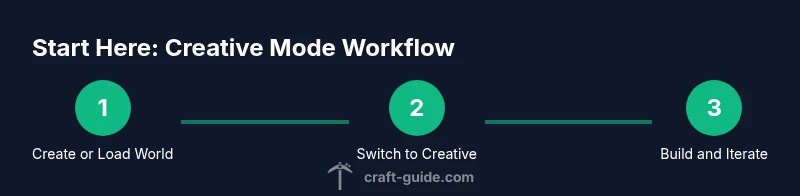
Create or load a Creative world
Open Minecraft and either create a new world set to Creative mode or load an existing Creative world. This establishes the sandbox you’ll build in and ensures you have unlimited resources from the start. Make sure to set the world to Creative in the world options if starting fresh.
Tip: If you’re unsure about your version, create a test world first to confirm Creative mode is active. - 2
Switch to Creative mode in your world
In a single-player world, open the pause menu, select Game Settings, and choose Creative. In multiplayer, ensure you have permission to switch modes or use a server command such as /gamemode creative. Confirm you have unlimited resources and flight enabled.
Tip: For servers, save a quick note of the current mode so you don’t disrupt ongoing projects. - 3
Open inventory and learn block access
Press E to open the inventory and explore the block palette. Drag items to your hotbar for quick placement and use the search function to locate specific blocks. Practice placing a few basic blocks to get comfortable with spacing.
Tip: Organize your most-used blocks into a dedicated hotbar lane for faster access. - 4
Practice flight and navigation
Double‑tap space to fly and use W/A/S/D to move while in the air. Hover over a height to practice building at different elevations. Landing and breaking mistakes are part of the learning curve, so use a forgiving testing area.
Tip: In flight, hold Shift to descend precisely and avoid accidental drops. - 5
Start a small build project
Choose a simple objective (e.g., a 6x6x6 cube house) and plan the footprint on the ground. Build layer by layer, testing textures and lighting as you go. This helps you learn scale and proportion without overwhelm.
Tip: Keep a simple reference sketch or blueprint handy during the build. - 6
Save and review your progress
Periodically save or export your layout, especially after completing a major phase. Review the build at eye level and from different angles to ensure balance. Iterate by swapping materials to compare aesthetics.
Tip: Take a screenshot to document your palette choices and structural decisions.
People Also Ask
What is Minecraft Creative mode?
Creative mode gives unlimited resources, flight, and invulnerability, allowing you to build freely without worrying about survival constraints.
Creative mode gives you unlimited blocks and flight, so you can build freely without danger or resource limits.
Can I switch back to Survival later?
Yes. You can switch between modes in the world settings or with commands if you have the necessary permissions on a server.
You can switch back to Survival any time if you have the right permissions, usually in the world settings or via commands.
Do I need commands to fly in Creative mode?
No. In Creative mode flight is built-in—double‑tap space to fly in most versions, or use the default flight controls on Bedrock.
No commands are required to fly in Creative mode; you can fly with the standard controls.
Is Creative mode allowed on all servers?
Not always. Some servers restrict mode switching or require admin privileges. Check server rules before attempting changes.
Not all servers allow Creative mode freely; check the server rules or talk to an admin.
What is the best way to organize a large build?
Plan with a blueprint, break the build into modular sections, and use a consistent palette. Build in layers and test lighting as you go.
Break big builds into modules, keep a palette, and test lighting at every stage.
What edition supports Creative mode?
Both Java Edition and Bedrock Edition support Creative mode, with some differences in controls and features across editions.
Creative mode exists in both Java and Bedrock editions; controls may vary slightly.
Watch Video
The Essentials
- Master Creative mode basics to unlock unlimited building potential
- Fly and phase through blocks to experiment quickly
- Organize inventories and palettes for faster builds
- Plan with modular components for scalable projects
- Practice progressive challenges to grow your skills