How to Know What Kind of Minecraft You Have
Learn how to identify your Minecraft edition, platform, and version. This step-by-step guide helps you determine whether you’re on Java or Bedrock, the launcher you use, and the build you’re running—crucial for cross-play, mods, and troubleshooting.


Goal: identify your Minecraft edition (Java or Bedrock), platform, and current build. You’ll inspect the launcher, in-game settings, and main menu to confirm edition and version. According to Craft Guide, knowing the exact kind of Minecraft you have helps with cross-play options, mod compatibility, and troubleshooting across devices.
What you’re trying to identify and why it matters
According to Craft Guide, understanding exactly which kind of Minecraft you have saves time and prevents compatibility headaches. When people ask how to know what kind of minecraft you have, they’re usually trying to distinguish between Java Edition and Bedrock Edition, plus the platform and build. This matters because Java and Bedrock have different features, mod ecosystems, and cross-play support. The edition determines which launcher you use, which worlds you can join, and what kinds of add-ons you can install. In this section, we’ll lay out the terms and give you a mental model to guide your checks across devices, stores, and settings. Expect practical steps, plain-language explanations, and checklists you can reuse later.
Java Edition vs Bedrock Edition: Key differences
The two main editions of Minecraft share a core block-building premise but diverge in several critical areas. Java Edition runs on PC (Windows, macOS, Linux) and has its own modding community, with a legacy of command blocks and traditional Redstone mechanics. Bedrock Edition covers Windows 10, consoles, and mobile devices, emphasizing cross‑platform play and performance optimizations. Features, commands, world generation quirks, and even texture packs can differ between editions. If you rely on mods, custom maps, or specific multiplayer servers, knowing which edition you have will save you from wasted downloads and incompatible worlds.
Where edition and build information live on different devices
Edition and version visibility varies by device. On PC, you typically see edition in the launcher or the bottom of the Minecraft launcher window. On consoles, the store account and the console’s system information can reveal the edition you’ve installed. Mobile devices usually show the edition in the app store listing and within the game’s main menu. Across devices, you may also find an About or Version option in the in-game Settings menu that confirms the build number and patch level. Keeping a note of these indicators helps you quickly verify what you have when you switch between machines.
How to identify the launcher and platform
Launchers act as the gatekeepers for which Minecraft you’re running. On PC, the official Minecraft Launcher points to Java Edition or Bedrock depending on which tile you choose to launch. The Microsoft Store or Xbox app handles Bedrock on Windows and consoles, whereas the Mojang launcher or third-party launchers often handle Java Edition. On macOS and Linux, you’ll mostly encounter Java Edition, while Windows users may see either edition depending on the store or launcher. For consoles, the platform (PlayStation, Xbox, or Nintendo) plus the store listing confirms the edition. Confirming the launcher first narrows down the possibilities dramatically.
Understanding version numbers and builds
Version numbers tell you exactly which build you’re running. In Java Edition, you’ll typically see a version like 1.x.y, while Bedrock shows a similar numeric scheme but can include platform-specific suffixes. While numbers alone aren’t a guarantee of behavior, they help you identify compatibility with specific worlds, resource packs, and server requirements. If you are unsure, look for the About or Version screen within the game or launcher, and compare it to the official release notes for the current branch. This cross-check reduces guesswork when updating or joining multiplayer worlds.
Cross-platform considerations and limitations
Cross-play capabilities depend on edition and platform. Bedrock supports cross-play across Windows 10/11, consoles, and mobile, but Java Edition remains primarily a desktop experience with its own ecosystem and servers. If you’re coordinating with friends on different devices, you’ll want to ensure you’re all playing the same edition. Remember that mods, datapacks, and server rules may differ between editions, so aligning versions before joining a server is essential. Keeping a single, up-to-date record of your edition helps prevent mismatches during planning and play.
What to do if you still can’t tell
If the visuals in the main menu don’t clearly indicate edition, use a quick compatibility check: try to join a server that explicitly states it’s for Java or Bedrock, or compare available features like mods and world-sharing options. If you’re on a shared device, ask the primary account holder which edition was installed, or check purchase history in the relevant storefront. If all else fails, consult the official support pages for your launcher or platform and search for “how to tell edition” with the device you’re using. This keeps you moving instead of stuck in a loop.
Best practices for keeping track of your Minecraft installs
Create a simple inventory where you log edition, platform, launcher, and the last known build. Store this in a note app or cloud doc so you can reference it when you set up a new device or troubleshoot a crash. If you regularly switch between devices, consider labeling each entry with a short tag like Java-PC, Bedrock-WinStore, or Bedrock-Console. This habit saves time and reduces confusion during world transfers or server visits.
Tools & Materials
- A device with internet access(PC, console, or mobile device that can run Minecraft)
- Minecraft launcher or storefront account(Make sure you are signed in to the correct edition you own)
- Access to the in-game Settings/About screen(You’ll often find the edition and version here)
- System information tool(For PC: OS name and version; for consoles, model and OS version)
- Notebook or note app(Jot down edition findings for comparison)
Steps
Estimated time: 25-40 minutes
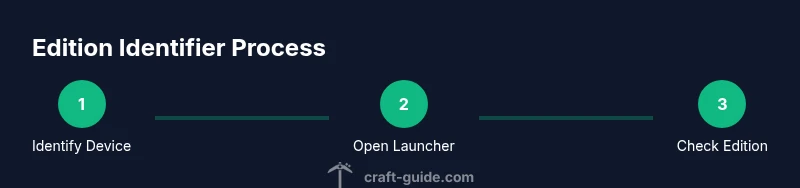
- 1
Identify your device
Determine whether you’re on a PC, Mac, Linux, console, or mobile device. This first step narrows down the likely edition and the storefronts you’ll need to check. Knowing the device helps you anticipate where to look for edition indicators.
Tip: Note the device type in your quick reference so you don’t confuse desktop and mobile builds. - 2
Open the Minecraft launcher or storefront
Launch your Minecraft launcher or the storefront where you obtained the game. The launcher often shows which edition is active, and storefront listings reflect the edition that’s installed on that device.
Tip: If you see multiple tiles, verify which tile corresponds to the edition you use most frequently. - 3
Sign in and locate the edition indicator
Sign in to your account and look for an edition label in the launcher or store page. Labels like Java Edition or Bedrock Edition are your fastest hints.
Tip: If the label isn’t obvious, check the bottom corner of the launcher window or the account details in the store. - 4
Launch the game and check the main menu
From the main menu, you can often see the edition or a prominent modded interface that indicates Bedrock versus Java. This is a quick sanity check after login.
Tip: Look for menu options like Settings, Mods, or Market, which can indicate the edition type. - 5
Open Settings > About to confirm the build
Navigate to Settings and find About or Version. This will reveal the exact build number, which helps you match it to release notes and server requirements.
Tip: If About isn’t visible, try the Help or Support section in the launcher. - 6
Compare features to Java vs Bedrock
If you’re unsure even after checking, compare key features: mods and datapacks are typical Java indicators, while cross‑play and Store‑linked versions point to Bedrock.
Tip: Bedrock supports cross‑play across more platforms; Java tends to have a larger modding community. - 7
Document your findings
Record edition, platform, launcher, and build in a notes app. This record helps you configure future setups and prevents misconfigurations.
Tip: Keep a copy in cloud storage so it’s accessible from any device.
People Also Ask
What is the main difference between Java and Bedrock editions?
Java Edition is desktop-focused and has a rich modding scene, while Bedrock is cross‑platform and optimized for performance on consoles and mobile. They have different world formats and server ecosystems.
Java Edition is desktop only with mods, Bedrock is cross‑platform and smoother on more devices.
How can I tell if I’m on Java or Bedrock on Windows 10/11?
Check the Minecraft launcher. The launcher will specify the edition it runs (Java or Bedrock). You can also look for the edition label in the in-game settings or the store page you used to install the game.
Look in the launcher or store listing to confirm the edition on Windows.
Can I switch from Java to Bedrock on the same device?
Switching editions generally requires installing the other edition from the appropriate storefront. Purchases are edition-specific, and cross-purchase policies vary by platform.
You typically need to acquire the other edition separately on that device.
What should I do if I can’t find an edition label?
Try opening Settings > About in-game, or check the launcher’s help or about section. If still unclear, compare features like mods and cross-play capabilities to narrow down the edition.
Open About in-game or check the launcher’s help section to identify the edition.
Does Bedrock support mods like Java?
Bedrock supports add-ons and marketplace content but not the traditional Java mods. If you rely on mods, you’re likely on Java Edition.
Bedrock uses different add-ons; traditional Java mods don’t work on Bedrock.
Why does my world look different on another device?
World generation and behavior can differ between editions, as can resource packs and performance. Ensure you’re playing the same edition and build to minimize surprises.
Differences come from edition and build, not just devices.
Watch Video
The Essentials
- Identify edition first to guide all checks
- Use launcher/about screens to confirm build
- Document findings for future reference
- Know cross-play implications before joining servers