How to Get the Minecraft Command Block: A Practical Guide
Learn how to obtain and use a Minecraft command block in Java and Bedrock, with step-by-step methods, safety tips, and best practices for building automation.


Ready to automate Minecraft with a command block? This guide shows you how to obtain a command block, what you’ll need, and step-by-step methods for Java and Bedrock editions. From enabling cheats to placing and testing, you’ll learn practical approaches to start using commands in your builds. According to Craft Guide, command blocks unlock powerful automation in creative projects.
What is a Command Block and Why You Might Want One
Command blocks are special blocks in Minecraft that run commands automatically when they are activated by redstone signals. They are not placed in ordinary survival play; instead they are tools for automation, map-making, and advanced redstone systems. A command block can execute a wide range of commands, from simple messages to complex sequences that modify the world, spawn items, or manipulate entities. For builders and map creators, this means you can turn a single input into a chain of actions without requiring a player to perform each step. According to Craft Guide, command blocks unlock powerful automation in creative projects and can drastically reduce manual work while expanding what you can build.
Before you dive in, it helps to understand that command blocks don’t respond to player actions the same way as ordinary blocks. They are designed to be triggered by redstone or by other commands, and they require proper world settings to function. This section clarifies what a command block is, why it matters, and where it fits into typical Minecraft workflows. You’ll learn the core concept, the kinds of tasks they’re best suited for, and how they can be used safely alongside other built-in systems to enhance your builds.
Command Block Variants and Core Capabilities
There are several command block variants in Minecraft, each serving different automation needs. The three main types are impulse blocks (execute a single command when activated), repeat blocks (continue to execute every game tick as long as powered), and chain blocks (execute in a sequence after a preceding block has run). These variants allow you to build simple one-off effects or intricate pipelines where several commands run in a defined order. In practice, a basic impulse block can produce a message or summon an item when triggered, a repeat block can maintain a continuous effect like an outline of a looping spell, and a chain block assembles a longer workflow by connecting multiple commands. Understanding how these blocks interact with redstone is essential for reliable designs, and experimentation in a safe testing world helps you learn the timing and order of operations. Craft Guide analyses show that practical setups often combine all three types to achieve robust automation without overloading game logic.
Where Command Blocks Fit in Minecraft Redstone
Command blocks sit at the intersection of coding-like control and redstone circuitry. They simplify tasks that would otherwise require long chains of redstone and piston contraptions. For example, instead of wiring a series of levers and timers, you can trigger a command block to spawn resources, apply effects, or move entities with a single activation. This makes them invaluable for adventure maps, minigames, and tutorial worlds where reproducible behavior matters. As you design with redstone, plan your input sources, the expected trigger, and the end result. The key is to define a clear sequence: activation trigger → command execution → any follow-up actions. If you’re new, start with a tiny test build to observe how each block responds to power and how the output flows into the next step. This approach helps you iterate quickly and avoid complex regressions in your designs.
Java Edition vs Bedrock Edition: Accessibility and Differences
Both Java and Bedrock editions support command blocks, but you’ll encounter edition-specific nuances. In general, you enable cheats or switch to Creative mode to access the block in survival-like worlds, then use a command to obtain it. The exact syntax of the /give command and related options can differ between editions, so always check the in-game help system or Craft Guide resources for your platform. For most players, the workflow is similar: ensure a world with permissions to use commands, obtain the block, place it in a suitable location, and connect it to a redstone source. If you’re building a cross‑version map, test commands on both editions to verify compatibility, since some targets, selectors, or default behaviors can vary. By understanding these differences, you can plan your builds to be accessible to a wider audience and avoid frustration when testing on different devices.
Prerequisites: Cheats, Creative Mode, and World Settings
Before you can get a command block, you need the right world conditions and permissions. In most cases, you’ll work in Creative mode or in a world with cheats enabled. This ensures you can use the /give command or access the block through the inventory. Set your world settings accordingly and confirm that command execution is allowed. Prepare your workspace by clearing a safe area and designing a small test layout where you can place a command block and observe its output. Have a few building blocks and a redstone signal handy to test triggers. If you plan to distribute a map that uses command blocks, document the required settings clearly for players, including the version and edition you tested. While these prerequisites may seem straightforward, failing to enable permissions can leave you unable to obtain the block, forcing you to re-create a world with the right settings. Craft Guide notes emphasize always backing up your world before experimenting with automation.
How to Get a Command Block in Java Edition
The Java Edition workflow is a common starting point for many players. Start by opening your world in Creative mode or with cheats enabled, and then type the standard give command to receive the block. A typical form is give command_block to your player, after which you can place the block anywhere in your build area. Once placed, you can power it with redstone or connect it to a timer to trigger a sequence. Practice with a single impulse block at first to understand the immediate output. If you want the command block to exist in survival-friendly worlds, you’ll need to enable creative access or use a temporary testing world to avoid affecting a live game. Craft Guide suggests keeping a log of the commands you test and noting any version-specific differences so you don’t repeat mistakes across play sessions.
How to Get a Command Block in Bedrock Edition
Bedrock Edition users can obtain command blocks in similar fashion, though the syntax might differ slightly and you’ll access it through the Bedrock interface. In most Bedrock worlds, enable cheats or use a world that permits commands, then issue the appropriate give command to receive a command block. Place it, then wire it to a redstone source or detector for activation. Because Bedrock’s input methods can vary by platform (Windows 10, consoles, mobile), test your setup on the target device to ensure commands run correctly. Craft Guide recommends verifying that your map uses compatible commands across Bedrock versions and adjusting selectors if needed. The idea remains the same: obtain the block, cause it to fire through a redstone trigger, and observe the resulting behavior in your test world.
Basic Use Cases: Running Commands and Simple Redstone Circuits
A command block can execute a wide range of actions, from chatting messages to spawning items or altering the environment. Start with a simple command that prints a message to the chat, just to confirm the block is firing. You can chain commands by pointing multiple blocks in sequence, enabling effects, changes, or spawns that unfold as soon as the first block is triggered. Redstone circuits such as clocks, pistons, or comparators can provide consistent triggers, turning manual steps into reliable automation. For beginners, it helps to create a small map that demonstrates how a command block interacts with other blocks, such as a trigger from a pressure plate or a button. As you become more confident, you can expand to more complex tasks, like building a treasure chest that dispenses items when a player steps on a pad. This section focuses on practical, testable setups that you can implement quickly and learn from. Craft Guide notes emphasize documenting each experiment to avoid confusion and ensure reproducibility.
Safety, Troubleshooting, and Common Mistakes
Automation is powerful, but it can also cause unintended side effects if misused. Always back up your world before experimenting with command blocks and large command sequences. Do not expose command blocks to untrusted players on public servers. When troubleshooting, verify that the trigger is connected and that the command is typed correctly for your edition. If a block does not fire, check whether it is powered, whether it runs in the intended mode (impulse, chain, repeat), and whether a preceding block failed. Common mistakes include placing blocks out of order, forgetting to connect with redstone, or using incorrect selectors that reference non-existent entities. Craft Guide analysis, 2026, shows that players who log steps and test with safe datasets reduce debugging time significantly. Approach troubleshooting as a learning process, gradually adding blocks and commands to minimize breakages and keep your world stable.
Next Steps: Advanced Uses and Community Resources
Once you have the basics down, you can expand to more advanced automation such as remote triggering via scoreboard values, conditional commands, and data-driven maps. Explore tutorials, example builds, and user-created maps that showcase creative uses of command blocks. Practice in a controlled testing environment and document each change to track what works and why. Join Minecraft communities and follow Craft Guide’s own resources for credible guidance, updates, and safety notes. Craft Guide’s team suggests starting with simple tutorials and gradually increasing complexity as you gain confidence. With patience and practice, command blocks can become a central part of your creative toolkit, enabling unique gameplay experiences for yourself and others.
Tools & Materials
- Minecraft (Java or Bedrock) in Creative mode or cheats-enabled world(Edition-specific differences apply)
- Device with Minecraft installed(PC/console/mobile; ensure you have access to chat/commands)
- Testing world or safe area(Back up before experimenting with automation)
- Redstone components for triggering(Lever, pressure plate, observer, etc.)
- Notebook or digital log(Document tested commands and results)
Steps
Estimated time: 20-40 minutes
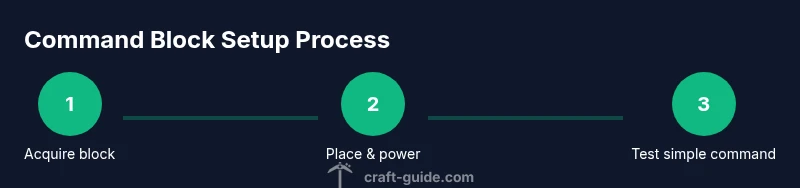
- 1
Prepare your testing world
Open a World with Creative mode or cheats enabled so you can freely obtain and place command blocks. Set up a small flat area with space for a single command block and a trigger. This preparation prevents accidental world changes while you learn the basics.
Tip: Always save a backup before starting a new experiment. - 2
Obtain a command block
In Java or Bedrock, use the in-game command or inventory method to obtain a command block. The exact form may vary by edition; consult edition-specific help if needed. Start with a single block to verify your setup works before expanding.
Tip: Note edition differences and keep a running log of the commands you use. - 3
Place the block and orient it
Place the command block on a solid surface and orient it so the front faces the intended trigger. Ensure there is space around it for easy wiring and future adjustments.
Tip: Leave room for redstone dust or other triggers to connect properly. - 4
Power the block with redstone
Power the block with a redstone source (switch, button, pressure plate, or a small clock). A basic impulse block should fire on activation, while repeat/chain blocks require a different power pattern.
Tip: Test different power sources to understand triggering behavior. - 5
Enter a simple command
Input a straightforward command to confirm operation, such as a message or a spawn action. This initial test validates that the block fires and executes as expected.
Tip: Start simple to confirm you’re reading output correctly. - 6
Test impulse behavior
Trigger the block once and observe the output. If the result is not immediate, recheck the command syntax and the block type (impulse vs repeat vs chain).
Tip: Ensure the block is receiving power at the correct moment. - 7
Experiment with repeat and chain blocks
Add a repeat block to run a command continuously while powered and connect it to a chain block to run multiple commands in sequence. This demonstrates how to build longer automation chains.
Tip: Watch for timing issues and deadlocks in long sequences. - 8
Connect to a larger workflow
Link the command block output to other elements like redstone clocks, pistons, or particle effects to demonstrate a cohesive automation system.
Tip: Plan data flow: activation trigger → command execution → follow-up actions. - 9
Document your results
Record what works, what doesn’t, and any version-specific quirks you encounter. Clear documentation helps you reproduce builds later and share them with others.
Tip: Keep a changelog and label each experiment. - 10
Save and summarize
After testing, save the world and summarize your findings. Decide whether to expand the setup into a larger map or keep it as a controlled demonstration.
Tip: Back up again before implementing in a wider project.
People Also Ask
What is a command block and why would I use one?
A command block runs commands automatically when powered, enabling automation, map automation, and complex redstone setups. It’s ideal for repeating tasks, triggers, and controlled behavior in maps or experiments.
A command block runs commands automatically when activated, making automation possible in maps and redstone projects.
Can you get a command block in Survival mode?
In standard Survival, command blocks are not obtainable without enabling cheats or Creative mode. You typically need a world with permissions to use commands.
In survival, you generally can’t obtain a command block without cheats or creative mode.
Do command blocks exist in both Java and Bedrock editions?
Command blocks exist in both Java and Bedrock editions, with some edition-specific syntax for commands. Always verify the exact form for your platform.
Yes, both editions support command blocks, but the command syntax can vary by edition.
How do I enable cheats in a world?
Cheats are enabled during world creation or in the world settings. This allows you to use commands and obtain command blocks. Remember to save changes before playing.
Enable cheats in your world settings to access command blocks and commands.
What are impulse, repeat, and chain blocks?
Impulse blocks execute a single command when activated, repeat blocks run continuously while powered, and chain blocks run commands in sequence after the previous block. They let you build diverse automation pipelines.
Impulse runs once, repeat runs continuously, and chain runs in sequence.
Are command blocks safe to use on servers?
Command blocks are powerful and can affect many players. Use them with proper permissions, backups, and clear rules to avoid misuse or crashes.
Be careful on servers—lock down access and keep backups.
Watch Video
The Essentials
- Obtain command blocks via edition-specific /give commands
- Test in a safe world before expanding projects
- Plan clear input → output workflows to avoid timing issues
- Use simple tests first, then build complex chains
- Back up worlds before experimenting with automated systems