What to Do in Minecraft Creative: A Practical Guide
Discover practical, beginner-friendly ideas for Minecraft Creative mode. Learn to plan, build, and showcase impressive projects with clear steps, design tips, and efficient workflows from Craft Guide.


In Minecraft Creative, you’ll unlock unlimited building freedom. This guide helps you choose projects, map out layouts, and use creative tools like flying, instant blocks, and unlimited inventories. By following practical ideas, you’ll move from concept to a showcased build, faster—and with less frustration. Whether you’re new or returning, you’ll gain a clear path from ideas to finished scenes.
The Creative Mindset: Goals, Scope, and Planning
Approaching Minecraft Creative with a clear goal accelerates progress and reduces aimless block placing. Start by outlining the type of build you want, the scale, and a rough layout. Craft Guide emphasizes writing down a concise objective and a rough scope before you touch a block. This practice keeps your project focused, helps you measure progress, and makes it easier to explain your vision to others when you’re ready to share. Think about what atmosphere you’re aiming for — fortress, village, sculpture, or functional display — and how the final piece should feel from different vantage points. This mindset also frames your palette, texture choices, and the level of detail you’ll pursue at each stage.
Core Tools and Settings for Minecraft Creative
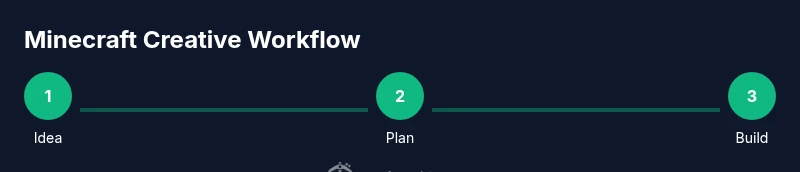
Creative mode unlocks a powerful toolkit. Ensure you have a version of Minecraft that supports flight and quick item access, with graphics settings tuned for smooth performance. Turn on coordinates and a visible grid if you plan large-scale builds to help with alignment. Organize your hotbar and inventory, and consider enabling features like copy-paste blocks or world-editing aids if you’re comfortable with mods or built-in editors in your edition. Establish a simple workflow: sketch, block out the core shape, add details, and polish lighting and textures. Remember, the goal is steady progress, not perfection in one sitting. Craft Guide notes that regular, small wins keep motivation high and reduce overwhelm.
Starter Projects for Quick Wins
Starting with small, complete projects gives you momentum and a concrete sense of capability. Here are beginner-to-intermediate ideas you can complete in a session or two:
- A cozy cottage with a defined shape and a crafted interior.
- A walkable bridge across a canal or valley, focusing on symmetry and texture.
- A small temple or monument with repeating motifs and lighting accents.
- An outdoor garden or park with pathing, benches, and water features.
- A modular hillside house that teaches elevation changes and terrain blending.
Progressively increase complexity by combining two or three ideas into a single scene. The key is finishing something tangible before expanding scope. Craft Guide’s approach stresses building confidence with short, satisfying projects that demonstrate your growing skill.
Thematic Builds: Planning with Grids and Sketches
Thematic builds benefit from pre-planning. Use a grid or blueprint approach to map major axes, rooms, and exterior shape. In a notebook or digital tool, sketch each section, noting block types and color palettes. Translate your sketches into in-game grids, using blocks to mark walls, floors, and openings. This method helps you maintain consistency across large layouts and prevents chaotic block placement. Consider a modular design where each section can be refined independently and then connected for a cohesive whole. Craft Guide highlights that strong plans reduce rework and speed up iteration.
Redstone and Player-Made Machines in Creative
Creative mode is an ideal laboratory for learning redstone and logic without resource constraints. Start with the basics: simple lamps controlled by levers or pressure plates, then progress to repeaters, comparators, and basic logic gates. Use test worlds or flat worlds to prototype circuits before integrating them into a larger build. Keep layouts tidy and document wiring with signs or notes so you can revisit and modify later. Even if your end goal isn’t technical, experimenting with redstone reveals how systems influence design decisions and user experience.
World Design: Terraforming, Biomes, and Environmental Storytelling
Great builds tell a story through environment. Practice terraforming to shape hills, rivers, and coastlines that complement your structures. Experiment with biome transitions, texture variety, and foliage to create a believable landscape. Lighting plays a crucial role in mood; plan glowstone, lanterns, and hidden light sources to minimize hotspots while preserving ambiance. When you design an environment for your build, you’re not just placing blocks — you’re guiding a viewer’s eye and emotions through the space. Craft Guide emphasizes narrative through setting as a powerful design tool.
Iteration, Testing, and Refinement
Treat every build as a prototype. Step back after completing a section, assess balance, scale, and visual rhythm, then adjust accordingly. Take screenshots from multiple angles and gather feedback from friends or communities. In Creative mode, you can rapidly test alternate palettes, window placements, and lighting schemes without starting over. Document changes in a simple log so you can compare before/after shots and articulate what improved or remained off. The habit of iteration is a core driver of quality in Minecraft projects.
Collaboration, Sharing, and Building Communities
Large projects often thrive with collaboration. Share your world with trusted teammates; assign roles such as planner, builder, or renderer. Establish a workflow for version control, block palettes, and preferred coordinates so teammates can contribute without conflict. When you showcase your work, strive for clear presentation: storyboards, progress screenshots, and a final tour video. Craft Guide recommends joining Minecraft communities to exchange tips, receive constructive criticism, and gain new perspectives on your builds.
Common Mistakes and How to Avoid Them
Creativity flourishes when you avoid common traps: over-detailing too early, neglecting scale, or bifurcating focus. Start with a clear plan and a rough scale, then test with lighter color palettes and simple shapes before investing in complex textures. Keep lighting in mind from the outset to prevent mood-killing shadows, and be mindful of performance when building large complexes. Finally, document your process with regular backups and progress screenshots to track improvements and avoid losing work. Craft Guide highlights that disciplined planning yields efficient, impressive results.
Tools & Materials
- Minecraft game (Java Edition or Bedrock Edition)(Use Creative mode to access unlimited blocks and flying.)
- A computer or device capable of running Minecraft smoothly(Ensure sufficient RAM and graphics settings for large builds.)
- Input devices (mouse/keyboard or touchscreen)(Responsive controls help place blocks precisely.)
- Organization tools (notebook or digital sketch app)(Plan layouts, palettes, and milestones.)
- Screenshots or screen recording software(Document progress for sharing and portfolio.)
- Reference imagery (screenshots or mood boards)(Inspiration for color, texture, and style.)
Steps
Estimated time: 2-4 hours
- 1
Define your build goal
Begin with a clear objective: what you’re building, the scale, and the mood. Write a brief one-paragraph brief and sketch a rough layout. This step anchors the entire project and prevents drift as you work.
Tip: Write the goal down and revisit it before each major phase. - 2
Sketch the layout
Create a simple plan on paper or in a drawing app. Map major axes, room boundaries, and entry points. Translate it into a block-by-block map in the game to keep alignment consistent.
Tip: Use a grid or graph paper to maintain proportional accuracy. - 3
Select a block palette
Choose materials that fit your theme and ensure color harmony. Group blocks by color families and textures to streamline decisions during building.
Tip: Limit your palette to 6-8 core blocks for cohesion. - 4
Build the core structure
Block out the main shape and spaces first. Focus on silhouette, scale, and major volumes before detailing. This creates a strong spine for the project.
Tip: Place rough shapes first, then refine with more precise blocks. - 5
Add details and texture
Layer textures, add curves or angles, and integrate lighting carefully. Details should enhance, not overwhelm; use repetition for rhythm.
Tip: Test alternate textures in small sections before committing. - 6
Review, iterate, and prepare for sharing
Take a step back, assess from multiple angles, and gather feedback. Iterate with small, focused changes and document progress for a final tour.
Tip: Capture progress with screenshots and keep a simple changelog.
People Also Ask
What can I do in Minecraft Creative mode?
Creative mode provides unlimited blocks, flying, and instant access to items. You can build, test, and display designs without survival constraints.
In Creative, you have unlimited blocks, flight, and instant items to build and test your ideas.
How do I switch to Creative mode?
Open the game menu, select Game Mode, and choose Creative. On some servers or consoles you may need specific permissions.
Open the game menu and switch to Creative mode.
Is there a block limit in Creative mode?
There is no practical block limit in Creative mode; you can place unlimited blocks, though performance may vary with very large builds.
There isn't a fixed limit to blocks in Creative, but very large builds can impact performance.
How can I save and share large builds?
Use world saves, screenshots, and file sharing. Document progress and use clear tours to showcase your work.
Save backups, take progress screenshots, and share a tour of your build.
Can I use mods with Creative mode?
Mods can extend functionality. Check edition compatibility and server rules before using them in collaborative projects.
Mods can be used if they’re compatible with your edition and server rules.
What is a good workflow for a big project?
Start with a concept, draft a grid, build a core, add details, then polish lighting and textures. Iterate as needed.
Plan, grid, build core, detail, polish, and iterate.
Watch Video
The Essentials
- Plan before placing blocks.
- Use a grid to maintain scale.
- Iterate and seek feedback for refinement.
- Document progress with screenshots.
- Share builds to inspire others.