How to Download Minecraft Android: Step-by-Step Guide
Learn how to download Minecraft Android safely and legally. This guide covers official sources, prerequisites, setup, troubleshooting, and performance tips for a smooth mobile Minecraft experience in 2026.


Goal: safely download Minecraft Android using the official Google Play method. You’ll need a compatible Android device, reliable internet, and a Microsoft account to sign in for full access. This quick answer covers the official steps, prerequisites, how to handle common issues, and tips to avoid unauthorized APKs. You’ll be ready to install and start playing with minimal hassle.
How to download minecraft android: immediate overview
If you’re asking how to download minecraft android, the fastest and safest route is through the official Google Play store using a Microsoft account for sign-in. This approach ensures you receive legitimate updates, bug fixes, and cross-device syncing across your Minecraft worlds. In 2026, the Play Store remains the primary distribution channel for the Android Bedrock edition, so sticking to official sources protects your device and your progress. The Craft Guide team highlights that choosing official channels minimizes security risks and guarantees access to live multiplayer features wherever supported by your device.
Compatibility and prerequisites for Android devices
Before you attempt a download, verify your Android device meets basic requirements. You’ll want a reasonably recent Android version, sufficient storage space, and a reliable internet connection. A Microsoft account is recommended for seamless sign-in and cloud saves. Ensure Google Play Services are up to date, and enable app installations from unknown sources only if you understand the risks and sources are trustworthy. By confirming these prerequisites, you reduce the chance of installation failures and missing features after setup.
Official sources and why they matter
The official route to obtain Minecraft Android is the Google Play Store. This ensures you receive verified builds, automatic updates, and in-game purchases tied to your account. The Minecraft official site may offer information about the game and system requirements, but Google Play remains the primary delivery channel for Android devices. Avoid third-party APKs that promise quick access, as they often come with malware, outdated versions, or compromised accounts. Trustworthy sources protect your device and your progress across worlds.
Preparing your account and device for a smooth install
Set up a Microsoft account if you haven’t already, since this enables proper sign-in, cloud saves, and cross-platform features. On your Android device, sign in to Google Play with a valid Google account, ensure you have enough storage, and connect to a stable Wi-Fi network for large download sizes. If you see compatibility warnings, consider clearing space by removing unused apps temporarily, or move media to an SD card if your device supports it. These steps prevent mid-download interruptions and missing game data after installation.
How to install from Google Play: a guided walkthrough
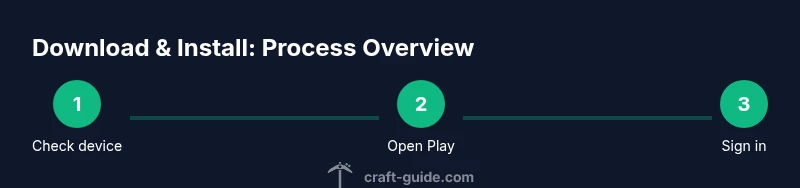
Open Google Play, search for Minecraft, and confirm you’re selecting the Bedrock edition from Mojang/Microsoft. Tap Install, then confirm any required permissions (storage, microphone, location) so the game can download assets and function correctly. Once installed, open the app to begin the sign-in flow with your Microsoft account. If prompted, grant access to your device data to enable cloud saves and cross-platform features. This flow is designed to be straightforward and avoids the risks associated with unofficial installers.
Sign in, link accounts, and start your first world
After launching Minecraft Android, sign in with your Microsoft account to sync achievements, realms access, and cross-device saves. If you’re new to the ecosystem, follow the on-screen prompts to create a profile and configure your preferred settings, including controls and graphics. You can then create a new world or import a previously backed-up save. Linking your account early ensures you don’t miss any progress when switching devices.
Troubleshooting common download and install issues
If the download stalls, pause and resume, or switch to a stable Wi-Fi network. Check Google Play for pending updates to Google Play Services or the Play Store, which can impact downloads. If you encounter failures during install, clear the Play Store cache, restart your device, and retry. For performance problems once installed, ensure the game has sufficient RAM allocation and reduce in-game graphics settings if your device is mid-range. These fixes cover the majority of typical issues without needing advanced steps.
Performance optimization tips for Android devices
To maximize frame rates and reduce lag, close unused apps running in the background, enable battery saver modes only if they don’t throttle performance in games, and adjust Minecraft’s graphics settings to balance visuals and smoothness. If your device supports it, enable graphics options like Render Distance and Smooth Lighting at levels your hardware can sustain. Keeping your device updated and ensuring ample free storage will also contribute to a stable experience.
Updates, storage management, and safety practices
After installation, check for in-game updates and apply patches promptly. Maintain adequate storage by regularly clearing cache and unused files, especially large worlds or resource packs you’re not actively using. Practice safe downloading by staying on official sources, avoiding modified APKs, and keeping your Google account secure with two-factor authentication. By following these practices, you protect both your device and your Minecraft worlds.
Tools & Materials
- Android device(Must be compatible with Minecraft Bedrock edition; check OS version and hardware specs)
- Google account(Needed to access Google Play and download apps)
- Microsoft account(Required for signing in and cloud saves)
- Stable internet connection(Wi-Fi recommended for large downloads and updates)
- Sufficient storage space(At least several hundred MB free for app + updates)
Steps
Estimated time: 10-15 minutes
- 1
Check device compatibility and readiness
Verify your Android version and available storage. Ensure you have a stable internet connection and a Microsoft account ready for sign-in. This prevents install failures and post-install issues.
Tip: If storage is tight, temporarily move media to a microSD card or cloud storage. - 2
Open Google Play and search
Launch the Google Play Store, search for Minecraft, and confirm you’re selecting the Bedrock edition published by Mojang/Microsoft. This ensures you get the official build.
Tip: Avoid sponsored results; verify the developer name before tapping Install. - 3
Install Minecraft
Tap Install and grant any required permissions so the app can download assets and run correctly. Wait for the download to finish; performance may vary with connection speed.
Tip: Stay on Wi-Fi to avoid mobile data charges and unstable downloads. - 4
Launch and sign in
Open Minecraft after installation and sign in with your Microsoft account to enable cloud saves and cross-platform access. Follow prompts to configure basic settings.
Tip: If you don’t see sign-in, ensure you have a stable internet connection and retry. - 5
Create your profile and a world
Set up your in-game profile, create a new world, and configure basic controls. You can adjust graphics and control schemes to fit your comfort level.
Tip: Start with a small world to verify performance before expanding. - 6
Check for updates
Go to the Play Store and ensure Minecraft and Google Play Services are up to date. Regular updates improve stability and security.
Tip: Enable auto-update for future convenience, if you trust the device’s network. - 7
Back up and manage saves
Learn how to back up your worlds to cloud saves and local storage. This protects progress when moving devices or reinstalling.
Tip: Periodic backups prevent data loss during device resets or app issues. - 8
Optimize performance
Tweak in-game settings such as render distance and graphics level to balance visuals and performance on your device.
Tip: Lowering settings can dramatically improve framerate on mid-range devices.
People Also Ask
Is Minecraft Android free to download?
Minecraft Android is a paid app on Google Play; you purchase it once and gain access to all supported features. There is no ongoing free full version from official sources. Some demos or trial periods may exist in other contexts.
Minecraft Android requires a one-time purchase on Google Play, with no official free full version. A Microsoft account will unlock cloud saves after purchase.
Do I need a Microsoft account to play on Android?
Yes. A Microsoft account enables cloud saves, cross-platform play, and Realms access. You can sign in during the first launch and anytime from the in-game settings.
Yes, you’ll need a Microsoft account to unlock cloud saves and cross-platform features in Minecraft Android.
Can I download Minecraft Android from third-party sites?
Officially, Google Play is the supported source for Android. Third-party APKs can introduce malware and may violate terms of service. Stick to official channels for safety and support.
Avoid third-party APKs; use Google Play for a safe, supported installation.
What if the download fails or is slow?
Check your internet connection, switch to Wi-Fi if on mobile data, and ensure Google Play Services are up to date. Clearing the Play Store cache can resolve download stalls as a troubleshooting step.
If downloads stall, try a stable Wi‑Fi connection and update Google Play Services.
How do I back up Minecraft Android worlds?
Worlds are saved locally and can be uploaded to cloud saves via your Microsoft account. Regularly backing up saves protects progress if you switch devices.
Use cloud saves with your Microsoft account and back up important worlds.
What performance tweaks help on lower-end Android devices?
Lower render distance, reduce graphics quality, and close background apps. Keeping the device cool also helps maintain stable frame rates during long play sessions.
Lower settings and close background apps to improve performance.
Watch Video
The Essentials
- Download only from official stores to avoid security risks.
- A Microsoft account is essential for sign-in and cloud saves.
- Check device compatibility before starting to save time.
- Regular updates improve stability and performance.
- Back up worlds to protect progress across devices.