A Safe Guide to Minecraft APKs on Android Devices
Learn how to legally and safely obtain, verify, and install the official Minecraft Android APK. This step-by-step guide covers prerequisites, safety risks of sideloading, and best practices for secure Minecraft on Android.


Learn how to safely obtain and install the official Minecraft Android APK, understand sideloading risks, and compare legitimate sources. This guide covers prerequisites, permissions, and verification steps to ensure you run Minecraft on Android legally and securely. We’ll also discuss when to upgrade, how to back up data, and common pitfalls to avoid.
What this guide covers and the basics of APKs for Minecraft
This guide explains what an APK is, how it relates to Minecraft on Android, and how to approach installation safely. According to Craft Guide, APKs are the package format Android uses to distribute apps, including Minecraft Bedrock on many devices. This page focuses on legitimate, safe access to the Minecraft experience on Android, including what to download, how to verify a file, and how to sign in and play with minimal risk. You'll learn why sideloading can be risky, what sources are trustworthy, and how to keep your device secure while enjoying your favorite world-building adventures.
Understanding APKs: what they are and how they relate to Minecraft
An APK, or Android Package Kit, is the file format used to distribute and install apps on Android. Minecraft for Android is typically distributed as an APK along with the official launcher when not using the Google Play store. APKs carry signatures that verify who published the app, and they must be compatible with your device’s architecture and Android version. Craft Guide emphasizes that understanding these basics helps you avoid mismatched or tampered files and ensures smoother gameplay on your device.
Legal and safety considerations when sideloading Minecraft
Sideloading—installing apps from outside the official store—carries safety risks, including malware and altered code. Always download from supportable, legitimate sources and verify the publisher before proceeding. The Craft Guide team stresses following terms of service and respecting Mojang's licensing. If a source seems unofficial or promises “too good to be true” mods, it probably is, and you should stop and reassess.
Where to obtain the Minecraft Android APK legitimately
Official access to Minecraft on Android is usually via the Google Play Store or Mojang/Microsoft’s official distribution channels. When Play is unavailable in your region, check the official Minecraft website for sanctioned download options and verification steps. Craft Guide analysis shows that sticking to official sources reduces risk and helps ensure you’re receiving the latest, secure version of the game.
Step-by-step: verifying the APK and setting up on Android
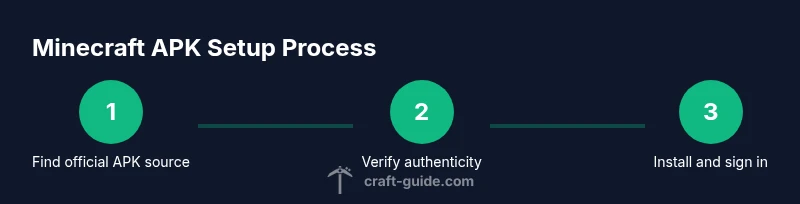
Before you install, confirm the APK comes from a legitimate publisher and is designed for Bedrock on Android. Enable necessary device permissions only for trusted apps, and verify the file’s signature if your device provides that option. This section walks through checking the source, confirming authenticity, and preparing your account to sign in after installation. Craft Guide recommends taking care to avoid counterfeit installers that request excessive access.
Installing Minecraft from APK: what permissions and settings you need
During installation, Android will request various permissions such as storage access and network communication. Grant only what is necessary for Minecraft to run, and review each permission’s purpose. If your device prompts for “Unknown sources” or a similar setting, enable it for the trusted APK you downloaded and then disable it afterward if you prefer tighter security.
Common issues and how to troubleshoot APK installations
If the installer fails, check compatibility with your device's CPU architecture, Android version, and available storage. A corrupted download is another common cause—re-download from the official source and re-verify. If you encounter sign-in issues, ensure your Microsoft/Mojang account is active and that you have a stable internet connection. Craft Guide notes that most problems stem from improper sources or incomplete installations.
Backing up data and staying safe post-install
Back up your Minecraft worlds and settings before sideloading or updating. Use a cloud backup or transfer saves to a PC to minimize loss in case of errors. After installation, run a quick integrity check and keep your device’s security software up to date to guard against malware introduced by unsafe APK sources.
Alternatives: official Minecraft apps and cross-platform options
If sideloading isn’t appealing, explore official Minecraft apps and cross-platform options that Mojang supports. The Bedrock edition on Android offers cross-play with other devices, and Minecraft Launcher for desktop users provides a unified ecosystem. Craft Guide encourages exploring legitimate, supported paths to enjoy Minecraft on multiple devices without compromising safety.
Tools & Materials
- Android device with internet access(Ensure you have enough storage and a supported Android version.)
- Official Minecraft APK from Mojang or Google Play(Use official sources to avoid malware.)
- Microsoft/Mojang account(Needed to sign in and access your world data.)
- File manager or browser download capability(Used to locate and install the APK file.)
- Backup method for Minecraft data(Optional but recommended before sideloading.)
- Power charger or full battery(Keep device charged during install.)
Steps
Estimated time: 15-25 minutes
- 1
Prepare your device
Open Settings and verify you have sufficient storage and a compatible Android version. Disable any unknown sources restrictions temporarily only if you are about to install a verified APK from an official source.
Tip: Check device storage first; a lack of space is a common install blocker. - 2
Download the official APK from a legitimate source
Navigate to the official Minecraft site or a trusted publisher page and download the APK file designed for Android Bedrock. Avoid third-party mirrors that promise quick installs or altered files.
Tip: Bookmark the official download page to avoid phishing sites. - 3
Enable installation from unknown sources for the source
In your device's security settings, allow installations from unknown sources for the verified APK source you’re using. This is a temporary setting you can revert after installation.
Tip: Only enable this for a trusted APK and then disable again. - 4
Verify the APK before installing
If available, check the APK’s digital signature or hash provided by the publisher to confirm authenticity. This helps prevent tampered files from running on your device.
Tip: Use the publisher-provided hash if available. - 5
Install the APK and sign in
Run the installer, complete the on-screen prompts, and then sign in with your Microsoft/Mojang account to access your worlds.
Tip: If you encounter sign-in issues, verify your account status and network connectivity. - 6
Update and verify in-game settings
Launch Minecraft, check for updates, and verify your settings (controls, graphics, and audio) align with your device capabilities.
Tip: Adjust settings to balance performance and visuals. - 7
Create a backup and monitor performance
Backup your worlds and monitor performance after the first launch to catch any issues early.
Tip: Backups save you from data loss if problems arise.
People Also Ask
Is sideloading Minecraft APK legal?
Sideloading itself is not illegal in many places, but it may violate Mojang's terms if you use modified files or distribute them. Always use legitimate sources and comply with licensing terms.
Sideloading isn’t necessarily illegal, but you should use official sources and follow Mojang’s terms to stay compliant.
Do I need root access to install an APK?
Root access is not required to install Minecraft from a legitimate APK. You only need to enable installation from unknown sources for trusted sources and grant the necessary permissions.
No root access is needed; you just need to enable installations from trusted sources and grant the required permissions.
Can I play with friends after sideloading?
Yes, you can play with friends if both players are on compatible builds and signed in with valid accounts. Network compatibility and version parity are important.
Yes, but make sure everyone has compatible builds and valid accounts for cross-play.
What are the main risks of APKs from unofficial sources?
Unofficial APKs can harbor malware, modified game data, or outdated versions. This can compromise device security and gameplay integrity.
The biggest risk is malware or tampered files that could harm your device or your game data.
What is the difference between Bedrock and Java editions on Android?
Java Edition is designed for PC and does not run on Android. Bedrock is the version available on Android and supports cross-platform play.
Android users get Bedrock Edition, which supports cross‑play with other devices, unlike Java on PC.
Watch Video
The Essentials
- Download only from official sources
- Verify APK authenticity before install
- Back up Minecraft data prior to sideloading
- Use official launcher options when possible