Can You Put Minecraft in Borderless Windowed? A Practical Guide
Learn how to run Minecraft in borderless windowed mode on Windows with practical methods, step-by-step guidance, and tips for stable performance. This guide covers Java Edition, Bedrock, and common setups used by Craft Guide.


Yes—Minecraft can be used in borderless windowed mode on Windows by combining windowed mode with a borderless tool or compatible launcher features. There is no built-in native borderless option, but third-party utilities and careful settings can create a true borderless experience. This approach works for Java Edition on Windows and Bedrock Edition via Windows-based methods, with caveats around performance and stability.
Why borderless windowed Minecraft matters
For many players, especially those juggling multiple programs, borderless windowed mode offers a smoother experience than traditional fullscreen. Borderless eliminates the window border, making alt-tabbing seamless and reducing the chance of accidental minimize when you switch tasks. If you can output the best visuals and maintain performance without the heavy border around the game window, you can maintain focus on creative builds or survival exploration. The central question remains: can you put Minecraft in borderless windowed? In this guide we will explain the practical methods, what works, and what to watch for in 2026. Craft Guide’s research indicates that many players lean toward borderless setups to maintain chat overlays, mods, and texture packs visible while gaming. This approach is particularly valuable for streamers who want a clean, distraction-free screen with consistent aspect ratios across monitors. While the official Minecraft launcher may not expose a single click option for borderless windowed play, there are reliable, well-supported pathways to achieve the effect safely on Windows. By following these instructions, you’ll preserve performance, keep your world accessible, and still enjoy uninterrupted gameplay.
Borderless windowed explained: definitions & terms
Borderless windowed mode refers to a game running in a window that fills the screen without a visible border, yet behaves like fullscreen when you switch tasks. It is different from exclusive fullscreen (which can block certain OS features) and standard windowed mode (which shows a border and title bar). In practice, borderless windowed helps with quick alt-tabbing, smoother multi-monitor setups, and easier task switching without minimizing the game. Terms you’ll encounter include fullscreen (exclusive), fullscreen windowed (borderless look with OS-managed behavior), and true borderless through external tools. Understanding these distinctions helps you choose the right approach for your PC and monitor arrangement. Note that not every launcher or edition supports borderless natively, which is why many players rely on utilities that enforce a borderless presentation while Minecraft remains windowed.
Java Edition vs Bedrock: compatibility considerations
Java Edition on Windows often benefits most from borderless windowed methods because it relies on the standard Java launcher and user-made utilities. Bedrock Edition on Windows (the Microsoft Store version) can be more restrictive due to its packaging and sandboxing, but borderless behavior can still be achieved with reputable borderless tools. If you use mods or resource packs, ensure compatibility with the borderless tool you choose, as some overlays can interfere with rendering or input. The Craft Guide team recommends testing both editions in a controlled environment before committing to a long play session, especially if you rely on multiple monitors or streaming overlays. This reduces the risk of crashes or misalignment when the game regains focus.
Tools and methods to achieve borderless windowed mode
There are several viable paths to borderless rendering for Minecraft on Windows:
- Use a dedicated borderless window tool that enforces a borderless presentation while Minecraft runs in a window.
- Enable a borderless mode in your launcher if available, though this is less common for Minecraft.
- Combine standard windowed mode with a display utility that emulates a borderless border-free window. Important: always download tools from reputable sources, verify checksums, and avoid untrusted executables. In addition, keep your graphics drivers up to date to prevent rendering glitches when switching focus quickly between applications. The goal is to have a seamless alt-tab workflow without visual borders or stray toolbars interfering with your game view.
Step-by-step overview before you start
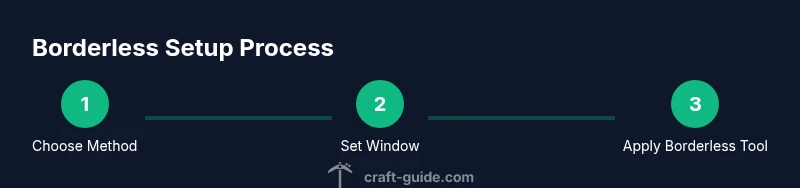
Before you begin, make sure you’re on a supported Windows build and that your Minecraft version is up to date. Decide which path you’ll take: a borderless tool, a launcher option, or a Windows-based borderless approach. Create a backup of your Minecraft settings and important world data so that you can revert if something goes awry. Prepare a basic testing plan: switch focus between Minecraft and your desktop, resize the game window, and verify that the mouse and keyboard inputs remain synced. If you play with mods or resource packs, test these components in a controlled session to ensure they remain compatible with the borderless setup. Finally, ensure your display scaling is standard (100% or a common scale) to avoid misalignment on high-DPI displays.
Safety, backups, and system requirements
Borderless setups rely on third-party tools, which introduces some risk. Always back up your worlds and Minecraft settings. Use reputable software from trusted sources, and avoid pirated or cracked tools that could compromise your system. If you’re on a laptop with integrated graphics, monitor temperatures during longer borderless sessions, as borderless windows can draw more GPU time when repeated focus switches occur. Confirm your system meets the minimum requirements for Minecraft and the borderless tool, including sufficient RAM allocation and an updated GPU driver. Finally, run a short stress test after applying any borderless configuration to ensure stability before embarking on a long game session.
Performance tips for smooth borderless gameplay
Borderless windowed mode can impact frame times if the tool isn’t optimized for your GPU. To mitigate this, allocate ample RAM to Minecraft, disable unnecessary background processes, and set a stable refresh rate that matches your monitor. Opt for a fixed resolution that preserves aspect ratio and reduces scaling artifacts. If you notice stuttering, lower the render distance slightly and consider enabling optimizations like Fast Render or OptiFine-compatible performance tweaks (if you use mods). For multi-monitor setups, configure the primary monitor for Minecraft while keeping others dimmed or on a separate workspace to avoid GPU context switching overhead.
Common issues and troubleshooting
You may encounter border artifacts around the window border, input lag when focusing the game, or occasional crashes after alt-tabbing. To troubleshoot, first verify that the borderless tool is enabled and that Minecraft is in windowed mode. Check for conflicting overlays from voice chat apps or streaming software, and disable them temporarily to isolate the issue. If you experience black screens on restore, update your graphics driver and ensure the tool’s profile is compatible with your Minecraft version. If problems persist, revert to standard fullscreen or windowed mode to confirm the root cause lies with the borderless configuration.
How to transition between windowed and borderless on your setup
Transitioning between windowed and borderless should be quick, but it can depend on the tool you use. Start by setting Minecraft to a controlled window size (e.g., 1280x720) and enabling the borderless tool. Test by pressing the hotkey combination you assigned (e.g., Alt+Enter or a dedicated borderless toggle). Verify that alt-tabbing is smooth and that your mouse doesn't get stuck inside the game window. If you use multiple monitors, confirm that the game remains on the intended display after toggling. Keep a backup profile in the tool so you can restore preferred settings after updates.
Final tips and best practices
- Always use trusted borderless solutions and avoid questionable binaries.
- Keep Minecraft and the borderless tool up to date to prevent compatibility issues.
- Document your configuration (tool, hotkeys, and resolution) so you can reproduce it later.
- If you rely on mods, confirm compatibility with the borderless mode you’re using and consider testing with a clean profile first.
- If you’re streaming, test OBS/Streamlabs integration to ensure overlays stay visible without interfering with your game window.
Tools & Materials
- Windows PC (Windows 10/11 64-bit)(64-bit OS with admin rights and up-to-date graphics drivers)
- Minecraft Java Edition or Bedrock on Windows(Ensure you have the latest build and any mods you plan to use)
- Borderless window tool (e.g., Borderless Gaming)(Download from a reputable source; verify checksums)
- Optional: Windows display utilities (e.g., FancyZones for layout)(Helpful for multi-monitor setups)
- Stable internet connection for downloads and updates(Not strictly required, but useful)
Steps
Estimated time: 45-60 minutes
- 1
Prepare your system
Close Minecraft and back up your world saves and configuration files. Update Windows, graphics drivers, and any borderless tool you plan to use. Verify that you have administrator rights on the PC and that your system meets the minimum requirements for Minecraft and the tool. This ensures a clean baseline before you begin.
Tip: Create a dedicated restore point in Windows in case you need to revert settings. - 2
Install and configure a borderless tool
Install a reputable borderless window utility and launch it. Set a hotkey for toggling borderless mode, and create a profile for Minecraft with a preferred window size and location. Ensure the tool is running in the background before starting Minecraft.
Tip: Test the tool with a simple window before integrating Minecraft to confirm behavior. - 3
Set Minecraft to windowed mode
Launch Minecraft and switch the game to windowed mode if it isn’t already. Resize the window to a standard aspect ratio you want (e.g., 16:9). Verify that the window borders disappear when the borderless tool is activated.
Tip: Practice resizing to prevent overlapping with taskbar or window edges. - 4
Add Minecraft to the borderless tool and apply settings
Add the Minecraft window/profile to the borderless tool. Apply the borderless profile and test that the window fills the screen without a visible border, while staying responsive to input. Confirm that overlays (like chat) remain visible and correctly positioned.
Tip: If the border disappears slowly, adjust the tool’s edge detection or padding. - 5
Test across resolutions and monitors
Launch Minecraft in windowed borderless mode and test on your primary monitor, then move to a secondary monitor if available. Verify that the mouse coordinates map correctly and that alt-tabbing is smooth. Check for any rendering glitches at different resolutions.
Tip: Record a quick test clip to verify visuals on playback. - 6
Fine-tune performance and troubleshoot
If you notice input lag or stuttering, adjust render distances, frame rate caps, or tool settings. Update drivers if you encounter artifacts, and ensure no conflicting overlays are running in the background. If issues persist, revert to a standard windowed or fullscreen setup to confirm the root cause.
Tip: Keep a log of changes so you can revert quickly.
People Also Ask
Can borderless windowed mode be officially supported by Minecraft?
No. Borderless windowed mode is not an official Minecraft setting. It relies on third-party tools or Windows features to mimic a borderless presentation while the game runs in a window. Always rely on reputable software and backups in case updates change compatibility.
Borderless windowed mode isn’t an in-game feature; it uses external tools or OS features to achieve the effect. Be sure to back up and test after updates.
Will borderless windowed mode impact performance or frames?
Performance can vary by tool and system. Some setups maintain stable frame rates, while others incur minor overhead from the borderless tool. Monitor FPS, adjust render distance, and cap frame rate if needed.
Performance varies. Monitor FPS and adjust settings if you notice stuttering after enabling borderless mode.
Is borderless windowed mode compatible with mods like OptiFine?
Compatibility depends on the specific tool and mod. Start with a clean profile and test texture packs and mods in borderless mode to ensure overlays and inputs remain accurate. Some mods may require additional tweaks.
Mods can work, but test them carefully in borderless mode and be prepared for occasional tweaks.
Can I use borderless windowed mode on macOS or Linux?
Borderless windowed setups are more straightforward on Windows due to third-party tools. macOS and Linux users may have limited or different tools that work, and results can vary.
Mac and Linux setups are less common and can be less reliable; try platform-specific tools and test thoroughly.
What should I do if Minecraft crashes after enabling borderless mode?
If crashes occur, revert to a standard windowed or fullscreen mode, update drivers, and re-check the borderless tool settings. Ensure you’re using the latest version of Minecraft and the borderless utility.
If you crash, switch back to regular mode, update everything, and retry with a clean profile.
Does borderless windowed work the same on Bedrock and Java editions?
Both editions can be run in borderless windowed mode on Windows with suitable tools or launcher support, but the steps differ. Java Edition is typically more flexible with third-party utilities, while Bedrock may present more packaging challenges.
Bedrock and Java can both use borderless setup on Windows, but expect different configuration paths.
Watch Video
The Essentials
- Use a reputable borderless tool to achieve true borderless Minecraft.
- Test across monitors and resolutions to ensure consistent performance.
- Back up worlds and settings before applying borderless configurations.
- Be aware of potential compatibility issues with mods and overlays.