Can You Play Minecraft Without a Mouse? A Mouse-Free Guide
Learn practical ways to play Minecraft without a mouse using a gamepad or keyboard remapping. This educational guide covers setup, keyboard-only viability, controller configurations, accessibility options, and common caveats, helping players of all skill levels enjoy mouse-free play.


Yes—it's possible to play Minecraft without a mouse, though the experience varies by platform and input setup. You can use a gamepad or keyboard-only controls to move and manage items, but aiming and combat typically require an alternate input or remapping. This guide shows practical, mouse-free methods, with clear steps, tips, and trade-offs.
Overview: Can you play Minecraft without a mouse?
According to Craft Guide, playing Minecraft without a mouse is feasible on modern platforms, but the experience hinges on your input method and edition. This article explains the core idea: you can move, craft, and interact using a gamepad or keyboard remapping, but precise aiming and camera control become the main challenge. We’ll cover reliable mouse-free options, potential software aids, and what to expect in practice.
By understanding your platform (Java vs Bedrock) and the input devices available, you can choose the path that best fits your playing style and accessibility needs. can you play minecraft without a mouse is more than a curiosity—it's about finding a workflow that keeps you engaged without the traditional pointer.
Craft Guide emphasizes practical setups over perfect parity, so expect trade-offs and plenty of hands-on practice to reach fluency.
Tools & Materials
- Gamepad/Controller compatible with PC(Xbox, PlayStation, or any USB/Bluetooth controller)
- PC keyboard(Standard keyboard for hotkeys and quick switches)
- USB cable or Bluetooth adapter(Only if your controller isn’t plug-and-play via USB/Bluetooth)
- On-screen keyboard (optional)(Useful if you must input text without a mouse)
- Accessibility software or remapping tool (optional)(For advanced keyboard-to-mursor remapping if supported)
Steps
Estimated time: 25-40 minutes
- 1
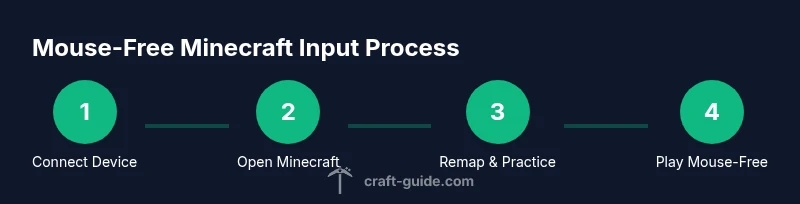
Connect your input device
Plug in or pair your controller and verify that Minecraft recognizes it in the system input settings. Ensure drivers are up to date and that the device appears in Windows/Mac/Linux controller configurations. This creates the mouse-free input pathway you’ll rely on during play.
Tip: Test basic movement in a Creative world to confirm buttons respond before diving into gameplay. - 2
Open Minecraft and adjust controls
Launch the game and navigate to Options > Controls. If your platform supports remapping, bind Attack, Use Item, and Look inputs to accessible controls. Save a profile specifically for mouse-free play and switch when needed.
Tip: Take a screenshot of your mapping to reuse it across sessions. - 3
Bind essential actions to keys
Assign movement to WASD, Jump to Space, Sneak to Shift, and Use/Attack to a nearby key or a controller button. In Java Edition, consider mods for full parity; in Bedrock, check built-in controller options.
Tip: Keep bindings consistent across worlds to minimize cognitive load. - 4
Practice basic movement in Creative
Spend time in Creative to practice moving, turning, and placing blocks with your chosen input. Focus on timing, accuracy, and rhythm rather than speed. This builds confidence without the pressure of combat.
Tip: Use hotbar shortcuts (1–9) to switch blocks quickly. - 5
Test combat and exploration
Try basic mob encounters and navigation using your controller or mapped keys. Practice aiming with the controller’s analog stick and learn to interact with terrain and structures without a mouse.
Tip: Enable aim assist or a visible crosshair if your setup supports it. - 6
Troubleshoot and refine your setup
If something feels off, revisit bindings, check for software conflicts, and adjust controller sensitivity. Reboot Minecraft after changes to ensure bindings take effect.
Tip: Document changes to revert quickly if needed.
People Also Ask
Can I look around in Minecraft without a mouse?
Yes, you can look around using a gamepad’s right analog stick or by remapping camera controls to keys on your keyboard. The Java edition may require mods or additional tools for full parity, while Bedrock tends to handle controllers more smoothly.
Yes. You can look around with a controller’s right stick or your keyboard if you’ve remapped the camera. Java might need extra tools to match Bedrock’s ease.
Does Bedrock support controllers better than Java?
In general, Bedrock has smoother native controller support, making mouse-free play easier out of the box. Java Edition users may need mods or third-party mappings to achieve comparable control.
Bedrock usually has better built-in controller support, while Java may require additional mods or mappings.
Is keyboard-only combat feasible?
Keyboard-only combat is feasible but less comfortable due to lack of precise aiming. A controller or remapping the camera significantly helps, especially in PvE and exploration.
You can fight with keys, but a controller is usually more comfortable for combat without a mouse.
What input setup is best for beginners?
Begin with a wired gamepad to learn mouse-free combat and navigation. Use simple keyboard bindings for essentials, and gradually experiment with remapped controls as you gain confidence.
Start with a wired gamepad and simple keyboard bindings, then expand as you get used to it.
Are there accessibility considerations I should watch for?
Yes. Some players experience strain or fatigue with long play sessions. Adjust sensitivity, take breaks, and consider supportive hardware like ergonomic controllers or on-screen keyboards.
Be mindful of strain; take breaks and adjust settings to suit your needs.
Watch Video
The Essentials
- Experiment with a wired gamepad for best mouse-free experience
- Keyboard remapping can work, but aiming benefits from a controller
- Java vs Bedrock differ in native input support; plan accordingly
- Mods can close gaps, but verify compatibility first