How to Eat in Minecraft Without a Mouse: Keyboard Controls
Learn how to eat in Minecraft without a mouse using keyboard controls. This guide covers rebinding keys, hotbar tricks, and fast-eating strategies for laptop, tablet, and PC players.


This guide shows how to eat in Minecraft without a mouse using keyboard controls and accessible setups. You'll learn keyboard navigation, hotbar use, auto-eat techniques, and how to rebind keys for quick meals. By following these steps, you can eat efficiently even when a mouse isn't available. This quick overview primes you for deeper instruction in the full article.
Why Eating with a Mouseless Setup Matters
For many players, eating in Minecraft without a mouse is not just convenient—it's essential in tight situations where a mouse is unavailable. If you wonder how to eat in minecraft without a mouse, this guide explains reliable keyboard-based methods that reduce friction during combat, exploration, and survival. According to Craft Guide, keyboard-focused play unlocks faster meal consumption when you map the act of eating to a quick-access key and keep food ready in your hotbar. The core idea is simple: you should be able to switch to food, select a piece, and eat with a few deliberate keystrokes, all without leaving your movement or camera view. In practice, keyboard-only eating relies on three pillars: fast hotbar navigation, intuitive keybinds, and reliable camera control. When you master these, you’ll find that eating in Minecraft without a mouse becomes second nature, a habit you can carry into mods, resource packs, or different editions of Minecraft.
Understanding the Core Controls for Keyboard-Only Play
To eat with keyboard-only controls, you need a solid grasp of movement, inventory, and interaction keys. The standard setup uses WASD for movement, numbers 1-9 for hotbar slots, and the Use Item command for consuming food. For how to eat in minecraft without a mouse, the critical action is the Use Item command, which feeds you when activated. In Java Edition, this is typically bound to the right-click mouse button by default, but you can rebind it to a comfortable keyboard key. Bedrock Editions on some platforms may swap or extend bindings, so check your platform-specific controls. Bind the Use Item action to a practical key in addition to your movement keys, such as F or H, then learn to cycle food with 1-9 while you keep eyes on threats. Practice in a safe area to adjust to different foods and effects, then extend your setup to chests, crafting, and portals without breaking your rhythm.
Rebinding and Custom Shortcuts for Speed
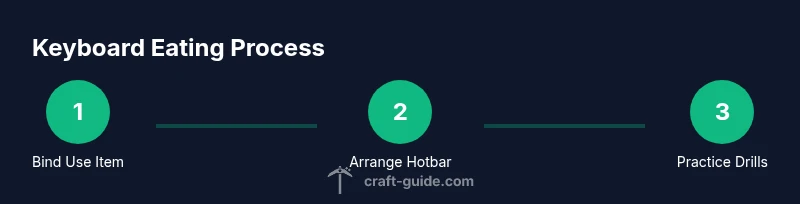
A fast keyboard-based eat routine starts with mapping the action to a key that you can hit without looking away from your screen. Open your game’s Controls menu, locate Use Item (or Use/Place) and assign it to a preferred key—F, G, or another easily reachable button. Keep your hotbar in a predictable order: place the most common foods (cooked meat, bread, or fruit) in slots 1–3 so you can reach them with a single keystroke while moving. Also consider binding quick-switch actions such as “Next Item” and “Previous Item” to two simple keys. This reduces the number of keystrokes required per meal and minimizes the chance of misclicks. Finally, test your setup in a controlled area, then adapt it for different playstyles—solo exploration, farming, or speedrunning.
Step-by-step strategies for eating efficiently
When you know how to eat in minecraft without a mouse, a few concrete routines help you stay alive. First, pre-select your favorite foods and place them in hotbar slots 1, 2, and 3. Ensure your Use Item key is mapped to a comfortable key. During exploration or combat, quickly cycle to the best food and press the Use Item key to eat. If your hunger bar is close to empty, perform a quick sequence: swap to food, press Use Item, release after the animation completes. Use sprint or crouch as needed to maintain position while you eat. If you play on a laptop or touchpad, use two fingers for precise scrolling while you press the eat key. With practice, your timing will improve and you’ll spend less time hunting for food.
Accessibility and troubleshooting: common issues
Keyboard-only eating can fail if bindings are misconfigured, if the hotbar is cluttered, or if fatigue slows your reaction time. Start by confirming that the Use Item action is bound to a key you can reach without breaking movement. Keep a simple hotbar layout for speed: foods in slots 1–3 or 4–6 reduce the distance your eyes travel. If your platform has unique controls (console, mobile), adapt the bindings to your device while keeping the Eat action consistent. For visible issues like stuck keys, test with a controlled input sequence in a private world to isolate the problem. Craft Guide analysis shows that disciplined binding and practice reduce issues and improve consistency across playstyles.
Advanced tips for mods and cross-edition play
If you run mods or switch between Java and Bedrock, you may need to recheck bindings after updates. Maintain a core setup that can be ported across editions: keep Use Item on a single, easy-to-reach key, and map hotbar navigation to the number row. In mods that add new foods, update your hotbar antagonists (slots) to fit the new items and test in a safe area before venturing into danger. This approach helps you retain a smooth mouse-free eating workflow as you experiment with resource packs, shaders, or cross-platform play.
Tools & Materials
- Keyboard (with full layout)(Any standard PC keyboard with a dedicated number row; recommend one with easy-key access for 1-9.)
- Minecraft installed(Ensure you have access to both Java and Bedrock if you plan cross-edition testing.)
- Optional: external macro or remapping tool(Useful for testing unconventional bindings, but not required for vanilla gameplay.)
- Comfortable desk setup(A stable surface and decent chair reduce fatigue during long play sessions.)
Steps
Estimated time: 15-25 minutes
- 1
Open Controls and bind Use Item
Open the Options/Controls menu, locate the Use Item action, and bind it to a key you can press without interrupting movement. This key will be your primary eating trigger. Test this binding in a safe world to confirm it works on all surfaces you might use (keyboard, laptop keys, or external keyboards).
Tip: Choose a key you rarely press during combat to avoid clashes. - 2
Arrange your hotbar for quick access
Place your most-used foods in hotbar slots 1, 2, and 3. This minimizes keystrokes and keeps your eyes on threats. Practice selecting items with the number keys while continuing to move.
Tip: Keep similar foods grouped to reduce decision time. - 3
Test the new setup in a safe area
Enter a learning world and practise eating without leaving your movement or camera controls. Focus on timing and transitions between moving, aiming, and eating. Rebind if you notice awkward delays.
Tip: Record a short practice session to identify delays. - 4
Cycle food quickly
Learn to switch foods using 1–3 or your chosen bindings, then press Use Item to eat. Work on keeping your stance stable while you perform the action.
Tip: Pre-commit to a rhythm: switch food, press Use Item, resume movement. - 5
Eat during movement when needed
In safe zones, you can eat while maintaining motion by aligning your keyboard actions with your stance. This keeps you proactive and minimizes exposure to threats.
Tip: Avoid frantic key-searching mid-combat; keep a lean hotbar. - 6
Add recovery foods to your default loop
Keep a reliable recovery food in your top slot for emergencies. Training in controlled scenarios builds muscle memory for fast recovery.
Tip: Use a consistent food type for predictable healing times. - 7
Refine your keybinds after each session
Review your bindings after playing. If a move feels slower than intended, reassign the Use Item or hotbar keys to more ergonomic positions.
Tip: Document changes to track what works best across playstyles. - 8
Practice in a survival scenario
Set up a survival run and practice the full routine: approach, eat, and continue. Repetition builds automaticity and confidence.
Tip: Schedule regular practice to maintain fluency.
People Also Ask
Can I eat without a mouse in Minecraft Bedrock and Java?
Yes, by using keyboard bindings for the Use Item action and hotbar navigation. Some platform differences may require minor binding tweaks, but the core approach remains the same across editions.
Yes. Bind the Eat action to a keyboard key and use your hotbar with number keys to eat, adjusting for platform differences.
Which keys are best for eating quickly?
A practical setup uses a comfortable Use Item key (such as F) plus hotbar numbers 1–3 for fast access. Keep movement keys separate to avoid confusion during action.
Use a primary eat key like F and keep your fast-access foods in slots 1 through 3.
Is there an auto-eat feature in vanilla Minecraft?
Vanilla Minecraft does not include a built-in auto-eat toggle. You must manually select food from your hotbar and trigger the eat action with your chosen key.
There isn’t a built-in auto-eat feature in vanilla Minecraft; you’ll rely on manual eating via your binded key.
Can I use a gamepad to play Minecraft without a mouse?
A gamepad is possible, but it changes bindings and can be less precise. You’ll need to map your Use Item action and hotbar navigation to the gamepad buttons and sticks and practice the rhythm.
Yes, but mapping becomes trickier—practice the rhythm with your gamepad to get comfortable.
How do I rebalance hotkeys for better comfort?
Start with Use Item on a primary key, then relocate hotbar keys to nearby positions you can hit without looking, and test in a controlled world before real play.
Begin with a simple bind, then adjust positions based on comfort and speed.
Are there cross-platform differences I should know when keyboard-eating?
Yes. Some platforms have distinct defaults or limitations. Always verify the Use Item binding and hotbar layout in each edition, especially between Java and Bedrock.
Yes, check platform-specific controls for each edition to ensure consistent behavior.
Watch Video
The Essentials
- Bind Use Item to a predictable key.
- Organize hotbar for rapid food access.
- Practice cycling and eating without pausing movement.
- Adjust bindings based on playstyle and platform.
- Regular practice builds fast, mouse-free eating.