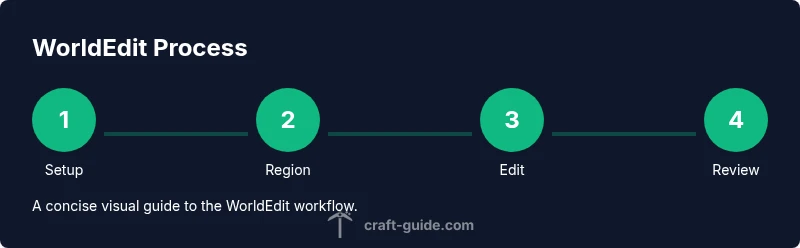
World Edit for Minecraft: The Ultimate How-To Guide
Master world edit for minecraft with a practical, step-by-step approach. Learn installation, core commands, brushes, safety practices, and server considerations to speed up large builds while preserving your world.


This guide will show you how to install World Edit, make precise selections, and perform bulk edits in Minecraft. You’ll learn essential commands, brushes, and safety steps to speed up builds while preserving your world. No prior scripting required—just follow the steps and practice in a safe world. Expect quick wins with region selection and pattern repeats.
What World Edit for Minecraft is and why builders use it
World edit for minecraft is a powerful, in-game editing toolkit that dramatically speeds up construction and terrain shaping. It lets you select regions, replace blocks, and apply patterns with simple commands, turning hours of manual block placement into minutes. Whether you're building sprawling cities or precise terrain, WorldEdit scales with your ambitions. According to Craft Guide, mastering core edits early pays dividends as your projects grow. This section sets the stage for practical editing workflows that apply to both creative and survival-minded maps.
Installation and setup
To use world edit for minecraft effectively, you need the right installer and a compatible mod loader. Most players run WorldEdit as a mod on Forge or Fabric, or as a plugin on servers. Start by confirming your Minecraft version and selecting a loader that matches both the game and the WorldEdit build. Download WorldEdit from official sources, then follow the loader-specific installation steps. After installation, launch a test world to verify the mod loads correctly and the basic commands respond as expected. Remember Craft Guide's emphasis on starting simple and validating changes in a safe environment before scaling up edits.
Basic commands and region selections
The core workflow in WorldEdit begins with selecting a region. Use //pos1 and //pos2 to mark opposite corners, or rely on your in-game coordinates for precision. Once a region is defined, common edits include //set to fill with a block, //replace to swap blocks, and //copy///paste to duplicate builds. Practice with a simple cube in a test world: select the cube, run //set stone, then undo with //undo if you want to revert. Remember to save your progress frequently when working on large projects. This foundational knowledge is essential for more advanced edits in world edit for minecraft.
Working with brushes and patterns
Brushes let you sculpt terrain or apply textures in large swaths. Create a brush with //brush set, choose a shape like sphere or cylinder, and pick a block type. Then apply it with //surface or //brush. Patterns enable repeating structures, such as trees or walls, using //pattern and related selectors. Practical brush workflows include shaping hills, creating cliffs, and adding moss layers on a growing map. When used carefully, brushes can dramatically accelerate the visual refinement of a build without sacrificing control.
Copying, cloning, and symmetry tricks
Clone operations enable you to duplicate complex structures across your world edit for minecraft projects. Use //copy to copy the current selection, //paste to place it elsewhere, and //mirror to create symmetry. For more refined results, combine with //rotate, //flip, and coordinate-based offsets to align sections precisely. This section shows how to bucket edits: copy a village, paste it on a hillside, and adjust rotation to fit the terrain while maintaining scale and proportion. Mastery of cloning reduces repetition and improves consistency across large builds.
Safety, backups, and rollback
Always back up your world before performing large edits. World Edit provides //undo and //redo, but server backups are your second line of defense. Enable save-ticks, create periodic snapshots, and test edits in a duplicate world or a local server. If something goes wrong, revert to the backup and re-run the operation with adjusted region selections. This caution is essential in world edit for minecraft, where a single mis-click can affect thousands of blocks.
Performance considerations and troubleshooting
World edit for minecraft can tax memory and CPU, especially on large edits. Prefer smaller, modular operations and avoid sweeping overhauls in a single pass. If edits lag or chunk loading stalls, reduce brush size, split large selections, and monitor server performance metrics. For servers, consider allocating more RAM and optimizing chunk loading settings. When problems arise, use a test world to isolate variables before applying changes to your main map.
WorldEdit in servers vs. single-player play
On a server, permissions and plugin configurations shape how you can edit terrain. Always confirm admin approvals, respect world guards, and document edits for team workflows. In single-player or local setups, you have full control, but you should still practice cautious editing in a backup world. The key difference is governance: servers require consent and logs; solo projects reward speed through experimentation and iteration.
Advanced workflows for large builds
For massive builds, plan edits in stages: foundational terrain, mid-build structures, and final surface detailing. Use a combination of //set, //replace, and brush-based edits to shape biomes, roads, and architectural features. Store repeatable patterns as presets or schematic files to reuse across maps. This strategy keeps performance under control while delivering consistent, scalable results across all your world edit for minecraft projects.
Next steps and practice projects
Start with a small plaza and work outward, applying region selections, basic sets, and a few brushes. Create a mini-biome and experiment with color palettes using block variants to learn how textures respond to edits. As you grow more confident, attempt a full park, then a modular city block. Practicing these steps reinforces your understanding of WorldEdit's capabilities and expands your builder toolkit.
Tools & Materials
- Minecraft Java Edition (latest stable release)(Ensure the version matches your WorldEdit build and loader (Forge/Fabric).)
- Forge or Fabric mod loader(Pick the loader compatible with both Minecraft version and WorldEdit build.)
- WorldEdit mod or plugin(Download from official sources; server installs may require a plugin.)
- Backup tool or world snapshot(Backup before large edits; store copies in a separate folder.)
- Test world or local server(Use a disposable world to practice commands without risking your main map.)
- Optional: schematic editor or viewer(Helpful for exporting/importing complex pieces.)
Steps
Estimated time: 60-120 minutes
- 1
Create a safe backup
Before touching any terrain, create a complete backup of your world in a separate directory. This protects you from irreversible mistakes during complex edits.
Tip: Keep multiple restore points for different project milestones. - 2
Install WorldEdit and loader
Install the WorldEdit mod or plugin compatible with your chosen Forge or Fabric loader. Launch a test world to confirm the setup loads without errors.
Tip: Verify the WorldEdit command helper appears in chat to confirm readiness. - 3
Test a tiny region
In a test world, mark two corners with //pos1 and //pos2, then run //set stone to fill the region. This confirms basic editing functionality.
Tip: Use a small region first to avoid unintended large changes. - 4
Select and set a region
Select a larger area and try //set dirt, followed by //surface to reset top layers. Observe how blocks replace and reveal terrain beneath.
Tip: If the region is wrong, immediately use //undo to revert to the prior state. - 5
Copy, paste, and rotate
Copy a building with //copy, move to a new location, and paste with //paste. Use //rotate to align orientation for varied layouts.
Tip: Test rotations on a small example before applying to a full structure. - 6
Apply a brush on terrain
Create a brush with //brush set and apply a shape (sphere, cylinder) to add hills or decorative features. Adjust radius to control scope.
Tip: Start with a radius of 3-5 blocks to keep edits manageable. - 7
Use masks and //replace
Experiment with masks to target only specific blocks, then use //replace to swap materials without disturbing the rest of the map.
Tip: Mask commands require precise block targeting; double-check your region first. - 8
Undo, then refine
After each major change, use //undo to revert if needed or //redo for forward progress. Refine edits iteratively.
Tip: Document each step for easier backtracking. - 9
Export and document
When the build reaches a milestone, export key structures as schematics if supported, and log edits for future reference.
Tip: Keep a changelog of edits to streamline collaboration. - 10
Review and backup again
Do a final review in a test world, then create a fresh backup before applying changes to the main map.
Tip: Always plan a rollback path before major edits.
People Also Ask
What is WorldEdit and what can it do for Minecraft builds?
WorldEdit is a powerful editing tool that lets you perform bulk changes to terrain and structures. It supports region selection, block replacements, copies, pastes, and brushes, making large builds faster and more precise.
WorldEdit is a powerful builder tool that speeds up terrain and structure edits, with region selection, replacements, and brushes.
Which Minecraft version and loader do I need for WorldEdit?
Choose a WorldEdit build compatible with your Minecraft version and a loader such as Forge or Fabric (for mods) or a corresponding server plugin. Always check official sources for compatibility notes.
Pick a WorldEdit version that matches your Minecraft and a loader like Forge or Fabric; check compatibility before installing.
Do I need a server to use WorldEdit?
WorldEdit can run as a mod on client-side or as a plugin on servers. For servers, ensure you have the right permissions and that the plugin is active.
WorldEdit can run on a server or in single-player with the right mod setup. Ensure you have permissions on servers.
How do I undo edits in WorldEdit?
Use the //undo command to revert the last change and //redo to reapply. For large sequences, keep frequent save points.
Use //undo to revert, and //redo to reapply. Save points help manage big sequences.
Are there safety considerations with WorldEdit?
Yes. Work in test environments, back up often, and apply changes incrementally. Large edits can impact performance and stability.
Yes—back up, test in a copy world, and edit in small steps to avoid issues.
Can WorldEdit be used for creative builds only?
WorldEdit supports both creative and survival contexts, but server permissions and world rules govern usage in survival modes.
It works in both modes, but server rules determine what you can edit in survival.
What are common pitfalls when starting with WorldEdit?
Invalid region selections, forgetting backups, and large edits without testing. Start small and gradually build up complexity.
Common pitfalls are wrong regions and skipping backups; start small and test often.
Watch Video
The Essentials
- Master region selection with //pos1 and //pos2.
- Use //undo and //redo to back out mistakes.
- Back up your world before large edits.
- Brushes speed up edits for complex builds.
- Practice in a safe test world before live projects.