How to Use Minecraft Schematics: A Practical Guide
Learn how to use Minecraft schematics to speed up builds, experiment with designs, and integrate ready-made structures into your world. This guide covers schematic basics, formats, importing methods, alignment, troubleshooting, and best practices for builders of all levels.


Learn how to use Minecraft schematics to speed up builds, explore world designs, and import ready-made structures. This quick guide covers what a schematic is, where to find them, how to load them into your world, and best practices for alignment, scale, and redstone compatibility. It prepares you for a smooth import process, whether you’re building a village, a fortress, or a fantasy temple.
What are Minecraft schematics and why use them?
According to Craft Guide, a schematic is a saved blueprint of a structure that you can paste into your world. Schematics let you reproduce complex builds quickly, experiment with layout ideas, and share designs with friends without rebuilding from scratch. This approach fits builders who want consistent scale and precision while still allowing for creative iteration. When used well, schematics become a powerful accelerator for large projects, from village layouts to castle complexes. The key is to understand the file format, the import workflow, and how to adapt a design to your terrain. As you practice, you’ll learn which types of builds benefit most from schematics and how to integrate them into your existing world without breaking performance.
- Schematic basics: a data file that records block types and their positions relative to an origin.
- Benefits: faster builds, easy sharing, and consistent scale across multiple projects.
- Cautions: ensure compatibility with your edition and backup your world before importing.
Editions and formats: Java vs Bedrock
Minecraft schematics come in various formats, and compatibility varies by edition and tool. Java Edition users typically enjoy broader support from tools like WorldEdit or Amulet, and they can import a wider range of schematic formats. Bedrock Edition often requires conversion steps or specialized add-ons, which can introduce edge cases or rotation quirks. Before starting, confirm the schematic format (.schematic, .litematic, or other variants) and verify that your importer/toolchain supports both the format and your game edition. If you’re unsure, test with a small micro-schematic first to learn how rotation, mirroring, and scale behave in your environment.
- Java Edition offers stronger tool support for importing schematics.
- Bedrock Edition may require format conversion or specific add-ons.
- Rotation and origin alignment can differ between tools; plan orientation ahead.
Finding reliable schematics
Reliable schematic sources save you time and reduce risk. Start with community repositories that host user-tested files and provide information about block usage and scale. Always scan for odd block choices, mismatches with your version, or missing data. If a schematic seems too new or too large for your device, look for older, well-documented designs with reputable community reviews. Craft Guide also notes that evaluating a schematic’s origin, licensing, and compatibility before download helps you avoid common pitfalls. When possible, download a small sample to preview how it loads in your editor before investing in a full build.
- Prefer sources with clear metadata: version, scale, origin, and license.
- Check for reviews or user comments to gauge reliability.
- Always preview or test a portion of the schematic before full import.
Tools you'll need to import schematics
To use schematics effectively, you’ll need a combination of file formats, editors, and in-game tools. Java Edition builders commonly rely on WorldEdit, MCEdit, or Amulet to load, rotate, and paste schematics. Some modern tools offer cross-version support, which is helpful if you experiment with multiple editions. You’ll also want a compatible Minecraft launcher, a stable backup strategy, and a plan for how you’ll place the schematic in your world. If you’re new to importing, start with a simple house or small structure to learn the interface, commands, and rotation controls before tackling larger builds.
- Import tools: WorldEdit, Amulet, MCEdit (depending on edition).
- Edition compatibility matters: Java usually offers broader tooling.
- Backups are essential to recover from misplacements or crashes.
Preparing your world and backups
Before you import a schematic, prepare a clean workspace to prevent collisions with existing terrain. Create a fresh chunk region or clear the intended footprint to avoid unexpected block interactions. Back up your save file so you can revert if something goes wrong during the paste operation. It’s also wise to note the terrain height at the placement site and plan for any required terraforming around the import. A clear plan reduces surprises and keeps your project on track as you proceed through the steps.
- Create a dedicated footprint area for the schematic.
- Always back up the world before importing.
- Check terrain height and adjust as needed to fit the design.
Loading and placing a schematic: the core workflow
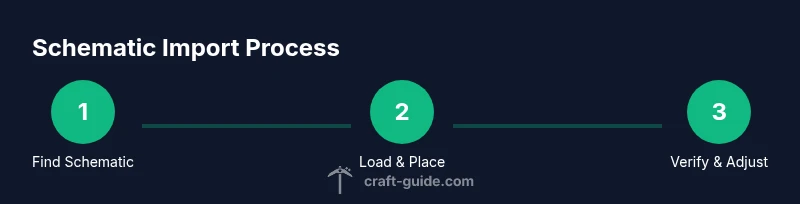
The actual import flow varies by tool, but the general steps are similar. Open your editor or in-game tool, load the schematic file, pick a paste origin, and choose a rotation that matches your intended orientation. Paste the structure into the world and pause to verify the initial block placements align with your planned footprint. If something looks off, undo or reset the paste and adjust the origin, rotation, or scale before trying again. Running a test paste on a copy of your world saves you from permanent mistakes.
- Load the schematic into the editor.
- Choose a precise paste origin and rotation.
- Verify alignment before finalizing the paste.
Aligning, rotating, and scaling for accuracy
Accurate alignment is essential to ensure that the schematic sits correctly on the terrain and matches your design intent. Rotating a schematic can affect block placement symmetry, so test a few orientations on a small scale first. Scaling is only available on certain formats or editors; if scaling isn’t supported, you may need to re-import with a different size or use a combination of separately placed blocks to approximate the desired footprint. Always re-check alignments after scaling or rotation changes and adjust terrain as needed to preserve natural flow.
- Test multiple orientations to find the best fit.
- Verify that scale matches the real-world dimensions you expect.
- Rebuild surrounding terrain if necessary for a clean integration.
Troubleshooting common problems
Schematic imports can fail for several reasons: incompatible formats, version mismatches, or insufficient permissions in your editor. If you see missing blocks or gaps, confirm the schematic’s block data and ensure the target world has the same block IDs. If lighting or redstone areas behave oddly, consider removing certain blocks and re-importing the affected section. Keep a changelog of tweaks you make during the import to track what adjustments were necessary for a successful paste.
- Check block compatibility and version support.
- Verify origin and rotation before pasting.
- Document changes for future reference.
Best practices for schematic use in builds
To maximize the benefits of schematics, treat them as modular components you can reuse across projects. Break large designs into smaller schematics to minimize potential crashes and make testing easier. Maintain a consistent scale across your builds so that imported structures blend with existing terrain. Share your methods with the community, cite sources, and always credit creators when allowed. Craft Guide emphasizes thoughtful integration, planning, and iterative testing as keys to success.
- Modularize large designs into smaller parts.
- Keep consistent scale and alignment across projects.
- Credit and share responsibly, following licensing terms.
Showcasing and sharing your schematic builds
Once you’ve successfully imported and tested a schematic, showcase the result in your world and consider sharing the file with friends or the community. Document placement notes, rotation, and any terrain adjustments you made so others can reproduce or adapt your design. When sharing, include a brief description of the schematic’s origin, the edition and toolchain used, and any caveats for users attempting to replicate the build. This transparency helps others learn and encourages collaboration within the community.
- Provide placement notes and version details.
- Include a short tutorial for onboarding new users.
- Respect licensing and attribution rules when sharing files.
Safety, backups, and performance considerations
Importing large schematics can strain your computer or server, especially on lower-end hardware. Always back up first, and consider splitting very large builds into smaller components to reduce memory usage during the paste. Monitor RAM usage and use a test world for initial imports to prevent crashes in your main world. If you notice lag after pasting, you may need to optimize chunk loading settings or limit concurrent world operations. Planning and staged testing are your best defense against performance problems.
Next steps and learning resources
With the basics covered, you can deepen your skills by experimenting with more complex schematics, trying different editors, and learning how to convert between formats. Practice on smaller projects to build confidence before tackling multi-building complexes. Explore community tutorials, participate in collaborative builds, and keep an ongoing backlog of schematics you want to test. Craft Guide’s ongoing guides and community threads are excellent resources for staying current with tool updates and best practices.
Tools & Materials
- Schematic file (.schematic, .schem, or .litematic)(Choose the format supported by your importer and editor)
- Import tool or mod (WorldEdit, Amulet, MCEdit)(Ensure compatibility with your Minecraft edition)
- Minecraft game version(Java Edition is usually best for tooling; Bedrock support varies)
- Target world backup(Always back up before importing to recover from mistakes)
- Rotation/placement plan(Having a plan helps avoid misalignment)
- Performance considerations (RAM/CPU)(Large schematics can impact performance; plan accordingly)
Steps
Estimated time: 60-120 minutes
- 1
Find and download a schematic
Locate a schematic that matches your edition and desired size. Check metadata for version compatibility and licensing. Download a small sample first to verify loading behavior in your editor.
Tip: Start with a small, simple structure to learn the workflow. - 2
Verify compatibility and prerequisites
Confirm the schematic format is supported by your toolchain and that your game version is compatible. Install or enable the required import tool if needed. Run a quick test in a sandbox world.
Tip: Read tool documentation for supported commands and rotation options. - 3
Prepare the target area
Clear space where the schematic will paste. Mark grid coordinates for accuracy and note terrain height. Create a clean baseline so there are no obstructions during paste.
Tip: Use a temporary marker block to outline the footprint. - 4
Load the schematic into the editor
Open your importer, browse to the schematic file, and load it into the workspace. Inspect the block data to ensure there are no unintended blocks imported. Confirm the origin point for paste alignment.
Tip: If possible, save a snapshot of the pre-paste world for reference. - 5
Choose the paste origin and rotation
Select the origin where the schematic will paste in the world. Rotate to align with nearby roads, rivers, or existing builds. Consistency in orientation helps the final result feel intentional.
Tip: Test a 90-degree rotation in a small test area before committing. - 6
Paste the schematic
Execute the paste operation and monitor for errors. Pause to inspect the first several rows of blocks to ensure alignment is correct. If something is off, undo the paste and adjust origin or rotation.
Tip: Paste in segments if the editor supports it to minimize risk. - 7
Validate structure integrity
Walk around the new build, check lighting, floors, and ceilings, and verify that interior cells align with your design intent. Ensure there are no block gaps or misplaced blocks causing structural issues.
Tip: Use a quick in-world inspection with a 3D view if your tool allows. - 8
Adjust surroundings to blend with terrain
Terraform the footprint edges to blend the schematic with the landscape. Add pathways, landscaping, or terrain features to integrate the new structure naturally.
Tip: Avoid abrupt elevation changes that clash with the schematic’s scale. - 9
Test functionality (if applicable)
If the schematic contains functional blocks (doors, traps, redstone), test them to ensure they work after paste. Re-run tests after any post-paste edits.
Tip: Document any wiring or mechanism changes for future reference. - 10
Save and back up again
After verifying the paste, save the world state and create a fresh backup. Keeping multiple restore points helps you revert if future edits cause issues.
Tip: Store backups in a separate location from your active world file. - 11
Share your schematic setup (optional)
If licensing allows, prepare a description and attribution note for others who may reuse your schematic. Package the files neatly and include placement notes.
Tip: Include a short walkthrough to help others succeed with your build. - 12
Iterate with feedback
Seek feedback from the community, refine the placement, and experiment with variations. Use constructive input to improve future schematic imports.
Tip: Treat each import as a learning step to shorten future setup times.
People Also Ask
What is a Minecraft schematic and what does it do?
A schematic is a saved blueprint of a structure that you can paste into your world. It helps you reproduce complex builds quickly, test layouts, and share designs with others. Always verify compatibility with your edition and tool before importing.
A schematic is a saved blueprint you paste into your world to speed up builds; make sure your tool and edition support it before importing.
Can I use schematics in Bedrock Edition?
Bedrock Edition supports schematics only through specific tools or conversions. Java Edition generally has broader tool support. Always check compatibility for your exact version and editor before attempting an import.
Bedrock can use schematics with certain tools or conversions; Java usually has more options.
Where should I download schematics from?
Download from reputable repositories with clear metadata and licensing. Preview and test a small sample in a safe environment to ensure the schematic loads correctly and matches your edition.
Get schematics from trusted sources, preview before a full import.
Do large schematics impact performance?
Large schematics can affect performance on weaker devices. Plan by testing in chunks, keeping backups, and avoiding simultaneous heavy-load tasks during the import.
Yes, large schematics can cause lag; test and backup first.
What is the best tool for importing schematics in Java Edition?
WorldEdit and Amulet are popular choices for Java Edition. They allow loading, rotating, and pasting schematics with relative precision. Check compatibility with your Minecraft version before installing.
WorldEdit or Amulet are common Java tools for schematics.
How do I align a schematic with the terrain?
Set a precise paste origin, choose the correct rotation, and verify the footprint against surrounding terrain. If misaligned, undo the paste and adjust origin or rotation before re-trying.
Place origin carefully, rotate to align, and verify footprint.
Should I preserve original schemas or modify them?
You can preserve the original design for reuse and adaptation, but be mindful of licensing. When allowed, customize blocks and layouts to fit your world’s scale and style.
You can reuse schematics but respect licenses and adapt to your world.
What is the recommended workflow for beginners?
Start with a small schematic, verify format compatibility, backup your world, and paste in a test area. Gradually tackle larger builds as you gain confidence with rotation, origin, and alignment.
Begin with a small test schematic, backup, and learn the controls.
Watch Video
The Essentials
- Understand what a schematic is and why it helps.
- Check edition compatibility and tool support before importing.
- Back up your world and test in a safe footprint.
- Align, rotate, and adjust as needed for a seamless integration.
- Document changes and learn from each import.