Why is My Minecraft Realm Not Loading? Urgent Troubleshooting Guide
Urgent guide to fix why is my minecraft realm not loading. Step-by-step checks, diagnostic flow, and safe fixes for connectivity, version mismatches, and server issues.


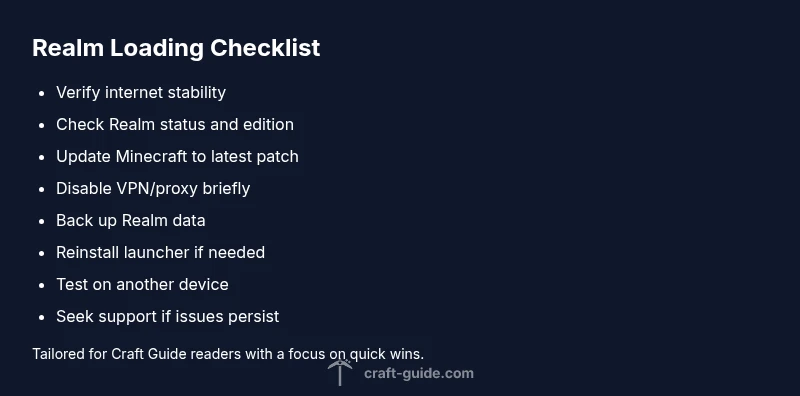
The most likely reason your minecraft realm not loading is a combination of connectivity issues and version mismatches, followed by server-side hiccups or corrupted realm data. Start with quick checks: verify your internet connection, confirm the Realm status is online, and restart the Minecraft launcher. Make sure you’re signed in to the correct account. If this doesn't fix it, follow the step-by-step guide below.
Why Realm Loading Fails: The Big Picture
Realms are a live, always-on multiplayer service, and many things can interrupt loading. According to Craft Guide, most problems stem from connectivity, version drift, or server-side hiccups. If you’ve ever asked why is my minecraft realm not loading, you’re not alone. The typical failure pattern includes a timeout at startup, a blank screen after selecting the realm, or a crash when the world begins to load. Before diving into fixes, it helps to map the likely culprits into two broad categories: client-side issues you can control, and server-side or account problems you cannot. On the client side, your game or launcher might be outdated, your cache cluttered, or your login tokens a bit stiff. On the server side, Realms may be undergoing maintenance, experiencing high load, or temporarily inaccessible from your region. The Craft Guide team has found that starting with simple checks yields the fastest path to resolution, and prevents unnecessary steps. Keep in mind that even small network hiccups can cascade into Realm loading failures, especially if you’re playing through a shared connection or VPN. Stay methodical, and you’ll often recover access without data loss.
Quick Checks You Can Do Right Now
These are the fastest things you can verify without changing any settings. First, confirm your internet connection is stable: run a quick speed test and try loading another online service to see if it lags. Check the official Realm status on Mojang’s site or the Community updates to confirm there is no outage. Next, sign out of Minecraft and sign back in to refresh your authentication tokens. Make sure you’re launching the correct edition (Java or Bedrock) and that your account has access to the Realm. If you’re using a VPN or firewall, temporarily disable them to rule out blocking. Finally, restart the Minecraft launcher and, if necessary, reboot your router. If the realm still won’t load, proceed to the deeper checks below.
Check Your Internet and Network Routing
Realm traffic should flow smoothly, but routers, NAT, or ISP throttling can disrupt it. Test with a wired connection if possible to minimize wireless interference. Disable VPNs and proxies during testing, and ensure your firewall allows Minecraft traffic. You can also perform a traceroute to your region's server to identify where delays occur. If you see repeated timeouts at the first hop, the issue is likely your local network; contact your ISP for guidance. If routes look healthy but the problem persists, the fault may be broader.
Validate Game Version and Realm Settings
Realms require consistent game versions. Make sure your Minecraft launcher is up to date, and that you’re using the same edition and patch as the Realm owner. Bedrock and Java Realms are not cross-compatible, so double-check you’re not mixing editions. If a Realm was recently updated, give it a moment and then relaunch the game. Finally, verify access rights on the Realm (that you’re still invited and not removed) because permission changes can appear as a loading failure.
Client-Side Troubleshooting and Data Safety
To protect your data and ensure a clean state, back up your Realm by exporting to a local world if possible, or duplicating the Realm to a separate test Realm. Then clear the launcher cache, reset profile data, and perform a clean reinstall of Minecraft. Avoid installing new mods or resource packs during this process as they can interfere with loading. After reinstall, sign back in and try again. This keeps you from fighting stubborn glitches with outdated files.
Diagnostic Flow: Practical Symptom-to-Diagnosis Path
Use a simple symptom-to-diagnosis framework to narrow down the root cause quickly. If the symptom is a hard failure at startup with no Realm listed, focus on client installation and account authentication. If the Realm loads but does not progress to the world, check server status and potential data issues. If you notice frequent timeouts across other online services, the problem is likely network-based. Persisting symptoms after those checks point to server-side issues on the Realm side or data integrity concerns.
Recovery Playbook: When All Else Fails and Prevention
If fixes fail after following the steps above, export or duplicate your Realm world for a test run, then contact official support with a summary of your steps, the exact version you’re running, and any error messages. Keep a backup archive of your Realm data in a safe location. For prevention, schedule regular backups, monitor server-status feeds, and maintain consistent game versions across your devices. Craft Guide recommends documenting your troubleshooting notes to speed up any future recoveries.
Real-World Scenarios: Quick Debug Examples
Scenario A: A regional outage affects Realm loading; status pages show maintenance. In this case, waiting is often the best fix. Scenario B: You’re on a newer client than the Realm supports; updating or downgrading to the Realm's patch resolves it. Scenario C: VPN or firewall blocks traffic; disable them briefly to confirm. Scenario D: Data corruption on the server; exporting a backup or restoring an earlier save can recover access. These examples illustrate common patterns and practical responses.
Steps
Estimated time: 20-45 minutes
- 1
Verify Realm status and network
Open a browser and check Mojang’s Realm status page or official outage feeds. Run a quick network test and try loading another online service to gauge stability. If there’s a live outage, plan to retry after it clears.
Tip: A green status indicator on the official page usually means the issue is not on your end. - 2
Refresh login and launcher state
Sign out of Minecraft, quit the launcher completely, and sign back in. Restart the launcher and attempt to load the Realm again. Ensure you’re using the correct edition and that your account has access.
Tip: Close all Minecraft processes before re-signing in to avoid token conflicts. - 3
Align version with Realm
Check the Realm’s required patch version and update or downgrade your client to match. Restart the game after switching versions and try loading the Realm once more.
Tip: If you’re unsure which patch is required, ask the Realm owner for the exact version string. - 4
Test with a clean network setup
Disconnect VPNs/proxies, disable aggressive firewalls temporarily, and retry. If possible, test on a different network or device to rule out local network issues.
Tip: Avoid leaving VPNs off for long; only test briefly to verify the cause. - 5
Backup and attempt server-side recovery
If you can, export the Realm’s world or duplicate the Realm to a test Realm. This preserves your data as you attempt resets or reconfigurations.
Tip: Backing up before major changes is essential to prevent data loss. - 6
Reinstall Minecraft if necessary
Uninstall the launcher and reinstall a fresh copy. Clear any local caches before re-signing in and retry loading the Realm.
Tip: Keep your account credentials handy; you may need to re-authenticate after reinstall.
Diagnosis: Realm won't load or times out at startup
Possible Causes
- highRealm server outage or maintenance
- highVersion mismatch between the Minecraft client and Realm
- highNetwork or firewall blocking Realm connections
- mediumCorrupted realm data or world on the server
- lowAccount authentication issues
Fixes
- easyCheck official Realm status and regional outage reports
- easySign out/in and restart the launcher to refresh tokens
- easyUpdate or align game version with Realm requirements
- easyDisable VPN/proxy and adjust firewall rules for Realm traffic
- mediumIf data may be corrupted, export/duplicate or contact support
- hardIf nothing works, consider recreating the Realm or escalate to support
People Also Ask
What is the first thing I should check when my Minecraft Realm won't load?
Start with the Realm status and your internet connection. Confirm you’re on the correct edition and that your login is valid before proceeding with deeper fixes.
First check the Realm status and your internet connection, and verify your edition and login.
Can a VPN cause Realm loading issues?
Yes. A VPN or proxy can block Realm traffic or introduce latency. Disable it temporarily to test if the Realm loads normally.
Yes, try disabling your VPN to see if Realm loads.
Is Realm data corruption possible and how can I tell?
Data corruption can cause load failures. Look for consistent symptoms across devices and use backups or exports to verify data integrity.
Data corruption is possible; check backups and contact support.
How do I check Realm status?
Use Mojang’s official status page and community dashboards to confirm whether Realm services are operational in your region.
Use the official status page to check Realm health.
Does Realms support cross-edition loading?
Realms are edition-specific. A Java Realm won’t work with Bedrock, and vice versa. Ensure you’re using the matching edition.
Realms are edition-specific; Java and Bedrock Realms don't mix.
When should I contact Craft Guide or Mojang support?
If fixes fail after trying the recommended steps for more than a day, escalate to official support with details of your attempts.
If fixes fail for more than a day, contact support.
Watch Video
The Essentials
- Start with connection and status checks
- Verify game version compatibility with the Realm
- Back up data before fixes
- Follow the diagnostic steps in order
- Seek official support if issues persist