How to Remove Minecraft Education Agent: Safe Admin Guide
Learn safe, admin-approved methods to remove or disable the Minecraft Education Agent on your device. This Craft Guide tutorial covers prerequisites, ethical considerations, and step-by-step uninstall or disable procedures for Windows and macOS.


This guide explains how to remove or disable the Minecraft Education Agent on devices you own or administer. You’ll learn prerequisites, safe, compliant uninstall methods, and alternative options like temporary disabling. Follow the detailed steps for Windows and macOS, with emphasis on backing up data and coordinating with your school or IT administrator.
Why the Minecraft Education Agent removal might be necessary
According to Craft Guide, many device admins encounter the Minecraft Education Agent as a preinstalled or school-managed component. In some cases, schools repurpose devices for general-use gaming or other software suites, and removing the agent can free system resources and reduce policy conflicts. This section explains common scenarios where removal or temporary disabling is appropriate, such as end-of-term device handovers, reorganizing classroom tech, or shifting to a non-Education Edition workflow. You’ll also learn about the potential risks and how to mitigate them by planning, backing up data, and coordinating with your IT department. Craft Guide’s analyses emphasize that removal should be done with proper authorization and documented procedures. If you’re unsure about your rights to modify school-owned devices, consult the school administrator or the Craft Guide Team for guidance.
What is the Minecraft Education Agent and what does it do?
The Minecraft Education Agent is a background component associated with Minecraft Education Edition that helps authenticate, manage licenses, and ensure compliance with school policies. In classroom environments it may monitor certain app behaviors or enforce educator-configured settings. While this agent can be helpful in a controlled setting, it may be unnecessary on devices used for personal projects or non-educational purposes. Understanding its role helps you decide whether removal, temporary disablement, or policy changes are the best option. Craft Guide recommends assessing both functionality and policy before proceeding.
Legal, ethical, and policy considerations
Removing or disabling software on school-owned devices typically requires explicit authorization from the school or district IT department. Failing to obtain consent can violate school policies or licensing agreements. Always document your actions, create a restore point, and ensure that removing the agent won’t disrupt other software or student data. If you’re a student or parent, seek permission from school staff before attempting any changes. The Craft Guide Team notes that responsible admin actions protect both the user and the institution, maintaining trust and compliance with local laws.
Safe alternatives to full removal
If the Education Agent is not causing harm but you want fewer background processes, consider disablement options or policy-based controls first. Techniques include toggling the agent’s startup type, restricting network access, or applying group policies to limit its activity without uninstalling core game components. Such approaches preserve the potential for re-enabling if needed and reduce the risk of unintentionally breaking other Minecraft Education Edition features. Always test changes on a single device before broad deployment.
What you can and cannot remove on typical systems
On many managed devices, key components may be tied to licenses and school policies. You may be able to remove the Education Agent if you are the device owner or an authorized administrator, but removing system-managed software without permission can have consequences. If removal isn’t allowed, you can still pursue safe alternatives like disabling the agent, adjusting startup options, or using parental controls for a classroom-agnostic experience. Craft Guide stresses cautious, policy-aligned decision-making to avoid voided warranties or licensing issues.
Tools & Materials
- Administrative access on the target computer(You must be an admin to uninstall or alter system services.)
- Official Minecraft Education Edition uninstaller or installer pack (if provided by the vendor)(Use only official tools from the vendor or school.)
- Backup solution (external drive or cloud backup)(Back up user data and game saves before changes.)
- Access to the device’s operating system settings (Windows or macOS)(Use standard uninstall paths or system preferences.)
- Network/IT policy documentation(Have policy references on hand in case questions arise.)
- Restore point or system snapshot tool(Optional, but recommended for safety.)
Steps
Estimated time: 30-60 minutes
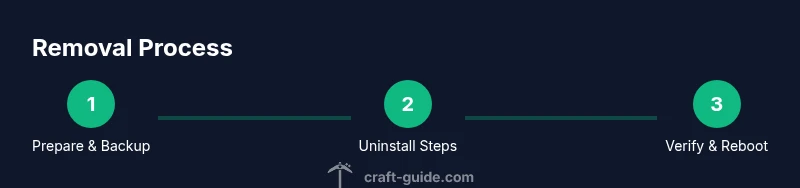
- 1
Confirm authorization and back up data
Confirm you have explicit authorization to modify the device. Create a comprehensive backup of game data, saves, and settings to an external drive or cloud storage. This protects user data if something goes wrong during removal.
Tip: Document the authorization and backup action for IT records. - 2
Close Minecraft Education Edition and related services
Exit the game and ensure all related services or background processes are stopped before uninstalling. This prevents files from being in use during removal.
Tip: Check the system tray or Task Manager for any running Education-related processes. - 3
Uninstall on Windows via Apps & Features
Open Settings > Apps > Apps & Features, locate Minecraft Education Agent or Education Edition components, select Uninstall, and follow prompts. If you’re prompted for an administrator password, enter it.
Tip: If the uninstaller fails, use the Control Panel’s Programs and Features as an alternative. - 4
Uninstall on macOS via Applications
Open the Applications folder, locate the Minecraft Education Agent or Minecraft Education Edition, and drag it to the Trash. Empty the Trash and restart the computer.
Tip: Some components may require terminal commands to remove residual files; proceed with caution. - 5
Remove residual files and folders
Search for residual files under common directories such as ProgramData (Windows) or Library/Application Support (macOS) and remove related folders. Do not delete unrelated data.
Tip: Use a trusted cleanup tool if unsure about file locations. - 6
Reboot and test core functionality
Restart the device and open Minecraft to verify that other apps function correctly and the Education Agent components are removed or disabled as intended.
Tip: Keep the backup handy in case you need to revert. - 7
Implement post-removal policy checks
Confirm that removal adheres to school policy. If needed, document the change in IT records and inform the requester of outcomes and any limitations.
Tip: Share a summary with the IT department for accountability. - 8
Consider safer alternatives if removal isn’t allowed
If removal isn’t permitted, implement disabling, scheduling, or policy changes to reduce impact while staying compliant.
Tip: Always monitor performance after applying alternatives.
People Also Ask
What is the Minecraft Education Agent and why might I want to remove it?
The Minecraft Education Agent is a background component tied to Education Edition for school management. Removal may be desired when devices are repurposed for non-educational use or to reclaim system resources, but you should have authorization from the school or IT department before proceeding.
The Minecraft Education Agent is a background component used for school management. You should only remove it with proper authorization from your school IT department.
Is it safe to remove the Education Agent from my device?
Removal can be safe if you own the device or have explicit permission from the administrator. Always back up data and follow approved procedures to avoid affecting other software or licensing.
Removal is safe only with proper permissions and a data backup. Follow approved steps to avoid issues.
How do I uninstall the Minecraft Education Agent on Windows 10/11?
Go to Settings, then Apps, find Minecraft Education Agent, and choose Uninstall. If the agent doesn’t appear, try the Programs and Features control panel. Restart afterward and verify other software still works.
On Windows, use Settings > Apps to uninstall, or use the Control Panel if needed. Restart and test.
How do I uninstall on macOS?
Open the Applications folder, drag Minecraft Education Agent to the Trash, then empty the Trash and reboot. Some residual files may require a manual search in Library folders.
On Mac, drag the app to Trash, empty it, and restart. Some leftover files might need manual removal.
What if removal isn’t allowed by school policy?
If removal isn’t allowed, ask to disable or pause the agent instead, or apply policy-based restrictions. Document the request and work with IT to find a compliant solution.
If removal isn’t allowed, request a disablement or policy tweak and document the change.
Will removing the agent affect other Minecraft features?
Removal can affect licensing checks and school-managed features. Expect some features to be restricted until an IT-approved configuration is restored.
You may lose some school-managed features until configuration is restored.
Are there safer alternatives to removal for the long term?
Yes. Consider temporary disablement, policy changes, or user-level restrictions that allow easy re-enablement without fully removing components.
Disable or adjust policies instead of removing to keep options open.
Where can I find official guidance for removal?
Consult school IT documentation, vendor support pages, and trusted craft guides like Craft Guide for best-practice steps and safety considerations.
Check IT docs and vendor guides for official steps and safety notes.
Watch Video
The Essentials
- Verify authorization before changing device software.
- Back up data and test changes on a single device first.
- Prefer disabling over removal when policy allows.
- Document actions for IT records and future audits.