How to Clear Minecraft Cache on Switch: Step-by-Step Guide
Learn how to clear Minecraft cache on Nintendo Switch with a safe, step-by-step method. This guide explains when to clear cache, what to expect, and how to avoid losing worlds in Bedrock Edition.


You will learn how to clear Minecraft cache on Switch to resolve loading issues, fix corrupted data, and refresh game assets. You’ll need a Nintendo Switch, the Minecraft Bedrock Edition, and a stable internet connection. This process avoids losing worlds by targeting cache folders instead of saves. Follow the steps carefully and restart your console if prompted. This guide will help.
Why Clearing Cache on Nintendo Switch is Helpful
Clearing the cache can resolve a range of issues that make Minecraft lag, crash, or fail to load textures. When you run Minecraft on the Nintendo Switch, the system stores temporary data that can become corrupted or outdated. How to clear minecraft cache on switch in practical terms means removing these temporary files without touching your worlds or settings. According to Craft Guide, this maintenance task often fixes startup delays and incorrect texture loads, especially after game updates. A cache-only refresh can also reclaim disk space and reduce occasional stuttering during world loading. If you frequently switch between worlds or versions, regular cache maintenance keeps assets fresh and helps the game detect changes more quickly. Keep in mind that you are not deleting your saved data; instead you are removing transient files that the game regenerates as you play.
Understanding Cache in Minecraft Bedrock on Switch
The cache stores temporary assets, textures, and metadata that help the game load quickly. In Bedrock Edition on Switch, this data can grow large over time, especially after patches or texture packs. A stale cache can cause mismatches where you see old textures or mismarked blocks. Clearing the cache forces the game to rebuild those assets from the server or local storage, which can fix alignment issues and reduce black screens. It does not alter your world saves or settings. If you download new resource packs or texture packs, a fresh cache helps those assets display correctly. For players who frequently join multiplayer servers, this operation can also resolve occasional desync-related loading problems. Remember: this is a targeted maintenance task, not a full data reset.
How Cache Affects Game Assets and Load Times
When the cache is healthy, assets load smoothly; when it’s corrupted, you may experience slow loading, missing textures, or occasional client crashes. The Switch’s hardware constraints mean that caching behavior is critical for performance. By clearing cache you force the system to fetch the latest assets from the game files or Nintendo's servers, which can restore visual correctness and loading speed. This is particularly helpful after updates to worlds or when you rotate between different resource packs. Many players notice a noticeable improvement in startup times after performing a cache refresh. Craft Guide notes that repeated app cache clearing should be periodic rather than daily, to avoid extra downloads.
Safe Methods: What Not to Delete
Never delete your saved worlds or user profiles when clearing cache. The goal is to remove temporary files, not permanent data. Avoid using any third-party tools or hacks that claim to clear cache beyond the built-in Nintendo options; such tools can corrupt your data or violate terms of service. If you see an option to clear data for the entire system, skip it unless you have a robust backup. Always double-check the selection: you want Minecraft’s cache, not the caches for other apps on the Switch. If you share a Nintendo account with family members, remind them that their game data may be affected by system-wide cache maintenance if you do a broad wipe.
Preparation and Backups: Protecting Your Worlds
Though the cache is separate from saves, it’s prudent to back up important worlds before maintenance. Consider exporting worlds to a USB drive or transferring them to the cloud if your Switch profile supports cloud saves via Nintendo Online. Ensure you have stable power; perform this operation while the console is docked and connected to power to prevent any interruptions. If you use mods or custom resource packs through third-party sources, note that those files aren’t caches and should be managed separately. After clearing cache, you may need to re-download small assets; ensure you have bandwidth to avoid long wait times. Craft Guide recommends clarifying your own backup workflow to reduce risk.
Step-by-Step Overview of the Cache-Clear Process
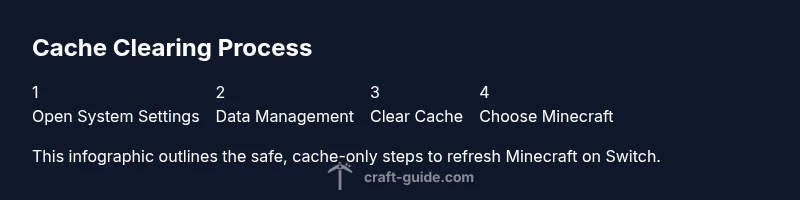
This section summarizes the concrete actions you’ll perform in the detailed steps below. The Nintendo Switch’s cache includes temporary data for Minecraft; clearing it is safe when done via the built-in system tools. You’ll need to navigate to System Settings, choose Data Management, select Clear Cache, and pick Minecraft. After the operation, relaunch Minecraft to verify assets load correctly and that you’re not seeing stale textures. Keep in mind that if you have downloaded texture packs, some assets might be re-downloaded, causing a short pause on first launch.
Common Pitfalls and Troubleshooting Tips
One common pitfall is accidentally selecting to delete saved data instead of cache. Always verify the target is Minecraft’s cache, not your worlds. If your console loses power during the operation, you may see longer reloads the next time you launch Minecraft due to temporary file re-generation. If problems persist after clearing cache, check for game updates or reinstall the title. Finally, ensure your Nintendo Online cloud saves are properly configured to prevent data loss from other maintenance tasks.
What Happens After Clearing Cache: Expected Results
Expect faster initial loads and more accurate textures as the game regenerates cache data. You might notice a brief pause as assets redownload, especially on first boot after clearing cache. User interfaces should respond normally, and texture pack changes should display correctly once assets finish refreshing. If you still encounter issues, a full reinstall or contacting support may be warranted, but cache clearing should have resolved most common problems.
Craft Guide Best Practices and Final Check
The Craft Guide team recommends including cache maintenance as part of routine Switch Minecraft upkeep. Schedule periodic cache clears after major updates or texture pack changes to keep performance steady. Before performing maintenance, ensure you have backups of critical worlds. After completing the steps, verify by loading a world and confirming textures and lighting render correctly. By following these practices, you’ll minimize downtime and keep your Minecraft Switch experience smooth.
Tools & Materials
- Nintendo Switch console(With Minecraft installed (Bedrock Edition))
- Minecraft game (Bedrock Edition) on Switch(Digital or cartridge version)
- Stable internet connection(To ensure updates and asset sync)
- Optional external display or TV(Helpful when docked for visibility)
- Backup option (USB drive or cloud saves)(To safeguard worlds before maintenance)
Steps
Estimated time: 15-25 minutes
- 1
Close Minecraft and exit to Home
From the game, exit to the Nintendo Switch home menu. Ensure the app isn’t running in the background so no cache data remains active.
Tip: Make sure the game is fully closed before proceeding. - 2
Open System Settings and navigate to Data Management
On the home screen, open System Settings, select Data Management, then choose Clear Cache. This action targets cached data stored by titles.
Tip: Clear Cache is non-destructive to your saves; it only removes temporary files. - 3
Select Minecraft from the list
In the Clear Cache menu, locate Minecraft (Bedrock Edition) and select it to clear its cache.
Tip: If Minecraft isn’t listed, continue to the next steps for a system-wide cache clear. - 4
Confirm and complete the cache clear
Confirm the prompt to clear the cache for Minecraft. Wait as the system processes the cache removal.
Tip: Keep the console powered on and avoid turning off during this operation. - 5
Restart Minecraft and check for issues
Reopen Minecraft to verify if the issue is resolved. If you still have problems, consider re-launching the game or the console.
Tip: If problems persist, you may need to perform a full data repair or reinstall, but consult support if unsure. - 6
Test a world or a recent session
Load a previously saved world or create a new one to confirm cache clearance impacted gameplay positively.
Tip: Ensure you’re connected to the internet to fetch any updated assets.
People Also Ask
Will clearing the cache delete my Minecraft worlds on Switch?
No. Clearing cache removes temporary files and corrupted data, not your saved worlds. Your worlds are stored separately from cache data.
No, clearing cache won't delete your Minecraft worlds; they are saved separately.
Do I need to update Minecraft after clearing cache?
Sometimes assets need refreshing after a cache clear, so check for game updates in the Nintendo eShop or within Minecraft.
You might see updates after clearing cache; check for updates just to be safe.
Will this affect achievements or progression?
Clearing cache should not affect achievements or progression since those are stored with your account and saves separately from cache.
Your achievements should remain intact; cache clears only delete temporary files.
Is clearing cache safe on the Nintendo Switch Lite?
Yes. The process is the same on Switch Lite as on a standard Switch. Ensure you have power or are charging.
Yes, it's safe on Switch Lite as well.
What if issues persist after clearing cache?
If problems continue, you may need to reinstall Minecraft or check for hardware issues. Contact support if unsure.
If issues persist after clearing cache, consider reinstalling or seeking support.
Watch Video
The Essentials
- Clear cache to fix load issues on Switch
- Cache clearing does not affect saves
- Use System Settings > Data Management > Clear Cache for Minecraft
- Reopen Minecraft to verify results
- If issues persist, reinstall or contact support