How to Check if Your Minecraft Account Is Banned
Learn how to check if your Minecraft account is banned, recognize ban messages, and use official support to resolve issues. This practical guide covers both Java and Bedrock editions with clear steps.


To check if your Minecraft account is banned, start with official profile notifications, then review server messages for server-specific bans. This quick guide points you toward the full step-by-step process to verify status, understand the source of the ban, and determine next steps. The guidance applies to Java and Bedrock editions.
Why bans happen and what they mean
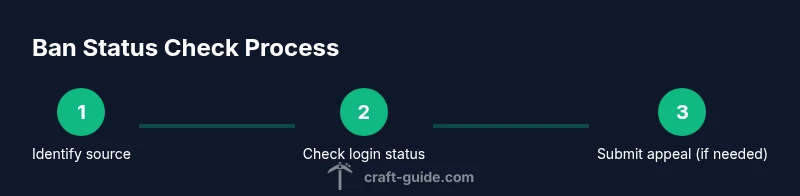
Understanding why bans occur helps you determine your next steps. If you’re trying to learn how to check if minecraft account is banned, start with the basics: bans can be issued by Mojang/Microsoft for violations of the EULA, or by individual servers for server rules violations. In single-player or private servers, admins may apply temporary suspensions or IP bans. A ban typically prevents login or restricts access to certain features, and messages may vary depending on the source. According to Craft Guide, knowing the origin of a ban makes it easier to decide whether to appeal, contact support, or adjust your playstyle to avoid future penalties. Keep in mind that login issues can resemble a ban but may be caused by password problems, account compromise, or regional outages. Distinguishing between these causes early saves time and prevents misinterpretation of the status.
Where bans come from: Mojang vs servers
Bans in Minecraft can originate from two broad sources: the official Mojang/Microsoft account bans and server-specific bans. A Mojang ban often affects all your login attempts across devices and editions, and it is tied to your Microsoft account. In contrast, a server ban is usually enforced by that server’s admins and applies only to that particular server or network. Some servers also use IP bans, which block access from a network rather than a single account. Understanding the source helps you decide the right appeal channel and whether you should contact Mojang support or the server admin. Craft Guide’s analysis shows that most players resolve misunderstandings by first confirming the ban’s scope before submitting appeals.
How to check your status in-game and on the web
To determine whether you’re actually banned, start with in-game messages and login attempts. If you’re blocked, you’ll often see a ban notice, an error message, or a notice that you cannot connect to the server. On Java Edition, try logging into the launcher and to the official Mojang account page; Bedrock Edition players can also check Microsoft account notifications. Then visit official support portals or status pages for your account. The goal is to distinguish a genuine ban from a password issue, a compromised account, or a regional outage. Craft Guide recommends gathering the exact error text, timestamps, and the server name when you seek help so support teams can verify the problem quickly.
Verifying with official accounts and support portals
If you suspect a ban, the safest path is to verify through official channels. Start at the Minecraft or Mojang account portals to review any enforcement actions tied to your login. If a server ban is involved, contact the server administrator with the exact ban reason and your account details. In some cases, you’ll receive a formal ban notice or a support ticket response that includes a case ID. Keep all correspondence organized: include your account email, purchase details, and any evidence of account ownership. Craft Guide emphasized the importance of using official channels to avoid scams or miscommunication. Remember: never share your password with anyone and be cautious of phishing attempts while seeking help.
What to do next: appeals, remedies, and prevention
If you confirm a ban and believe it was a mistake, submit a respectful appeal through the appropriate channel and include any supporting evidence. For Mojang/Microsoft bans, use the official appeal form and attach purchase receipts or transaction IDs when possible. For server bans, present your case to the server admins, showing willingness to comply with rules. If the ban is temporary, ask about the duration and any steps you can take to regain access. To prevent future issues, enable two-factor authentication, review server rules before joining, and maintain secure login information. Craft Guide’s practical advice is to document every interaction and follow up if you don’t receive a response within the stated timeframe.
Tools & Materials
- Stable internet connection(Wired Ethernet if possible; avoid public Wi‑Fi)
- Mojang/Microsoft account access(Have your username, email, and MFA ready)
- Evidence of ownership(Purchase receipts, transaction IDs, or purchase emails)
- Access to official portals(Have browser or launcher access to Mojang/Microsoft support pages)
- Server contact details(Know the server name and admin contact if you’re checking a server ban)
- Note-taking tool(Optional document to record messages and IDs)
Steps
Estimated time: 30-60 minutes
- 1
Gather core information
Collect your account username, the email on file, recent login attempts, error messages, timestamps, and any server names or IDs involved. Having this data ready prevents back-and-forth delays in appeals. If you suspect account compromise, note any unfamiliar activity.
Tip: Use a single document to store all IDs, messages, and receipts for quick reference. - 2
Check login messages and launcher status
Attempt to log in from the official launcher or website and record any error text exactly as shown. Take screenshots of the login screen and the error message. This helps distinguish a ban from a password issue or MFA problem.
Tip: Capture the exact error code or message string to speed up support review. - 3
Verify status on official portals
Visit the Mojang/Microsoft account dashboards and look for enforcement actions or notifications about your account. If you play on a specific server, also check that server’s own ban list or announcements. Keep the language neutral and document any case IDs.
Tip: Check both the Mojang account page and, if relevant, the Microsoft account security page for alerts. - 4
Review server ban indicators
If you were active on a particular server, reach out to the server admins with your account details and the exact ban notice you received. Ask for the specific rule violation cited and whether there is a potential appeal route on that server.
Tip: Include timestamps and a link to the server rules page if available. - 5
Prepare and submit an appeal with evidence
Draft a concise appeal: state what happened, provide evidence (receipts, screenshots), and show willingness to comply with rules. Submit through the correct channel—Mojang/Microsoft for global bans or the server admins for server bans.
Tip: Be courteous and factual; avoid emotional language to improve response quality. - 6
Follow up and secure your account
If you receive a response, read it carefully and reply with any requested information. While waiting, enable MFA, review security settings, and ensure recovery options are up to date to prevent future problems.
Tip: Set a reminder to check for responses after a week if you haven’t heard back.
People Also Ask
What does a ban message look like when I try to log in?
Ban notices typically display who issued the ban and the reason. On Mojang accounts, this may appear on the login screen or via email; on individual servers, the message appears when attempting to join. verify the origin to route your next steps.
A ban notice shows up during login or server join, indicating who banned you and why.
Can I appeal a Mojang ban?
Yes, Mojang bans can be appealed through the official form. Include purchase receipts or IDs if available, and provide a clear explanation. Responses can take time, so be patient and thorough.
Yes, use the official appeal form and attach any supporting evidence.
How long do bans last?
Ban duration varies by type and issuer. Some bans are temporary; others are permanent. Check the ban notice for any stated timeframe and request details if not listed.
Duration can vary; check the notice for specifics.
I think my account was hacked. What should I do?
Change your password immediately, secure your email, enable two-factor authentication, and contact support with evidence of unauthorized activity. Do not reuse old credentials on other sites.
Change password, secure your account, and contact support.
Is there a way to check ban status without logging in?
Yes. Some enforcement actions appear on official portals or status pages. For server bans, contact admins. If you can’t log in, use the help forms on Mojang or the server’s site.
Yes, through official portals or server admins.
Should I contact server admins before Mojang support?
If the ban is server-based, start with the server admins. For Mojang enforcement, use the official forms. Gather evidence and ask politely to improve your chances.
Start with the relevant authority depending on the ban type.
Watch Video
The Essentials
- Identify whether the ban is Mojang-wide or server-specific.
- Use official portals first to verify enforcement actions.
- Prepare a concise appeal with solid evidence.
- Differentiate between login issues and bans to avoid missteps.
- Security best practices reduce future ban risks.