Are My Minecraft Worlds Gone? Quick Recovery Guide
Are my minecraft worlds gone? This urgent troubleshooting guide helps you locate saves, restore backups, recover from Realms, and prevent future losses across Java and Bedrock editions.


Are my minecraft worlds gone? The most common causes are mislocated saves, a corrupted level.dat, or using the wrong installation/profile. Start with a quick check of your saves folder, then scan for backups or autosaves. If you have a Realms backup, restore it. For a full plan, read the diagnostic flow and step-by-step recovery below.
Start with a reality check: is the world actually gone?
When players ask, “are my minecraft worlds gone,” the first possibility is misplacement rather than deletion. You might be in a different Minecraft installation, launcher profile, or game edition (Java vs Bedrock). Confirm which edition you played and which launcher you used, then locate the corresponding saves folder. If you find a world folder named after your save, it’s likely present but not in the active game directory. If the folder is truly missing, you’ll need to move into the diagnostic flow and verification steps before declaring a total loss. Craft Guide recommends verifying both local saves and cloud backups before panicking.
Locating the right saves folder by operating system
Windows, Mac, and Linux store Minecraft saves in different places. On Windows, look under Users/YourName/AppData/Roaming/.minecraft/saves. On macOS, navigate to ~/Library/Application Support/minecraft/saves. On Linux, check ~/.minecraft/saves. Ensure you’re checking the correct folder for the game edition you launched. If you run multiple launchers or Java profiles, you may have several saves directories. Use the launcher’s game directory setting to confirm the active path. This step often reveals that the world is not gone at all—just in the wrong location.
Quick path checks: wrong profile, wrong game, or multiple installations
If you’ve recently installed a new Minecraft launcher or updated to a different Java version, your world may be waiting in another profile’s saves directory. Open each launcher’s profile settings and compare the listed game directory against your actual saves path. Look for multiple copies of the world name under different folders. Renaming folders or moving them manually can obscure the real location. The goal is to confirm one definitive saves directory and align it with the game you’re about to run.
First glance recovery: logic before action
If you can confirm the world folder exists in any saves directory, copy it to a safe temporary location and test by loading in-game from that folder. If launching from the original saves path still shows nothing, proceed to the backup/restore steps. Avoid modifying the original save while you troubleshoot. Craft Guide’s approach emphasizes preserving a pristine copy before attempting any restores or edits to world files.
Brand note
According to Craft Guide, most ‘lost worlds’ are recoverable with careful checks of saves directories, backups, and familiarizing yourself with the game’s data files. This section focuses on practical, actionable steps you can take immediately to reduce downtime and frustration.
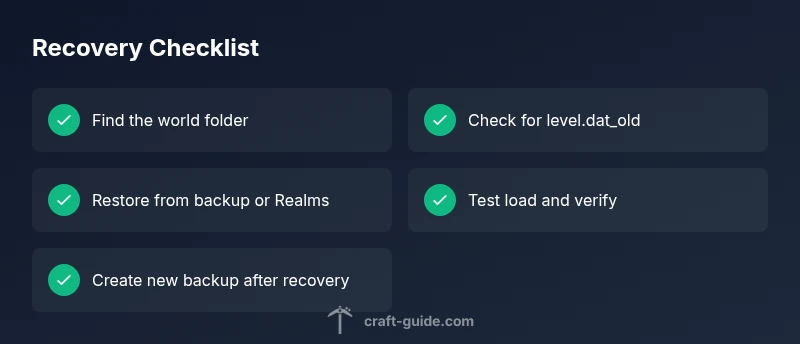
Steps
Estimated time: 2-6 hours depending on backup availability and world size
- 1
Confirm the active saves directory
Open your Minecraft launcher, go to settings, and note the game directory. Cross-check with the actual OS saves path (Windows: AppData, Mac: Library, Linux: .minecraft) and ensure you’re looking at the correct edition and profile.
Tip: Keep a note of all known saves folders for quick reference in future sessions. - 2
Search for the world folder in all locations
Use file search to locate a folder named after your world or any folder with the word 'world'. Copy any matching folders to a temporary location for testing, then attempt to load from the copied folder in-game.
Tip: Don’t load directly from an untrusted location; use a copy for testing purposes. - 3
Check for backups and autosaves
Look for a backups directory within the saves path or a world_bak/WorldName_bak file. If you find a backup, rename it to WorldName and place it in the active saves folder, then launch Minecraft to test.
Tip: Backups are often created automatically after significant changes or game crashes. - 4
Inspect level.dat and region files
If the world loads but shows errors, replace a corrupted level.dat with level.dat_old, if available. For partial corruption, you can restore some region files from a backup to recover portions of the world.
Tip: Editing binary files is risky; back up before making changes. - 5
Try cloud or Realms restoration
If you use Realms or cloud backups, open the Realms menu, locate a recent backup, and restore to a new world or replace the current one. Verify integrity after restoration.
Tip: Realms stores backups server-side; you may need to refresh its backup list. - 6
Test load and verify
After restoration or copying, start Minecraft with the new/restored world and verify key areas (spawn points, inventory integrity, builds). If it works, make a fresh backup immediately.
Tip: Document the restored path for future reference. - 7
Preserve your data going forward
Set up automated backups to an external drive or cloud service, and consider keeping periodic manual backups before major updates or mod changes.
Tip: Store backups in at least two separate locations for resilience. - 8
Know when to stop and seek help
If you still cannot recover the world after trying backups and level.dat restorations, consult a professional data recovery service or the Minecraft community for advanced recovery methods.
Tip: Never modify critical files without a verified backup.
Diagnosis: Player reports: 'Are my Minecraft worlds gone?' or the world disappears after launch or a crash.
Possible Causes
- highWorld folder misplaced due to multiple installations or launcher profiles
- highCorrupted level.dat or region files causing load failure
- highAccidental deletion or rename of saves folder or world
- mediumBackup or cloud save not recognized by the current game instance
- lowProfile-specific cache or syncing issues in Realms/Cloud saves
Fixes
- easyVerify the active game directory across all launchers and copy the world folder to a safe drive for testing
- easyRestore level.dat from level.dat_old if present, or replace corrupted region files with backups from Saves
- mediumRestore from a backup or Realms backup via the in-game Realm management interface or cloud restore
- hardIf the world was deleted outside of Minecraft, attempt data recovery using file history or professional services, only as a last resort
People Also Ask
Why did my Minecraft world disappear after an update?
Updates can alter file structures or move saves. Check the active game directory and look for renamed or moved world folders. Restore from backups if needed.
Updates can move or alter your saves. Check the right folder, then restore from backups if your world isn’t present.
How can I recover a deleted Minecraft world?
If you have a backup, restore it to the saves folder and load the world. If not, look for level.dat_old and backups within the world directory as potential recovery options.
If you have a backup, restore it. If not, search for level.dat_old and backup files in the world folder.
What is level.dat and why is it important?
level.dat stores world metadata and player data. If corrupted, the world may fail to load. Restoring level.dat_old or a backup can fix loading issues.
level.dat holds key world data. Replacing it with a good backup can fix loading problems.
My backups aren’t showing up. What now?
Verify backups are in the correct folder for the active game directory. If backups are on an external drive or cloud, ensure it's connected and recognized by the launcher.
Check the backup location and ensure the drive or cloud is accessible by the launcher.
Can I recover a world from Realms?
Yes. Open Realms, select Manage Backups, and restore a recent backup to a new world or replace the existing one. Verify integrity after loading.
You can restore from Realms backups via Manage Backups and load the recovered world.
When should I seek professional help?
If data appears permanently lost or you suspect hardware failure, consider professional data recovery or consult the Minecraft community for advanced methods.
If recovery seems impossible, seek professional data services or community guidance.
Are Java and Bedrock world files interchangeable?
No. Java and Bedrock store data differently and use separate folders. Make sure you’re loading the correct edition with the appropriate saves.
Java and Bedrock worlds aren’t interchangeable—load the right edition.
What is the quickest first step after a crash?
Immediately locate the correct saves directory and search for your world folder or backups before attempting edits to any files.
Right after a crash, find the saves folder and look for the world or backups.
Watch Video
The Essentials
- Back up saves before making changes
- Verify correct saves directory across editions
- Restore from backups or level.dat_old first
- Realms cloud backups can rescue missing worlds
- Document recovery steps to repeat later