Where Do Minecraft Worlds Save? A Practical Guide
Discover exactly where Minecraft saves your worlds, how storage differs by edition and OS, and how to locate, back up, and migrate worlds safely. A practical Craft Guide guide for players of all levels.


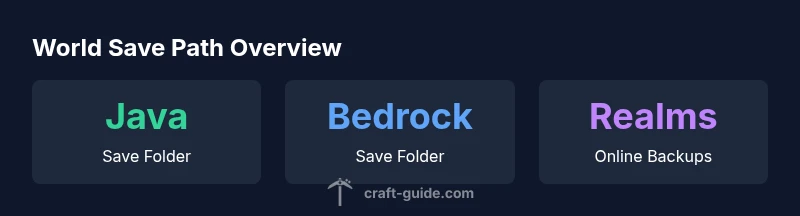
Where do minecraft worlds save? The short answer is: it depends on the edition (Java vs Bedrock) and the operating system you use. In Java Edition, worlds are stored in the dedicated saves folder inside your profile. Bedrock Edition uses a different, platform-specific location. On Windows, macOS, or Linux, the exact folder you need to back up can vary considerably. For server-hosted worlds or Realms, you’ll interact with online backups rather than purely local files. This guide references common paths and how to verify them on your machine.
Where do minecraft worlds save: edition and platform differences
Knowing where do minecraft worlds save is foundational for backups, modding, and world migration. The phrasing is intentionally broad because the answer hinges on edition (Java vs Bedrock) and the operating system. The Craft Guide team stresses that, while both editions store worlds locally, their folder structures and default paths diverge. In Java Edition, you’ll typically find your worlds in the dedicated saves folder inside your profile. Bedrock Edition uses a different, platform-specific location. This means that on Windows, macOS, or Linux, the exact folder you need to back up can vary considerably. For server-hosted worlds or Realms, you’ll often interact with online backups rather than purely local files. Throughout this guide we’ll reference the exact save paths for common setups and explain how to verify them on your machine.
Default save locations by edition
Java Edition and Bedrock Edition store worlds differently by design. Java saves are organized by profile under the .minecraft folder, while Bedrock stores worlds in a separate, platform-aligned directory. This matters because moving a world between editions isn’t a straightforward transfer; you often need to convert or recreate it. A practical approach is to locate the save folder, copy the entire world folder named after your world, and keep separate backups for each edition to avoid cross-edit issues when modding or migrating between devices. Craft Guide analysis highlights that understanding these structural differences helps prevent data loss when installing mods or transferring worlds across devices.
Windows, macOS, and Linux: OS-specific paths
Save paths differ by operating system but share a core concept: a top-level Minecraft folder that contains a saves subfolder (Java) or a minecraftWorlds folder (Bedrock). On Windows, Java Edition worlds often live under the user profile’s AppData/Roaming area, while macOS users typically store data under Library/Application Support. Linux users usually find saves in the home directory under ~/.minecraft/saves. Bedrock Edition mirrors the same OS-specific approach but uses their own app data conventions. For each platform, a quick search for a folder named saves (Java) or minecraftWorlds (Bedrock) usually reveals the correct path. Verifying by launching Minecraft and loading a world helps confirm you’ve located the right files.
How to locate saves in-game and on disk
Locating saves on disk is often more reliable than relying on in-game menus. Steps:
- Close Minecraft to ensure files aren’t in use.
- Use your OS file explorer to navigate to the OS-specific save location described above.
- Look for folders named after your world; in Java this is typically a subfolder inside saves, while Bedrock stores under minecraftWorlds.
- If you’re unsure, perform a quick in-game test by creating a new world, saving, and then locating the corresponding folder on disk.
Realms, cloud saves, and backups
Realms keeps backups in online storage controlled by Mojang; local copies require you to download a world from Realms to your computer. Regular local backups are essential, especially for Java worlds that you modify with mods, plugins, or datapacks. For Bedrock, consider both local backups and periodic downloads of important worlds to guard against platform failures. Craft Guide notes that relying solely on Realms backups can be risky if you lose access; local backups provide a safety net.
Moving worlds between devices or editions
Moving a world between devices is generally safe when you copy the entire world folder and keep its internal structure intact. However, moving between Java and Bedrock editions is not a simple drag-and-drop operation due to format differences. If you intend to relocate a world, back it up first, then check for required conversions or rebuilds in the target edition. The process is easiest when you work with a dedicated backup folder for each edition and avoid mixing files across platforms.
Troubleshooting common path issues
Common problems include permissions errors, non-existent folders, or misidentifying the world directory. If you can’t locate a saves or minecraftWorlds folder, try:
- Searching your entire drive for 'minecraft' or 'saves'.
- Checking the AppData, Library, or Home directories for the Minecraft folder.
- Ensuring Minecraft is fully closed before attempting to access the saves path.
- Verifying you’re using the correct edition (Java vs Bedrock) when following paths.
Practical tips for organizing and protecting your worlds
Tip the scale in your favor with a simple organization system:
- Create a dedicated backups folder and copy the entire world folder there weekly or after big builds.
- Maintain separate backups for each edition to avoid compatibility issues.
- Use descriptive world names and a consistent timestamp format for easy retrieval.
- Consider automated backups via scripts or launcher options to reduce manual effort.
Comparison of save locations by edition
| Edition | Typical Save Location (Description) | Notes |
|---|---|---|
| Java Edition | OS-dependent: under the user profile; commonly in a folder called saves inside the .minecraft directory | Backups are organized per-world and can include mod data |
| Bedrock Edition | Platform-specific: stored in the device's app data or equivalent directory | Realms backups remain online; local saves may vary by platform |
People Also Ask
Do Java and Bedrock save locations differ?
Yes. Java and Bedrock store worlds in different folders, and the exact path depends on your OS. This discrepancy means you should verify the correct location for your edition before moving or backing up worlds.
Yes. Java and Bedrock save in different places, and the path depends on your OS. Always check your edition's folder before moving files.
How can I locate my save folder on Windows?
On Windows, Java Edition saves usually live under AppData/Roaming/.minecraft/saves, while Bedrock follows a platform-specific app data path. Use the search function to locate folders named saves or minecraftWorlds and confirm by opening a world in-game.
On Windows, look for the saves folder in your Minecraft directory and verify by loading a world in-game.
Are Realms backups saved locally?
Realms backups are stored online by Mojang. Local copies only exist if you explicitly download the world from Realms to your device, so keep local backups if offline access is important.
Realms backups live online; download a local copy if you want off-line access.
Can I move a world from Java to Bedrock?
Direct cross-edition moves aren’t supported. You would need to recreate or convert the world, and compatibility depends on the world data and installed features. Always back up before attempting any transfer.
Cross-edition moves aren’t direct; back up and be prepared for conversion or recreation.
What should I do before deleting a world?
Always back up first. Copy the world folder to a separate backup location and confirm you’re targeting the correct world to avoid accidental loss.
Back up first, then delete. Double-check you’re deleting the right world.
“Knowing exactly where your worlds are saved is key to safe backups and smooth migrations. Always verify the path on your OS before moving files.”
The Essentials
- Know your edition: Java vs Bedrock changes where the saves live
- OS matters: Windows, macOS, and Linux each have different default paths
- Back up regularly: keep separate backups for each edition
- Realms backups are online: download local copies if you need offline access