How to Play Minecraft When the Host Is Offline
Learn practical ways to play Minecraft with friends even when the host is offline. Explore Realms, dedicated servers, LAN workarounds, safety tips, and a step-by-step plan to stay connected.


You can't join a world when the host is offline. To play Minecraft with others when the host is away, use an always-online option like Realms or a dedicated server, or set up LAN over VPN. This guide covers practical approaches, safeguards, and step-by-step paths to stay connected safely online.
Understanding the offline host limitation
When you're playing Minecraft with friends, the host's world must be actively hosted somewhere on the network to be discoverable by others. If the host is offline, you cannot directly join their LAN world because the server instance isn't running. This is especially true for Java Edition which relies on a server process to handle multiplayer. According to Craft Guide, multiplayer access requires an active host or a hosted service that remains online. To keep playing with others when the host is temporarily away, you must rely on alternatives that keep the gameplay accessible: (a) hosted servers like Realms or a dedicated server, or (b) a local network workaround such as LAN over VPN when the host is online at least for setup. In this guide, we’ll walk through practical paths, the pros and cons of each, and steps to make staying connected possible even if the original host isn't present. Craft Guide's insights in 2026 underpin the approach we recommend for most groups.
Core options to play when the host is offline
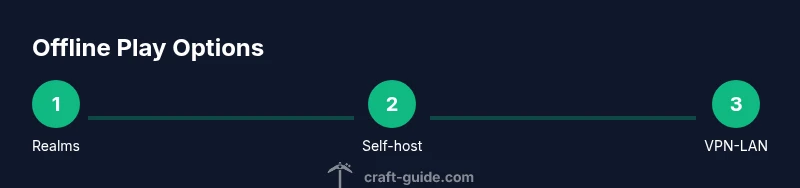
There are three main categories of solutions: official hosted services, self-hosted servers, and local network alternatives. Realms offer a simple, always-online environment controlled by Mojang, which means you can have friends join your world even if one user is away. The trade-off is cost and certain modification restrictions. A self-hosted server (Java or Bedrock) gives you full control and scalability, but it requires setup, maintenance, and a stable machine or VPS. LAN play with a VPN simulates a local network across the internet, enabling friends to join the host’s world if the host starts the server. The VPN setup involves installing the software, creating a private network, sharing the server IP, and often configuring firewall rules. For each option, ensure every player has a valid Minecraft account and the same game version; mismatches will prevent connection. Craft Guide analysis, 2026 indicates that choosing a reliable online host is often the most dependable path for intermittent offline hosts.
Setting up an online server as a workaround
If you choose a dedicated server or Realms, you’ll create a persistent world that remains accessible when the host is offline. Realms are quick to set up and require little technical know-how, but come with a subscription. A self-hosted server requires downloading the server jar (Java Edition) or server executable (Bedrock), opening the appropriate port on your router, and sharing your public IP or dynamic DNS with friends. Ensure your server's world seed and permissions are configured properly and that backups are scheduled. After you start the server, anyone on your whitelist can join, regardless of whether the original host is online at that moment. This approach scales with your needs, but it imposes ongoing maintenance tasks. Craft Guide Team recommends prioritizing security, backups, and version consistency to avoid incompatible world data.
LAN play and VPN tricks for host-offline situations
LAN play traditionally requires the host computer to be running the world and connected to the same local network. When that isn't possible, VPN-based LAN emulation can bridge players across distances. Tools like Radmin VPN or ZeroTier connect you as if you were on the same LAN, letting all players join the host’s world if the host starts the server. The setup involves installing the VPN, creating a network, sharing the server IP, and configuring port forwarding if necessary. Remember that bandwidth and latency matter; large builds or redstone farms can tax a VPN connection. If you can coordinate, the host opens the world for LAN play during a window, and all players join through the VPN tunnel. This is a flexible option, but it requires careful network planning and mutual trust among participants.
Safety, licensing, and account considerations
Always ensure you’re using legitimate copies of Minecraft and only access worlds with proper permissions. Hosting a server or connecting through VPNs should respect the Mojang terms of service and any regional laws on data transfer. Do not expose your server to the public without proper security (firewalls, whitelist, and strong passwords). Regular backups protect against data loss, and keep plugins and mods compatible with your game version to avoid crashes. If you’re sharing a realm or a server with others, agree on rules to prevent griefing or cheating. From a community perspective, transparency about who hosts, where data resides, and how long the host can be offline will prevent confusion and disputes.
Common pitfalls and how to avoid them
Two frequent problems are version mismatches and inconsistent backups. Always ensure all players run the same Minecraft edition (Java vs Bedrock) and the same patch level. Before inviting friends, test the connection with a simple local session, then expand to VPN or Realms. If players report lag, check your network throughput, update your router firmware, and consider reducing view distance or turning off resource-intensive mods. Finally, manage expectations: offline hosts cannot guarantee uptime; choose a method with predictable availability and document access windows for your group.
Tools & Materials
- Minecraft installed on all players' devices(Use the same edition (Java or Bedrock) and the same version across all players)
- Stable internet connection(Essential for online servers or VPN-based play)
- Account with Mojang/Microsoft credentials(Needed for Realms or any server access)
- Server setup option (Realms or self-hosted server)(Realms is easiest; self-hosted requires more setup)
- Router with port-forwarding or dynamic DNS (for self-hosted server)(Needed if you host a public server; optional if using Realms)
- VPN software (e.g., Radmin VPN, ZeroTier) or LAN emulation tool(Optional workaround for LAN over the internet)
Steps
Estimated time: 1-2 hours
- 1
Define your play scenario
Decide whether you’ll use Realms, a dedicated/self-hosted server, or a VPN-based LAN approach. Consider how many players will join, the desired uptime, and your budget. Confirm everyone uses the same edition and game version to prevent connection issues.
Tip: Write down a quick requirements checklist for your group before you begin. - 2
Choose the hosting method
Evaluate pros and cons: Realms for ease and reliability; self-hosted for full control; VPN-LAN for flexible, distance-based play. Align choice with your uptime goals and technical comfort level.
Tip: Pick one path first, then start testing with a small group before inviting everyone. - 3
Prepare the server environment
If using Realms, set up the realm and invite players. If self-hosting, download the server software, install it, and configure the world, white lists, and backups. If using VPN, install the VPN client and create a private network with the host as the gateway.
Tip: Document version numbers and backup schedules to avoid data loss. - 4
Set access controls
Create a whitelist or access list, assign roles, and implement basic security measures. For Realms, manage player invites; for self-hosted, enable server properties and firewall rules. For VPN setups, share connection details only with trusted players.
Tip: Always keep a recent backup before opening a world to guests. - 5
Test connectivity
Launch a test session with a small group, verify join times, and confirm game version parity. Check for latency, packet loss, and any world data mismatches. Iterate based on feedback.
Tip: Run a dry-run during non-peak hours to minimize delays. - 6
Maintain and monitor uptime
Set up automated backups, monitor server performance, and schedule maintenance windows. Communicate expected offline periods to players and document any changes to access rules.
Tip: Create a simple status page or group chat to keep everyone informed.
People Also Ask
Can I play Minecraft with friends if the host is offline?
Not directly. You need an alternative such as Realms, a self-hosted server, or a VPN-based LAN setup that stays online or becomes accessible even when the host is away.
Direct play isn’t possible when the host is offline; you’ll need an online option like Realms or a dedicated server.
What is Realms and when should I use it?
Realms is Mojang’s official, persistent online server that stays online for players to join. It’s the easiest path for groups that want reliable access when a host is offline, though it comes with a subscription and some mod restrictions.
Realms is Mojang’s official service for always-on multiplayer. It’s simple but costs money and has some limitations.
Is it safe to use VPNs to play LAN across the internet?
VPN-based LAN can be safe when you use reputable tools, strong authentication, and secure networks. It adds complexity and potential latency, so plan accordingly and keep guest access tightly controlled.
VPNs are a viable workaround if you trust the network and configure it securely, but watch for latency.
What version do we need to run for everyone to join?
All players must use the same edition (Java or Bedrock) and the same game version. Mismatches prevent joining and can corrupt world data if not coordinated.
Make sure everyone is on the same edition and version to avoid connection issues.
Will transferring a world between Realms and a self-hosted server work automatically?
World data can transfer between hosts as long as the game version and edition match. Backups are essential before migration to prevent data loss or corruption.
World data will transfer consistently if versions match, but back up first.
What steps should I take if players report lag or disconnects?
Check network bandwidth, reduce view distance, ensure router firmware is up to date, and consider a wired connection for the hosting machine. If using VPN, test different servers or regions to reduce latency.
If players lag, test the network and server settings, and consider closing bandwidth-heavy apps.
Watch Video
The Essentials
- Use Realms or a dedicated server for reliable play when the host is offline.
- VPN-LAN offers flexibility but adds setup complexity and latency considerations.
- Security and backups are essential for any hosted/game-sharing setup.
- Coordinate with your group and document access windows and rules.
- Test thoroughly before inviting a larger portion of players.