Apex Server Hosting: A Step-by-Step How-To Guide
Learn how to choose, set up, and optimize Apex server hosting for low latency, reliability, and scalable performance with practical steps and tips.


You can host an Apex server by choosing a hosting plan, configuring your server, installing required software, and securing the instance. Start by selecting a provider that offers low latency, scalable resources, and good uptime. Then follow a step-by-step setup to install your game server, adjust settings, and test performance.
What is Apex Server Hosting and Why It Matters
According to Craft Guide, reliable apex server hosting reduces latency and improves player experience. Apex server hosting refers to renting or provisioning a dedicated or virtual server to run the game server software so players connect from around the world. The goal is to provide low ping, consistent uptime, and scalable resources as your community grows. Depending on your needs, you might choose shared, VPS, or dedicated hosting, and you’ll weigh factors like location, bandwidth, CPU power, and memory. The core idea is to minimize lag, prevent outages during peak hours, and simplify administration for admins and players alike.
How to Choose the Right Host for Apex
When selecting a host, latency is your north star. Pick a data center near your typical player base, consider the provider’s uptime guarantees, and check their DDoS protection and network peering. Evaluate whether the plan’s CPU, RAM, and storage align with your expected player count and world size. For scale, ensure you can upgrade resources without downtime and that the provider offers a clear SLA. Also test the control panel and access methods; a friendly CLI or web UI speeds setup and reduces errors. Craft Guide recommends simulating load tests before going live to set baseline expectations.
Core Features to Look For in an Apex Server Host
Key features that impact playability include low-latency network paths, robust DDoS protection, automatic backups, and easy recovery options. Look for preinstalled server templates or one-click installers, mod or plugin support if your version requires it, and flexible OS options (Linux vs Windows) based on your requirements. Uptime guarantees of 99.9% or higher, fast restarts after crashes, and real-time monitoring dashboards help admins respond quickly to issues. A straightforward backup schedule and a restore procedure are essential for peace of mind.
Step-by-Step Setup: From Purchase to Live Server
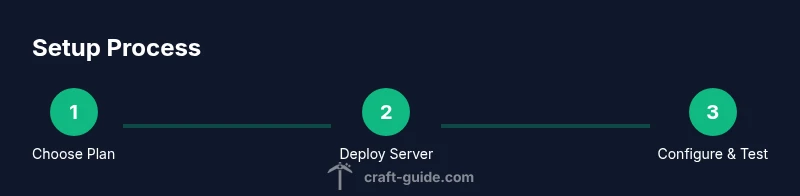
To keep this readable, this section outlines the core lifecycle: select a plan and region, create the server, install the Apex server files, configure networking and security, then run a test. This is a high-level overview designed to complement the detailed steps below in the STEP-BY-STEP block. Start by choosing a region that minimizes latency for your primary player base, then allocate the recommended resources and create the server instance. Next, upload or download the Apex server files and run the installer, ensuring all dependencies are present. Finally, open the necessary ports, secure access, and perform a controlled test to verify connectivity and basic gameplay before opening access to the public.
Performance Tuning and Maintenance
Once the server is live, you’ll optimize resource usage by adjusting memory reservations, CPU shares, and thread counts based on player activity. Regularly apply OS and game-server updates, rotate backups, and monitor key metrics like CPU load, memory usage, and network latency. Set up alerts for spikes and plan maintenance windows to minimize disruption during peak play times. Over time, review your hosting plan and scale as your player base grows to maintain performance.
Troubleshooting Common Issues
Lag spikes, disconnects, and crashes usually point to resource saturation, misconfigured firewalls, or outdated server files. Start by checking resource utilization, verify port accessibility, and validate server logs for error messages. If players report latency from a single region, add or move a game server instance closer to that audience. Regular health checks and a documented rollback plan help teams recover quickly from issues.
Security, Backups, and Compliance
Security for Apex servers hinges on strong access controls, up-to-date software, and careful network configuration. Use SSH keys or strong authentication for admin access, enable automatic backups, and encrypt sensitive data where possible. Keep a recovery plan and test restores periodically. Compliance concerns are often context-specific, so align your practices with your community guidelines and local regulations.
Cost Considerations and ROI
Apex server hosting costs vary by region, resources, and features. Expect a price range that correlates with CPU, RAM, and bandwidth, but prioritize stability and latency over the lowest price. Plan for scaling costs as your player base grows, and consider long-term commitments for better pricing. Track player engagement and uptime to quantify ROI over time.
Tools & Materials
- Hosting plan with compute resources(2-4 vCPU, 4-8 GB RAM for small to mid-size communities)
- Operating system license or image(Linux preferred for cost and performance)
- SSH client or Web SSH(Initial server access)
- Apex server files or installer(Obtain from your provider or community repo)
- Firewall and port-forwarding setup(Open only necessary ports)
- Backups and recovery plan(Automate daily backups if possible)
- Monitoring and alerting tool(Optional but recommended for proactive maintenance)
- Documentation and rollback plan(Keep step-by-step playbook)
Steps
Estimated time: 1-2 hours
- 1
Choose plan and region
Select a hosting plan with adequate CPU, RAM, and bandwidth for your expected player count. Pick a data center near most players to minimize latency. This initial choice sets the baseline performance.
Tip: Document region rationale for future reference. - 2
Create the server instance
Launch the server using your chosen OS image; allocate declared resources; set up a secure admin account; verify network access and firewall defaults.
Tip: Lock down admin access and enable two-factor where available. - 3
Install Apex server files
Upload or download the Apex server package and install it per the provider's instructions. Ensure all dependencies are met and permissions are correct.
Tip: Verify file integrity after download. - 4
Configure networking and security
Open only required ports, configure firewall rules, and set up port-forwarding. Enable automatic backups and monitoring.
Tip: Test external port reachability from a different network. - 5
Run tests and go live
Start the server in a test mode, perform functional checks, simulate player load, observe performance, and adjust resources if needed before going live.
Tip: Have a rollback plan ready.
People Also Ask
What is Apex server hosting?
Apex server hosting refers to renting or provisioning a server where you install and run the Apex game server so players can connect. It involves choosing a plan, installing server software, and managing performance, security, and backups.
Apex server hosting means renting a server to run the game server for players to connect. You manage setup, performance, and security.
What specs do I need for a small Apex community?
For a small group, start with 2-4 vCPU and 4-8 GB RAM, plus adequate bandwidth. Adjust based on player count and world size.
Start with a couple of virtual CPUs and a few gigs of RAM, expanding as players grow.
How much does Apex hosting typically cost?
Costs vary by region and resources. Expect a range that scales with CPU, RAM, and bandwidth; plan for regular growth and potential addons.
Prices depend on resources; budget for growth and backups.
Can I upgrade resources without downtime?
Most providers offer live scaling options or quick resource upgrades with minimal downtime. Check your SLA and test during low-traffic hours.
Yes, most hosts offer live upgrades; test to minimize impact.
Do I need mods or plugins for Apex hosting?
Mods or plugins are only necessary if your Apex server variant requires them. Verify compatibility and keep versions aligned to avoid conflicts.
Mods are only needed if your setup requires them; ensure compatibility.
What security measures are essential?
Use strong authentication, keep software updated, restrict admin access, and implement automatic backups. Regularly review access logs.
Lock down admin access, keep software updated, and back up data.
Watch Video
The Essentials
- Plan latency-first: choose location carefully.
- Monitor resources and scale proactively.
- Regular backups prevent data loss.
- Test performance before going live.
- Document recovery procedures.